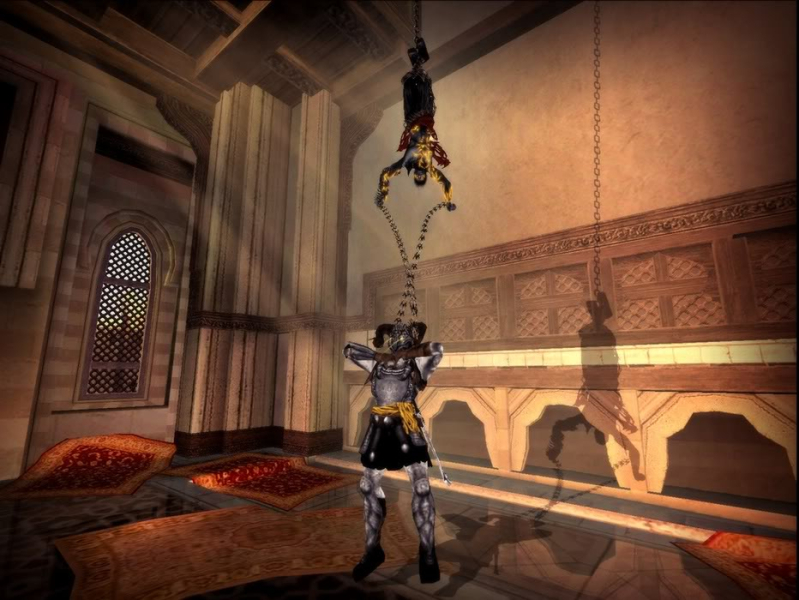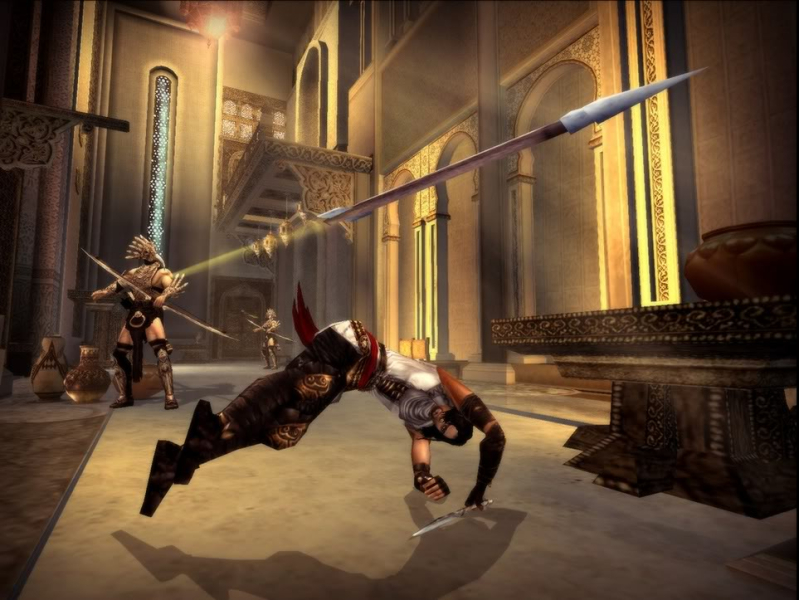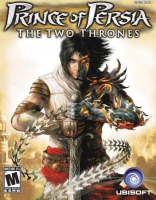


Prince of Persia: The Two Thrones follows the second ending of Prince of Persia: Warrior Within, in which the Prince kills the Dahaka, essentially saving Kaileena. The game opens with the Prince and Kaileena about to sail into Babylon's port. Kaileena offers narration of the events passed and the story following, similar to the Prince's role as both protagonist and narrator in The Sands of Time.
Support Summary
Game Information
Screenshots Comparison
Solutions & Issues
New HOR+ Solution: Use INI Hack from ps2wide.net
1. Extract the Files to your root Gamedir
2. Edit resolution in pop3.ini
___________________________________________________________________________________________________________________________________________________________________
OLD Solution:
Prince of Persia: The Two Thrones has native widescreen support. However the game's executable limits widescreen resolutions to those with aspect ratio 16:9, for example 1920x1080. To use widescreen resolutions with an aspect ratio of 16:10 open "pop3.exe" from your game's install directory in a hex editor of your choice and search for the following hex values:
"1C C7 71 1C C7 71 FC 3F"
This is just the hexadeximal representation of the rounded floating-point value 1.78 (16/9). Replace this with "9A 99 99 99 99 99 F9 3F" (which is the rounded float value 1.6=16/10). This solution probably only works for unprotected executables. The modified executable will only be capable of displaying 4:3 and 16:10 resolutions, whereas 16:9 won't work anymore.
So, essentially what this number does within the game is act as a selector of detected resolutions. All detected resolutions are in the Hardware.ini file. The resolutions you will be able to select in-game are the detected resolutions which match the aspect ratio represented by the hexidecimal number(s) mentioned above.
This works also for other more exotic aspect ratios:
1: Find out your aspect ratio by typing in the wanted resolution here:
http://www.digitalrebellion.com/aspect_calc.htm
2: Convert the rounded aspect ratio number to a double precision 64bit hexidecimal here:
http://babbage.cs.qc.edu/IEEE-754/Decimal.html
3: The byte order of this hex number must be reversed (LSB first) when using it in the above procedure. The following example might be helpful.
For example, suppose you want to select 1360x768. The rounded aspect ratio for this resolution is 1.77. Entering this on the link mentioned above and clicking on the "rounded" button will yield a double prescicion hexidecimal number of 3FFC51EB851EB852. Reversing the byte order of this number results in the following value which can be inserted into the executable:
"52 B8 1E 85 EB 51 FC 3F"
HOR+ same Solution as in Widescreen.
HOR+ same Solution as in Widescreen.
Gameplay Screenshots


In-Game (Rendered) Cutscenes
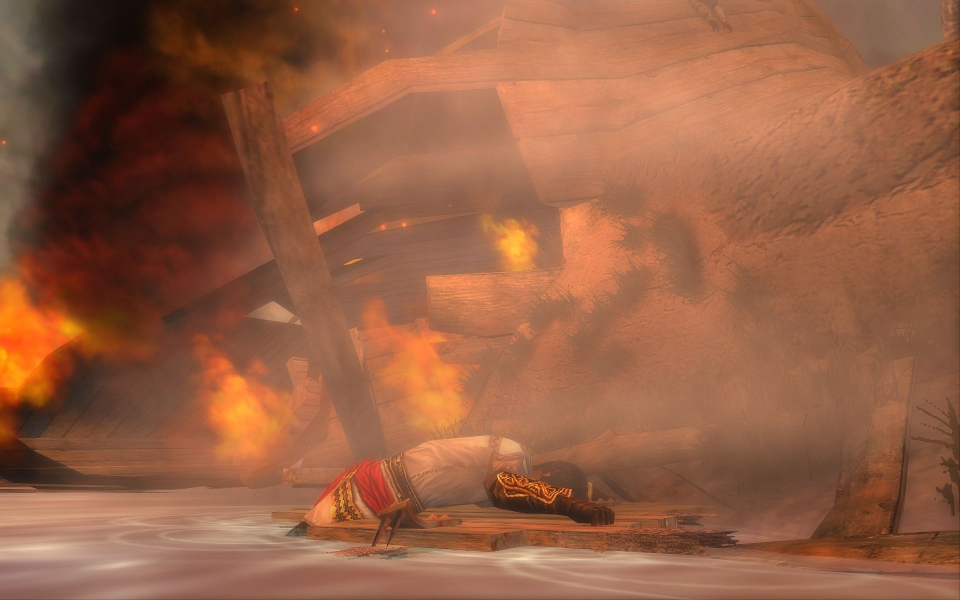
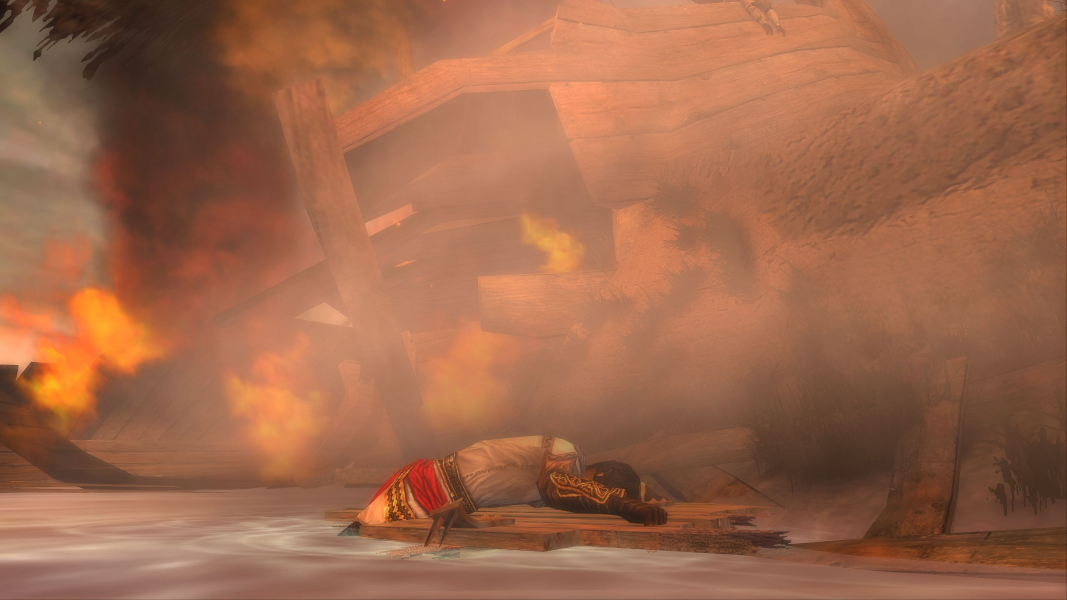

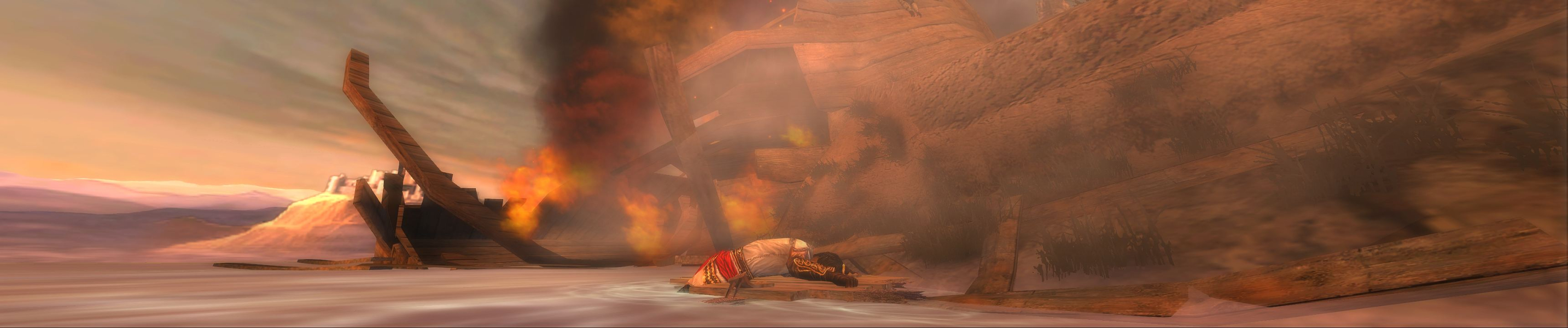
FMV Cutscenes
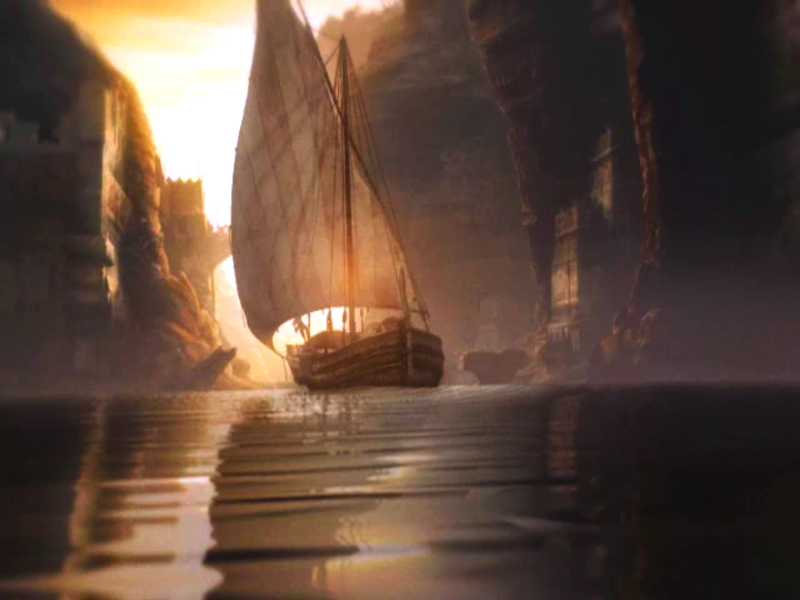
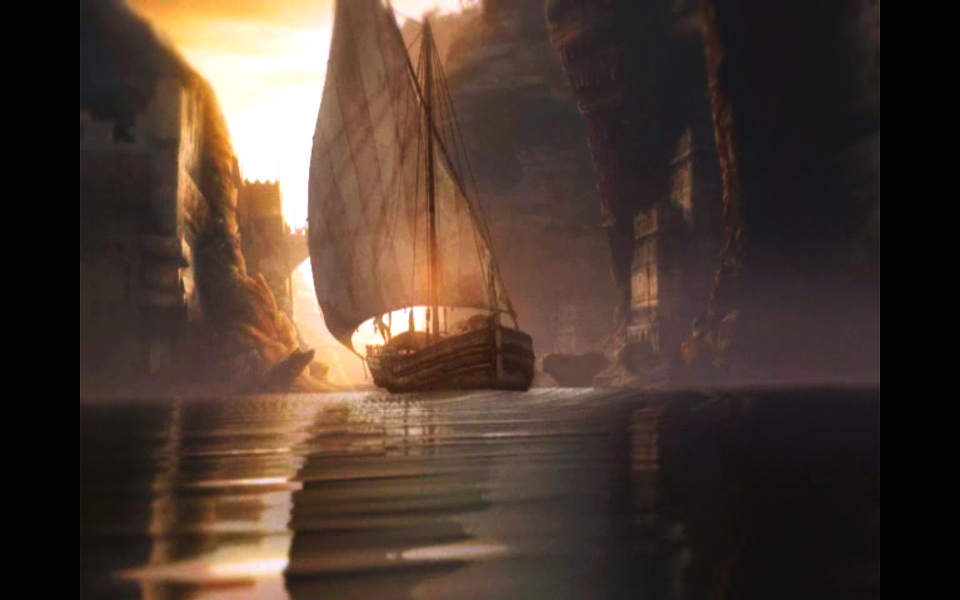

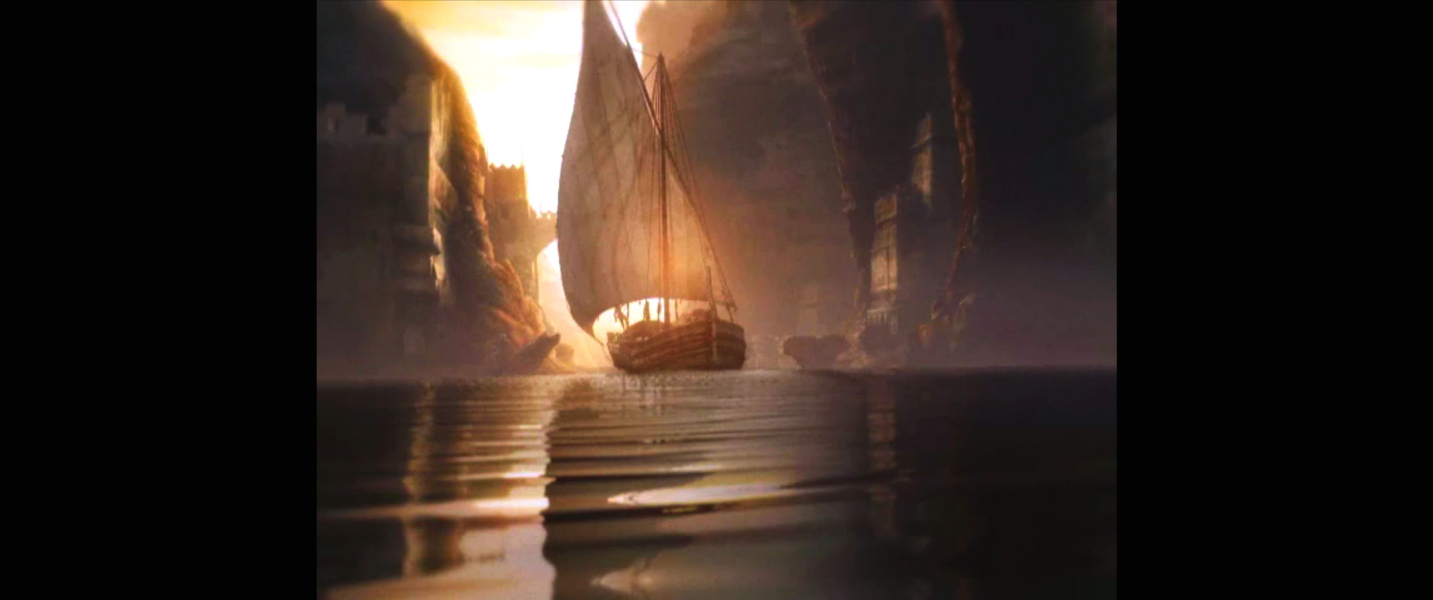

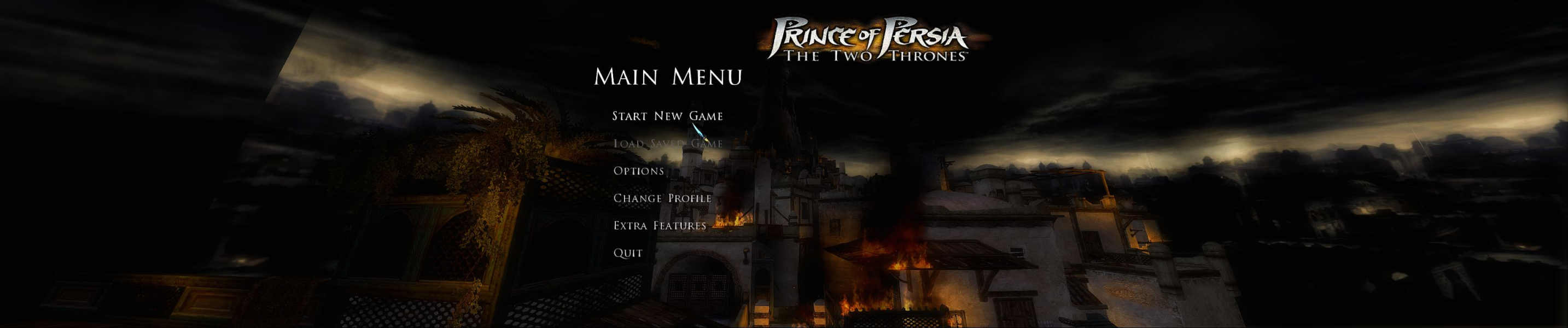
Menu Screenshots
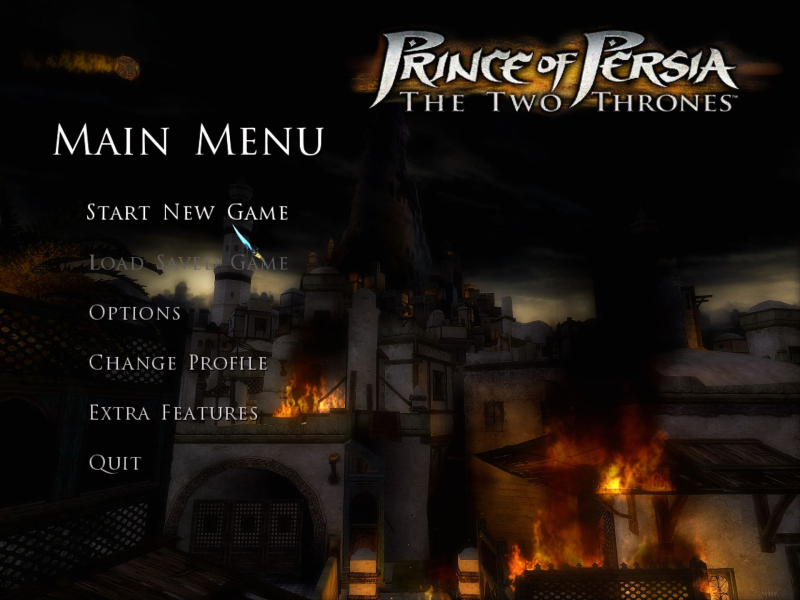

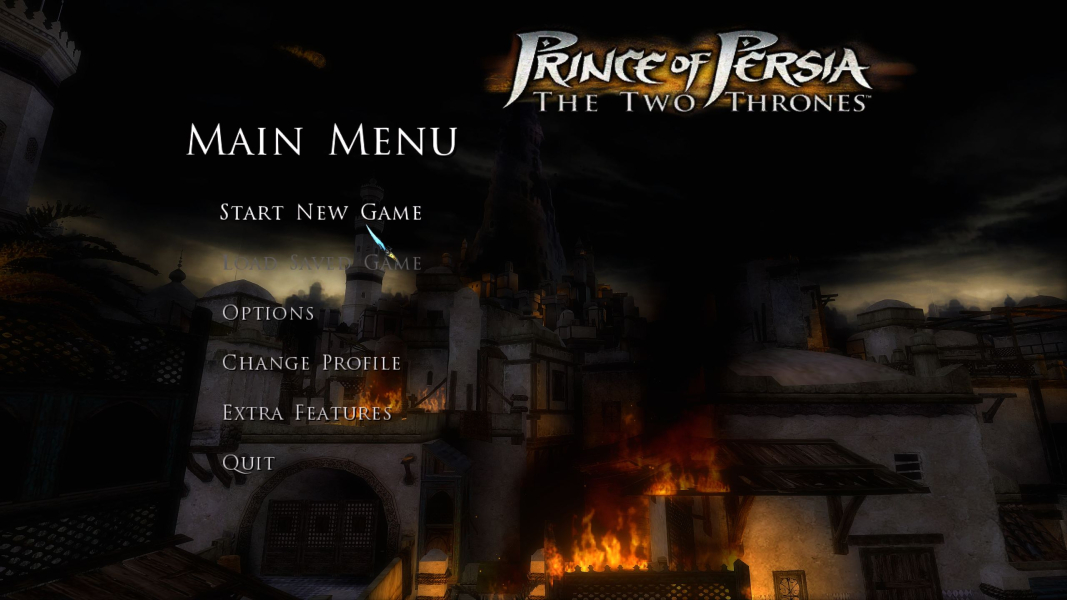

Additional Screenshots