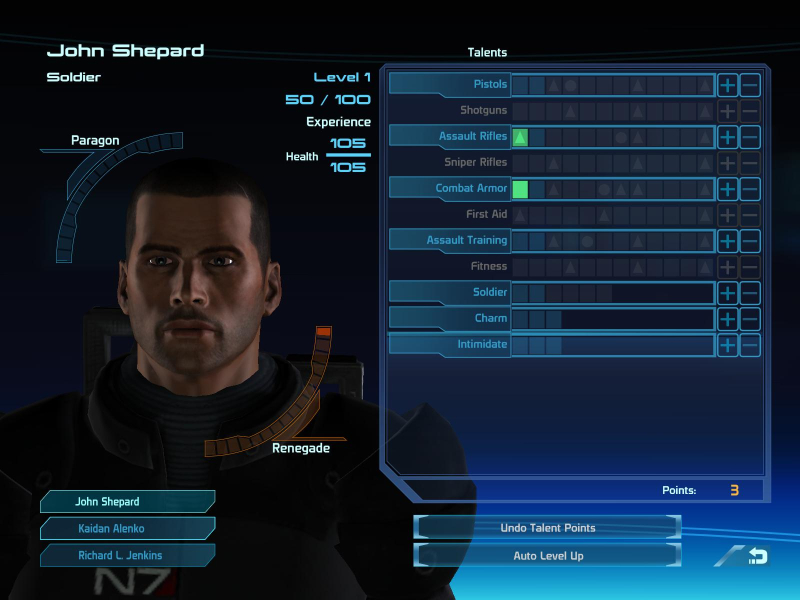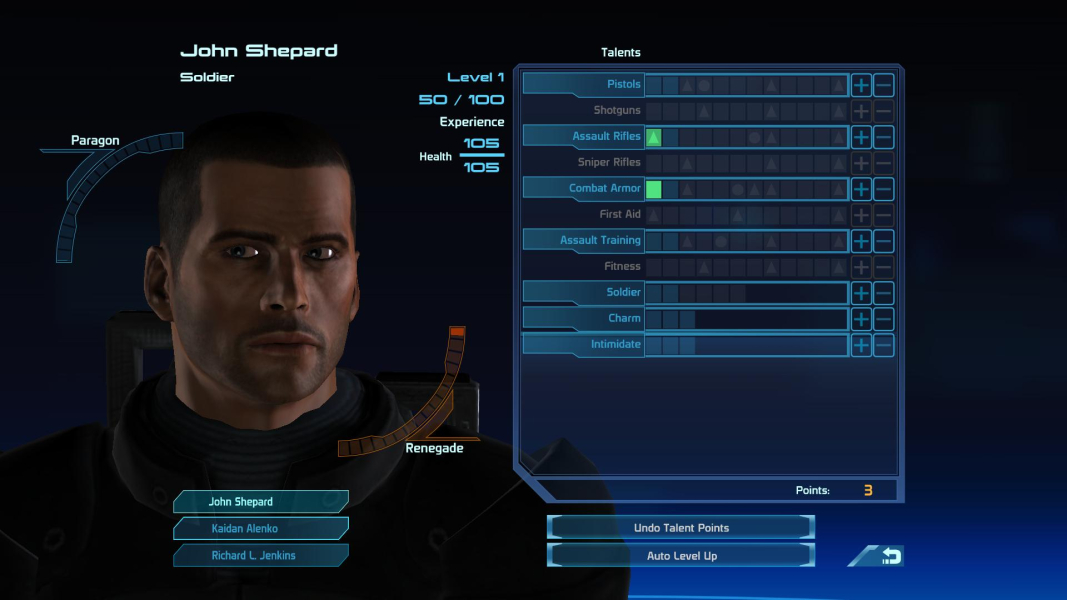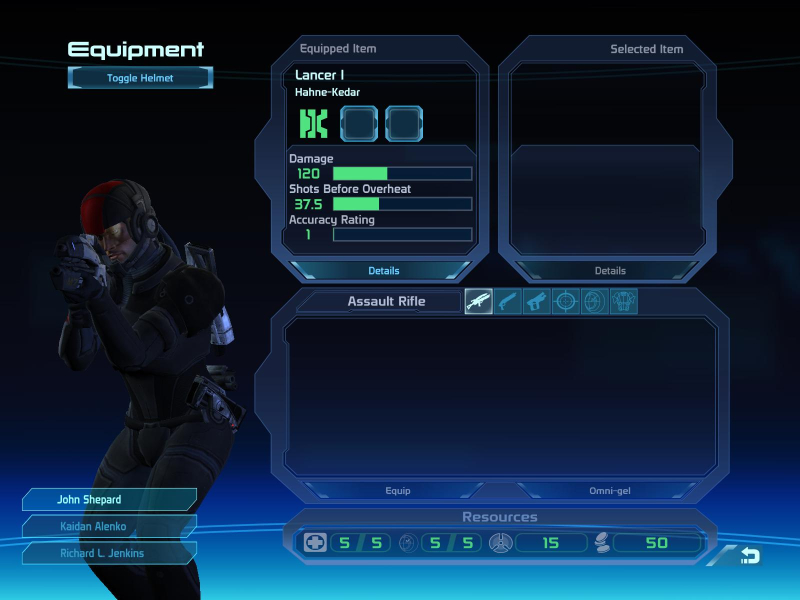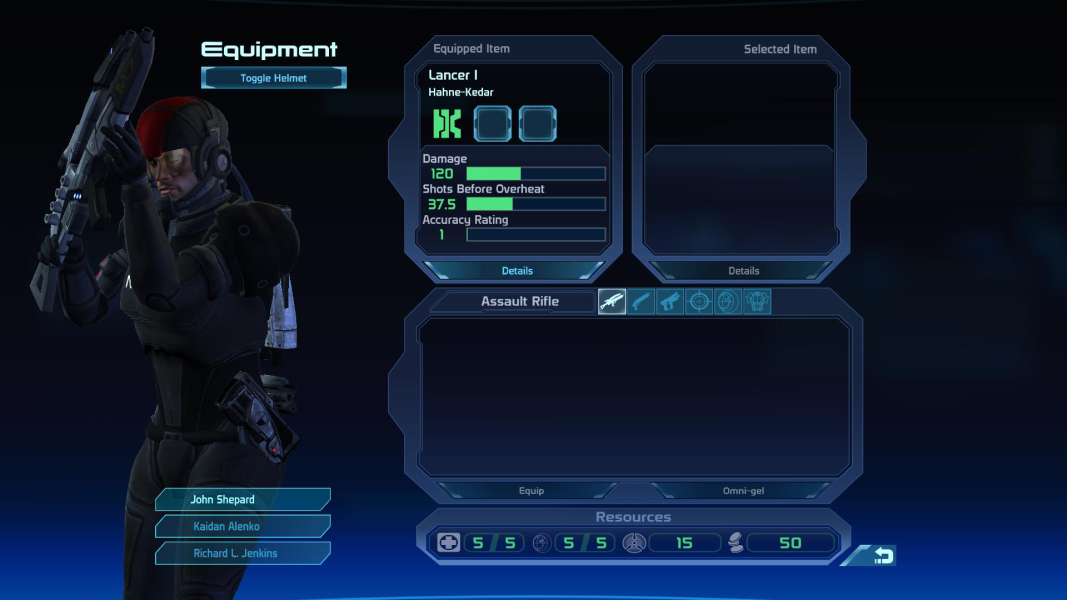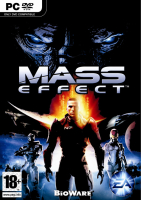


This game is an action RPG set in space. Combat is real time with the ability to pause the action and strategize à la KOTOR.
Downloadable content will be available from Bioware for this PC version.
Alien interaction time.
Support Summary
Game Information
Screenshots Comparison
Solutions & Issues
Helifax solution:
Fixes:
- Correct fov
- Proper scale of HUD
- Centered HUD
- Cutscenes rendered nicely on center monitor (no modifications here)
- Support for both Retail version and Steam Version (Origin version not yet supported)
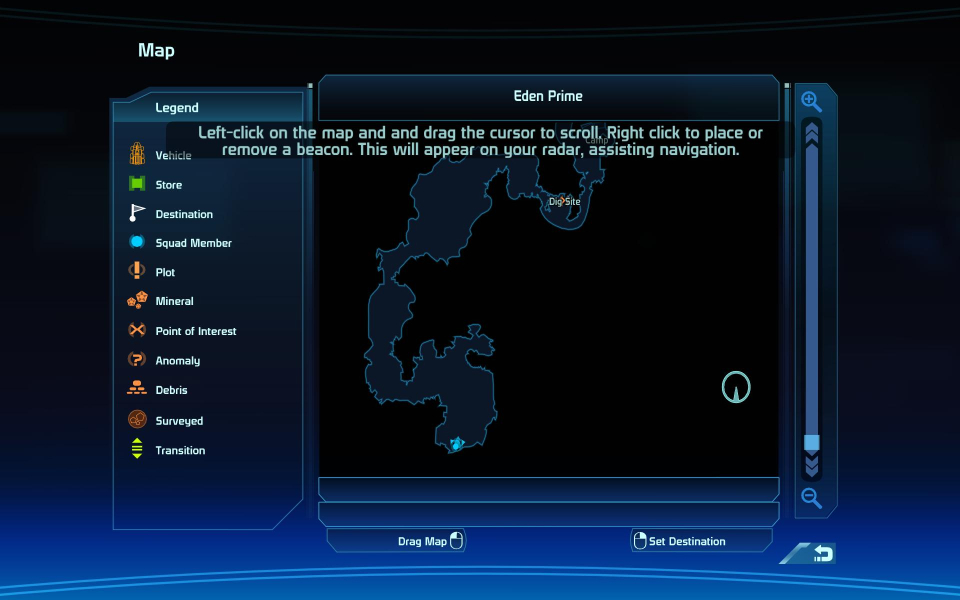
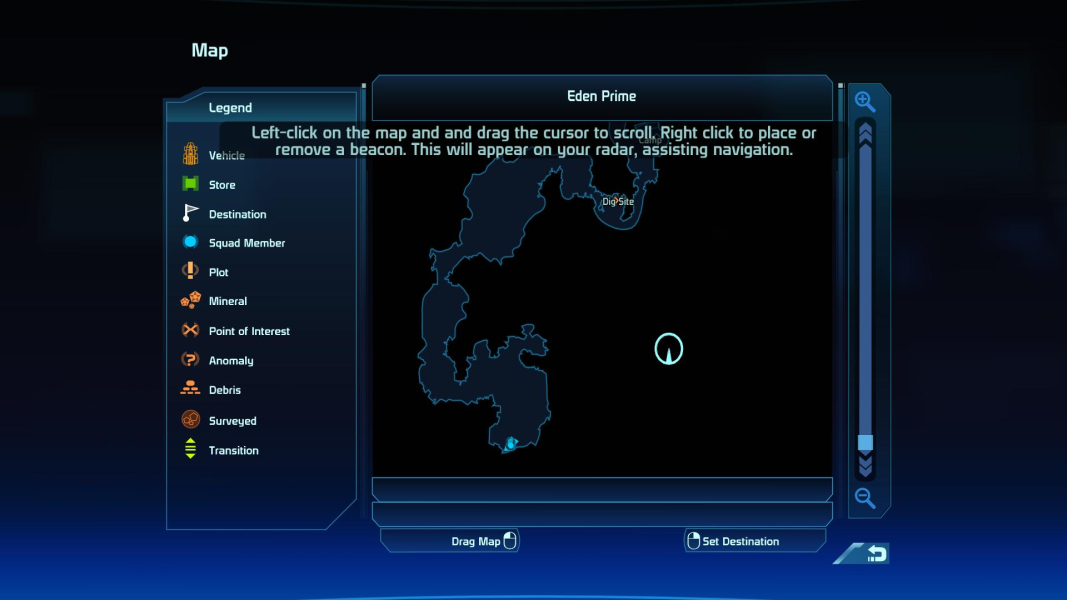
Mako & Map Fovs not corrected. I suggest you use a fov fix via ini file when using these 2 modes.
Simply download the latest WSF, configure the plugin and run it:
http://www.widescreenfixer.org/
Two-dimensional screens are Hor + with rendered elements on these screens being Vert - in widescreen resolutions.
Ultra-Wide 21:9 Support Configuration:
For 3440x1440 (21:9):
* Select 3440x1440 in the game's video or display settings.
* Install Flawless Widescreen and load the Mass Effect plugin, enable all settings, increasing/decreasing the FOV adjustment if you wish.
* In Flawless Widescreen go to Settings > Display Detection and configure the section as follows:
+ At the bottom right, click on "Enable Display Detection Override" than put in these values:
- Width: 3440
- Height: 1440
- Hud Width: 2560 - if you want this closer to center change this value to 1920.
- Hud Height: 1080 - if you prefer to have the HUD at the very top/bottom of your monitor set this value to 1440. Don't change to 1440 if you set Hud Width to 1920.
- Horizontal Display Count: 1
- Vertical Display Count: 1
- Hud X: 440 - if you changed HUD Width to 1920 change this value to 760
- Hud Y: 0
For 2560x1080 (21:9):
* Select 2560x1080 in the game's video or display settings.
* Install Flawless Widescreen and load the Mass Effect plugin, enable all settings, increasing/decreasing the FOV adjustment if you wish.
* In Flawless Widescreen go to Settings > Display Detection and configure the section as follows:
+ At the bottom right, click on "Enable Display Detection Override" than put in these values:
- Width: 2560
- Height: 1080
- Hud Width: 1920
- Hud Height: 1080
- Horizontal Display Count: 1
- Vertical Display Count: 1
- Hud X: 320
- Hud Y: 1080 - if you notice any of the HUD elements doing anything weird set to 0 and see if that fixes the problem.
The fix for FWS does NOT center the targeting or the interact reticles. These reticles appear on screen far to the right of their actual target. You can choose to edit a configuration file to remove them, description below, entirely. For some this may be more aesthetically pleasing.
Open [My Documents\BioWare\Mass Effect\Config\BIOGuiResources.ini]
Find the section marked [BIOC_Base.BioSFHandler_Reticule]
Change:
m_fMinScalingRange=1000.0f
m_fMinScalingValue=0.2f
To:
m_fMinScalingRange=0.0f
m_fMinScalingValue=0.0f
When these values have been changed, launch the game and the reticles will be invisible. A reticle I have not been able to fix is the beacon that gets placed when you launch one of the biotic talents. This will appear slightly to the right of where you are actively targeting but the power itself will target correctly. If someone knows a way to adjust those please post.
----------------------------------------------
Super Ultra-Wide 32:9 Support Configuration:
For 3840x1080:
* Select 3840x1080 in the game's video or display settings.
* Install Flawless Widescreen and load the Mass Effect plugin, enable all settings, increasing/decreasing the FOV adjustment if you wish.
* In Flawless Widescreen go to Settings > Display Detection and configure the section as follows:
+ At the bottom right, click on "Enable Display Detection Override" than put in these values:
- Width: 3840
- Height: 1080
- Hud Width: 1920
- Hud Height: 1080
- Horizontal Display Count: 1
- Vertical Display Count: 1
- Hud X: 960
- Hud Y: 0
For 5120x1440 (32:9):
* Select 5120x1440 in the game's video or display settings.
* Install Flawless Widescreen and load the Mass Effect plugin, enable all settings, increasing/decreasing the FOV adjustment if you wish.
* In Flawless Widescreen go to Settings > Display Detection and configure the section as follows:
+ At the bottom right, click on "Enable Display Detection Override" than put in these values:
- Width: 5120
- Height: 1440
- Hud Width: 2560
- Hud Height: 1440
- Horizontal Display Count: 1
- Vertical Display Count: 1
- Hud X: 1280
- Hud Y: 0
As noted above you can change those configuration files to remove the reticles in the game.
The FMV cutscenes are NOT forced to be 1920x1080. The FMV cutscenes are stretched thus cropping off about half the cinematic. The problem is due to FWS not correcting the games vert - for FMV cinematics so there is no fix unless the plugin gets an update.
Fix for Galaxy Map: When you are navigating the Galaxy Map just disable Flawless Widescreen fix for the game. The default toggle keys are Ctrl+Alt+Z. When it is off this is the easiest way to see the map markers above the planets and when interacting with a planet, just reenable the fix with the toggle keys so you can read the text, land or depart the planet. This procedure should work with any resolution needing to use FWS.
---------------------------------------
16:9 Support Configuration:
For 2560x1440 (16:9):
* Select 2560x1440 in the game's video or display settings.
* Install Flawless Widescreen and load the Mass Effect plugin, enable all settings, increasing/decreasing the FOV adjustment if you wish.
* In Flawless Widescreen go to Settings > Display Detection and configure the section as follows:
+ At the bottom right, click on "Enable Display Detection Override" than put in these values:
- Width: 2560
- Height: 1440
- Hud Width: 1920
- Hud Height: 1080 - if you prefer to have the HUD at the very top/bottom of your monitor set this value to 1440.
- Horizontal Display Count: 1
- Vertical Display Count: 1
- Hud X: 320
- Hud Y: 1080 - if you notice any of the HUD elements doing anything weird set to 0 and see if that fixes the problem.
Flawless Widescreen
- Fix available for Mass Effect 1 in Flawless Widescreen, addresses all issues with the HUD/Menus and FOV.
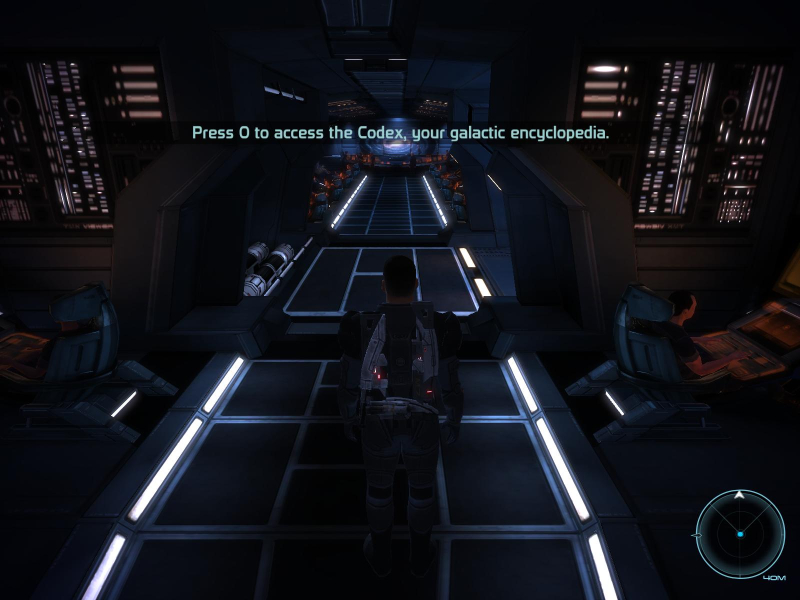
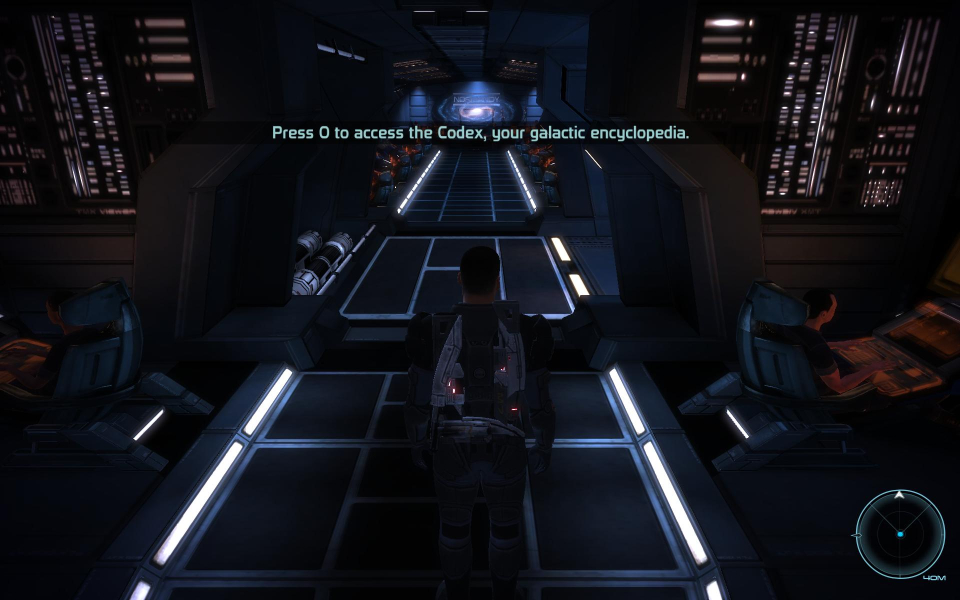
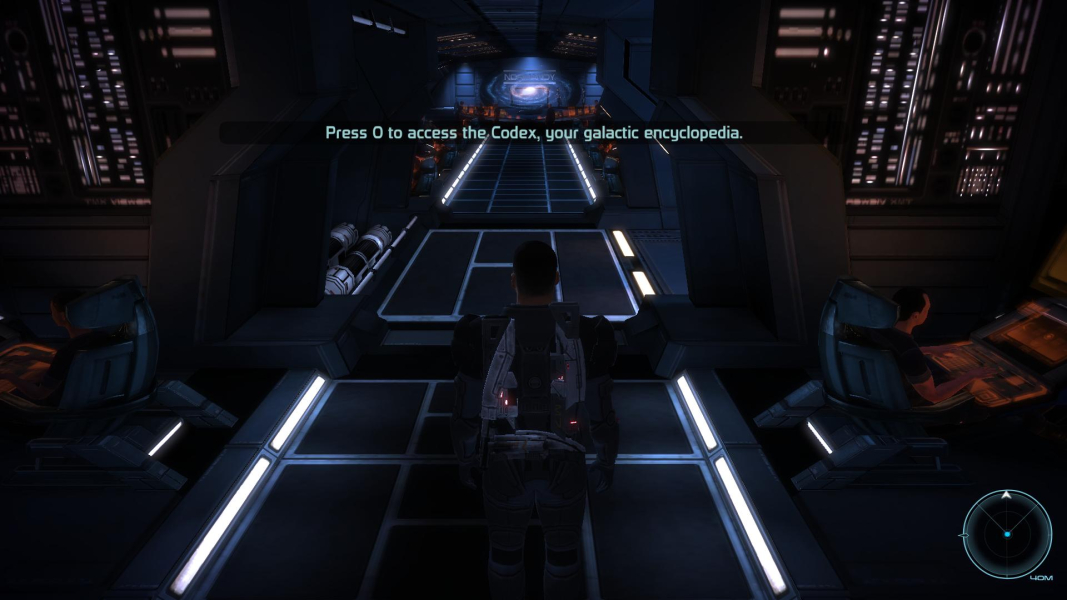
Gameplay Screenshots

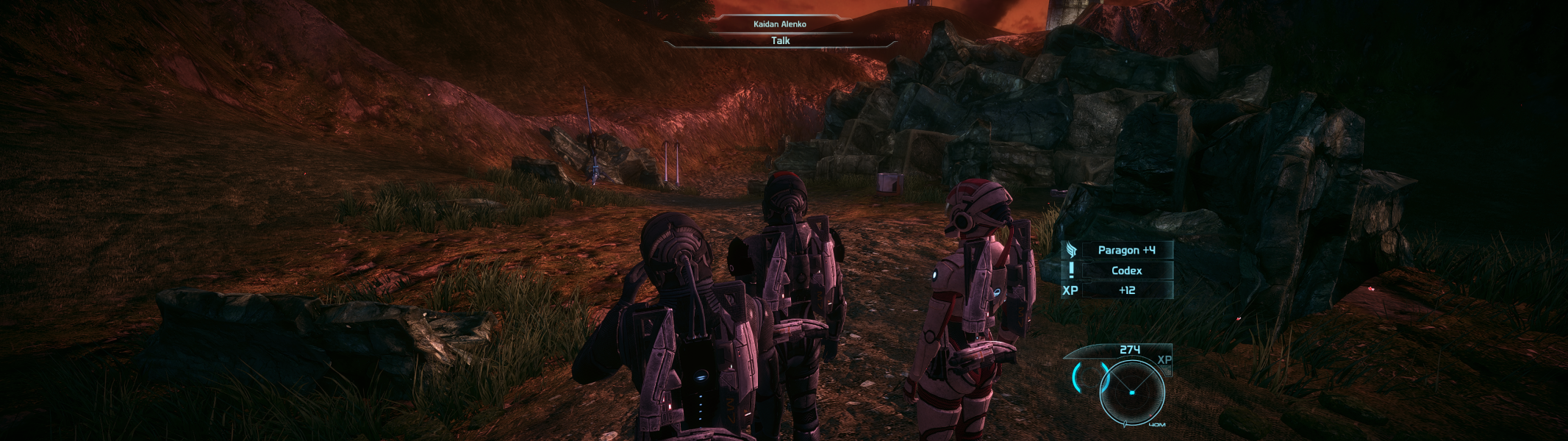
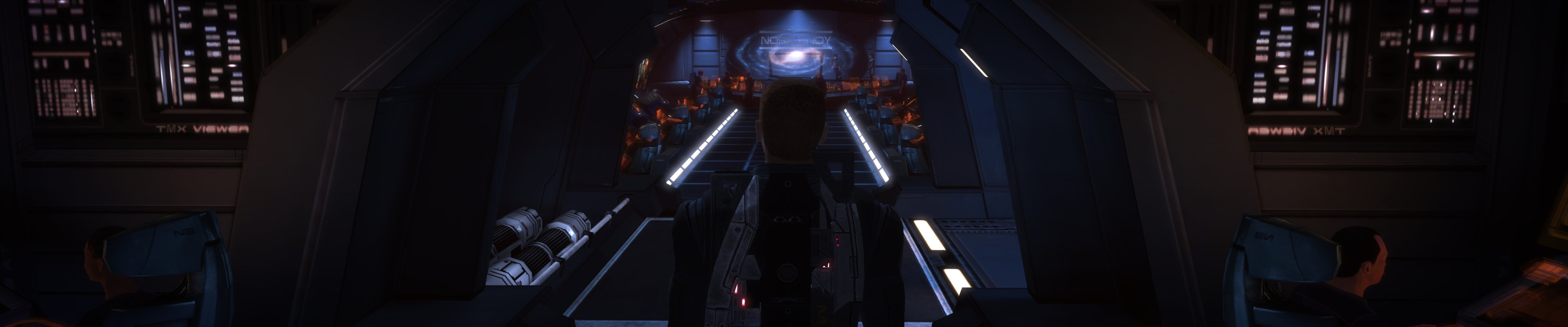
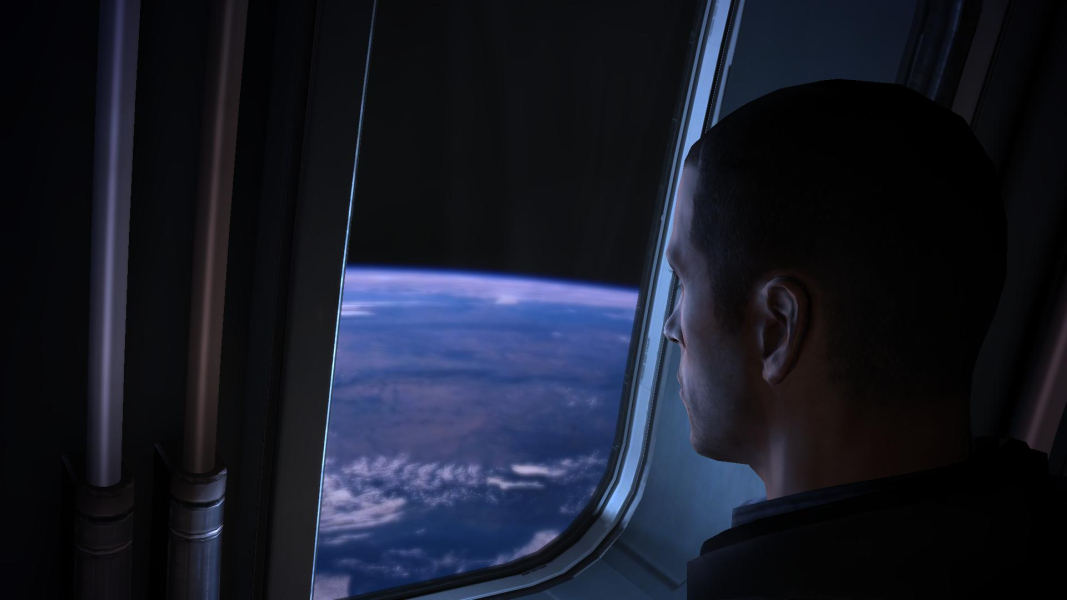
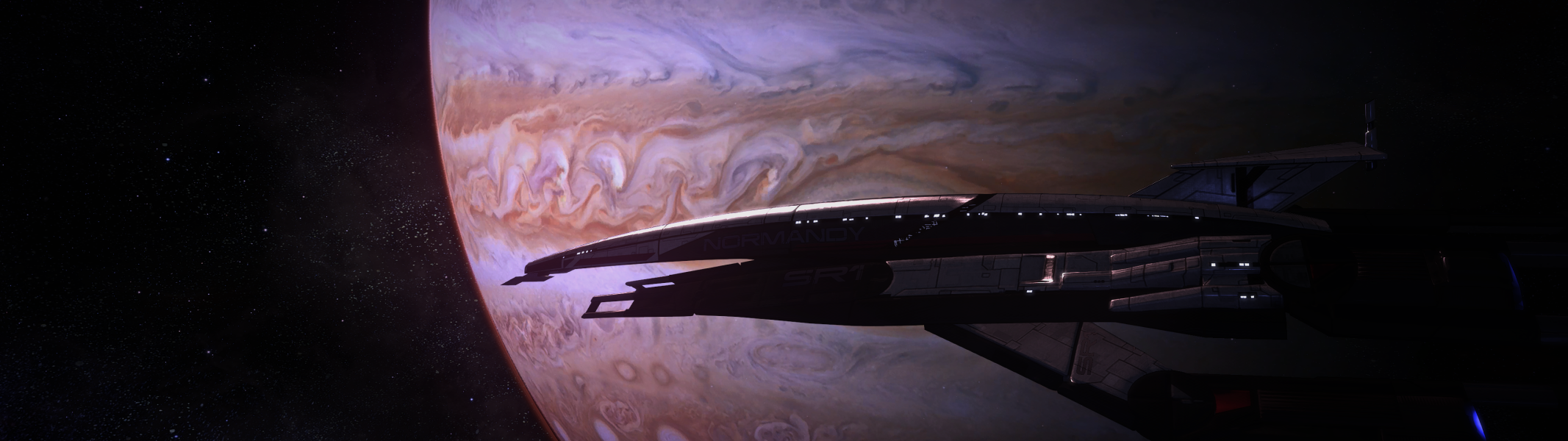
In-Game (Rendered) Cutscenes
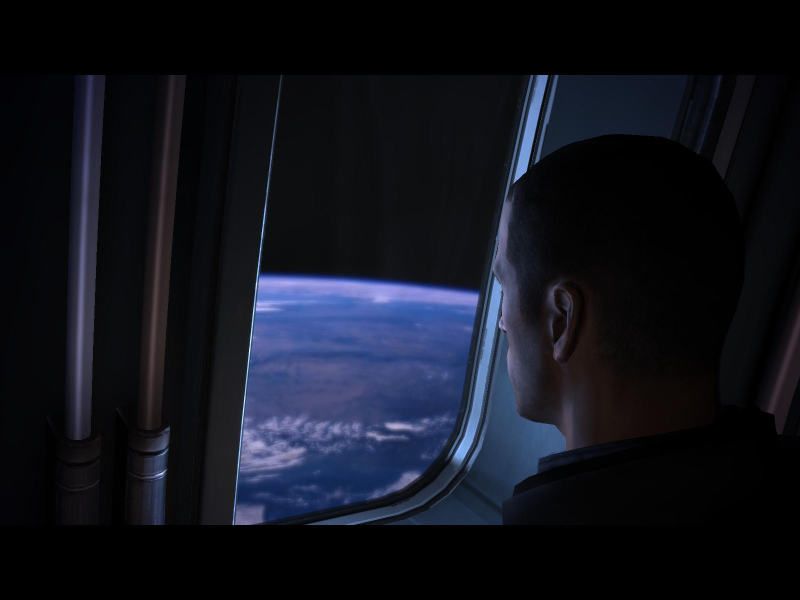
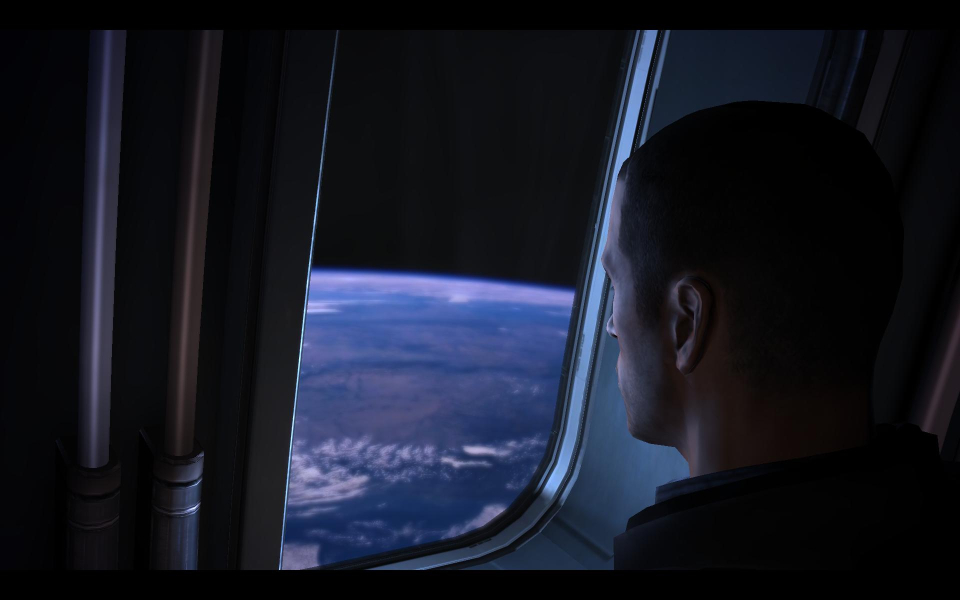

FMV Cutscenes

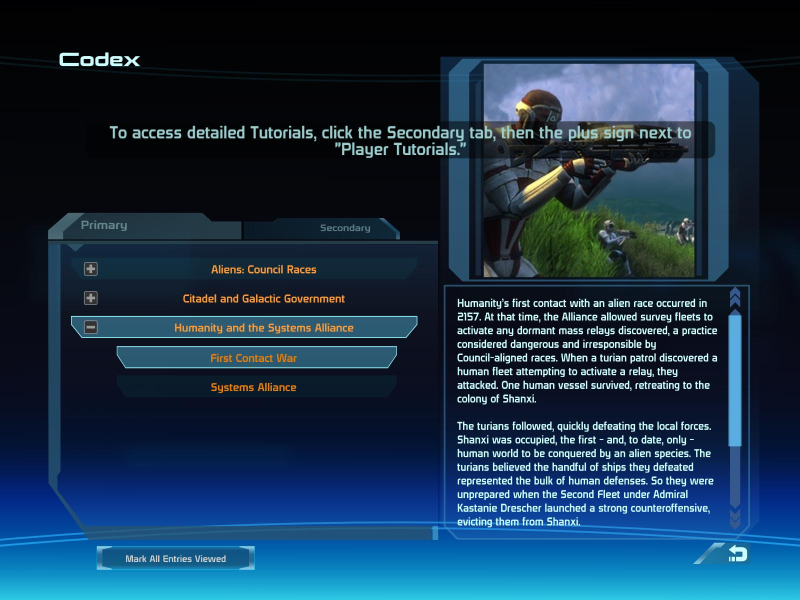
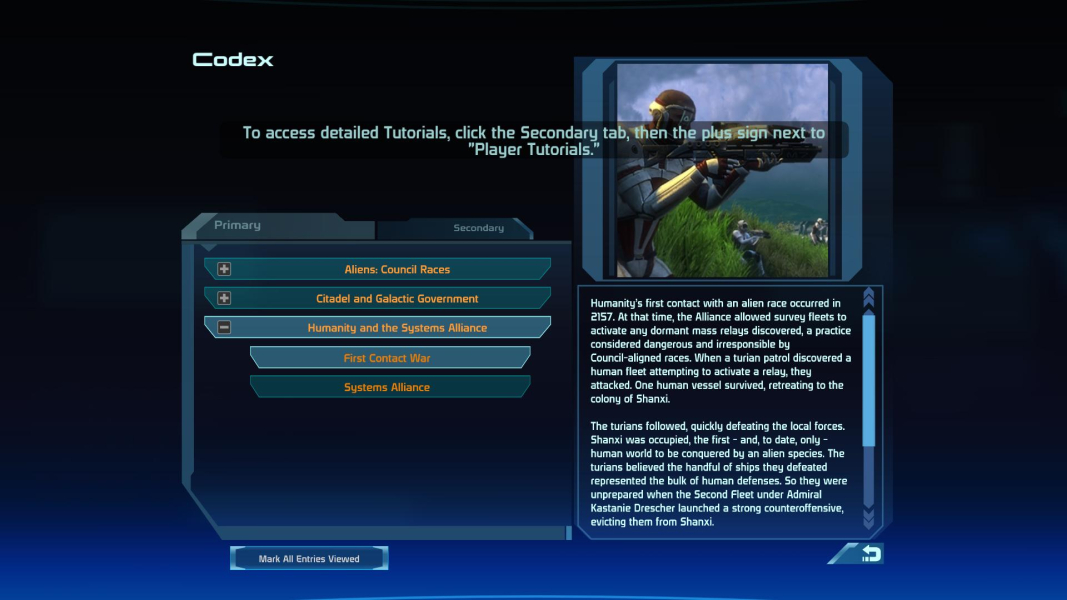
Menu Screenshots


Additional Screenshots