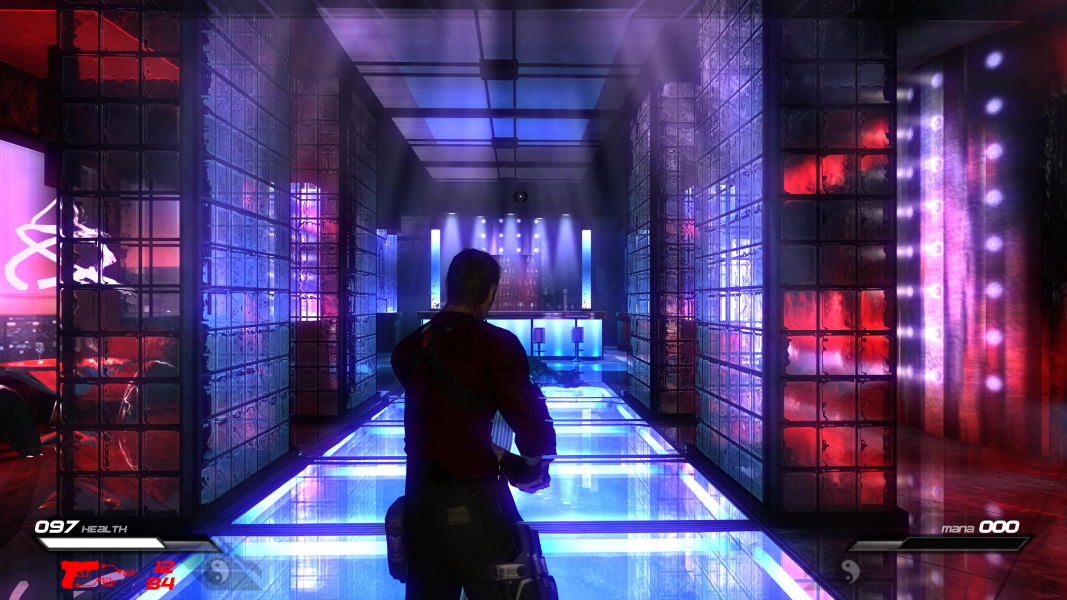



Infernal is a fantasy shooter with a heaven/hell inspired storyline.
Support Summary
Game Information
Screenshots Comparison
Solutions & Issues
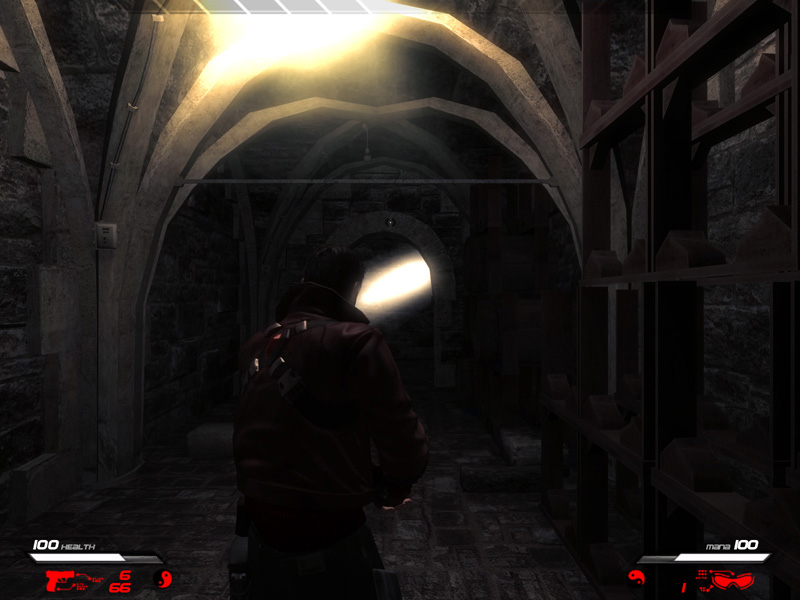
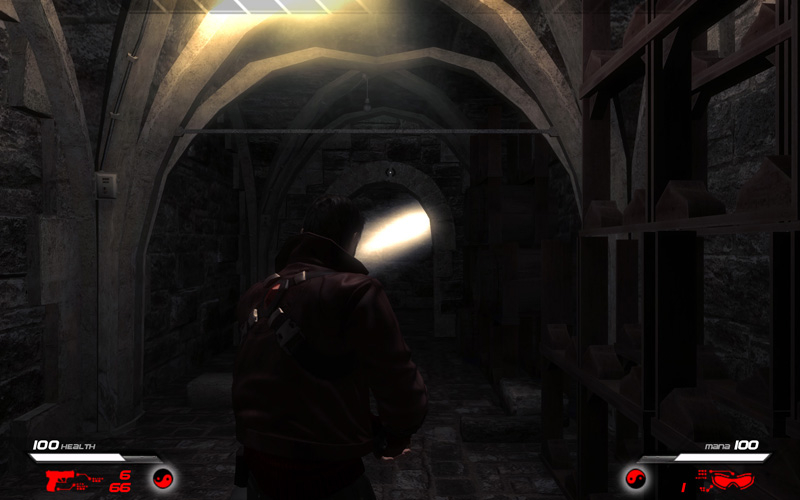
The game supports widescreen natively but is vert-. You can restore Hor+ or set higher FOV, but you have to convert all archives zap to zip. Then you will get access to the game configuration files.
1.) Make a backup all archives ''zap'' from the game folder, because you are going to to convert them to ''zip''.
2.) Create folders with the exactly the same names, as the original names of the archives ''zap''.
3.) Copy ''zap.tool.exe'' from the attachment to the game folder and open.
4.) Now, one by one unpack the ''zap'' archives to the folders you previously created.
5.) Using for example Bandizip, create a ''zip'' archive from all folders where you unpacked archives ''zap''.
6.) If you backup all ''zap'' archives you can delete them from the game folder.
7.) Now in the game folder open ''standard_game.feel'' for example with notepad++ and find this line ''Zip_compatible_packfiles'' and change 0 to 1. Save and close.
8.) Open the archive ''globals'' for example with bandizip and open ''infernal.feel for example with notepad++.
9.) Find these two lines:
TPP_FOV 60.000000 change to TPP_FOV 90.000000
Camera_collision_frustum_min_fov_scale 1.0000000 and change to Camera_collision_frustum_min_fov_scale 1.5000000
You can set higher if you want to. Remember that all aspect ratios 4:3, 16:9, 16:10. should be set manually. These settings are very close to Hor+ for 16:9.
10.) Save settings and close notapad++ and bandizip. If you use bandizip, this program will make changes to the archive yourself. Other archiving programs are probably doing it too (I just like bandizip).
11.) If you have done everything right you can start the game and enjoy the new better FOV :)
Look at the new screenshot for 16:9 to see new FOV.
Additional information:
This game use Ageia PhysX Driver. You have to download and install NVIDIA PhysX Legacy System Software from the Nvidia site.
NVIDIA PhysX Legacy System Software
https://www.nvidia.com/object/physx-9.13.0604-legacy-driver.html
You also need to download and copy AGEIA PhysX Engine v2.5.2 to the C/Program Filesx86/Nvidia Corporation/PhysX/Engine
https://community.pcgamingwiki.com/files/file/512-ageia-physx-engine/
Without these files, the game will not run!
Native, stretch (only available ARs: 4:3, 16:10,16:9).
User settings are saved in C:\Program Files\Playlogic\Infernal Demo\game\standard_game.feel (plain text file)
There's a ScreenAspect value in there, but setting it to -1 or 48:10 didn't help.
The game supports 4K Ultra HD natively but is vert-. To set Hor + follow the tutorial above.
Gameplay Screenshots


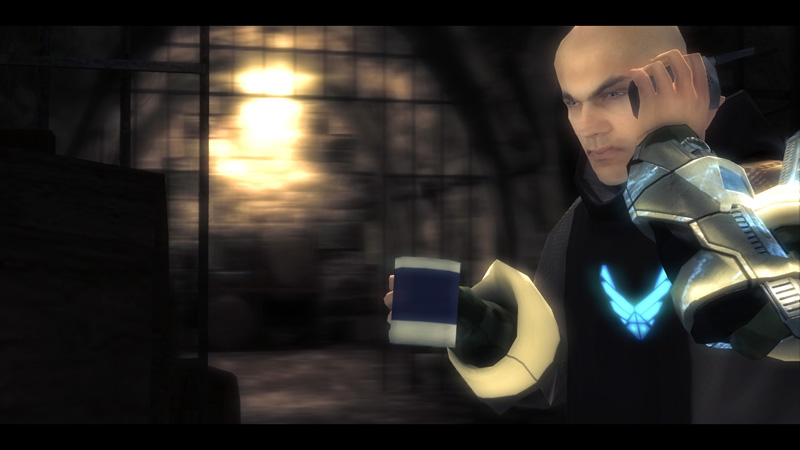
In-Game (Rendered) Cutscenes
4K UHD Screenshots