




The foggy memories of a girl institutionalized in the 1930s intertwine with the present-day ruins of Volterra asylum. Follow Renée through her countless traumas (and a few branching quizzes) to reveal all the facets of her pathetic fate. An intimate investigation dangling between didactic reconstruction and lurid fiction.
Support Summary
Game Information
Screenshots Comparison
Solutions & Issues
Native Hor+ support; an FOV slider is also present (max VFOV: 73).
- Standard "narrow" resolutions and uncommon aspect ratios (e.g 15:9) require an xml edit; see Ultra-Widescreen solution.
- In windowed mode, the window is freely resizable.
- FMVs are Hor+ (16:9 cropped) but shorter flashbacks are squished in aspects lower than 16:9.
A manual edit is required:
- Launch the game once to generate the config file, then quit.
- Open Steam\steamapps\common\The Town Of Light\ttol_Data\config.xml in any text editor.
- Change the numbers preceded by resX and resY
e.g for 3440x1440:<DataEntry><key>resX</key><value>3440</value></DataEntry><DataEntry><key>resY</key><value>1440</value></DataEntry> - Start the game, press Alt+F4 on the main menu and restart (to adjust the mouse cursor's "safe zone" to the new aspect ratio).
You may set all other options in-game; the custom resolution will stick as long as you don't touch the resolution slider.
The xml edit works but a hex edit is recommended:
- Hex edit Steam\steamapps\common\The Town Of Light\ttol.exe
- Replace 4 tokens of 39 8e e3 3f with the Combined Hex value of your desired resolution.
- Start the game, select the new res from the options menu, then press Alt+F4 and restart (to adjust the mouse cursor's "safe zone" to the new aspect ratio).
This solution actually adds your multi-monitor resolution to the options menu, so you can switch to single-screen (pillarboxed) or windowed mode and back to multi-mon at any time. This is useful in multiple areas where the UI is damaged by extreme widths: Chapter selection, Synopsis submenus etc.
Native support.
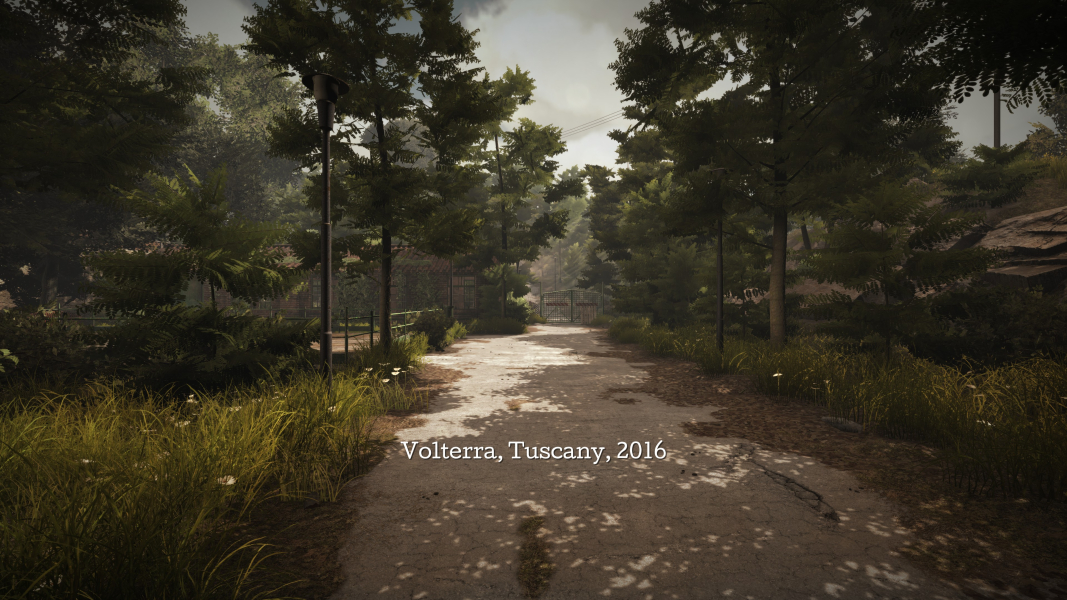
Gameplay Screenshots
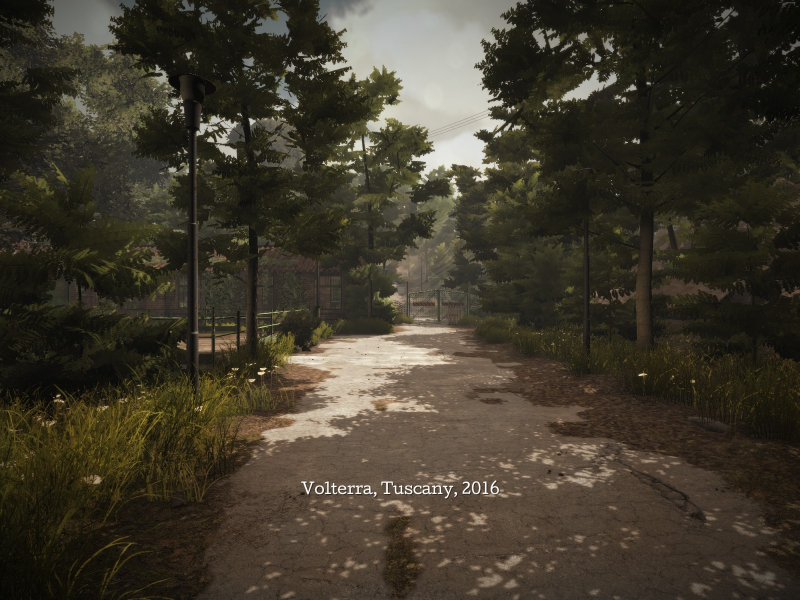
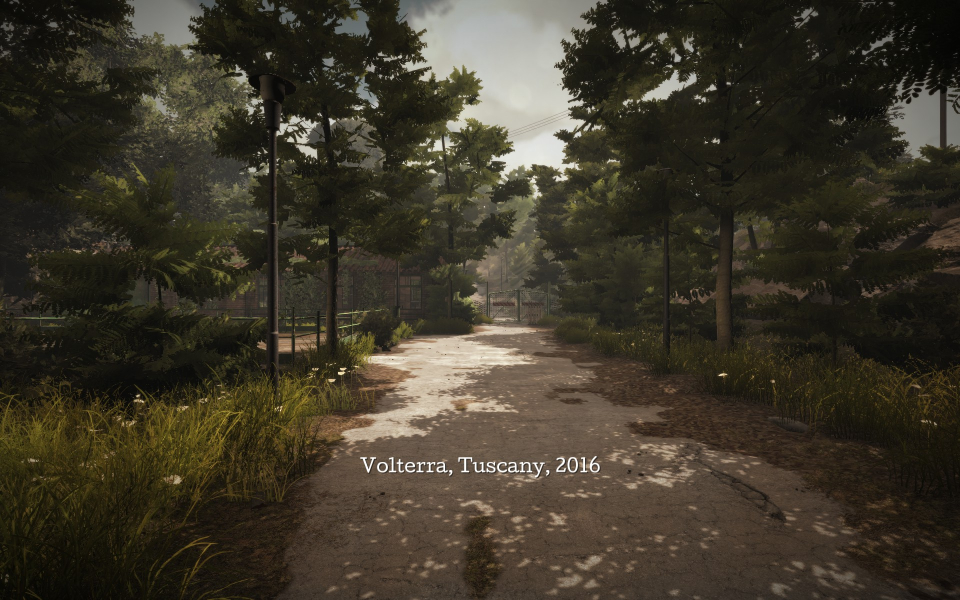
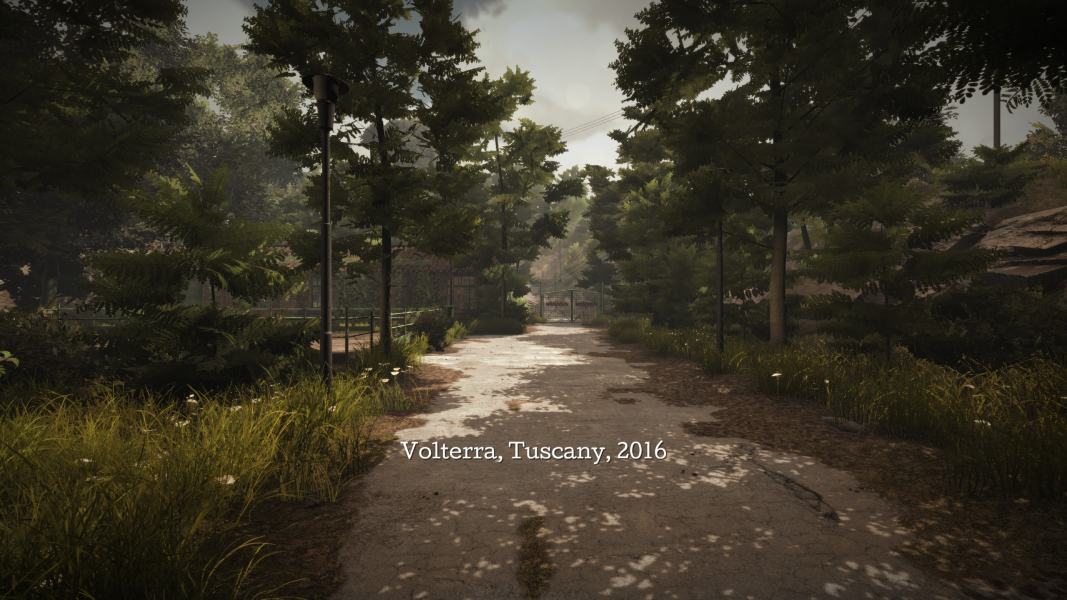
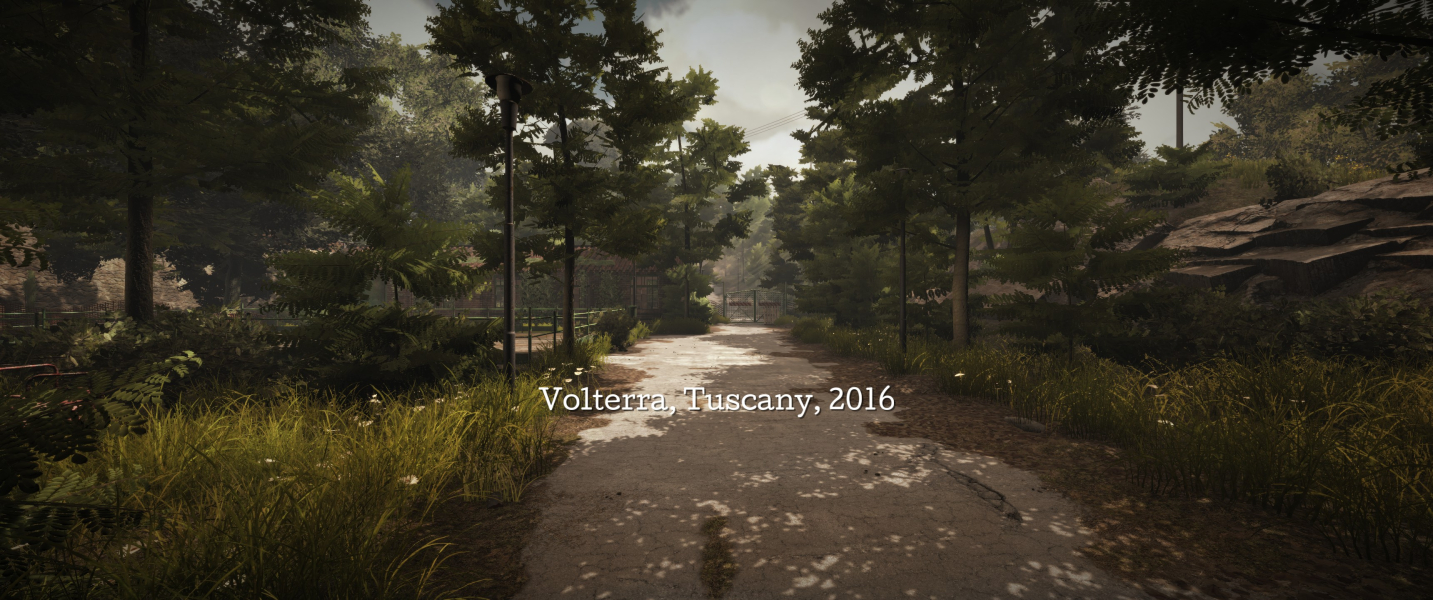


In-Game (Rendered) Cutscenes



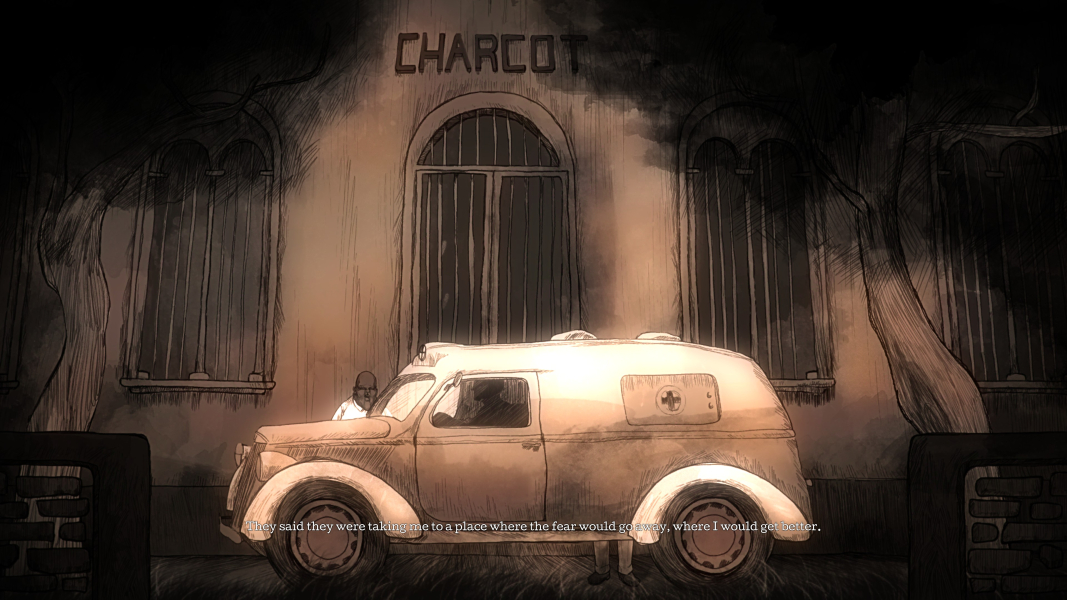
FMV Cutscenes
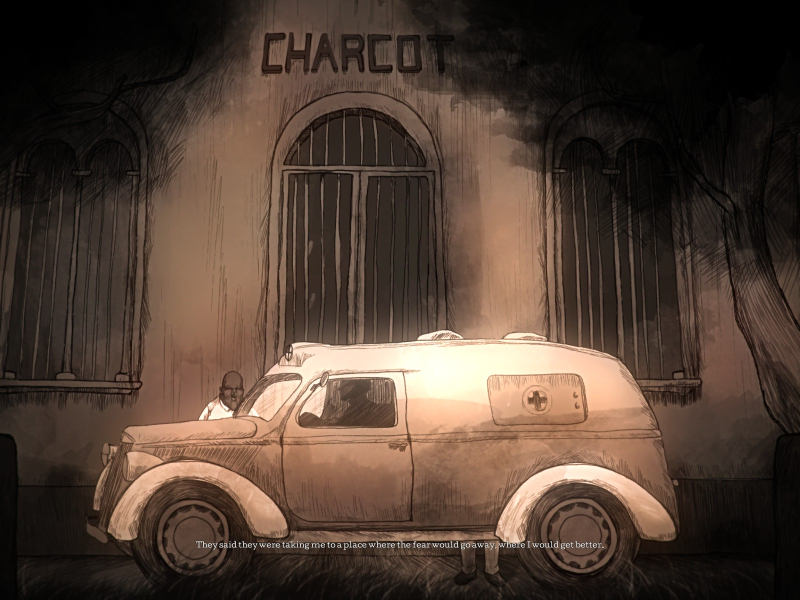
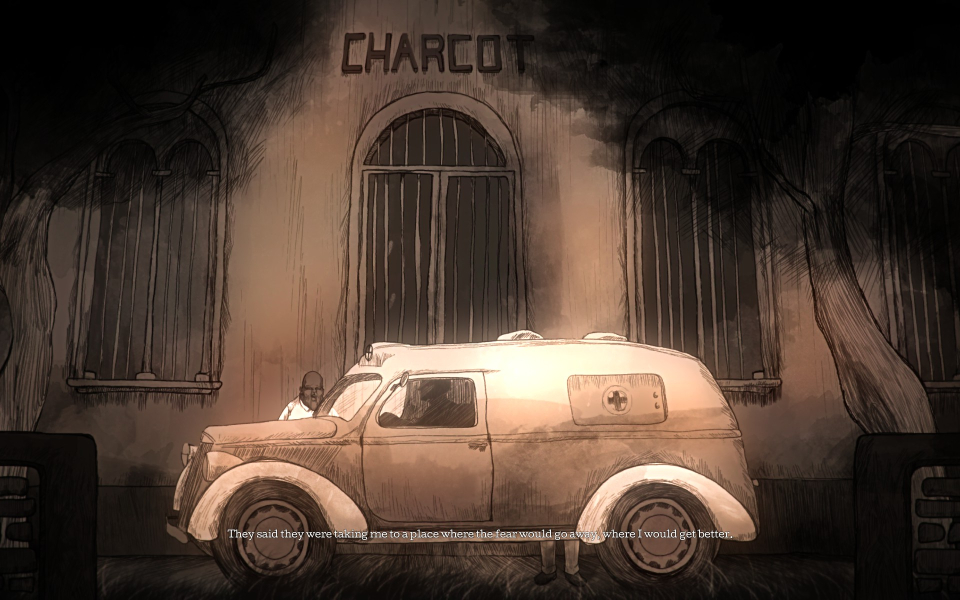
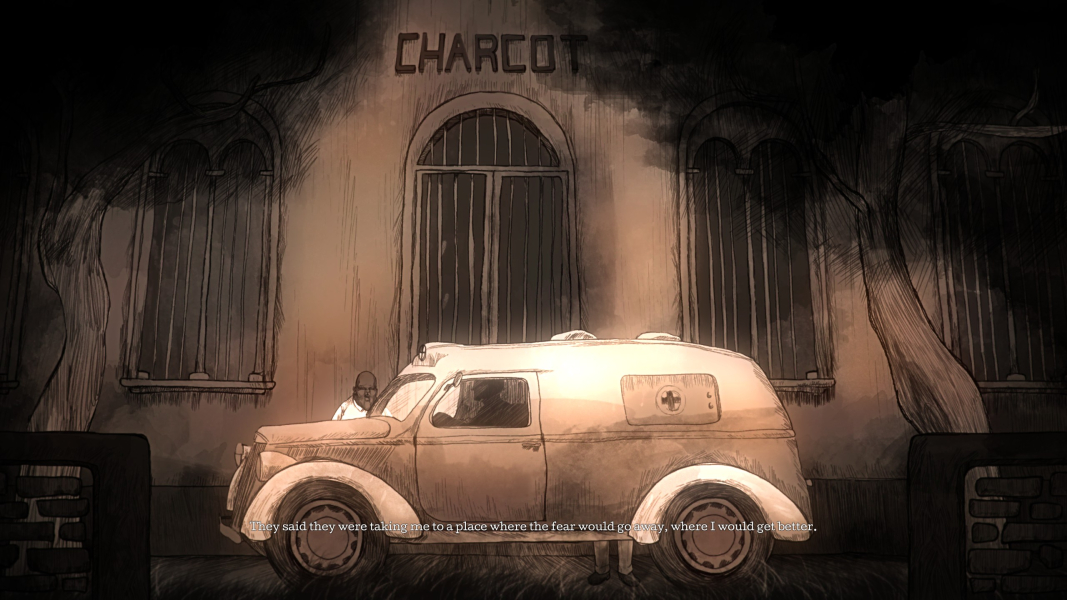


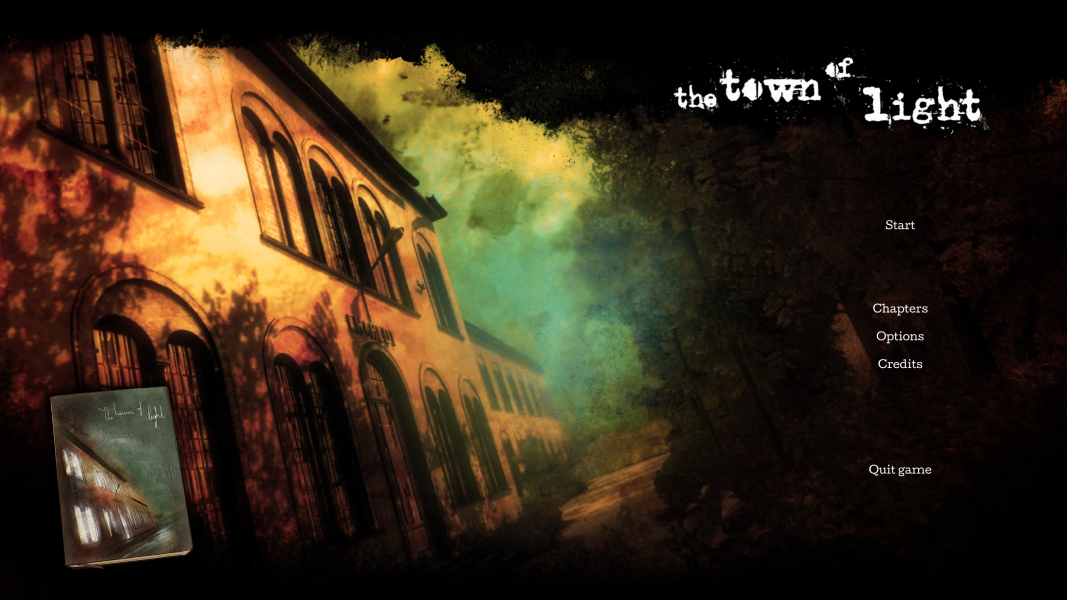
Menu Screenshots
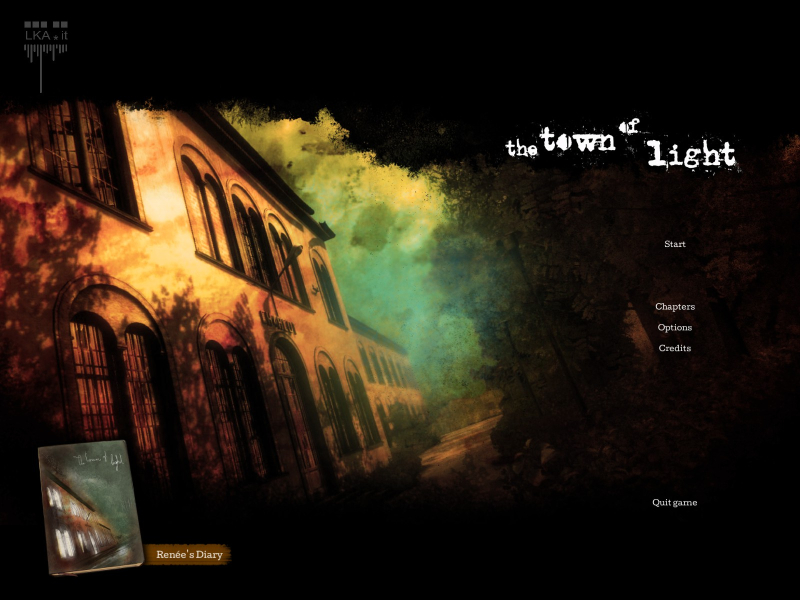
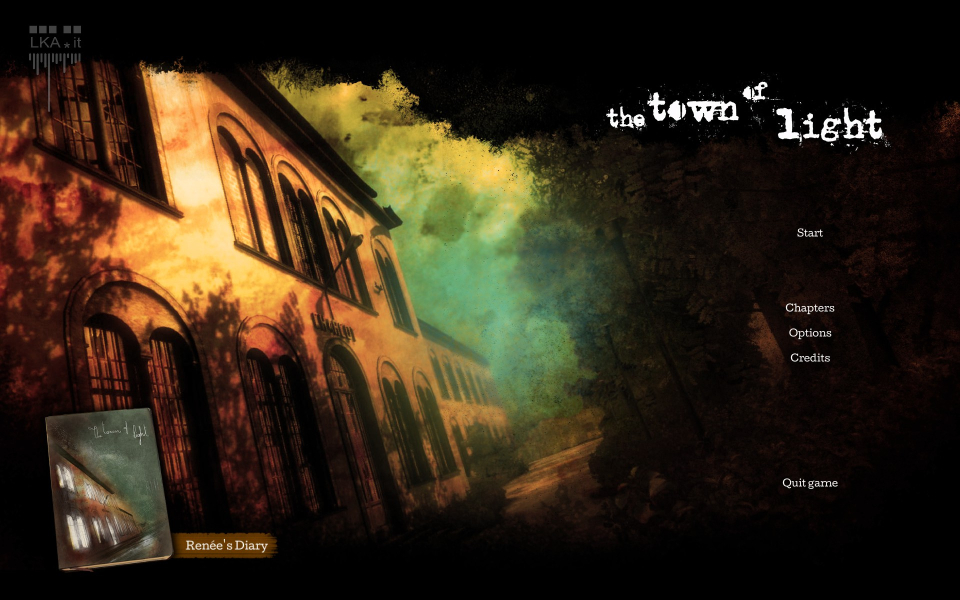

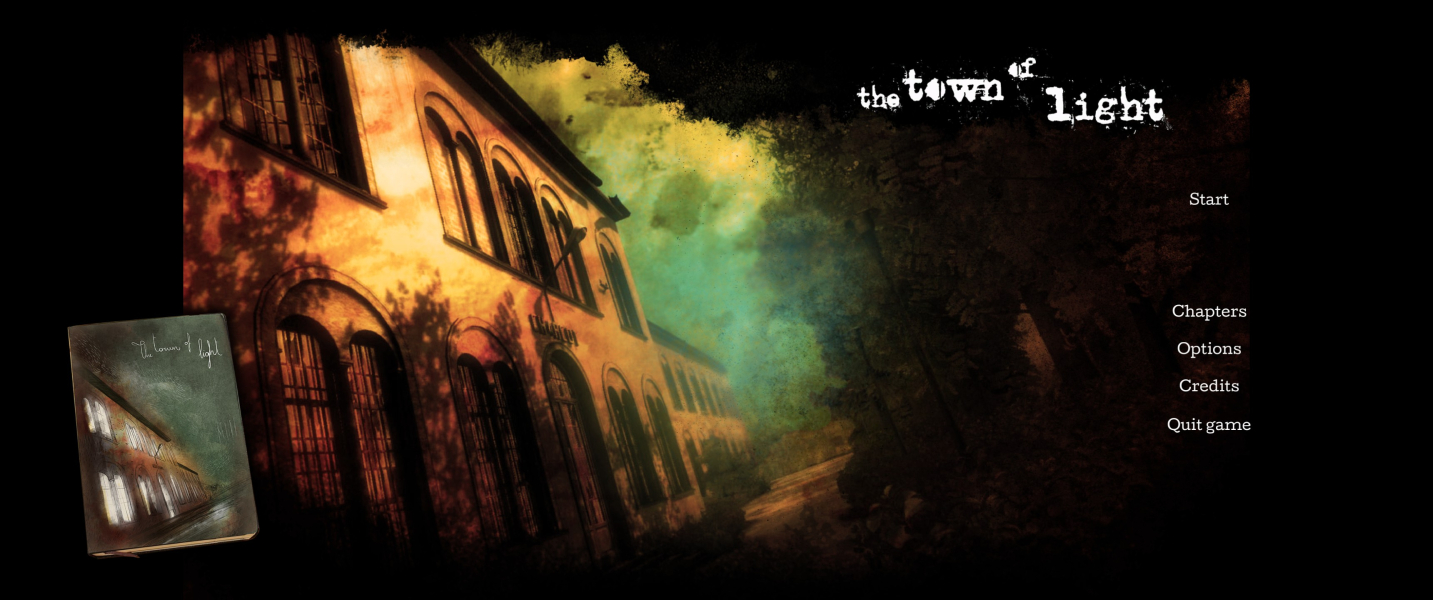

4K UHD Screenshots
Additional Screenshots


