





Defend your village against enemies in this Asian-styled fantasy game.
Support Summary
Game Information
Screenshots Comparison
Solutions & Issues
Hor+ solution:
Replace Battle_Realms_F.exe and D3DIM700.DLL in the game folder from these archives, files available from the PC Gaming Wiki Community Files (search there).
Battle_Realms_widescreen.7z - default FOV
Battle_Realms_FOV_v1.7z - increased FOV +33%
Battle_Realms_FOV_v2.7z - increased FOV +66%
(Don't copy D3DIM700.DLL file, if you don't uses resolution higher than 2048 pixels, also don't copy it on Windows XP and Windows Vista)
To set up resolution, edit Battle_Realms.ini file in the game folder, change following strings:
[VideoState]
Width =1024
Height =768
to the desired resolution, for example, for 1920x1080:
[VideoState]
Width =1920
Height =1080
Vert- solution:
Use Battle Realms Custom Resolution Patch (current version only works with the GOG.com release). Follow the steps in the readme.
All 2D elements are stretched from 4:3. All 3D elements are Vert-.
Same as widescreen.
Same as widescreen.
Same as widescreen.
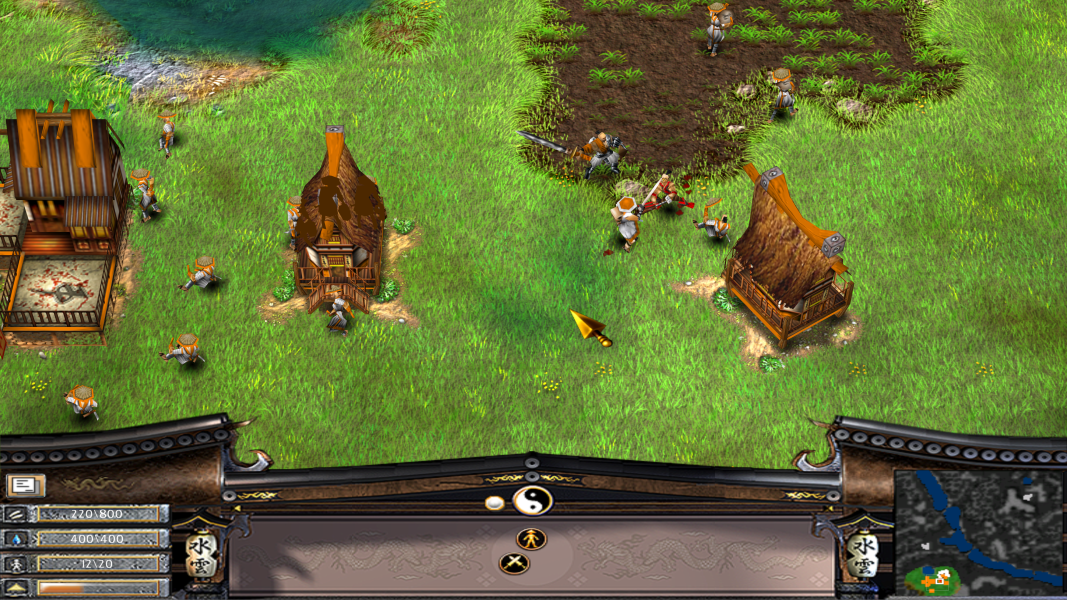
Gameplay Screenshots



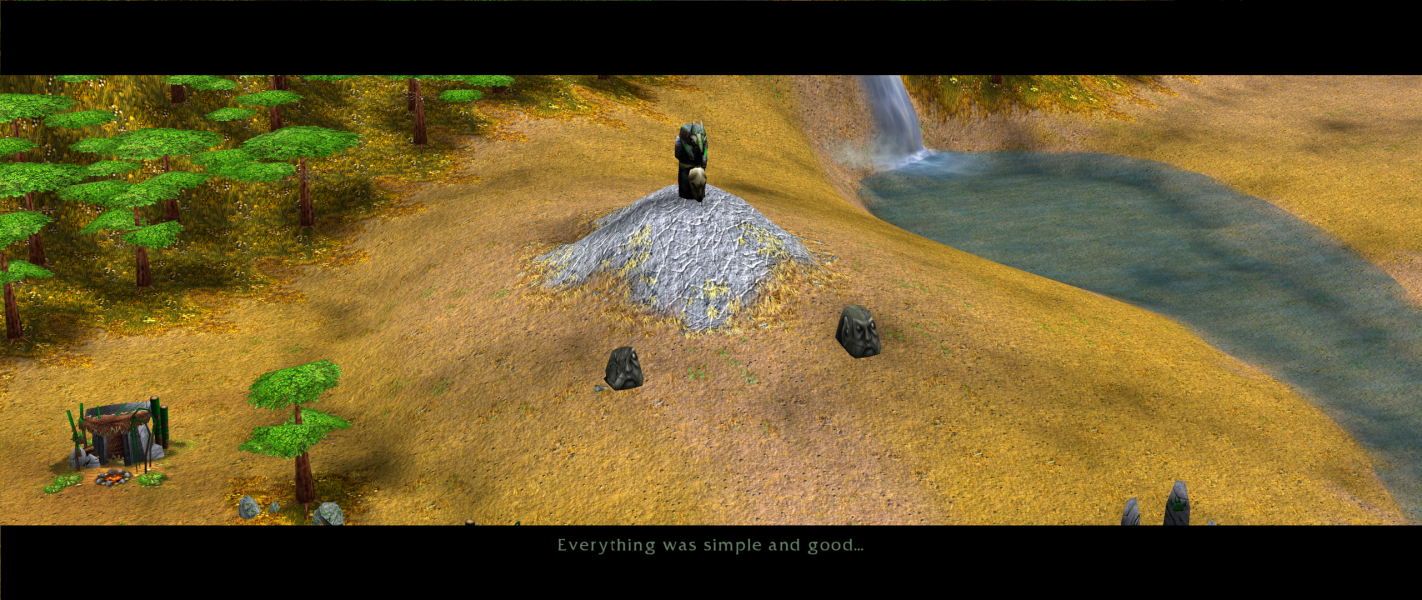
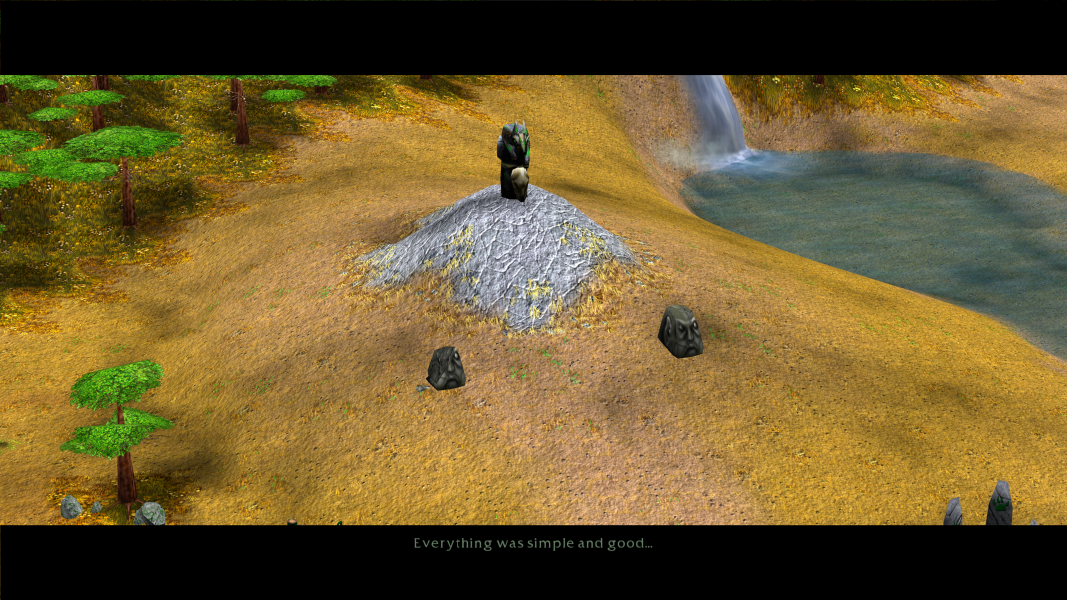
In-Game (Rendered) Cutscenes



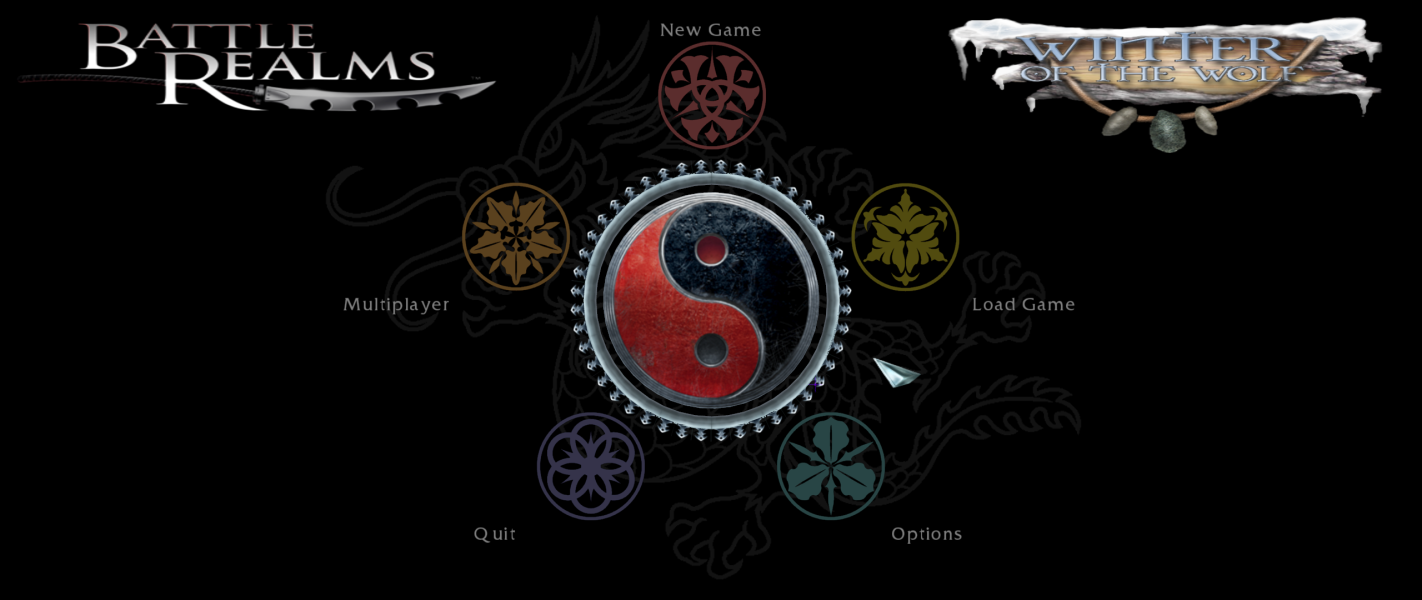
Menu Screenshots

4K UHD Screenshots

Additional Screenshots


