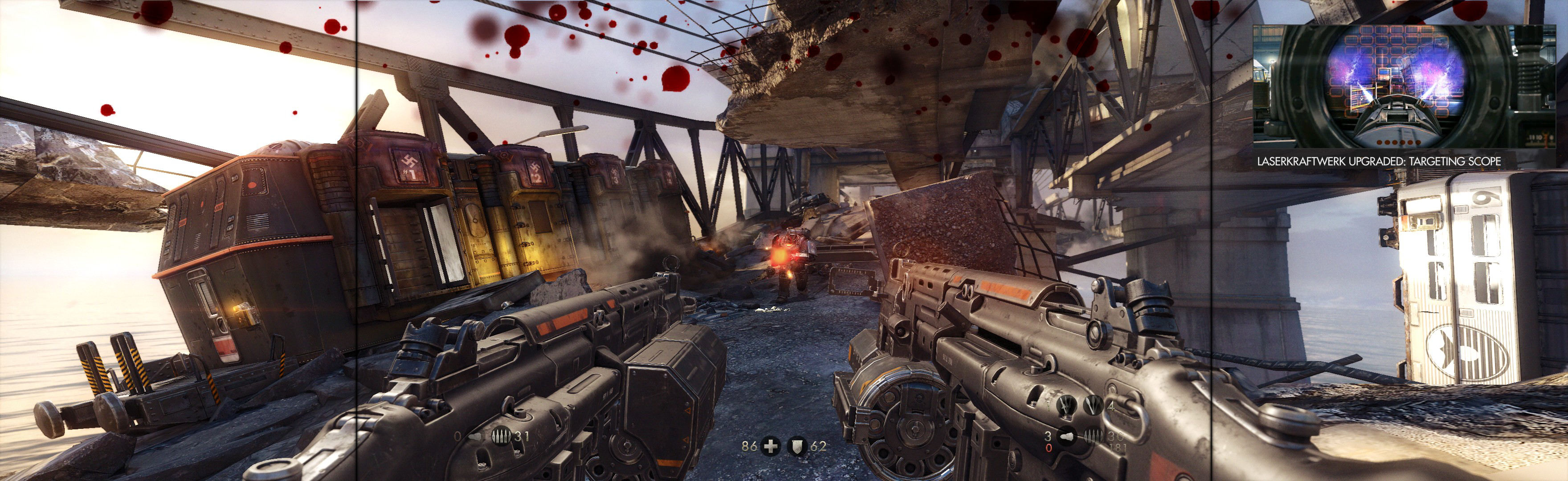


Fullscreen VS Borderless
Most instructions result in borderless windowed (impersonating fullscreen). This is a common trick for manual PLP, with only one downside: no Crossfire or SLI support. Some game engines quite consistently allow fullscreen with SoftTH. The biggest of these is Unreal Engine 3. When SoftTH V3+ becomes available (shortly), more games will support fullscreen.
Monitor Setup
A good Manual PLP monitor combination is required, where pixels line up (& other more minor factors). Many different layouts that line up pixels well can be found here. Listed below are PLP setup sizes that are documented.
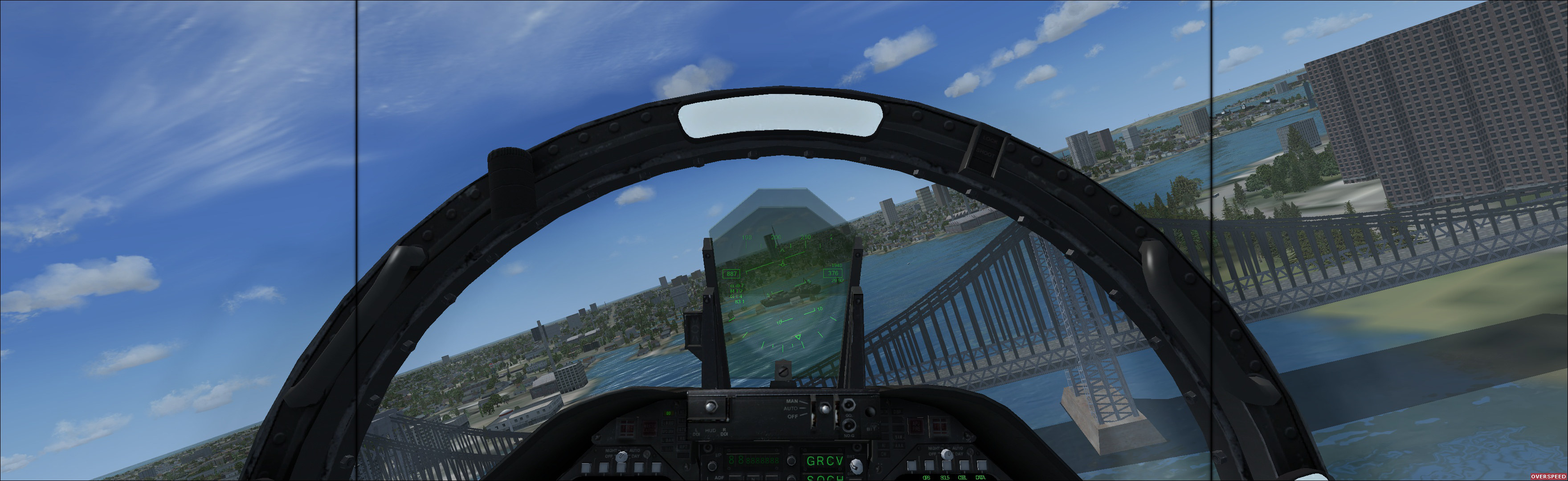
(Microsoft Flight Simulator X Steam Edition 2014, using layout 19-27-19 "Common Lightweight")
- Small PLP Layouts --- center sizes 21.5" - 24" ---- total gaming pixels: 2,220,000 - 5,200,000 -- weight class: 1-8 / 30
- Big PLP Layouts ------- center sizes 27" - 34" ------- total gaming pixels: 3,732,000 - 9,101,000 -- weight class: 4-17 / 30
- Very Big PLP Layouts --- center sizes 36" - 42" --- total gaming pixels: 3,628,000 - 14,516,000 -- weight class: 4-30 / 30
- Enormous PLP Layouts - center sizes 47" - 84" -- total gaming pixels: 3,628,000 - 14,516,000 -- weight class: 4-30 / 30
Blog post reviewing your PLP layout size & shape choices http://www.wsgf.org/blog/imusrt/2015/07/05/plp-layout-size-shape-review
My current favorite for Manual PLP is 19-27-19 "Common Lightweight" (16:9 1080p center, 10:16 sides, & side resolution lowered from stock). This setup is fairly big, decent quality & hides one bezel. It remains lightweight: One decent graphics card drives it well. Use it up close for deep gaming immersion. With vision covered, you are There.
Understanding the Instructions
- Windows 10 variation:
- When instructions say "ShiftWindow," Win10 users should use WinShift instead. Or better still, use Borderless Gaming (latest version).
- On a few games in Win10, using SoftTH fullscreen may require physically swapping left & right monitors with each other.
- Many games require at least one change to menu settings or in-game save (e.g. change resolution). This often creates the data we want to edit. This is not always documented.
- Base PLP gaming resolution, or "fullscreen" (in pixels): [width of all 3 screens together] x [height of center] (e.g. 3520x1080).
- Border calculations: We are often imitating fullscreen, in windowed. This often requires borders within one's resolution calculations (but not always).
- Resolution "no border" means one should use base PLP resolution. If no "border" instructions, assume base PLP resolution is used.
- Resolution "+ border" means one should use base PLP resolution plus horizontal/vertical borders' width, respectively, in pixels. If users have reduced their window borders in Windows/Registry to the minimum allowable thickness, the horizontal border total is 8px & vertical is 31px (Windows 8, probably Windows 7 too). Windows 10 bit different: similar "+ border" values are still often needed, but Win10 borders look tiny by default.
- "+ border = borderless" means same thing as "+ border".
- "ShiftWindow" word implies:
- In-game & already windowed, with ShiftWindow prepped to trigger.
- WARNING. Borderless Gaming (BG) works far better (latest version). Strongly recommend using BG instead of ShiftWindow/WinShift. BG works perfect in Win10 & auto-spreads borderless. An excellent cutting-edge window-spreader.
- Right-click game-name in left-pane & Add To Favorites.
- Now select game in right-pane, & then right-click it; in popup, select "No Size Change."
- Then select game again (in right-pane), & then right-click it; in popup, select "Set Window Size."
- Enter values (prompted): X-coordinate= -1x left-screen-width; Y-coordinate=0; window-width & height your fullscreen (i.e. not +border).
- Stickies. Boot game to checkpoint, don't touch mouse. Mark single-screen game-object (e.g. gun, car, house) at its corners with tape/stickies on your screen. (The best object-type varies per game. Use an object that changes with FOV.) Then boot game to PLP & same checkpoint. See how well object lines up with stickies. Adjust PLP FOV until object size matches.
- Or screenshots. Very accurate for either fullscreen or perfect-borderless (fullscreen dimensions). Method:
- Drag PLP screenshot into image editor (use Gimp) & decrease View until whole image is visible.
- Drag single-screen screenshot on top of PLP screenshot.
- Open Gimp menu: Windows, Dockable Dialogs, Layers.
- In Layers window, click top layer's eye symbol on & off to compare.
- Or screenshots (quick & dirty). Use Windows Preview creatively. Not accurate.
- Or calculate FOV instead. Tester prefers going by feel. WSGF calculator does not appear to work for PLP, but there are others. Calculation details https://developer.valvesoftware.com/wiki/Field_of_View

(Dragon Age Inquisition 2014)
Rare Tips & Fixes
- If game hangs or chugs, try quitting MSI Afterburner (or similar program), or running game in compatibility mode Windows XP SP3.
- Active config files can often be deleted to force creation of fresh version.
- If resolution change causes a missing texture, restart game.
- Calculating aspect ratios (sometimes must include borders).
- For 1.777778 type number, calculate: width / height = #.#### (E.g. 3520/1080=3.259259259)
- For 16:5 type number, calculate (e.g.): 16 (static number) / 3.259259259 (enter your aspect ratio) = 4.909090909 (i.e. 16:4.909090909).
- Very rarely, if thick margins show on center screen, you must correct game's refresh rate (either by in-game settings or config file edit). Very rarely, restarting game or deleting config file fixes it. There is also a permanent fix via registry edit (link needed)
- Prefer borderless? If instructions are for fullscreen, you can quite often turn it into borderless. First follow fullscreen instructions. Then at the end, make game windowed (in-game or file edit) & spread with ShiftWindow. This technique is quite often successful & works fine with SoftTH, but not with Unreal Engine.
- Mouse Fixes:
- NoMousy hides mouse pointer. Download: http://forum.arcadecontrols.com/index.php/topic,143370.0.html
- PrimaryLock
- Download: https://steamcommunity.com/linkfilter/http://s382701517.online.de/apps/…
- Forum source: http://forums.steampowered.com/forums/showthread.php?s=853252cddc79643d…
- Mouse clipping. Keeps your mouse in center screen's game area & away from an interfering OS GUI.
- Very light-weight utility. Works on both windowed & fullscreen.
- Occasionally fails, & OS GUI remains a nuisance.
- How to use: No install, store it anywhere. Just double-click PrimaryLock.exe to activate. Close app to deactivate.
- Cursor Lock
- http://www.snakebytestudios.com/projects/apps/cursor-lock/
- Mouse clipping, same as PrimaryLock
- A last resort. Setup is bit annoying. PrimaryLock works more often.
- How to use: Install, then run "Setup Cursor Lock". In Shortcut tab, checkmark Lock Program & enter Game.exe location. (Sometimes may also need to select DirectX tab and checkmark DirectX9.) Click Create Shortcut, close utility. Double-click the new shortcut (every time), then run game.
- High FOV Fake Fixes:
- Hold up your aim properly. This reduces FOV glaring anomalies.
- Sketchy: reduce aspect ratio by 0.15 (e.g. in config file, 3.259-0.15=3.109). Feature is not always available & nearly never needed. When it exists, use to improve FOV & gun location. But this very slightly stretches image, a last resort. Overall much better, but not ideal. See GRAW 2007 notes.

(Castlevania Lords Of Shadow 2 2014)
More Help
Source PLP wiki, unabridged games list, help by game engine.
http://www.wsgf.org/forums/viewtopic.php?f=68&t=27669
4/2016 Blog gaming posts discontinued.