


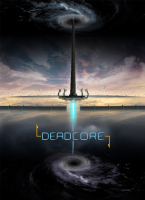


A futuristic "parkour shooter" built for speedruns, DeadCore is the commercial culmination of indie project Deadlock.
DeadCore pits you and your trusty Switch Gun against fearful gaps, laser traps and electronic baddies as you run'n'jump your way up the mysterious Tower. Finding sparks will unlock and upgrade new skills, like a foward dash to compliment your double-jump, AOE switching and rocket-jump, or the ability to reveal hidden, gravity-altering bits of architecture - thus opening new paths and risky shortcuts. Every story stage cleared is then unlocked in leaderboards-driven Speedrun mode. The game features fifteen levels of increasing complexity as you near the top of the Tower, plus three additional speedrun-only levels to master.
Support Summary
Game Information
Screenshots Comparison
Solutions & Issues
Native support of 16:9 and 16:10 resolutions including 2560x1440 and 2560x1600.
For less common widescreen resolutions like 1280x768, a workaround is required; see Multi-Monitor Support below.
FOV is Hor+ and can be fine-tuned through a slider under Settings > Game (default 82.50, range 70-90, vertical FOV). A custom FOV will affect real-time cut-scenes, but not the iron sights view.
A command line is required, see Multi-Monitor Support below.
Uncommon resolutions are supported in windowed mode only, through a command line.
- Run the game to manually turn Fullscreen off under Settings > Video. Quit the game.
- Add these command line parameters to the target field of the game's shortcut or Steam's Launch Options: -screen-width xxx -screen-height yyy -popupwindow
(Replace xxx with your desired width and yyy with your desired height.) - Voilà ! The game will now run at any resolution, in a borderless window.
Note that opening the Settings menu while in a game will immediately reset the resolution to 640x480. To avoid this, remove the launch options and use a 3rd-party app like Borderless Gaming instead. Accessing Settings from the main menu is safe, though.
- UI is spanned but menus open on the center screen. There is no HUD and the crosshair scales correctly.
- Main menu's 3D scene is Hor+, although the backdrop is a pillarboxed 16:9 picture.
- FMVs are windowboxed.
Gameplay Screenshots


In-Game (Rendered) Cutscenes


FMV Cutscenes


Menu Screenshots


Additional Screenshots


