


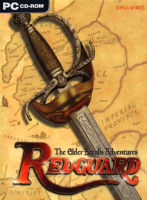


Investigate a mysterious disappearance in this spin-off from The Elder Scrolls series.
Support Summary
Widescreen | Ultra/Super‑Wide | Multi-Monitor | 4K Ultra HD | |
Support | ||||
Method | ||||
HUD | ||||
Cutscenes | ||||
FMVs |
Game Information
Game Status:Released
Release Date:
Tested Version:Demo
Play Styles:Single-Player
Setting:Fantasy
Genre:Action-RPG
Developer:Bethesda
Store Links:
Screenshots Comparison
Solutions & Issues
Widescreen Solution & Issues:
Redguard only supports selected 4:3/5:4 resolutions by default.
- Install Taewoong's DOSBox SVN Daum.
- Edit the DOSBox configuration file (dosbox-SVN-Daum.conf).
- Change memsize=16 to memsize=63 and save your changes.
- Go to the DOSBox SVN Daum installation folder and rename or delete glide2x.dll.
- Install nGlide and run it from the Start screen/Start menu.
- Set your resolution and aspect ratio preference (4:3 for pillarboxed, fit to screen for stretching from 4:3).
- Run Redguard through DOSBox SVN Daum.
Your chosen output settings will be used. Everything has the correct aspect ratio when using the 4:3 aspect ratio setting in nGlide.
Gameplay Screenshots
4:3 Screenshot
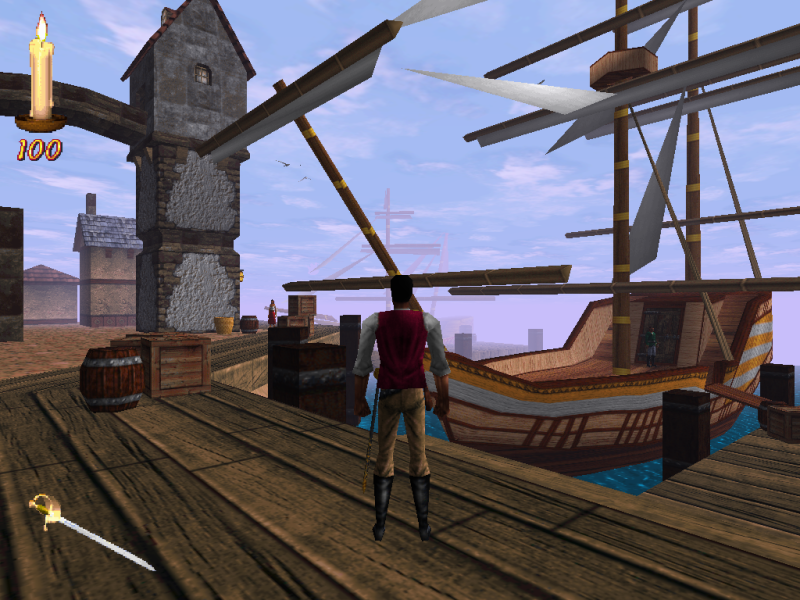
16:10 Screenshot
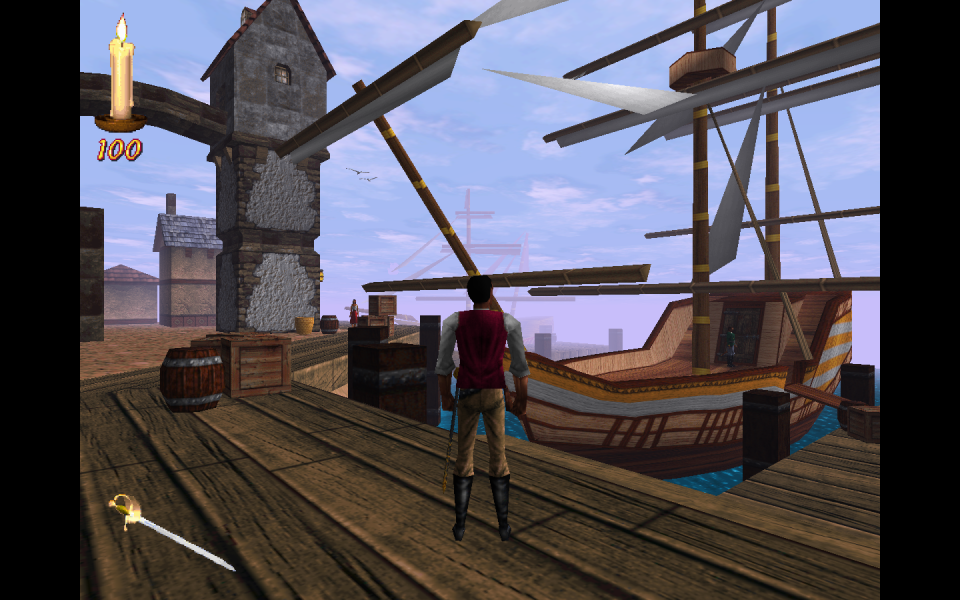
16:9 Screenshot
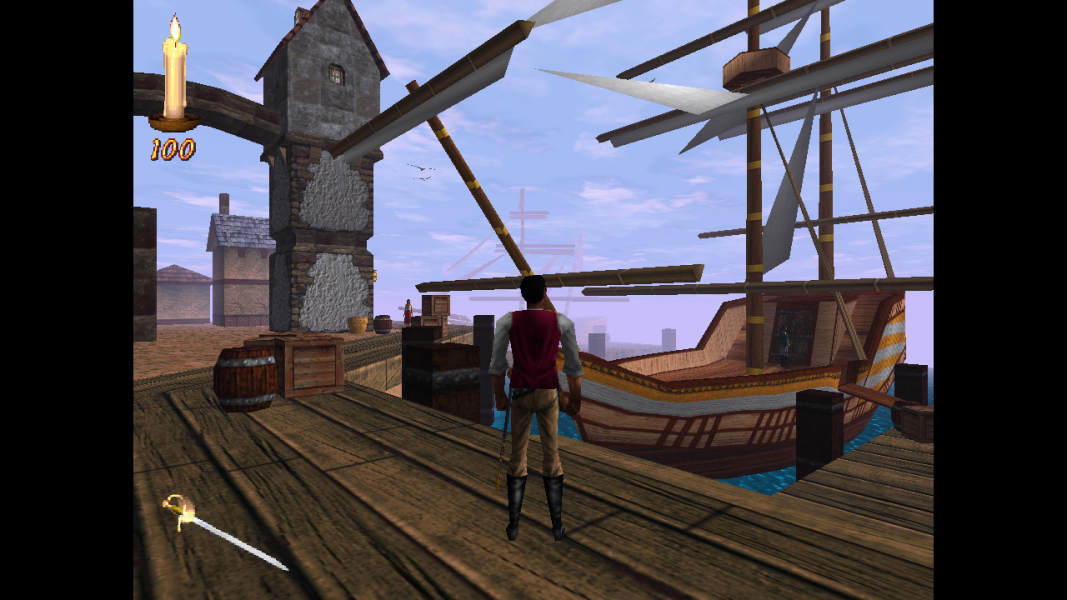
21:9 Screenshot

32:9 Screenshot

Eyefinity / Surround Screenshot


