


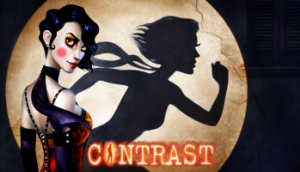


CONTRAST is a puzzle/platform game where you can move between a fantastic 3D world and a mysterious shadowy universe in 2D in the blink of an eye. Delve into a dreamlike and surreal 1920s world, inspired by the performance art world of vaudeville and film noir, and cradled by a smooth and sultry jazz ambiance.
Support Summary
Game Information
Screenshots Comparison
Solutions & Issues
The game is fully Vert- (meaning someone with a 4:3 monitor will see more on top and bottom of the screen than someone with a 16:10 monitor who will see more than someone with a 16:9 monitor). The game is still fully playable though.
Surround suffers from Vert- issues (like many unreal engine 3 games) but this can be solved by binding a key to a defined FOV variable or using Flawless Widescreen.
Fixing it using Flawless Widescreen:
Download Flawless Widescreen from: http://www.flawlesswidescreen.org/ and use the Contrast Plugin. This solves all the issues with FOV, pillarboxing and the HUD which makes it the preferred method to use.
Binding a key to a specific FOV (Alternative fix, does not solve all the problems but makes it at least playable):
1. Open %USERPROFILE%\Documents\My Games\Contrast\ContrastGame\Config\ContrastInput.ini
2. Under [Engine.PlayerInput] add the following lines (whereby the FOV value can be adjusted to your liking):
Bindings=(Name="L", Command="fov 150")
Bindings=(Name="K", Command="fov 90")
3. Start the game and press L to adjust the FOV. The FOV in the menu is separate from the FOV in-game so if you press L while in the menu you'll need to press it again after beginning it.
Notice if you use the key binding fix.:
- Some scenes during gameplay like short rendered cut-scenes (not all cut-scenes though) and some puzzles are pillarboxed. That's where you can press K to lower the FOV. As soon as the sequence is finished you'll then need to press L again to get back to your MM FOV.
- Also some pause menu options will be obscured while using MM but the buttons under the obscured text will still work fine.
- HUD will not optimized.
Original source: http://steamcommunity.com/app/225080/discussions/0/846963710869546906/ (MM fix for "A Tale of Two Sons", modified for Contrast by Revy.)
Gameplay Screenshots


Menu Screenshots


Additional Screenshots


