


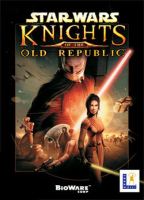


The game details events that occurred thousands of years before any of the Star Wars movies. A Sith Lord called Darth Malak is intent on destroying the Republic and needs a lightsaber swatting. Players can recruit several different NPCs and have active parties of three characters. Battles are a mix of turn-based and real-time actions. NPCs are a collection of humans, droids, and other assorted alien things. Party members develop based on class and player customization decisions. A lovely array of Force powers is available for your adventuring pleasure.
Support Summary
Game Information
Screenshots Comparison
Solutions & Issues
Refer to this page first.
List of widescreen resolutions the game fails to run at:
1280x720, 1280x768, 1280x800 - Selecting these resolutions will cause the game to crash.
Please note that if you are using a resolution supported in step four you need to use the 1024x768 HUD in the UniWS.
No native support for widescreen resolutions.
There is a three-step process for widescreen resolutions. There is an additional fourth step for certain supported resolutions. The UniWS should perform the first 3 steps automatically. Be sure to select "Star Wars: KOTOR (1024x768) Interface" from the game selection list as opposed to any other interface resolution when using the uniws patcher.
The resolutions 1440x900, 1680x1050, 1920x1080, 1920x1200, 2560x1600, and 1530x864 (720p HDTV) are supported in the fourth step.
If the UniWS does not work, you will need to perform the complete manual method:
Step One
Step one is for the widescreen resolution.
In the root game directory open the file "swkotor.exe" with a HEX editor. All future searches will be performed in this file. Search for all or part of the following HEX values...
3D 20 03 00 00 75 12 81 7C 24 08 58 02 00 00 75 5B B8 01 00 00 00 C2 08 00 3D 00 04 00 00 75 12 81 7C 24 08 00 03 00 00 75 42 B8 01 00 00 00 C2 08 00 3D 00 05 00 00 75 1A 8B 44 24 08 3D C0 03 00 00 74 07 3D 00 04 00 00 75 21 B8 01 00 00 00 C2 08 00 3D 40 06 00 00 75 12 81 7C 24 08 B0 04 00 00
Each set of two bolded pairs represents an in-game resolution. The "C003" and "0004" values both correspond to the "0005" value. To keep things simple use the "2003" and "5802" (800x600) values.
The reason I am listing the entire resolution set is because your version of the game may have different values in some parts. This will help you find the values.
Change the "2003" and "5802" values to your desired widescreen resolution. You need to flip the last two digits when entering the values. For example...
800 in hexadecimal is 0320 = 2003
600 in hexadecimal is 0258 = 5802
1920 in hexadecimal is 0780 = 8007
1200 in hexadecimal is 04B0 = B004
If I decided to add a 1920x1200 widescreen resolution the result would be this...
3D 80 07 00 00 75 12 81 7C 24 08 B0 04 00 00
Step Two
Step two will change the HUD to match your resolution. If you are using a resolution that is not supported in step four you need to select a HUD that is closest to your actual resolution without going over.
The HUDs that are available are 800x600, 1024x768, 1280x960, 1280x1024, and 1600x1200. The 1280 HUDs have an additional step listed after this next one.
Please note that if you are using a resolution supported in step four you need to use the 1024x768 HUD location.
Search for the following HEX values...
3D 00 04 00 00 B3 29 88 9C 24 D4 01 00 00 74 71 3D 00 05 00 00 74 30 3D 40 06 00 00
The middle values may be different in your version so make sure you are in the right location. The bolded values correspond to the different HUD sizes.
0004 = 1024x768
0005 = 1280x960/1280x1024
4006 = 1600x1200
The two HUD values that you are not going to use need to be changed to "0000". The HUD value that you are using needs to be changed to your horizontal widescreen resolution value.
For example, I selected 1920x1200 so the horizontal value is 1920 which is 0780. I flip the values again and enter "8007" in place of the original HUD value. Since my resolution is supported in step four I can use the 1024x768 HUD location. I will replace the "0004" value like this...
3D 80 07 00 00 B3 29 88 9C 24 D4 01 00 00 74 71 3D 00 00 00 00 74 30 3D 00 00 00 00
Notice that I changed the unused HUD values to "0000".
If you are selecting a 1280x960 or 1280x1024 HUD there is an additional step that must be performed. Search for the following values...
2D C0 03 00 00 74 1A 83 E8 40
The bolded value may be different depending on your game version but everything else should be the same. Now look at the selected values...
2D C0 03 00 00 74 1A 83 E8 40
The "C003" value will need to be changed to your vertical widescreen resolution value. The "74" value will need to be left at "74" for 1280x960 but changed to "75" for 1280x1024. The "40" value will need to be changed to "00" for both HUD resolutions.
For this example I am using a 1920x1200 widescreen resolution with a 1280x1024 HUD size. The vertical 1200 value is 04B0 which I flip and enter as "B004". The end result with all the changes is this...
2D B0 04 00 00 75 1A 83 E8 00
Step Three
The third step gets all the pre-rendered movies into your desired widescreen resolution. Search for the following values...
80 02 00 00 75 15 81 3D D8 D1 78 00 E0 01
The bolded pair corresponds to 640x480 which is the forced movie resolution. Change these values to your selected widescreen resolution.
For example, if I am using 1920x1200 as the widescreen resolution I get this...
80 07 00 00 75 15 81 3D D8 D1 78 00 B0 04
Remember to flip the values. Now search for the following HEX values...
80 02 00 00 C7 44 24 10 E0 01
And repeat the last step...
80 07 00 00 C7 44 24 10 B0 04
Step Four
Download the modified files for your specific resolution from WSGF Hacks for SW:KOTOR.
Extract the files to your "*Root Game Directory*\Override" folder.
There is a manual file creation method for step four which can be used for other resolutions detailed in the following posts.
After all applicable steps have been completed load up the game and go to the options menu to select your widescreen resolution which should now be listed. If you select your widescreen resolution and do not get any changes select a different resolution and then switch back. It should then work fine.
There is a utility called Flawless Widescreen that solves the problem with the invisible dialog options and automatically generates the optimized hud. It modifies the game at runtime, so, it has to run in the background but no executable modifications are required. Because of that it works fine with the steam version.
The cinematics, having a 2.35:1 aspect ratio, fill the screen when played at 2560x1080 without any distortions or letterboxing.
You can set any other resolution for playing cinematics in the utility's settings.
The only minor widescreen-related issues I noticed are:
- When fading to/from black, an area 1600px wide on the left of the screen is darker;
- The 2d screens (including the main menu, shops, pazaak, computers etc) are limited to 1600px in width, leaving black bars on the sides. Also, some parts of the hud (like the 3d models of your character) look very small at modern resolutions.
None of these affect the gameplay.
Since Flawless Widescreen supports multy-monitor setups, I assume it should work with them as well but I am unable to test this.
Same as WS solution above.
Gameplay Screenshots
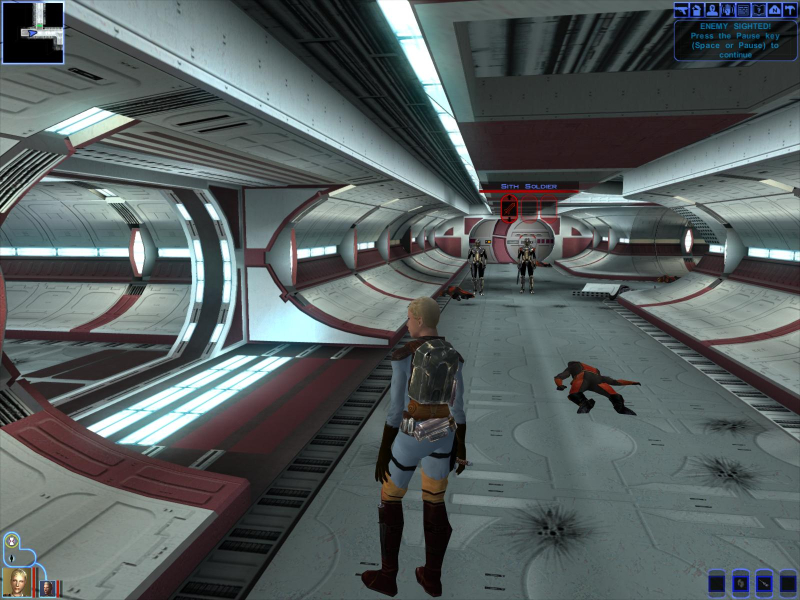
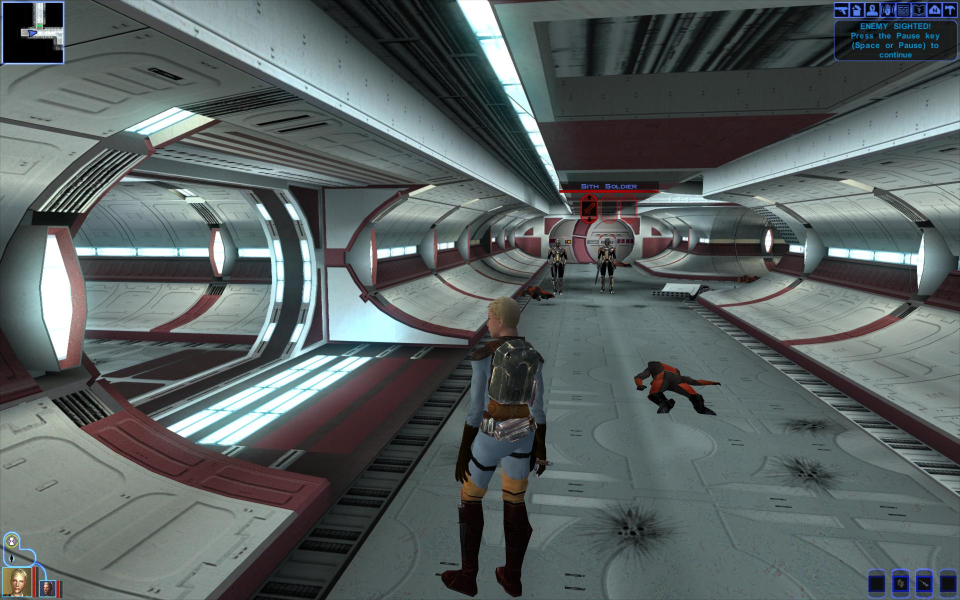
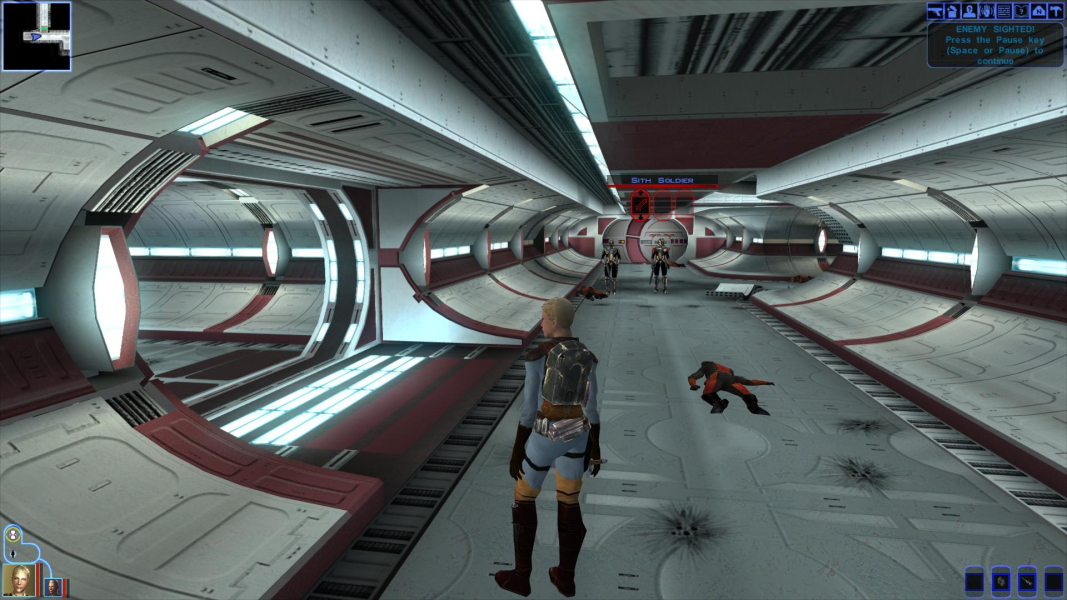


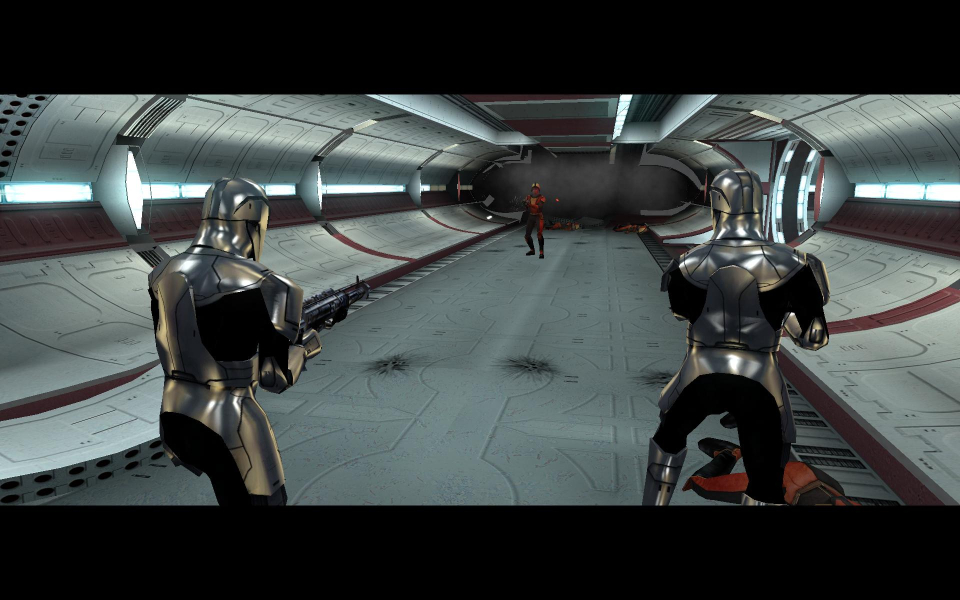
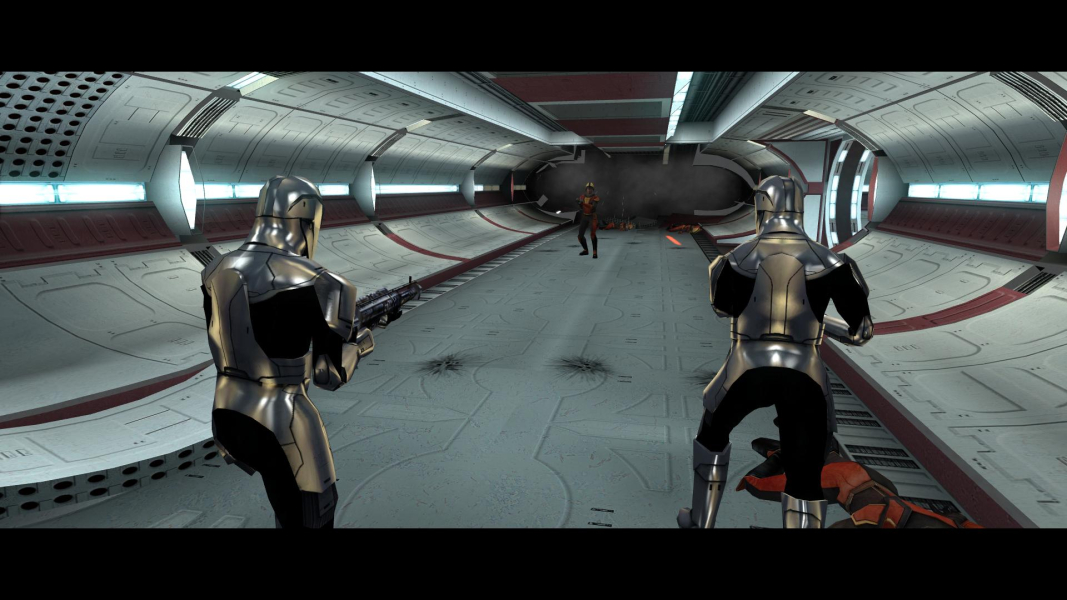
In-Game (Rendered) Cutscenes

FMV Cutscenes
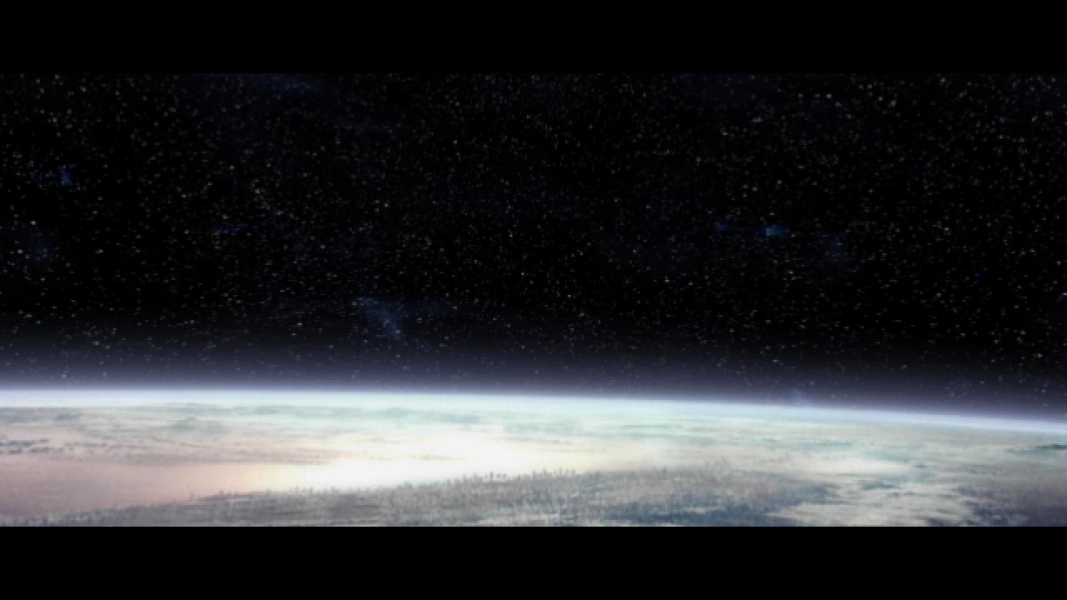
Additional Screenshots


