


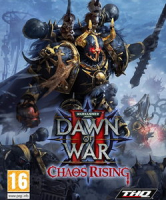


Your Blood Ravens have saved the sector, but can they save themselves?
In THQ Inc. and Relic Entertainment’s sequel to the acclaimed Dawn of War II real time strategy franchise, you return to sub sector Aurelia where a long lost frozen ice planet has reappeared from the Warp, bringing with it new secrets to uncover and foes to face.
In Dawn of War II: Chaos Rising you will take command of the Blood Ravens and defend the sector against the Chaos Space Marines of the Black Legion. Purge the chaos filth and hold the chapter together as traitorous forces work from within to try bring down the Blood Ravens.
Support Summary
Game Information
Screenshots Comparison
Solutions & Issues
Native
(Solution by Dem Pyros)
An ini edit is required to center the HUD and fix the squad selection screen:
Documents/My Games/Dawn of War 2/Settings/configuration.lua
{
setting = "horizontalmonitorcount",
value = 3,
},
If using a bezel-compensated resolution, try a value of 4 to move the UI even closer to the center of the display. Fractions are unsupported.
A value of 2 moves the UI to the inner edges of the sides screens, but the squad selection screen will be broken.
Fixing DoW2: Retribution may require the following steps: (the file to edit is Documents\My Games\Dawn of War II\Settings\configuration.lua)
1) Edit the "screenheight" value to your single-screen resolution and start the game.
2) Select your triple-screen resolution from within the game options. You will have to Alt+F4 out of the game.
3) Set "horizontalmonitorcount" value to 3 and restart the game. The main menu screen should now be correctly scaled.
Gameplay Screenshots
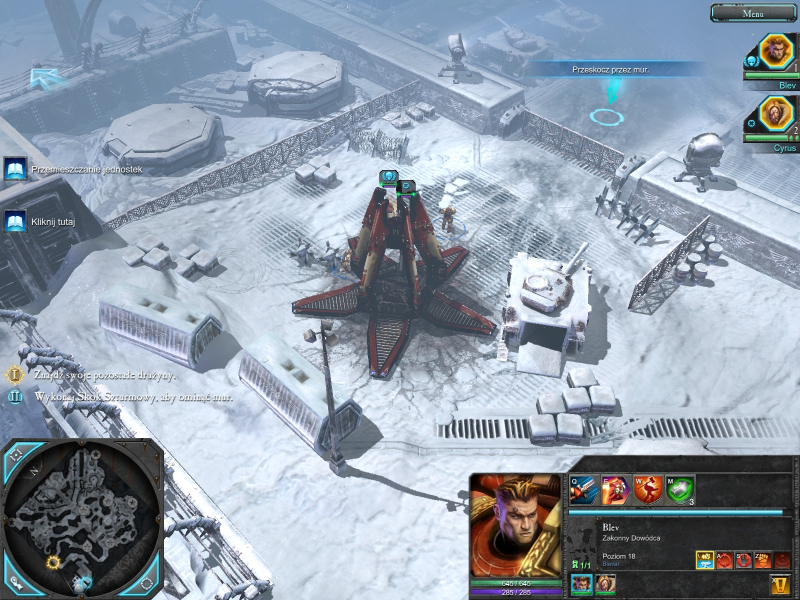
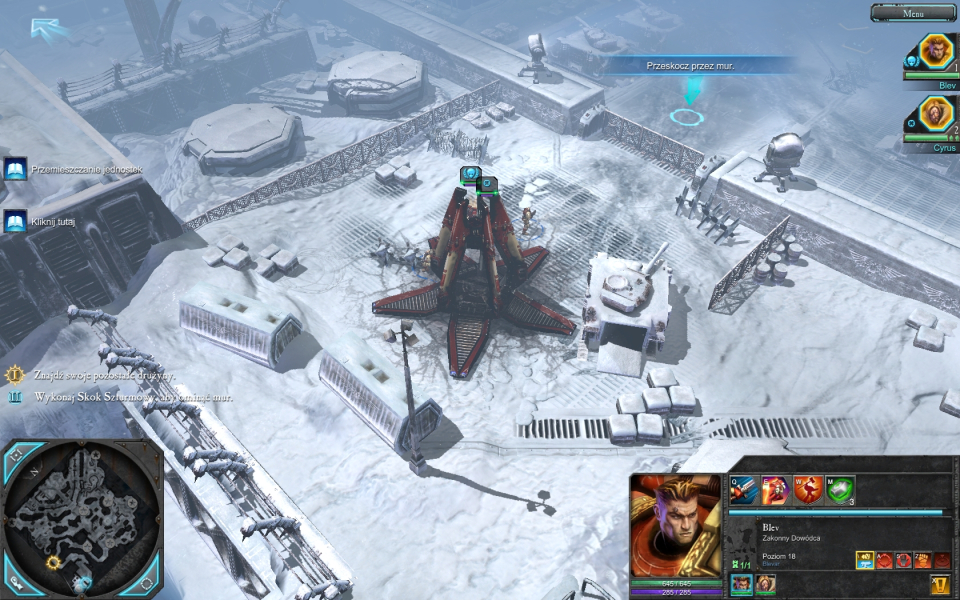
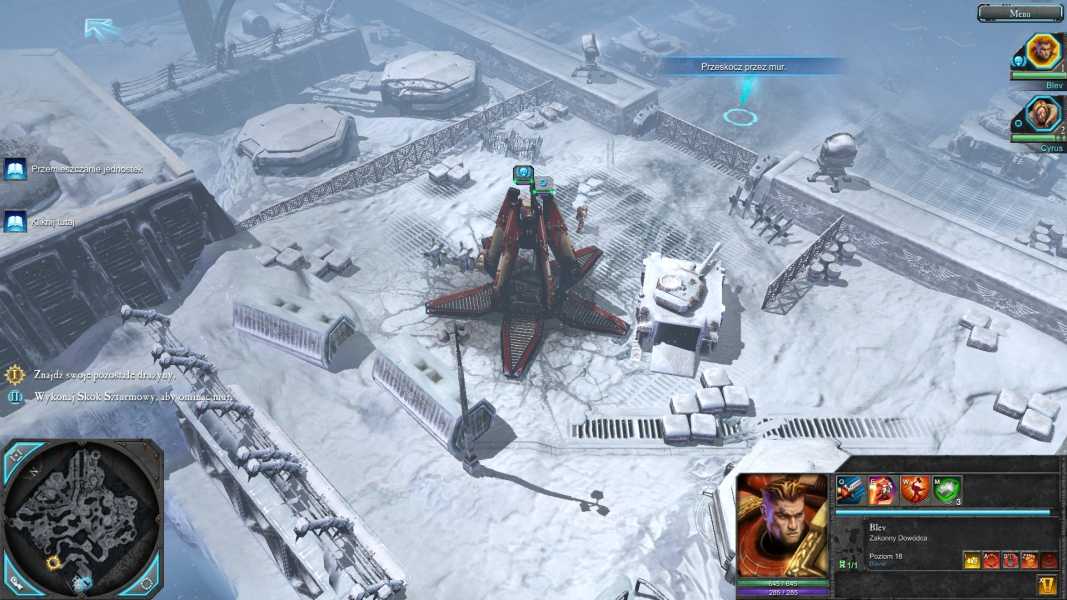


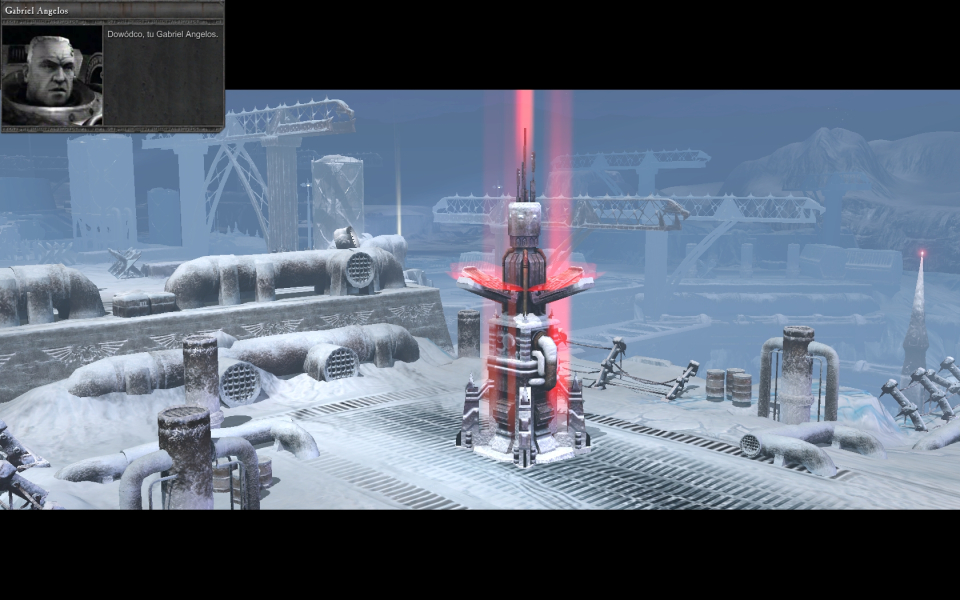
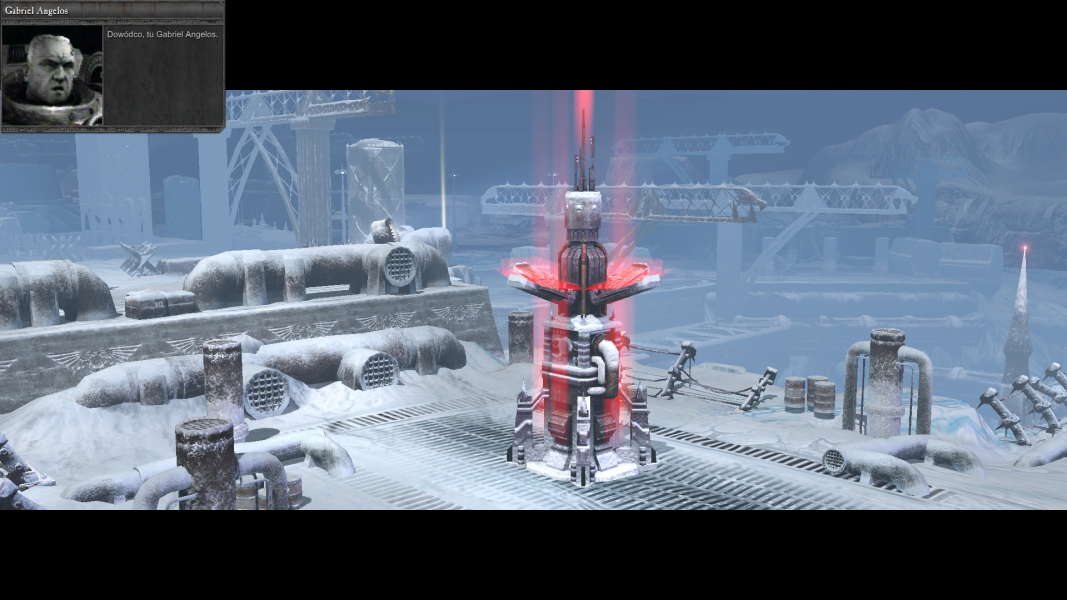
In-Game (Rendered) Cutscenes


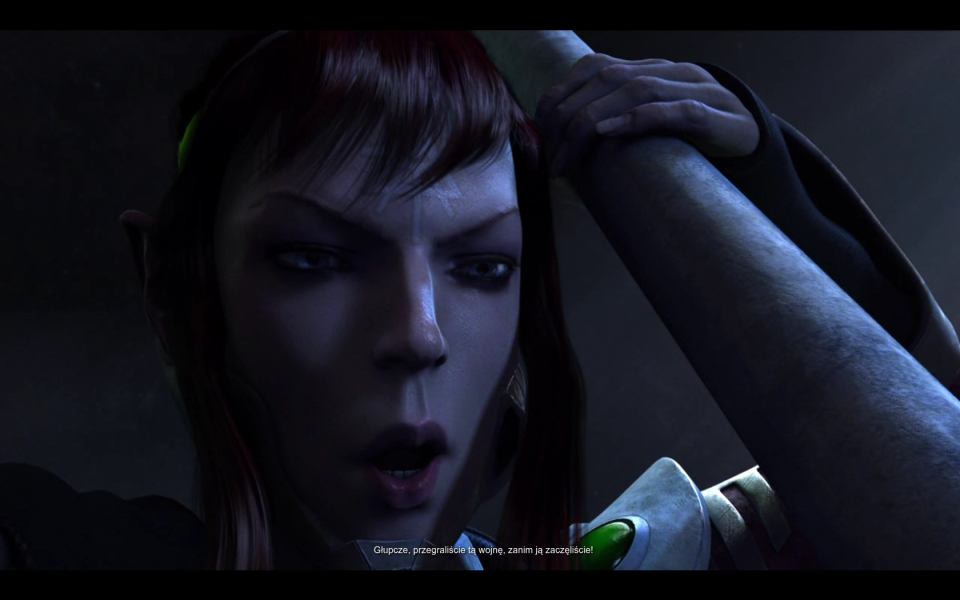
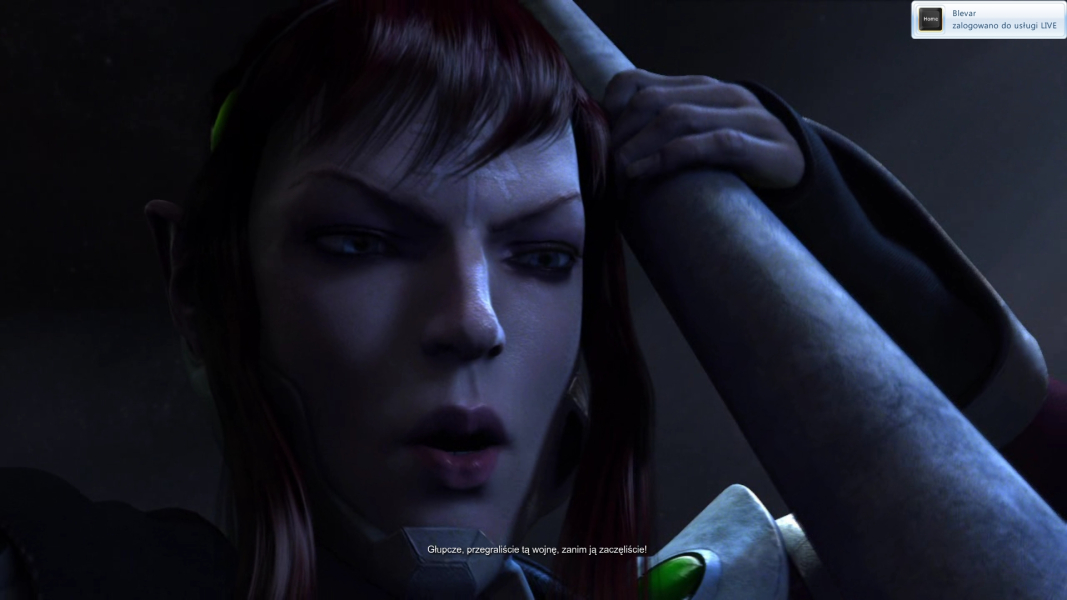
FMV Cutscenes


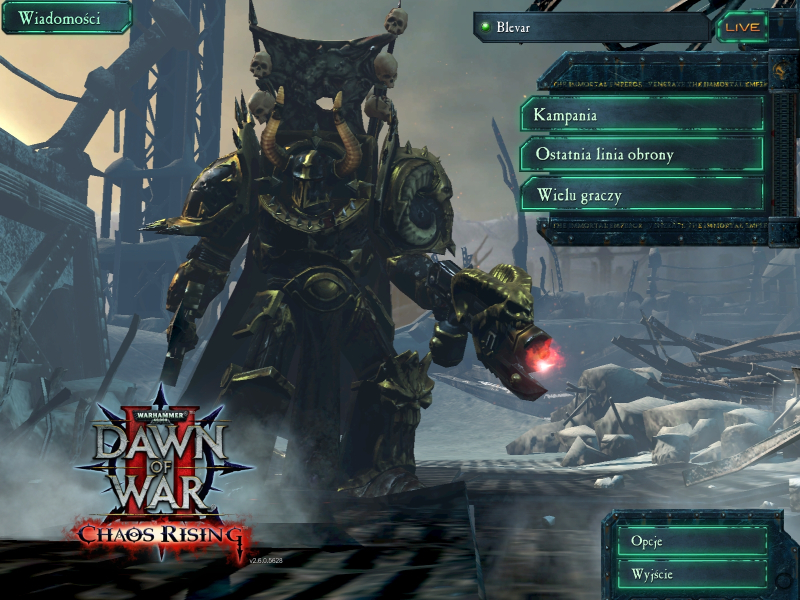
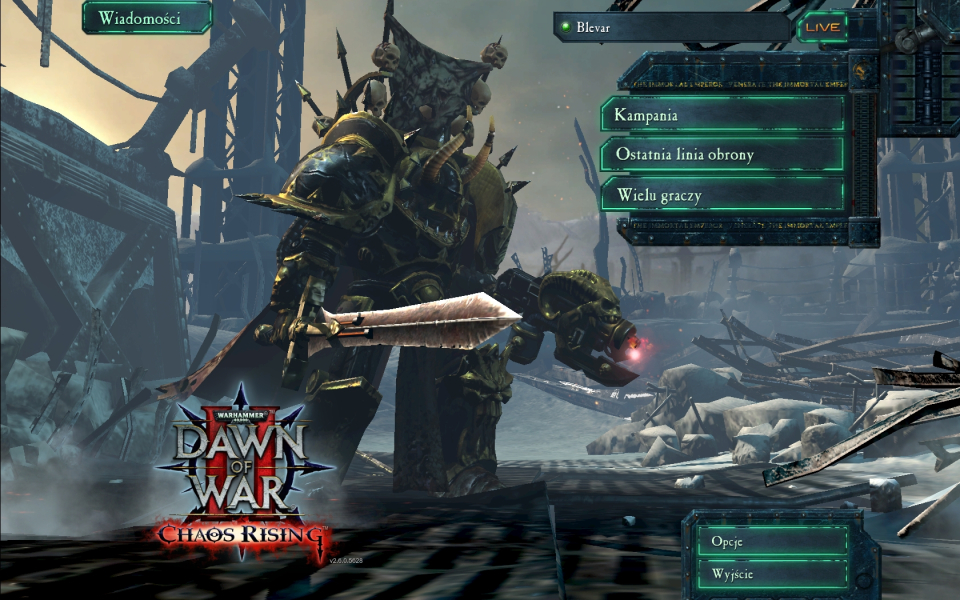
Menu Screenshots


Additional Screenshots


