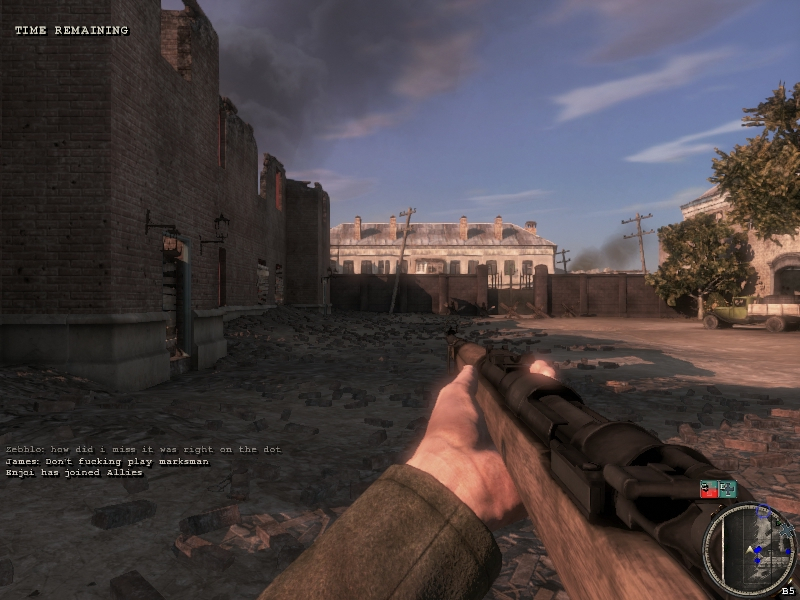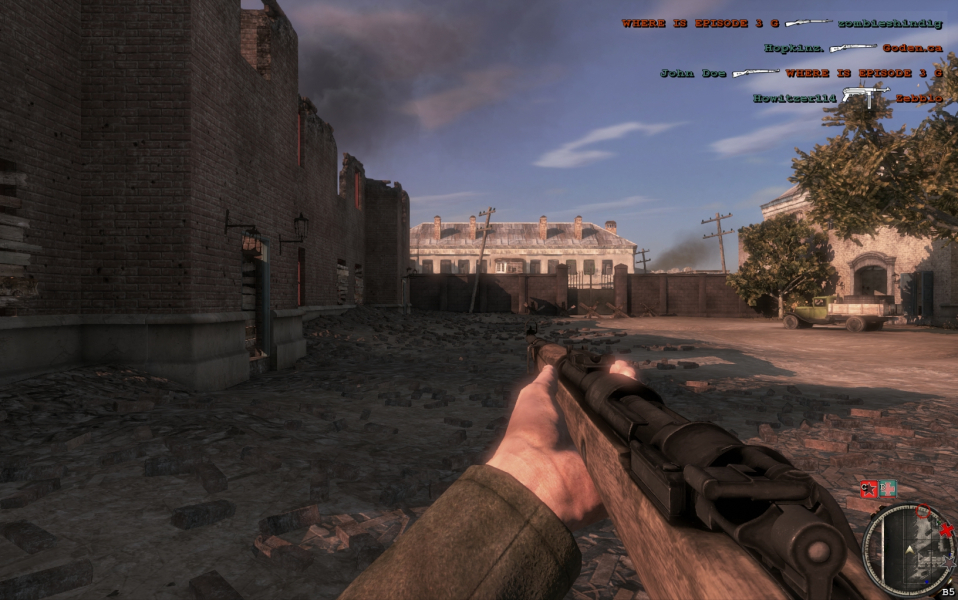


Red Orchestra 2: Heroes of Stalingrad is an WWII themed first-person shooter video game developed and published by Tripwire Interactive, with realistic gameplay elements. It is a sequel to Red Orchestra: Ostfront 41-45. The title will focus heavily on the Battle of Stalingrad. Guns behave realistically, with bullet drop and spin taken into account. The game also does away with elements of a traditional HUD like an ammo counter, forcing players to remember, or manually check, how many bullets are left in the gun's magazine.
Tanks are in Red Orchestra 2, with more vehicles added in after the game's launch. The interiors of each tank are fully recreated with either human or AI controlled characters manning each station. The level of detail was described by Tripwire's president John Gibson as rival or exceeding tank simulation games. Because of the extensive work required to recreate each vehicle, which Tripwire estimates to take three months each, the game will launch with two tanks, the German Panzer IV and Russian T-34.
Support Summary
Game Information
Screenshots Comparison
Solutions & Issues
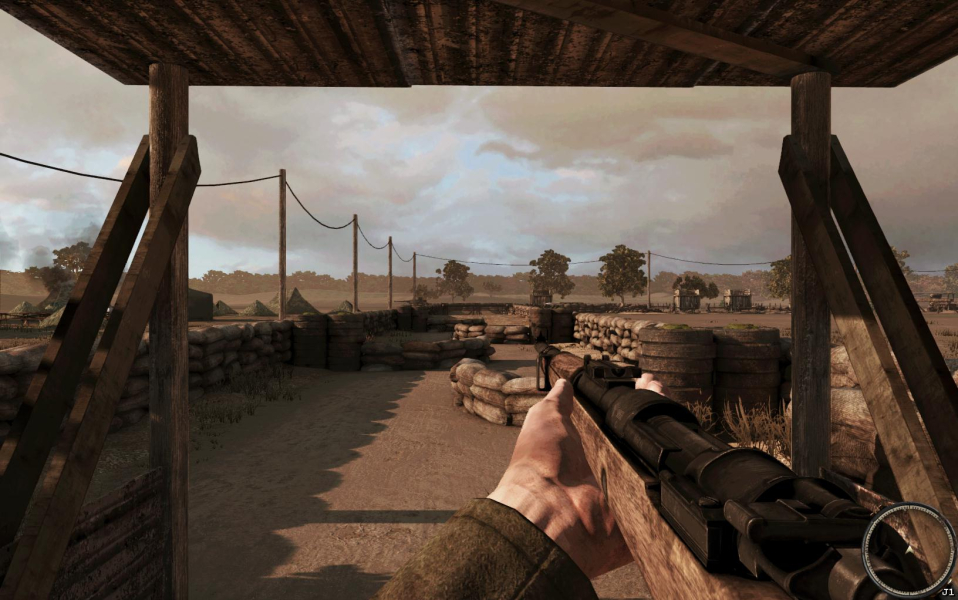
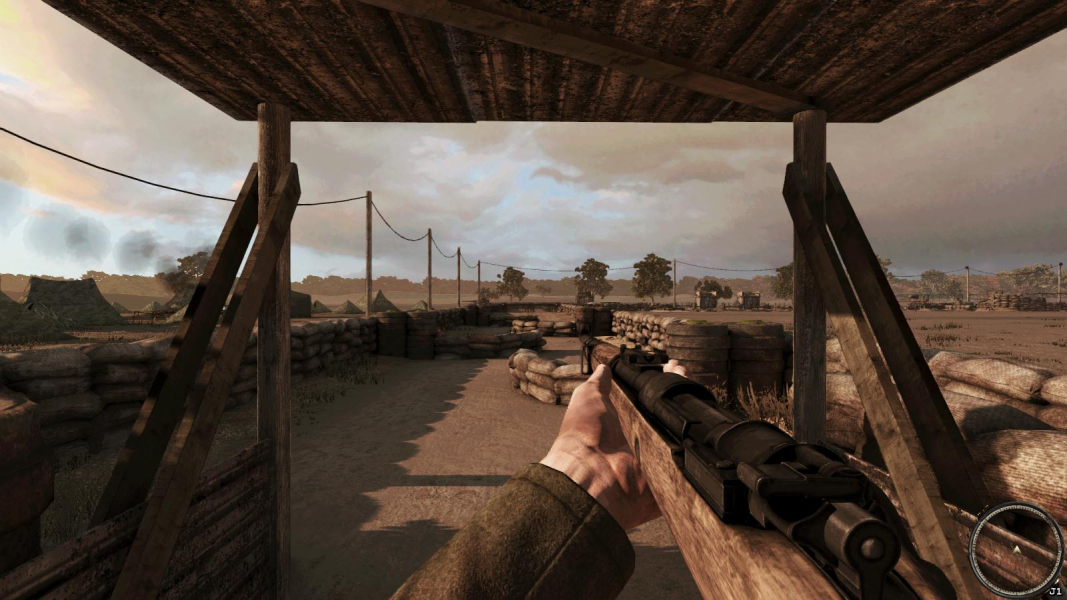
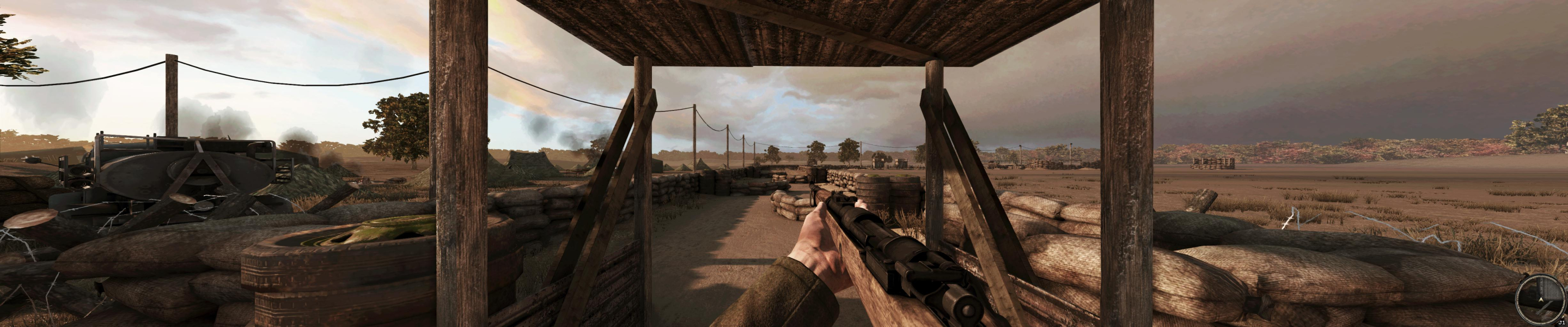
Native support. Game has a mixed screen change behavior. It is Hor+ at 16:9 and wider resolutions, but Vert- at 16:10(1), when compared to 4:3. FOV could be changed in the beta from 70 (default) - 90 degrees.
Thanks to Stiffi136 and AsheMan, at steampowered forums, for this FOV solution ...
Its specially recommended for 16:10 users, to make the game Hor+ you'll need to set FOV to 80 (please check the "Additional in-game shots" below)...
1. Go into \Documents\My Games\RedOrchestra2\ROGame\Config\ROGame.ini
2. Open notepad and drag the ROGame.ini file onto it
3. Find PlayerFOV, near the bottom, and edit it to 80.0000000
4. Save and exit
5. Right click on ROGame.ini and select properties. Check the read only setting.
6. Play RO2 in 80 FOV
This can be done to set FOV up to 90 degrees...
(1) 1024x640,1280x800,1440x900,1680x1050,1920x1200, 2560x1600
Change resolution the same way as eyefinity solution.
Edit ROEngine.ini at C:\Users\...\Documents\My Games\UnrealEngine3\ROGame\Config (under [SystemSettings]), or type setres ****x**** in the console (`), i.e. setres 5040x1050 for 5040x1050.
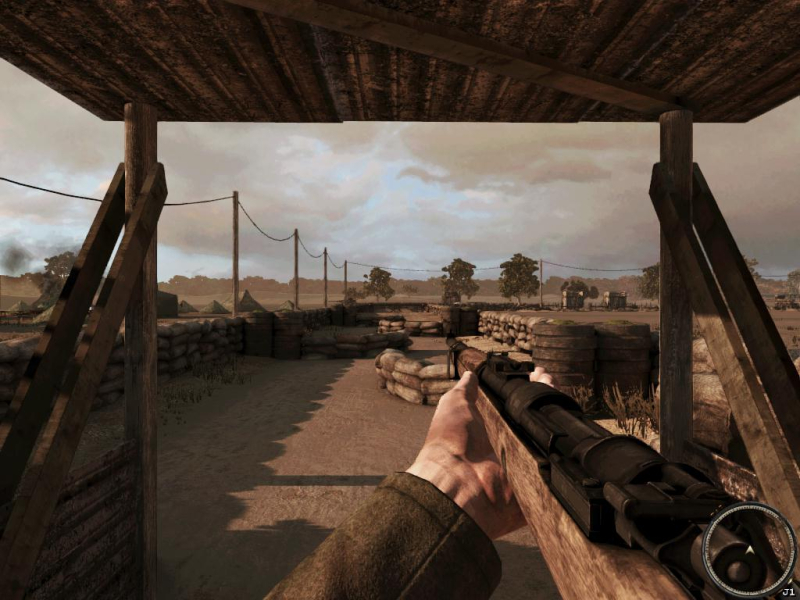
Gameplay Screenshots


FMV Cutscenes

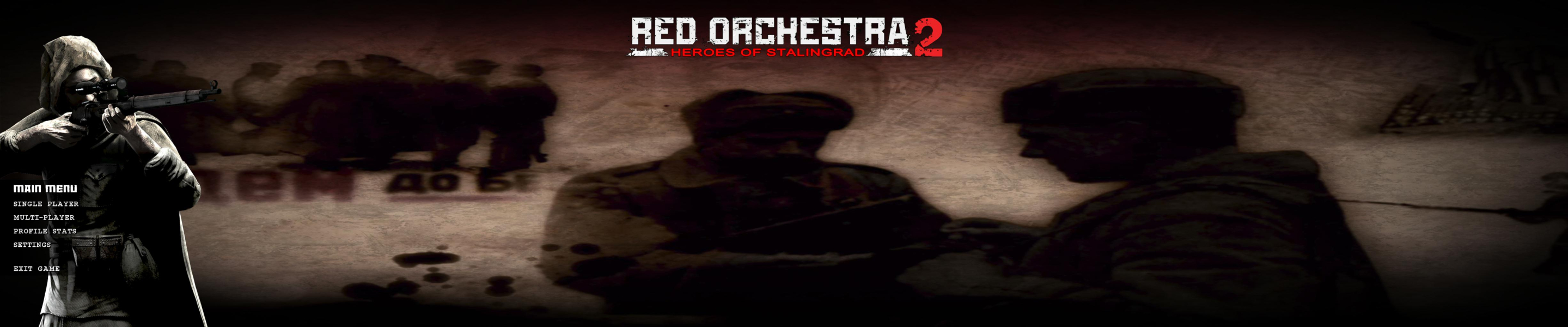
Menu Screenshots

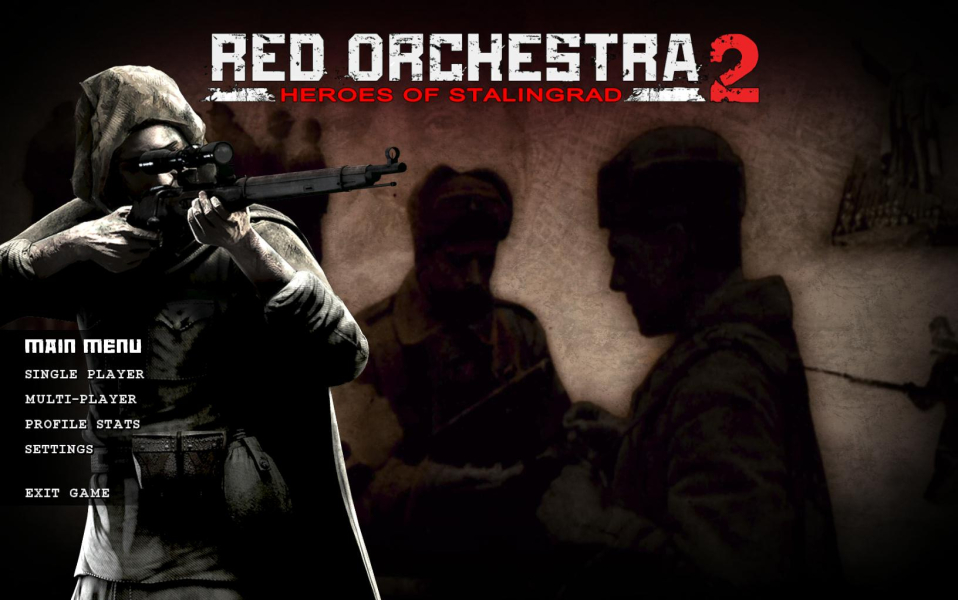
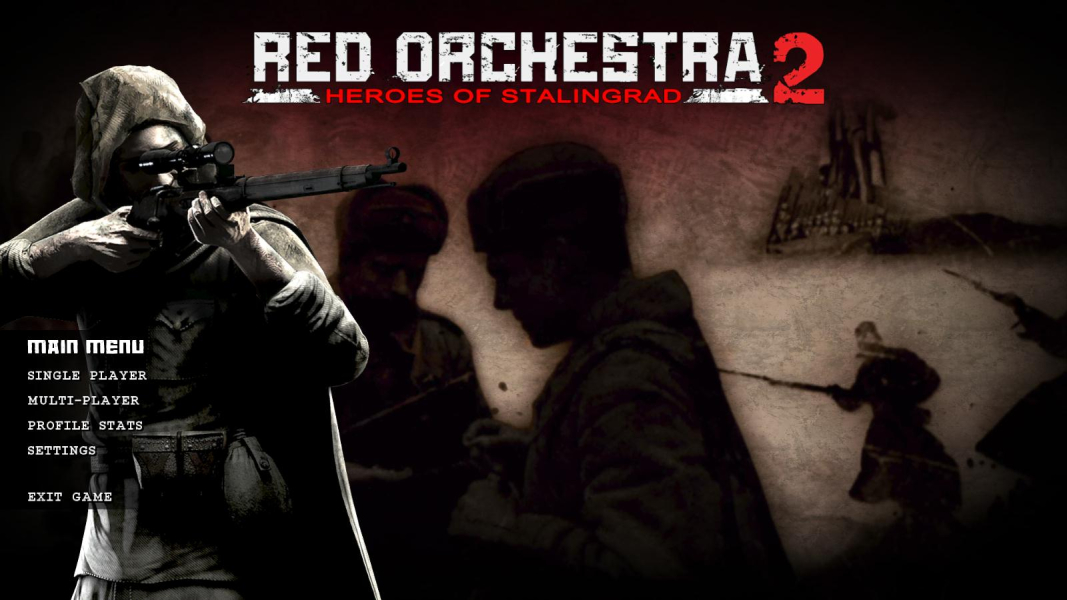
Additional Screenshots