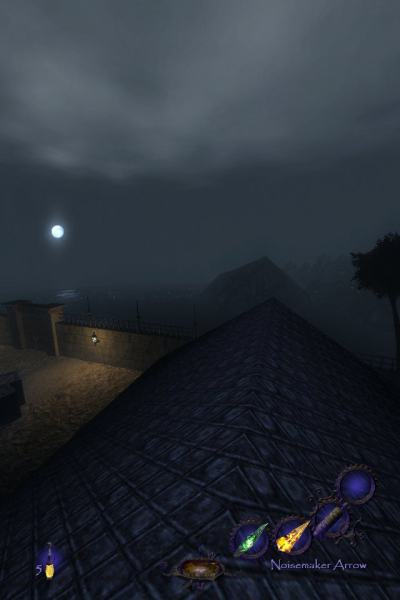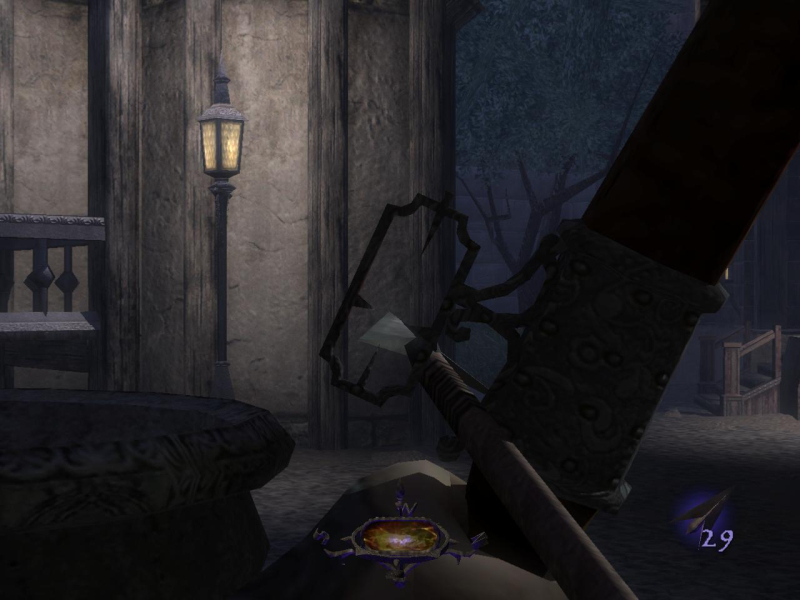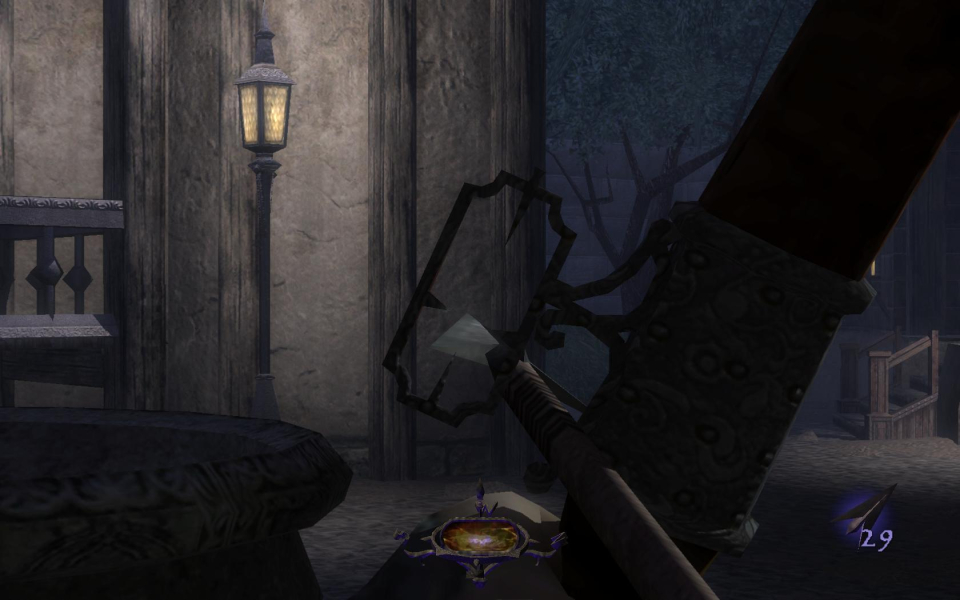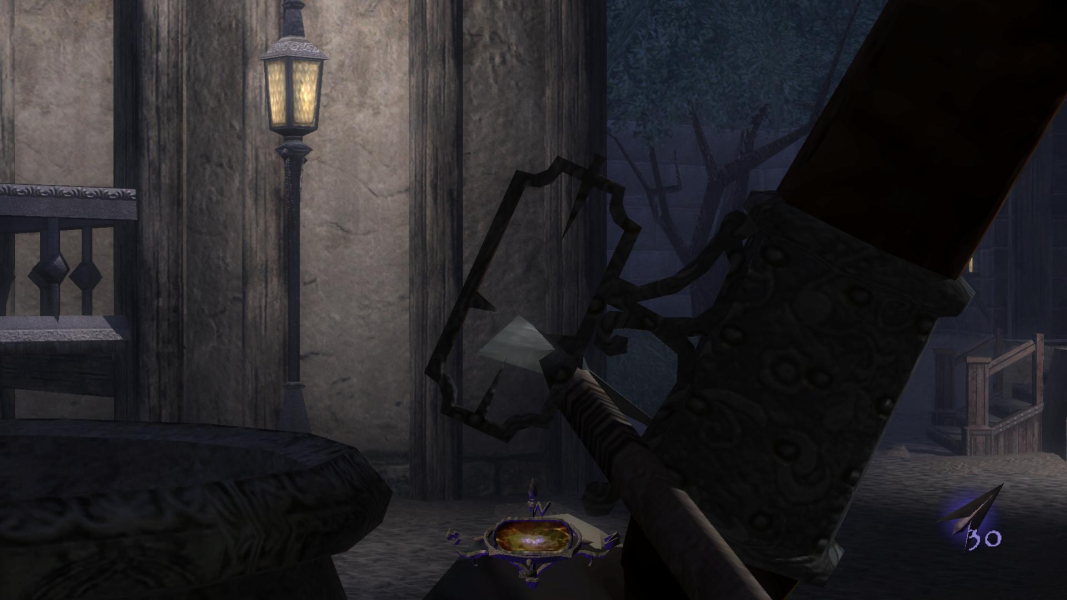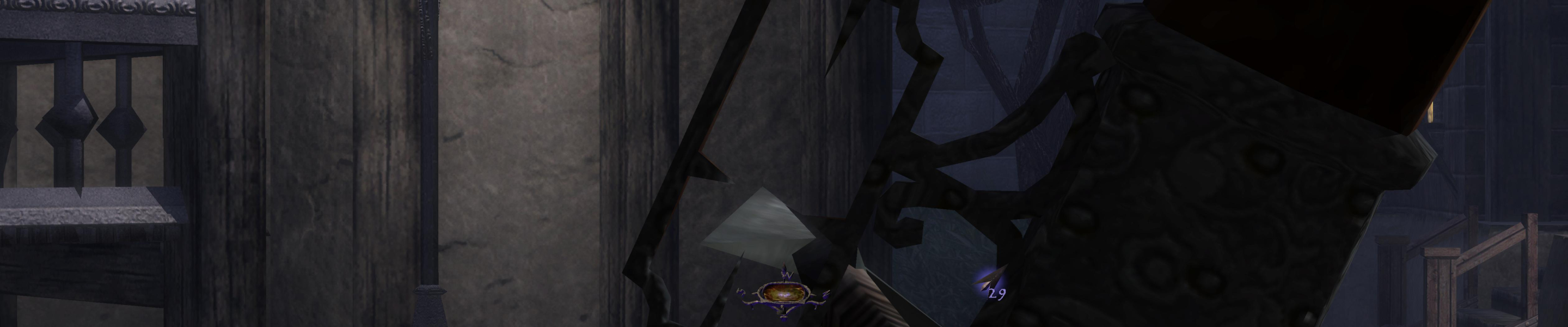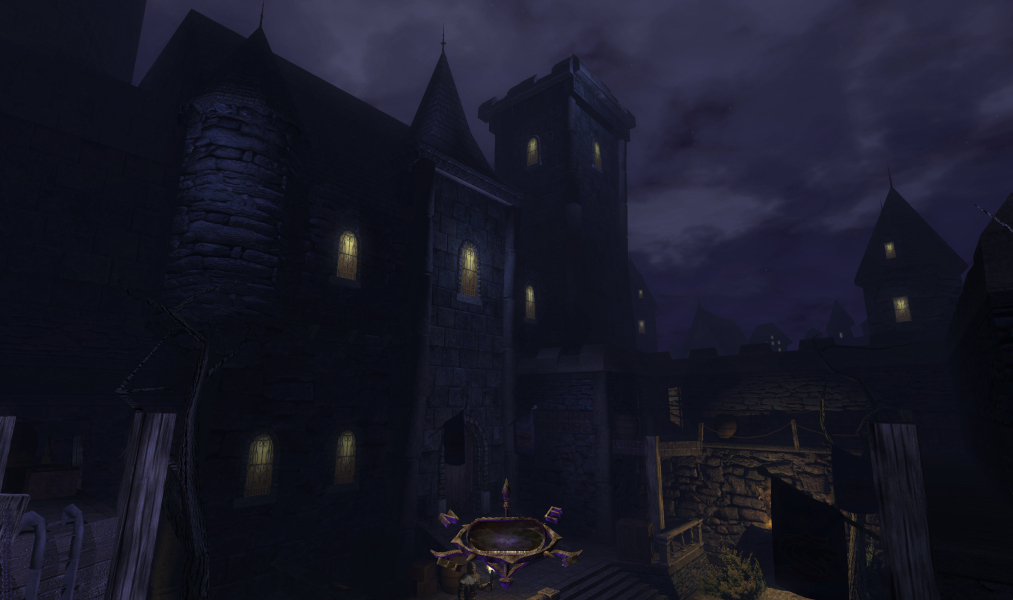


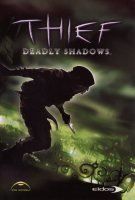


Thief: Deadly Shadows sees Garrett return to his thieving ways, in this third installment of Thief the plot involves the mysterious Keeper order. Although the game wasn't developed by the makers of the original Thief, Ion Storm did an admirable job.
Support Summary
Game Information
Screenshots Comparison
Solutions & Issues
- Install the game. If you have a retail version also install the 1.1 patch (not needed for digital versions). If you have an existing installation and have previously applied any tweaks or patches it is strongly recommended to uninstall and start over.
- Install the Sneaky Upgrade. The installer will get your game path from the registry. You might want to tick the "Edit configuration" item on the last screen.
- Launch the game and go to the options screen. The resolution slider now provides the resolutions reported by the system. Aspect ratio is shown in parentheses. Select an appropriate resolution. Contrary to the unpatched exe, a resolution change requires that you restart or reload the game
After installing the Upgrade, its configuration file, SneakyUpgrade.ini, can be found in the game root folder. There's also a SneakyUpgrade subfolder containing the readme/changelog, backups and the uninstaller.
Configuration:
* FOV can be adjusted through the options FOVFactor (relative change) and VerticalFOV (absolute vertical FOV value). Since the Upgrade makes the game "hor+" you should only do so if the default FOV doesn't agree with you
* If your system fails to report a video mode you can try setting CustomResWidth and CustomResHeight. When in use, the custom resolution will replace 640x480 as the first entry on the slider
In addition to the widescreen options there are several GUI tweaks, most importantly HUD scaling. See the readme and the ini-file itself for details.
=====
There are a few known issues:
- When the game is running it's important not to move focus away from the window (e.g. using alt-tab), because for some reason it will make text disappear or change size. If you have text issues anyway, try setting T3Main.exe to run in XP compatibility mode or (weirdly) hit a key on the keyboard every time a loading screen appears
- Loading screens stretch... Check the WSGF Links for a loading screen mod for multi-mon.
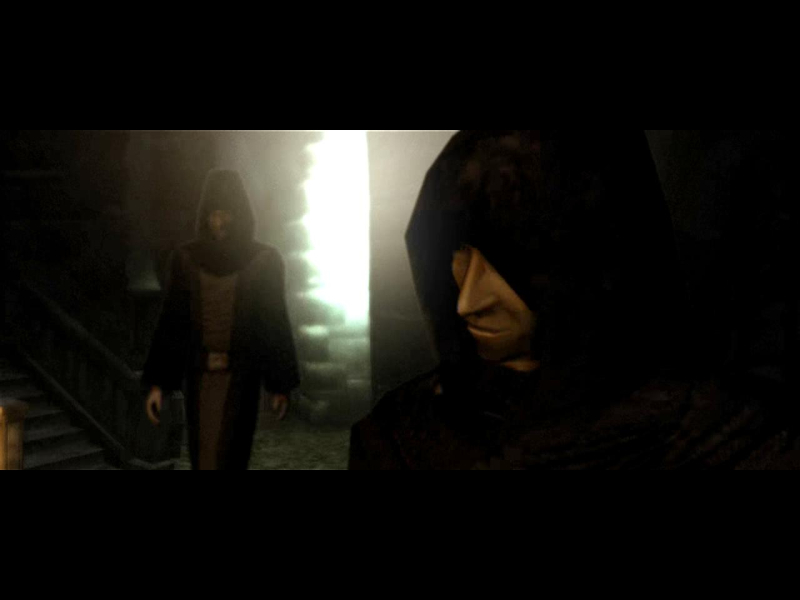
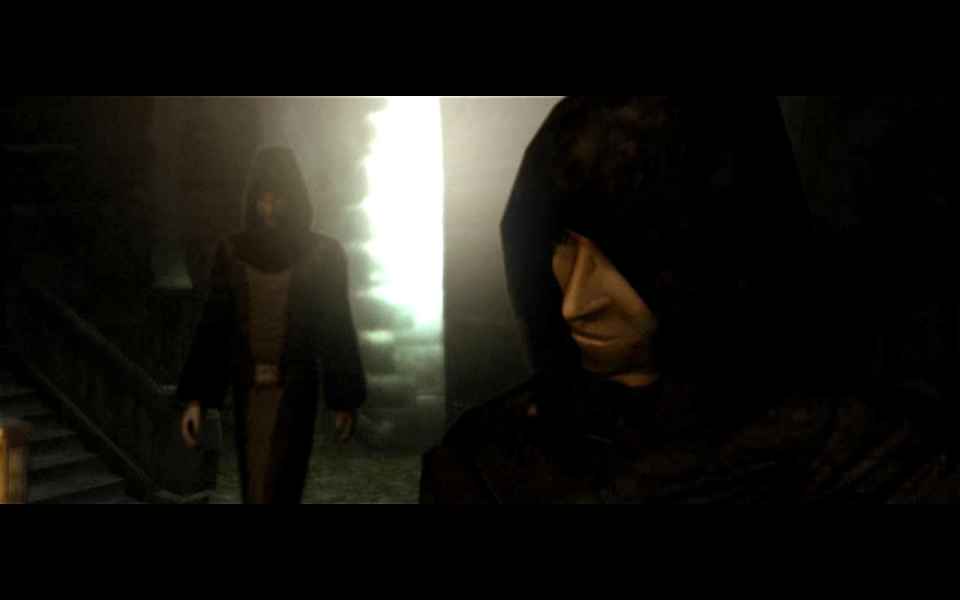
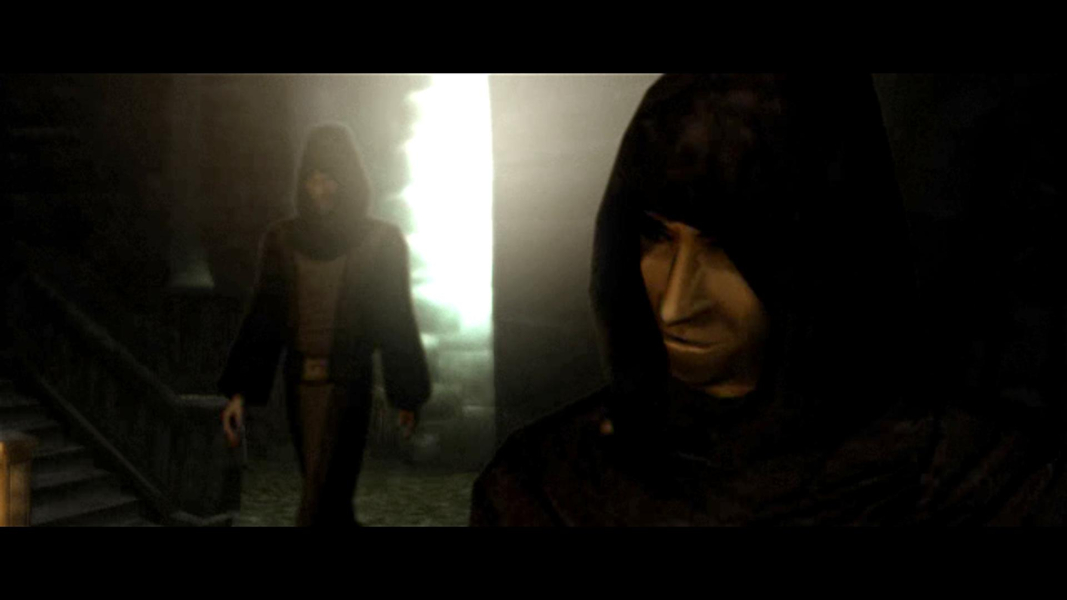
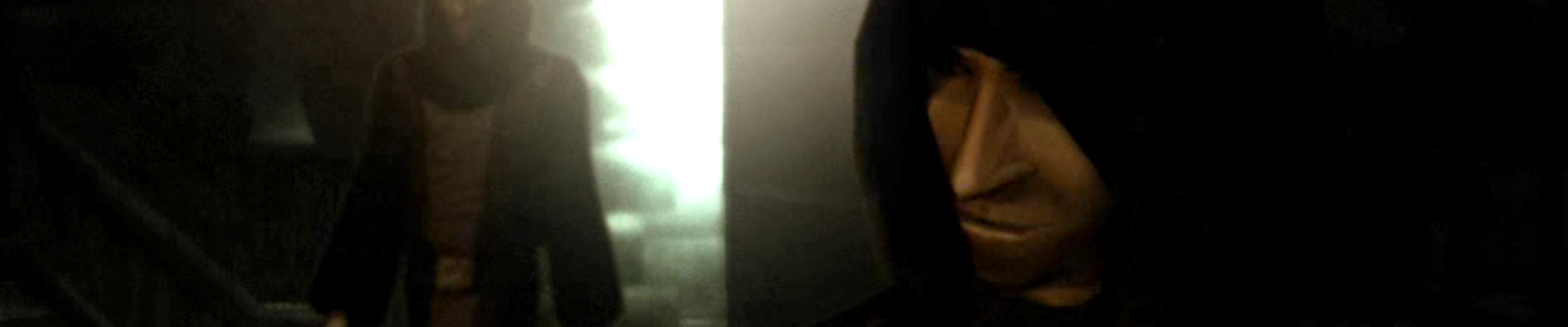
- FMVs are Vert- in multi-mon (2.35:1 anamorphic in widescreen).
- 'Defaults' button label on the Options menu is missing or cut-off in multi-mon, depending on the resolution.
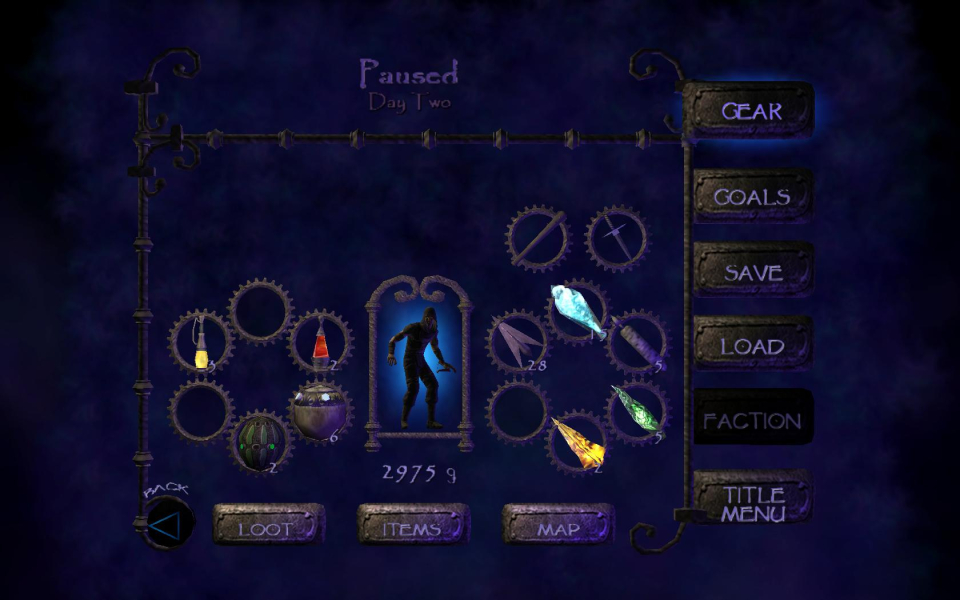
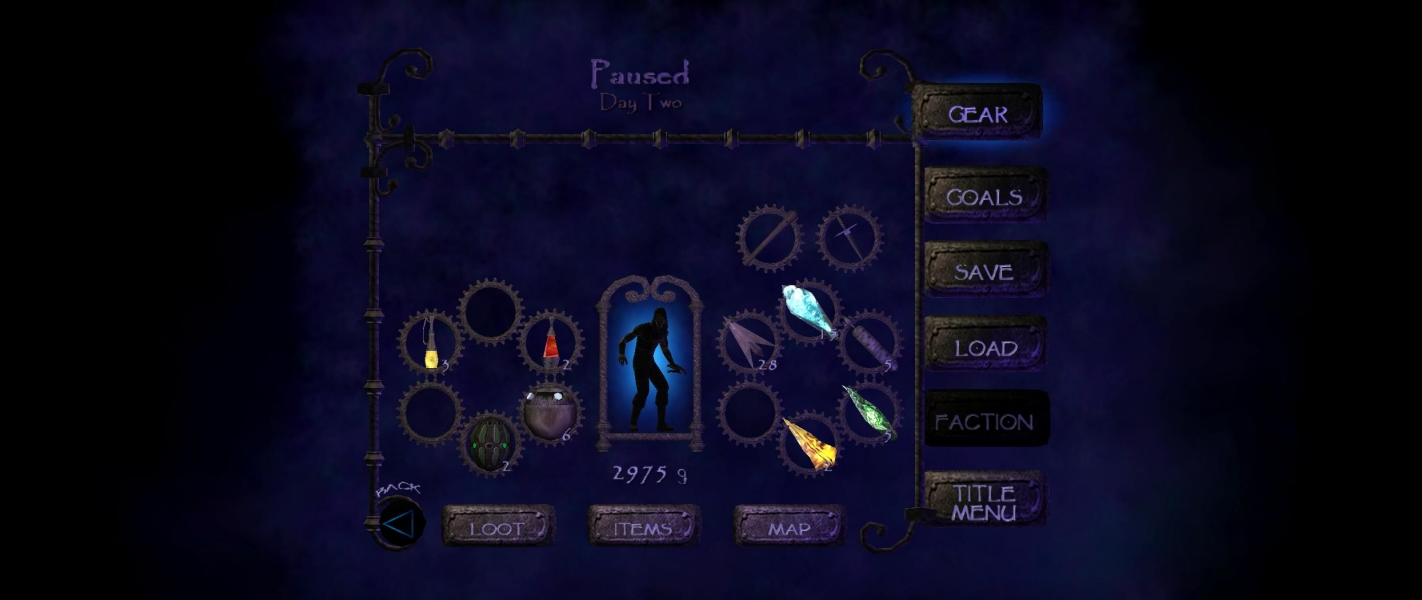
- 'Loot/Items/Map' labels are missing from the buttons on the Gear menu, only in 3x 16:9 resolutions. Other aspects (including 3x 16:9 + bezel comp.) are unaffected.
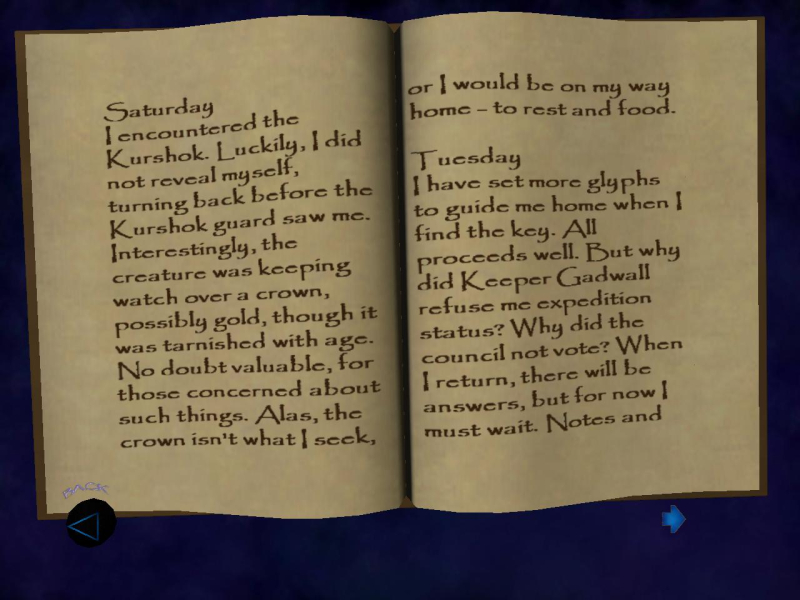
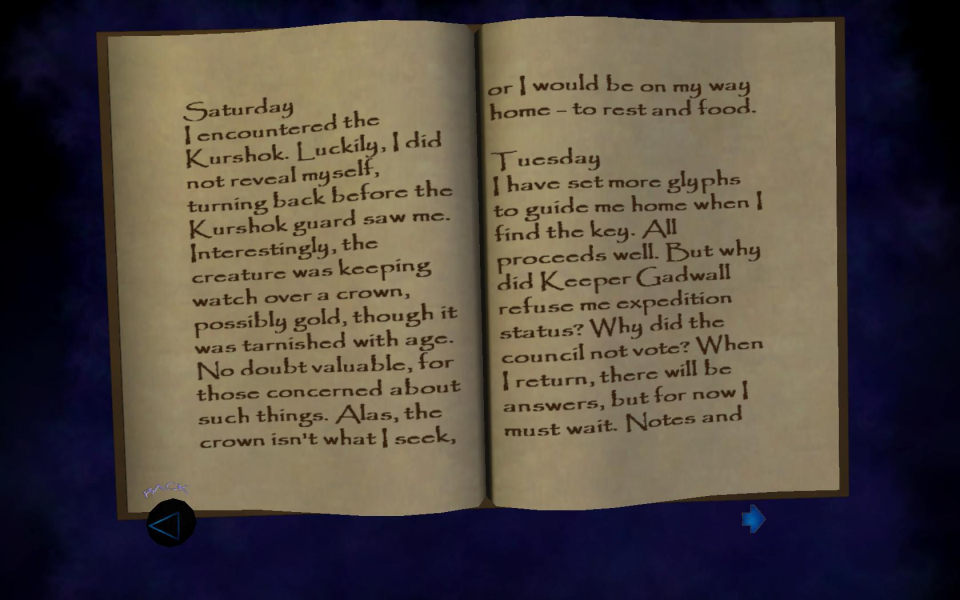
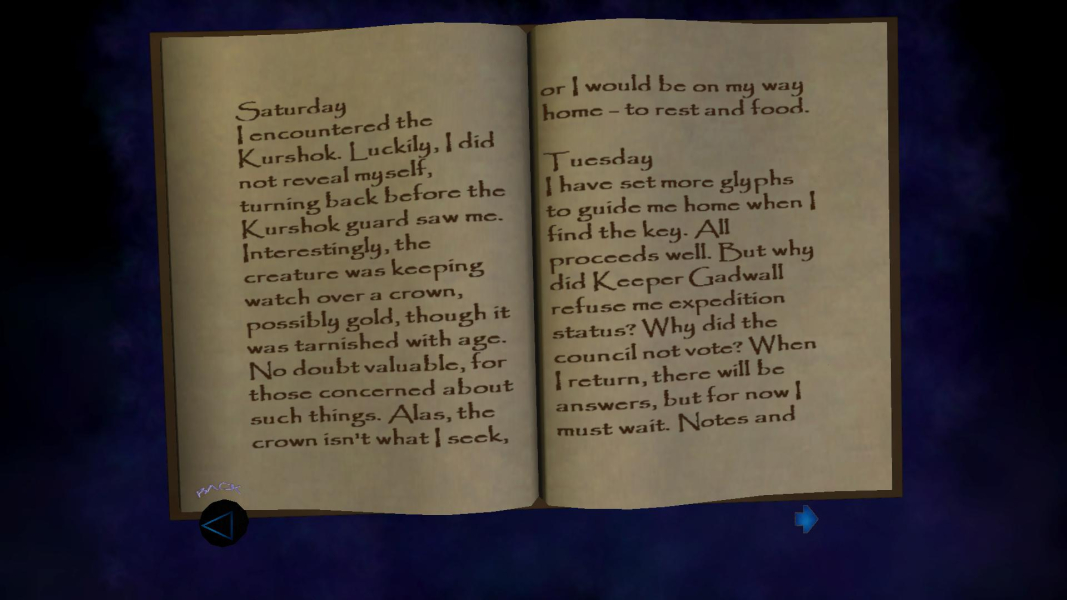
- Lighting of the "reading screen" is affected by aspect ratio; slight visual artefact in multi-mon.
- Bow zoom is Vert-.
- Zooming with the mechanical eye is slower as the aspect ratio increases. Makes it a pain to use in multi-mon.
- Mouse position is off in the input table (key binds) screen
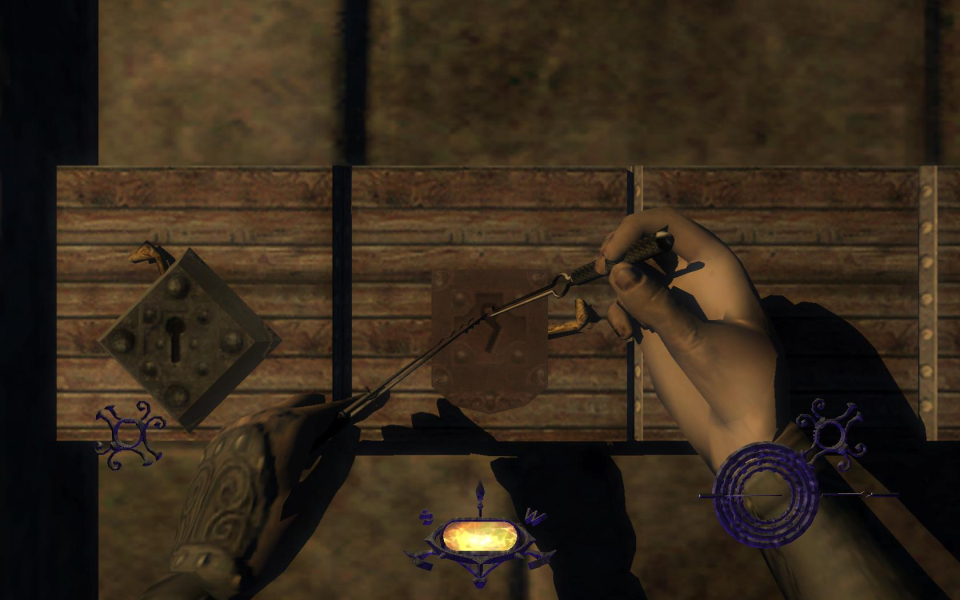
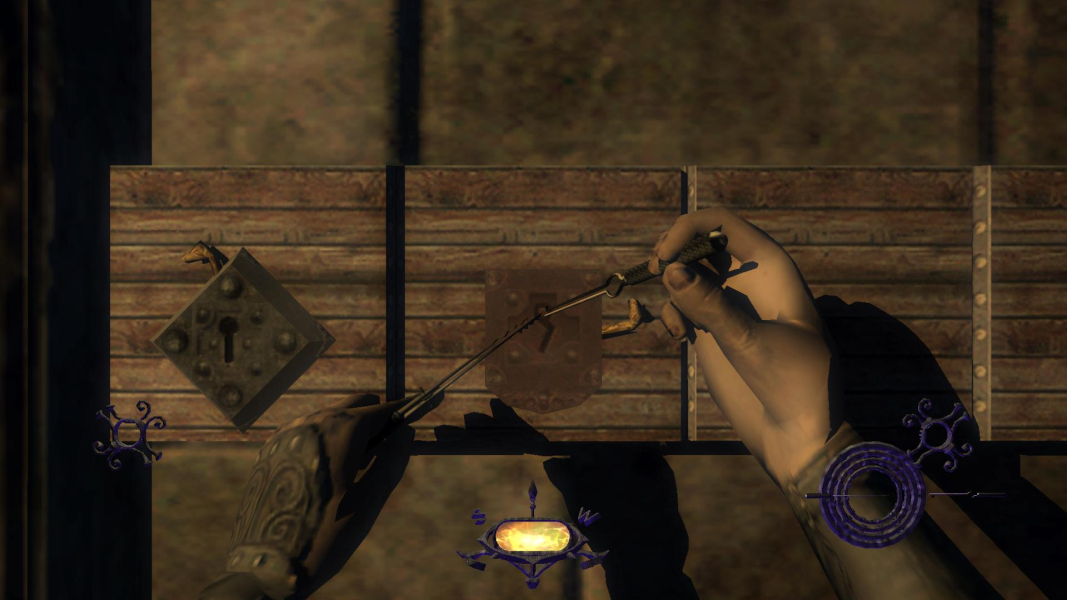
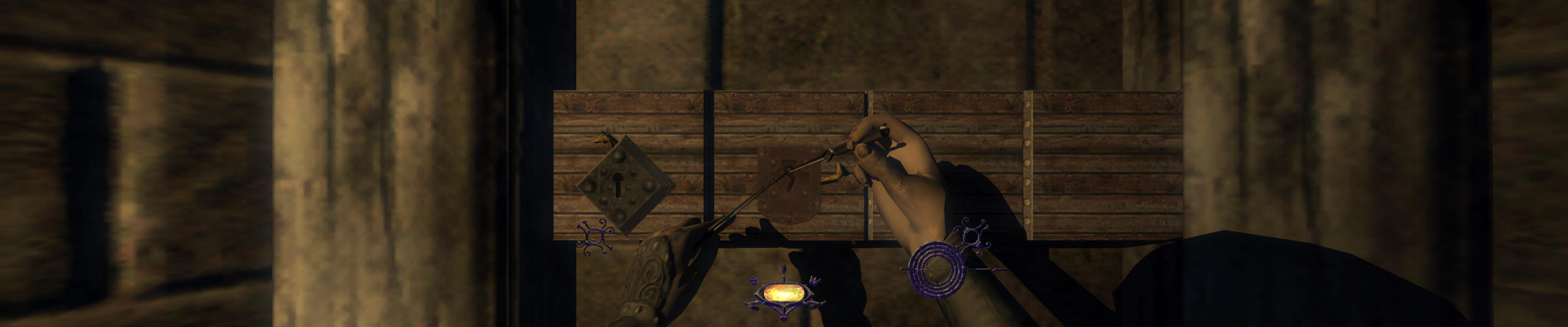
- When lockpicking with the scaling tweak active, the right-to-left movement of the right pick is not scaled
- In multi-mon, subtitles sit on the right screen. The HUDWidthFraction tweak has no effect on them, but a partial work-around is to locate the HUDSubtitleTextOverlay section in System\T3UI.ini and set CalculateFixedCenter to false (or, if that doesn't work, comment out the line by placing a semicolon in front of it). The text will appear on the center monitor, but at the left edge
- If you have a 120 Hz monitor you may have to enforce a 60 Hz cap in the display driver settings, and enable vsync in the game settings
Same as widescreen.
Sneaky Upgrade default HUD position is incorrect for ultra-widescreen. To fix this run SneakyTweaker and set the HUD Width value under Sneaky Upgrade>Display (use 1.0 for a full width HUD or adjust as desired).
Same as WS solution. Thanks to Xarg on the Dark Mod forum.
Sneaky Upgrade HUD is correctly centred for triple-wide setups by default. To change the HUD area run the SneakyTweaker and adjust the HUD Width value under Sneaky Upgrade>Display.
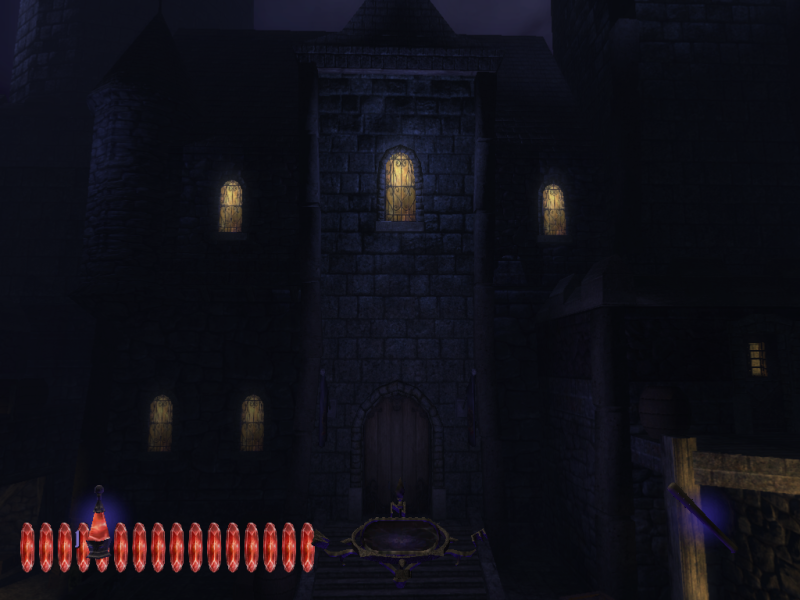
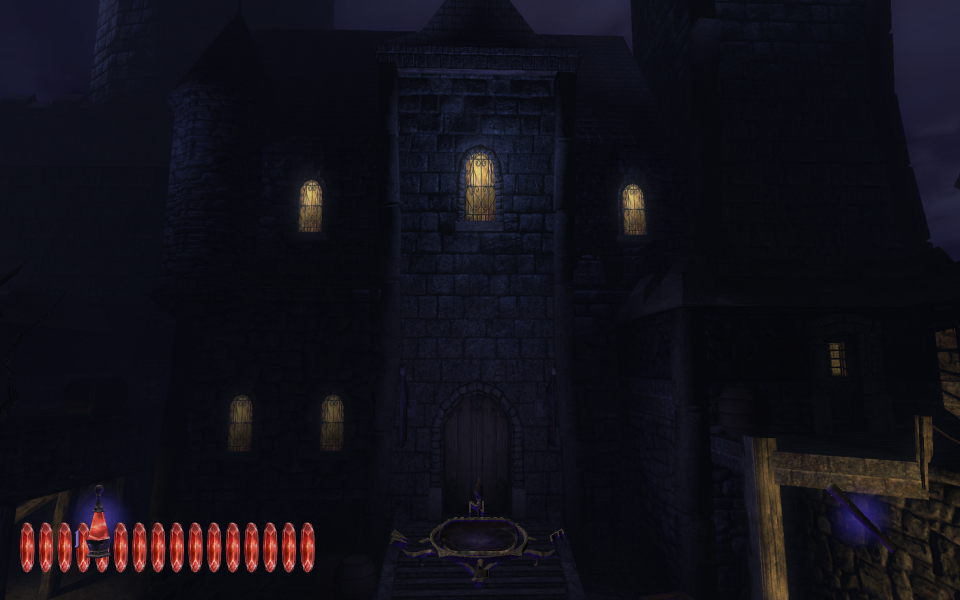
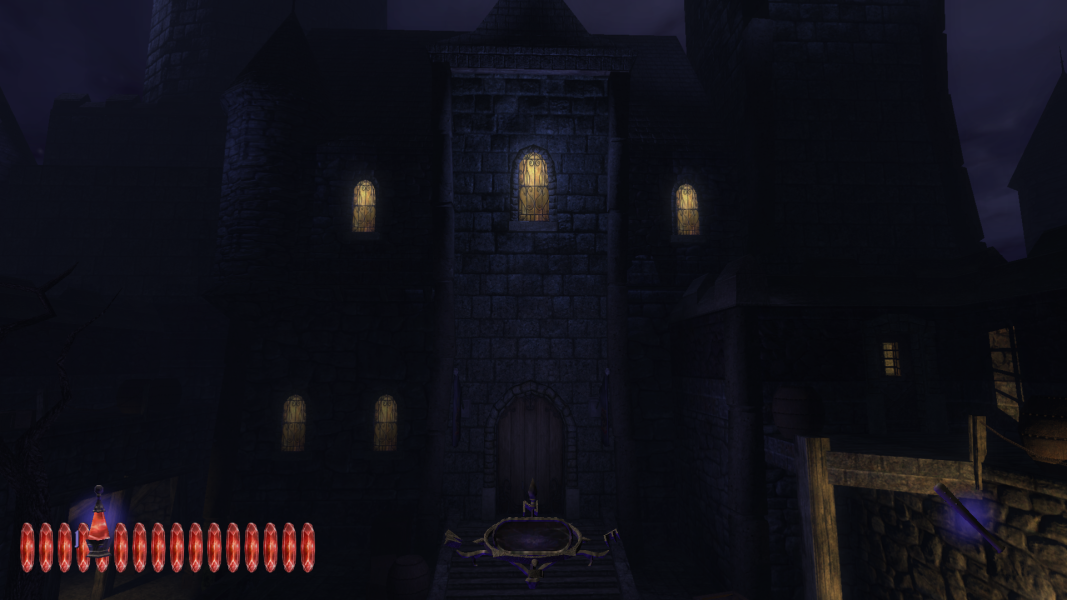
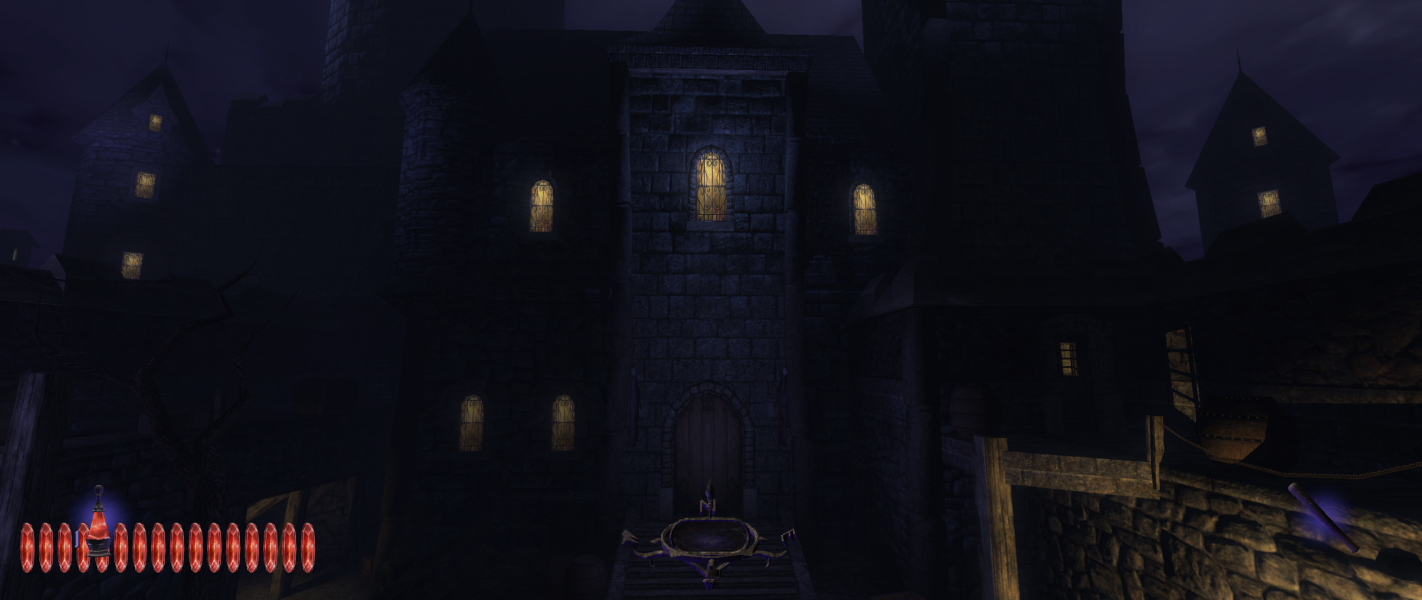
Gameplay Screenshots


FMV Cutscenes
Menu Screenshots



Additional Screenshots