

"DCS: A-10C Warthog" is a PC simulation of the U.S. premier Close Air Support attack aircraft. This is the second aircraft in the DCS series, following DCS: Black Shark, and raises the bar even higher in the DCS series. Warthog brings the most realistic PC simulation of a modern fixed wing combat aircraft in regards to flight dynamics, avionics, sensors, and weapon systems. You also have the option to play Warthog in "Game" mode for a casual game experience. Fly missions in the Caucasus region of the Black Sea against and with a wide array of air, land and sea forces with new and improved intelligence. Create your own missions and campaigns with the included Mission and Campaign Editors, and fly with and against friends online using the included online game browser.
Support Summary
Game Information
Screenshots Comparison
Solutions & Issues
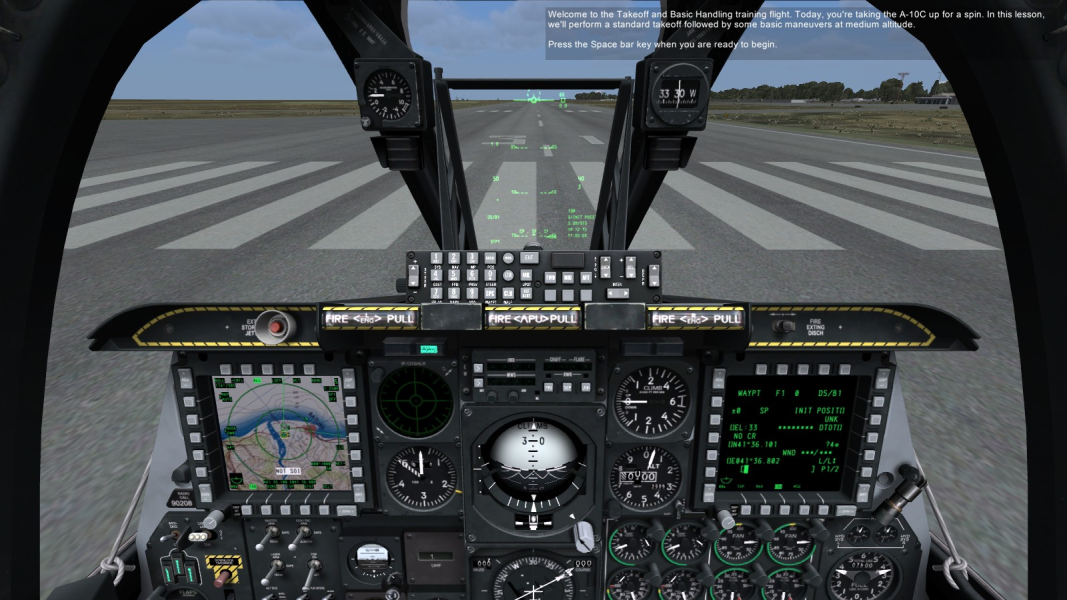
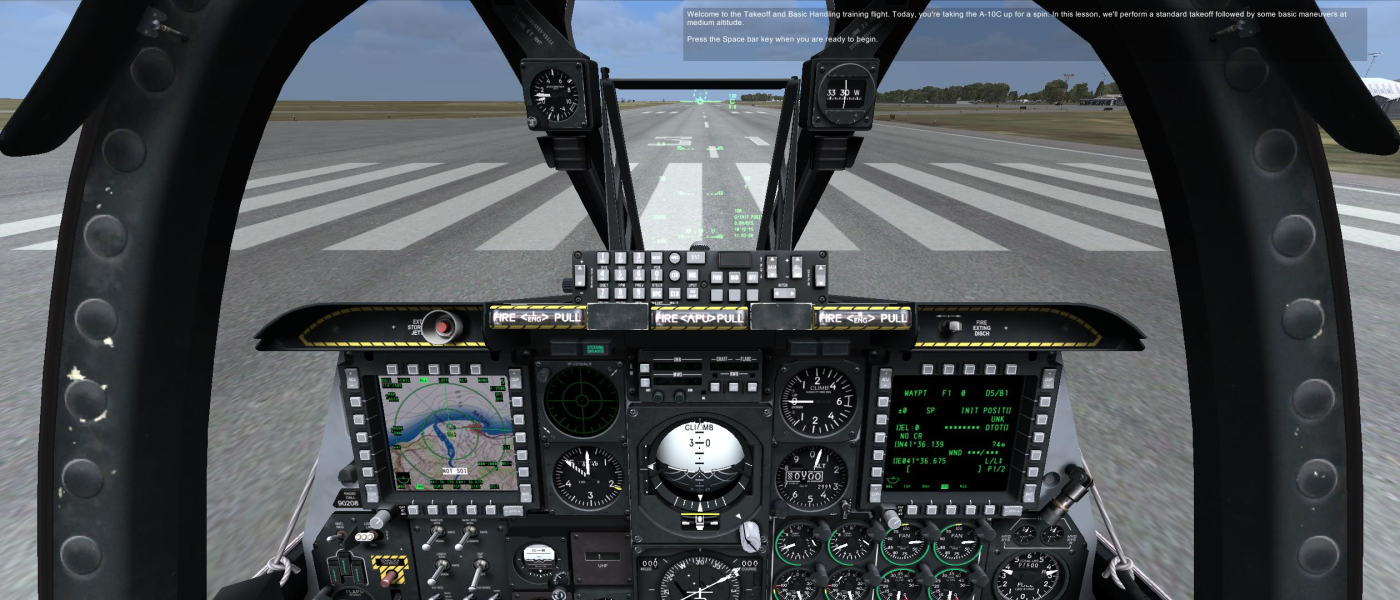
Support is very similar to Black Shark's, with the notable difference of a Hor+ cockpit view with no need to fiddle with the camera zoom.
Method: native.
Select your desired resolution from the Options menu. If Aspect Ratio is neither 16:10 nor 16:9, it will be calculated automatically.
Settings are stored in C:\Users\\Saved Games\DCS Warthog\Config\options.lua (Windows 7) or C:\Program Files\Eagle Dynamics\DCS A-10C\MissionEditor\data\scripts\options.lua (Windows XP).
Note: to play in the resolution 1280x720, you must edit this file. The option does not appear in the in-game menu.
Screen change: Hor+ here, Vert- there... depends on the camera.
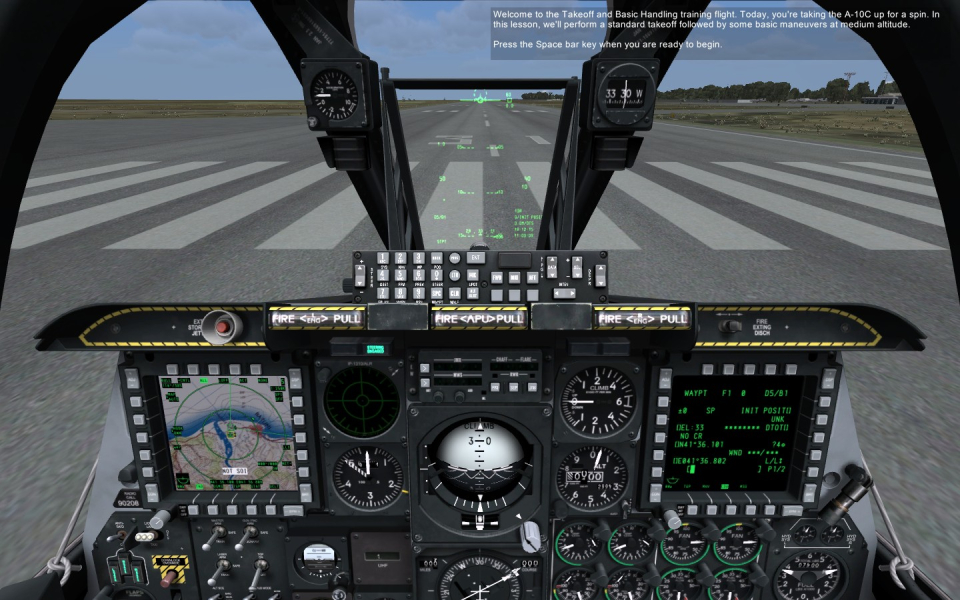
Cockpit: Hor+ (at default zoom).
Chase view: Vert- (and no free zoom to fix or dolly to compensate).
All other views are Vert-, no free zoom, but some have free dolly.
Very Vert- in chase view.
Method: native.
Select your desired resolution from the Options menu, then pick '3 Screen' under Monitors.
Screen change:
Hor+ with no edge distortion but some strange perspective.
Details of all monitor arrangement settings:
-1 Screen: usual mode with one camera frustum and edge distortion (fisheye effect) on the sides of the picture. Hor+ cockpit, painfully Vert- chase cam in multi-mon.
-3 Screen: one camera frustum per screen, all cameras are Hor+, no more edge distortion but some strange effects on scene perspective. Much better in 3x 4:3 or 5:4 than TripleWide. Zooming out on the cockpit view is very damaging for the side screens.
-MFCD: fullscreen (stretched) instrument panels on the sides, single-screen gameplay on the center.
-Camera + RMFCD: the same for dual screens: gameplay on the left half of the display, fullscreen instrument panel on the right.
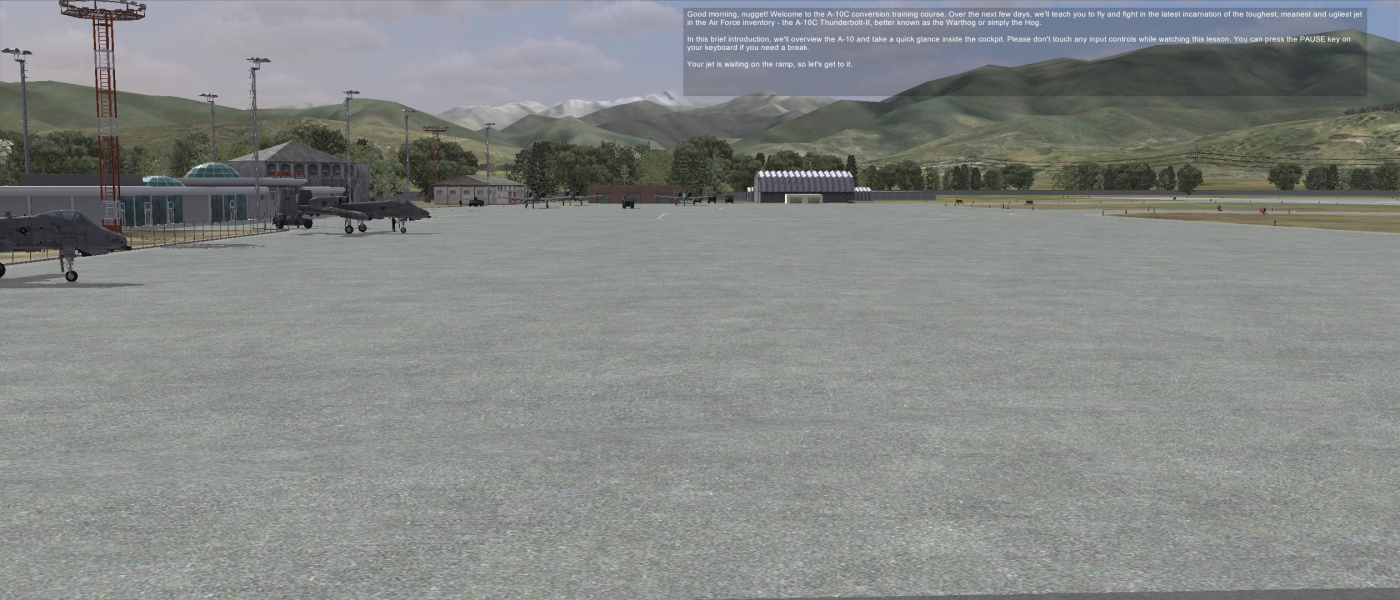
Gameplay Screenshots



In-Game (Rendered) Cutscenes


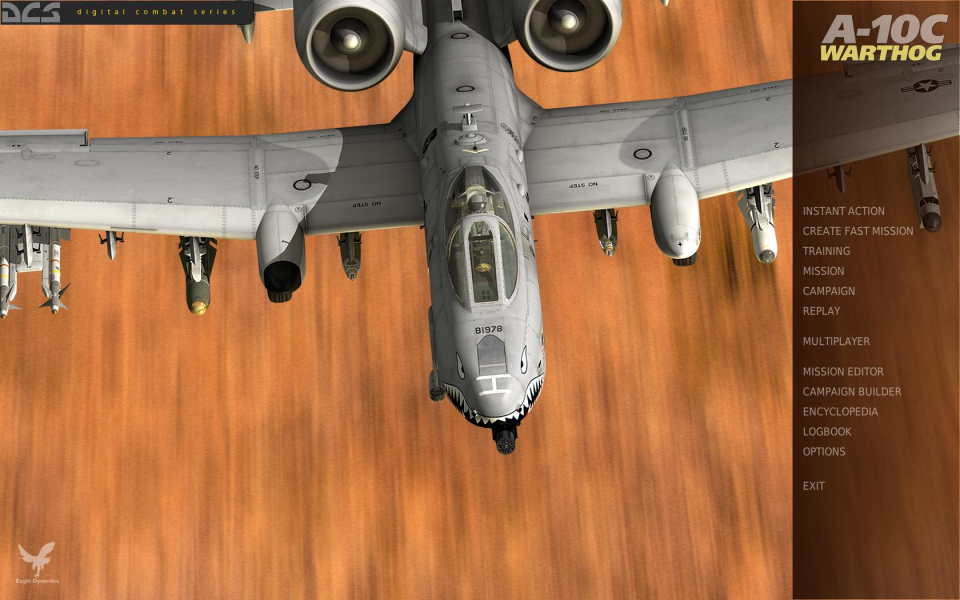
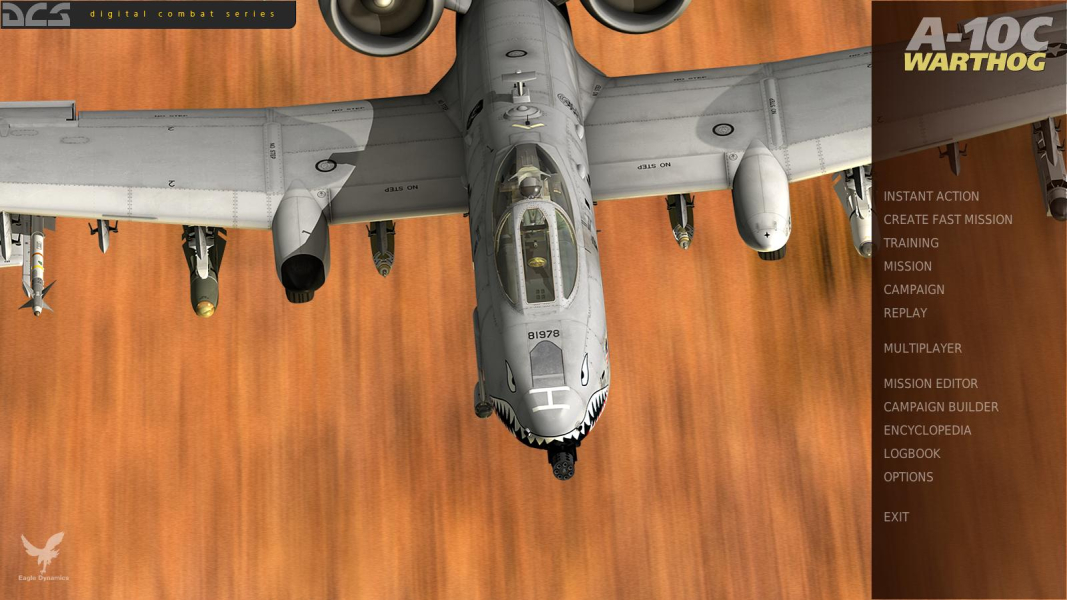
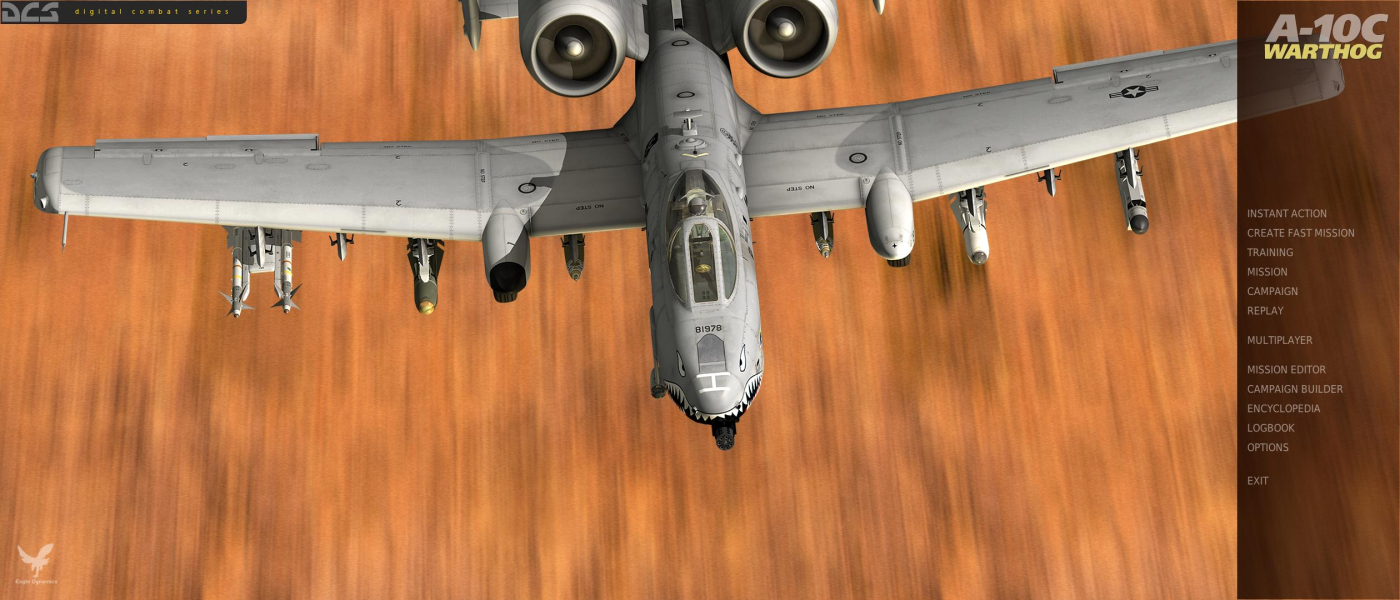
Menu Screenshots


Additional Screenshots