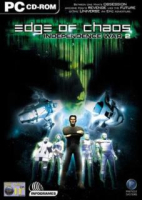


sequel to the space combat simulator video game Independence War
Support Summary
Game Information
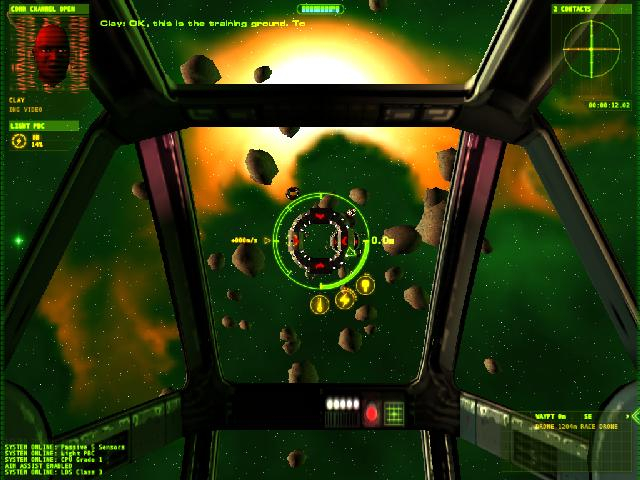
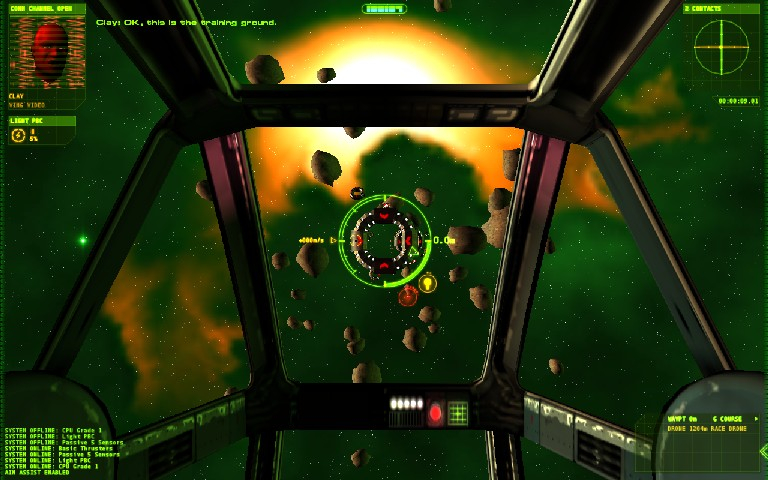
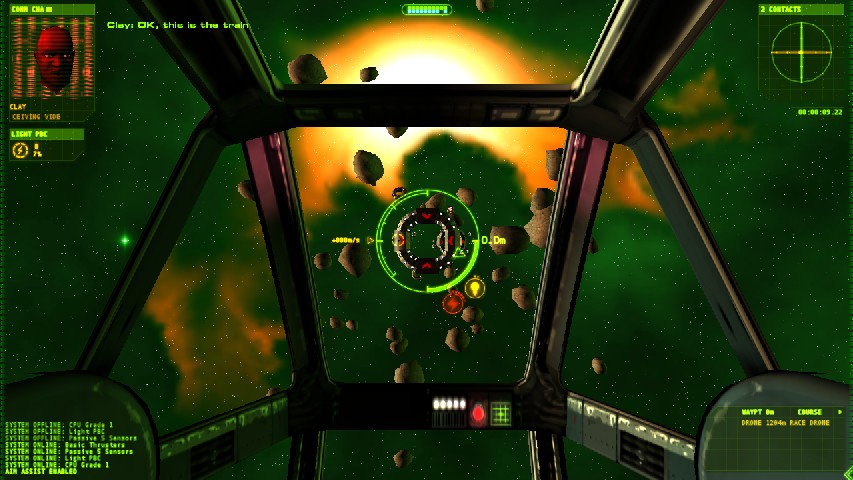
Screenshots Comparison
Solutions & Issues
Solution 1
Although this game is in the MGL and listed as "Native", I thought I would add a little bit of info.
While the game does support WS resolutions natively, it crops off the vertical view (FOV-V)
I found that you can mess around with the FOV in every single camera view in the game.
edit the file "flux.ini"
search for "field_of_view"
you will find 9 instances of this for each of the different camera views in the game. They all are default around 1.1 to 1.2.
Change the value to a higher number to get a wider view.
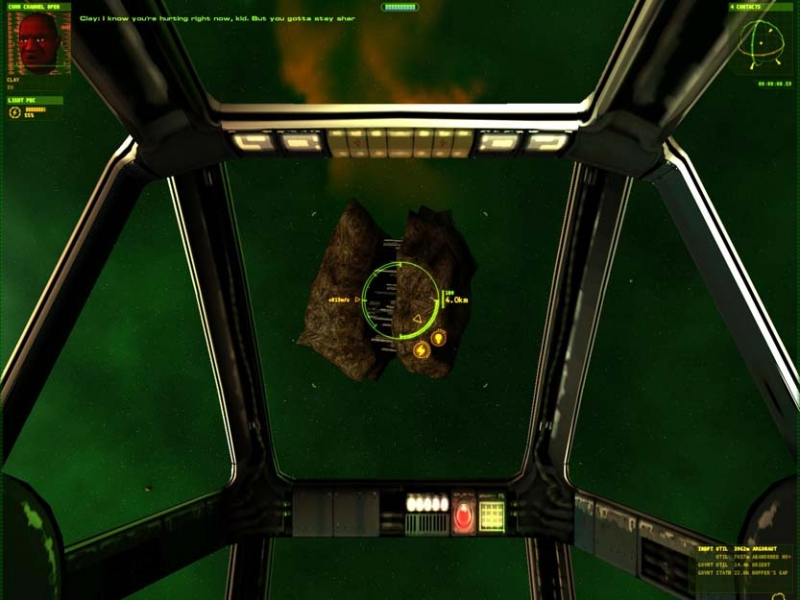
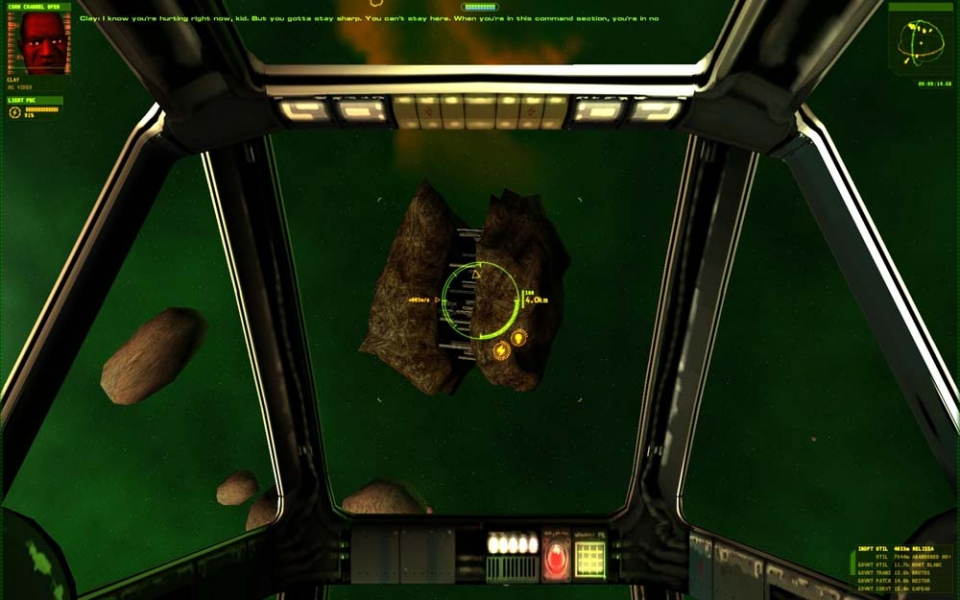
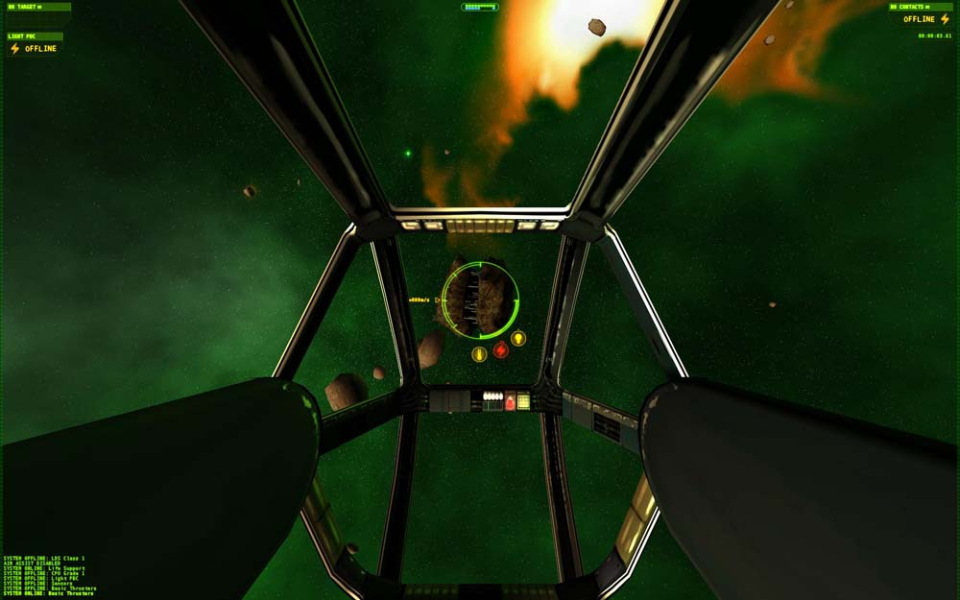
I tried a value of "2.0" first... (refer additional screenshots)
Doh!
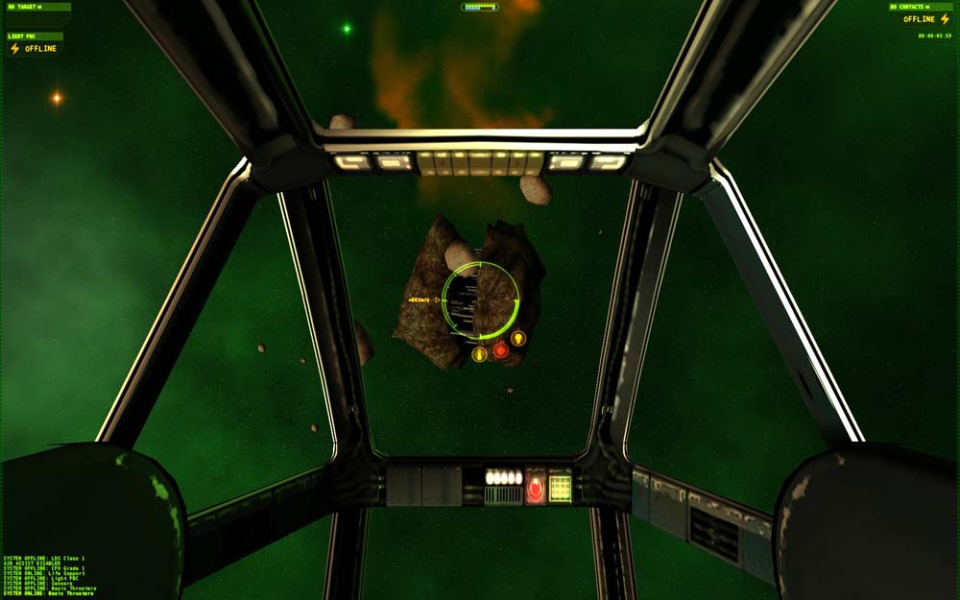
1.4 seems to be just about right. (refer additional screenshots)
I just thought I would add this info as it makes it more of a "true widescreen" experience.
------------------------
Solution 2
You can select your resolution ingame, but you must adjust the FOV manually for every camera mode. To do this, open the file "flux.ini."
In this file, you will find nine instances of the string "field_of_view," followed by a default value. Here is each instance, the default value, and recommended settings for 16:10 and 16:9 resolutions (rounded to the nearest percentage of a radian):
[icArcadeCamera]
Default = 1.2
16:10 = 1.37
16:9 = 1.48
[icChaseCamera]
Default = 1.2
16:10 = 1.37
16:9 = 1.48
[icConversationCamera]
Default = 1.1
16:10 = 1.27
16:9 = 1.37
[icDollyCamera]
Default = 1.2
16:10 = 1.37
16:9 = 1.48
[icDropCamera]
Default = 1.1
16:10 = 1.27
16:9 = 1.37
[icExternalCamera]
Default = 1.25
16:10 = 1.43
16:9 = 1.54
[icInternalCamera]
Default = 1.1
16:10 = 1.27
16:9 = 1.37
[icTacticalCamera]
Default = 1.2
16:10 = 1.37
16:9 = 1.48
[icTwoShotCamera]
Default = 1.1
16:10 = 1.27
16:9 = 1.37
In order to run ultrawidescreen resolutions (and possibly anything more than Full-HD) a DirectX wrapper such as dgVoodoo and a borderless window tool are necessary, other than a .ini edit. The following instructions will refer to dgVoodoo 2.54 and Borderless Gaming.
- Edit the "flux.ini" file by changing the line "full_screen = 1" to "full_screen = 0" to run the game in windowed mode. Follow the same instructions as for widescreen resolutions in order to modify the field of view. I find the internal view to be fine with a value of 1.6 (see screenshot).
- Install dgVoodoo in the Independence War 2 folder with inis from the MS folder.
- Run "dgVoodooCpl.exe", select the DirectX tab and set "Videocard" to GeForce 4 Ti 4800 (might also work with other options). Then set "Resolution" to the one of your monitor (tested at 2560x1080).
- The game should now run in windowed mode at the chosen resolution.
- Use a software such as Borderless Gaming to run the game in a borderless window. It is advisable to also hide the mouse cursor.
Gameplay Screenshots


Additional Screenshots