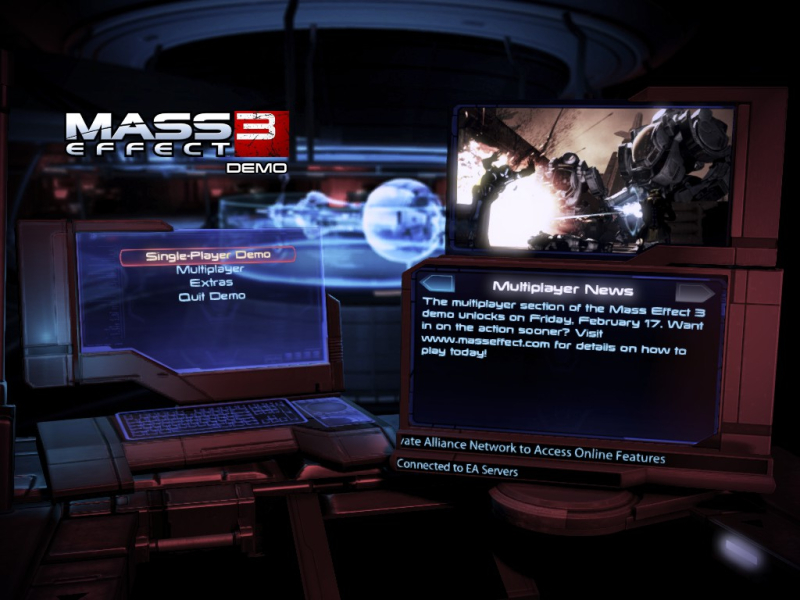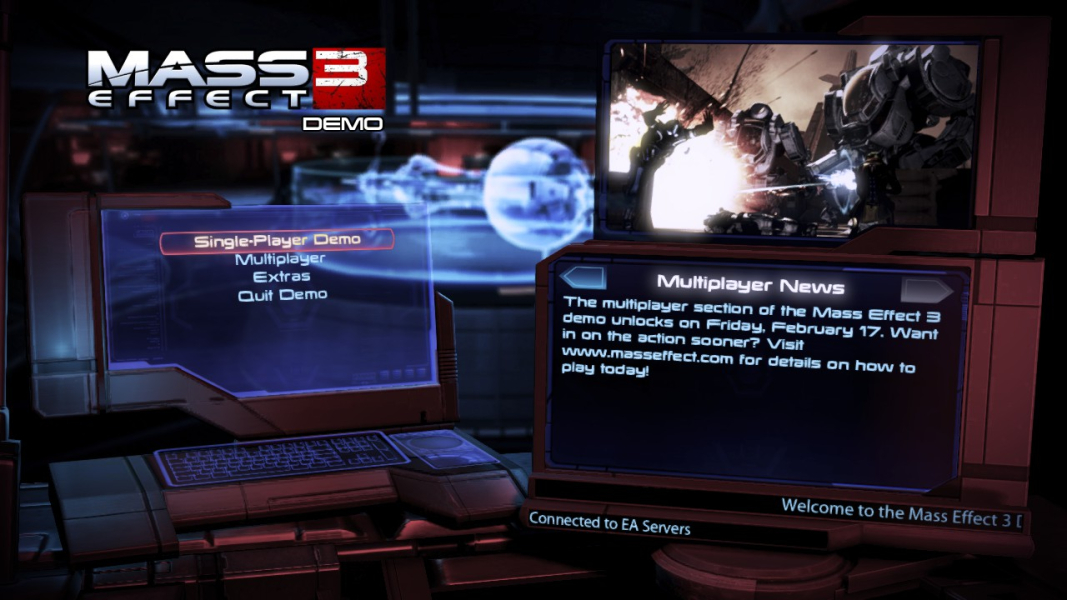


Mass Effect 3 is a Role-playing Game (RPG) / Third-Person Shooter hybrid set in a Science Fiction universe. Mass Effect 3 is the third game in the popular Mass Effect series, and is rumored to be the final installment. In it players continue the adventures of Commander Shepard utilizing extreme character customization which is the hallmark feature of the series. Additional features include: the ability to import decisions from both of the previous games into the new game, ownership/play of previous games not required, customizable weapons, improved mobility and melee combat, many returning characters (if they were not killed off in previous imported games), an improved cover system that allows for more action and more.
Join Commander Shepard in the struggle against the Reapers in the conclusion to the Mass Effect trilogy.
Not everyone will survive. An ancient alien race, known only as "Reapers," has launched an all-out invasion leaving nothing but a trail of destruction in their wake. Earth has been taken, the galaxy is on the verge of total annihilation, and you are the only one who can stop them. The price of failure is extinction. You are Commander Shepard, a character that you can forge in your own image. You determine how events will play out, which planets to explore, and whom to form alliances with as you rally a force to eliminate the Reaper threat once and for all. How you wage this war is completely up to you: go into combat with guns blazing or use cover to plan a more tactical assault. Utilize your squad to full effect or take a lone wolf approach. Rain death from a distance or go toe-to-toe with enemies using devastating melee attacks. Mass Effect 3 will react to each decision you make as you play through a truly unique experience of your own creation.
Support Summary
Widescreen | Ultra/Super‑Wide | Multi-Monitor | 4K Ultra HD | |
Support | ||||
Method | ||||
HUD | ||||
Cutscenes | ||||
FMVs |
Game Information
- In Development
- Released
Screenshots Comparison
Solutions & Issues
Vert- in Widescreen, Hor+ in Eyefinity
Ultra-Wide 21:9 Support Configuration:
For 3440x1440 (21:9):
* Select 3440x1440 in the game's video or display settings.
* Install Flawless Widescreen and load the Mass Effect plugin, enable all settings, increasing/decreasing the FOV adjustment if you wish.
* In Flawless Widescreen go to Settings > Display Detection and configure the section as follows:
+ At the bottom right, click on "Enable Display Detection Override" than put in these values:
- Width: 3440
- Height: 1440
- Hud Width: 2560 - if you want this closer to center change this value to 1920.
- Hud Height: 1080 - if you prefer to have the HUD at the very top/bottom of your monitor set this value to 1440. Don't change to 1440 if you set Hud Width to 1920.
- Horizontal Display Count: 1
- Vertical Display Count: 1
- Hud X: 440 - if you changed HUD Width to 1920 change this value to 760
- Hud Y: 0
For 2560x1080 (21:9):
* Select 2560x1080 in the game's video or display settings.
* Install Flawless Widescreen and load the Mass Effect plugin, enable all settings, increasing/decreasing the FOV adjustment if you wish.
* In Flawless Widescreen go to Settings > Display Detection and configure the section as follows:
+ At the bottom right, click on "Enable Display Detection Override" than put in these values:
- Width: 2560
- Height: 1080
- Hud Width: 1920
- Hud Height: 1080
- Horizontal Display Count: 1
- Vertical Display Count: 1
- Hud X: 320
- Hud Y: 1080 - if you notice any of the HUD elements doing anything weird set to 0 and see if that fixes the problem.
----------------------------------------------
Super Ultra-Wide 32:9 Support Configuration:
For 3840x1080 (32:9):
* Select 3840x1080 in the game's video or display settings.
* Install Flawless Widescreen and load the Mass Effect plugin, enable all settings, increasing/decreasing the FOV adjustment if you wish.
* In Flawless Widescreen go to Settings > Display Detection and configure the section as follows:
+ At the bottom right, click on "Enable Display Detection Override" than put in these values:
- Width: 3840
- Height: 1080
- Hud Width: 1920
- Hud Height: 1080
- Horizontal Display Count: 1
- Vertical Display Count: 1
- Hud X: 960
- Hud Y: 0
---------------------------------------
16:9 Support Configuration:
For 2560x1440 (16:9):
* Select 2560x1440 in the game's video or display settings.
* Install Flawless Widescreen and load the Mass Effect plugin, enable all settings, increasing/decreasing the FOV adjustment if you wish.
* In Flawless Widescreen go to Settings > Display Detection and configure the section as follows:
+ At the bottom right, click on "Enable Display Detection Override" than put in these values:
- Width: 2560
- Height: 1440
- Hud Width: 1920
- Hud Height: 1080 - if you prefer to have the HUD at the very top/bottom of your monitor set this value to 1440.
- Horizontal Display Count: 1
- Vertical Display Count: 1
- Hud X: 320
- Hud Y: 1080 - if you notice any of the HUD elements doing anything weird set to 0 and see if that fixes the problem.
-NOTE for Eyefinity users: this game works basically fine apart from non-centered HUD elements. Thus the multi-head grade of "C" is really only applicable for Nvidia users. If you have issues with menus/hud placement, check if you're Eyefinity or 3 separate monitors on the desktop before starting the game. At least one user experienced issues as he didn't realize his desktop was non-bezel-compensated when his game was configured for bezel compensation. Further Helifax's plugin for Widescreenfixer (see below) does not have Eyefinity support, it is only for Nvidia Surround users.
Thanks to Helifax and Dopefish for this solution
- Use Flawless Widescreen or Widescreen Fixer
Widescreen Fixer plugin features:
- Proper scaling of menus
- Centered HUD
- Workbench fully functional
- Main Menu correctly scaled and working
- Adjustable FOV for Single Player & Multi Player - if you change the fov while ingame, reload the savegame.
- Recommended value for fov 85-90 - You can increase up to 120.
- FOV is adaptive. No need to toggle. Cinematics are working properly.
- SUPPORTS ONLY ORIGIN VERSION!!! IF YOU HAVE ANOTHER EXE it will NOT work.
Not Fixed:
- Character Scaling in Menus.
- Menu centering does not work for Eyefinity. Fov corrections work for every type of hardware.
ACTIVATE THE FIX DURING INTRO CINEMATIC, NOT SOONER, DO NOT RUSH WITH THE ACTIVATION!!!
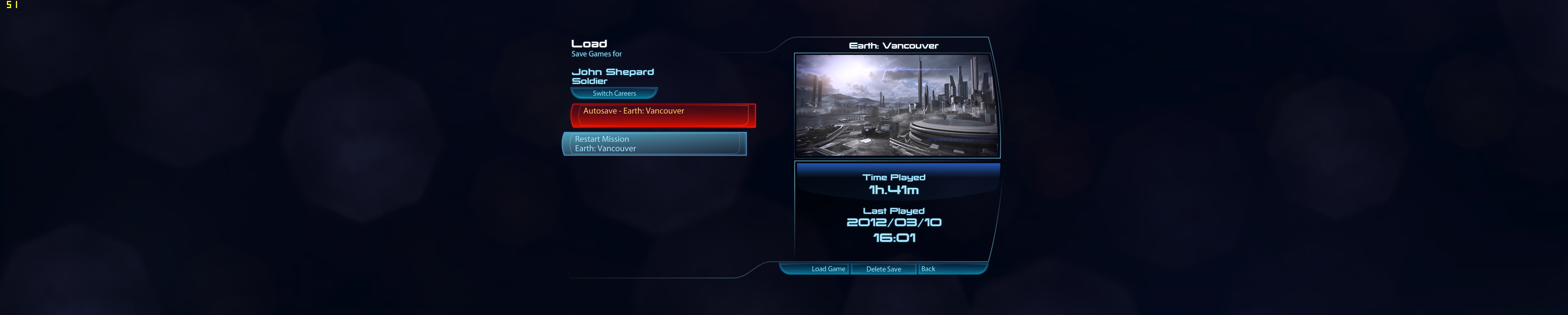
Screenshots of the fix:





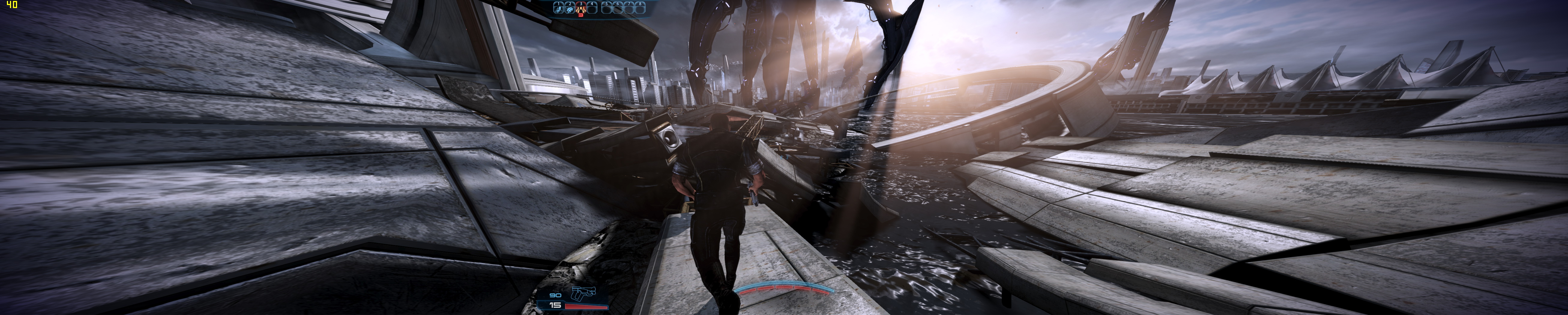

Gameplay Screenshots
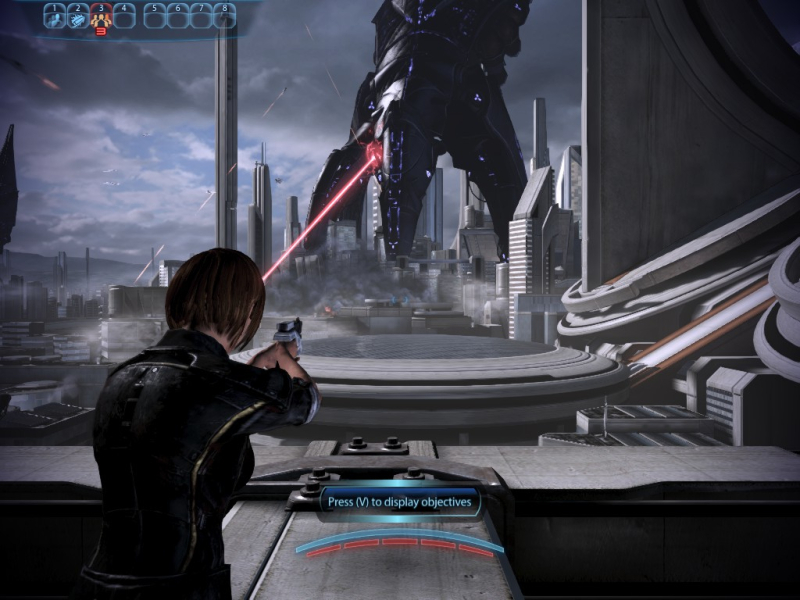
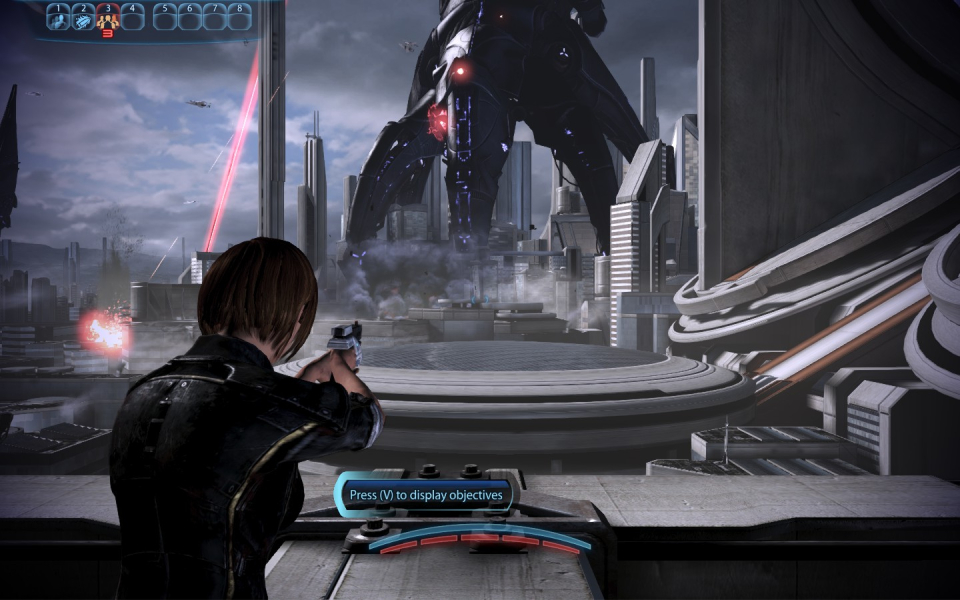
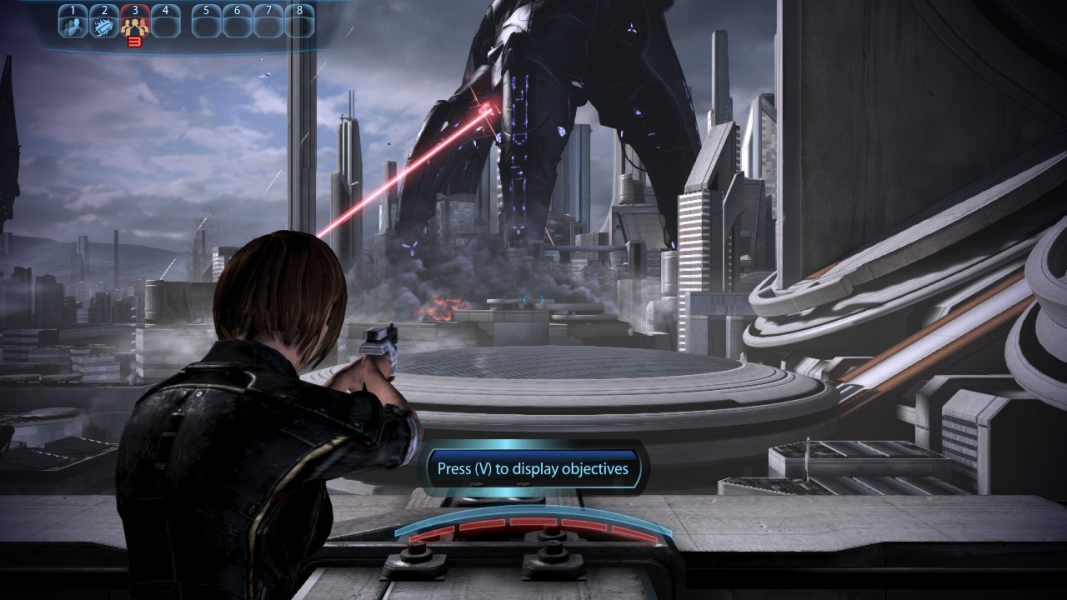


Menu Screenshots