



Zeno Clash 2 picks up where the deliciously brazen first game left off. After 4 years of waiting, the sequel to the surreal first-person brawler brings more variety in combat and levels, and even more bizarre storytelling into the beguiling world of Zenozoik.
Support Summary
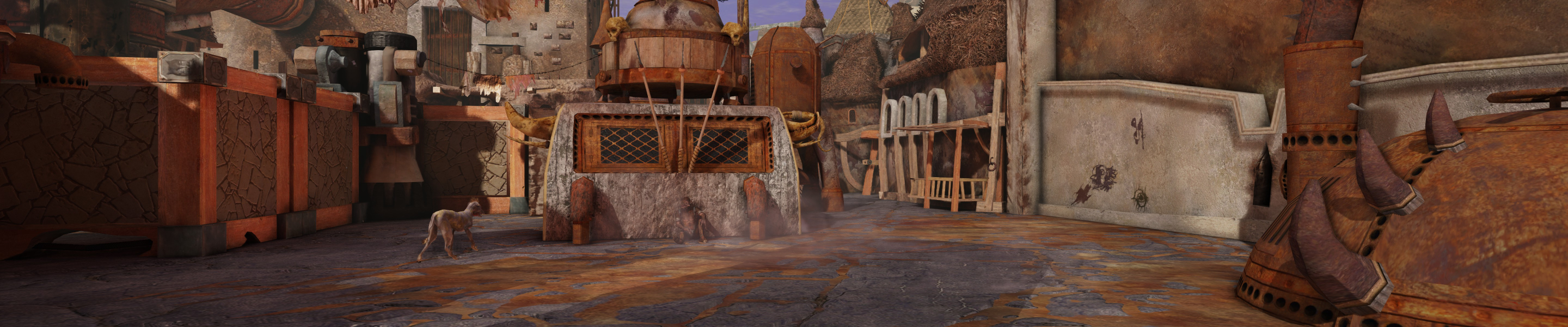
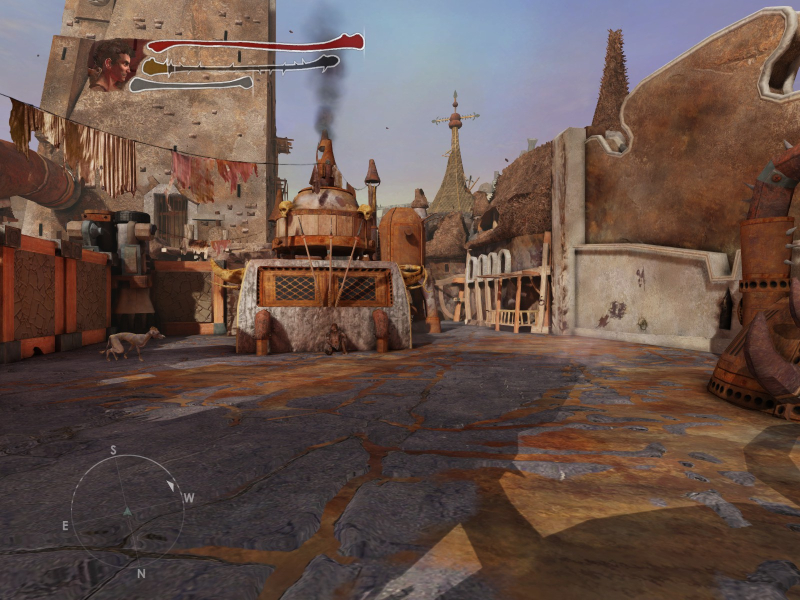
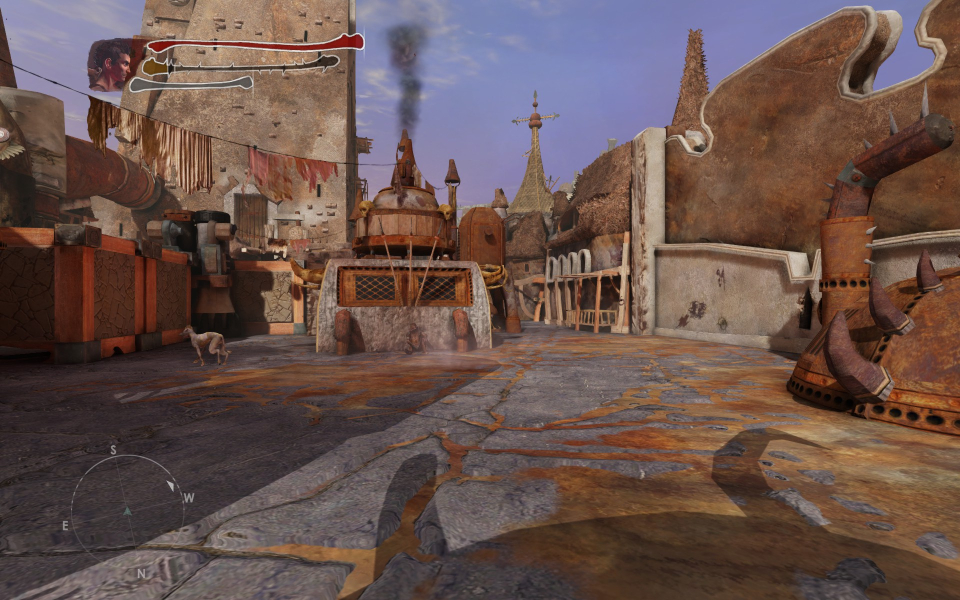
Screenshots Comparison
Solutions & Issues
You can't select Multi-Monitor resolutions ingame so you need to change the DefaultSystemSettings.ini file (\ZC2Game\Config\) for it to work:
ResX=5760
ResY=1200
The FOV needs to be changed significantly for it to be at least playable with multi-monitor systems.
First set your FOV to wide in the game setting and then use the following settings in the DefaultGame.ini file (\ZC2Game\Config\):
;Regular FOV in the game (default 100)
closeCombatFOV=150
;FOV when punching (default 90)
closeCombatClunchedFOV=140
;FOV when you have a weapon in your hands (default 100)
farCombatFOV=150
;Map FOV (default 100)
inventoryFOV=150
;How much the FOV changes when running (default 5). NOTE: This setting changes the FOV when running, personally I prefer for it to get wider and not narrower when running.
runFOV_Delta=-10
;FOV when grabbing an enemy (default 90)
grabFOV=140
;FOV when deflect-grabbing an enemy (default 80)
deflectGrabFOV=130
;All weapons have their custom aim FOVs. This number can be used to multiply the FOV values for guns. (default 1.1)
weaponMultFOV=1.7
Gameplay Screenshots
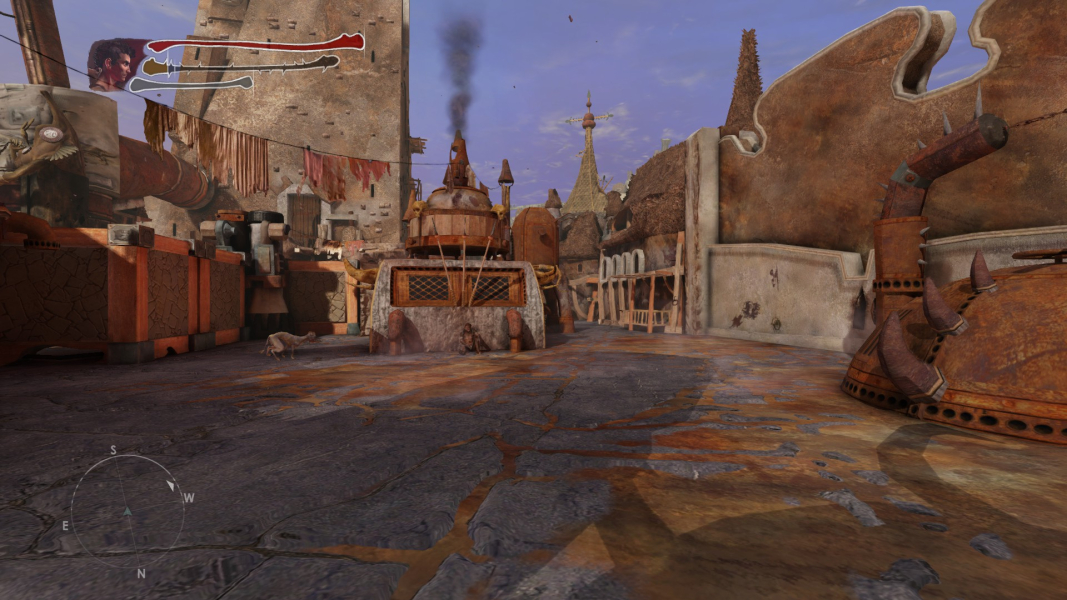


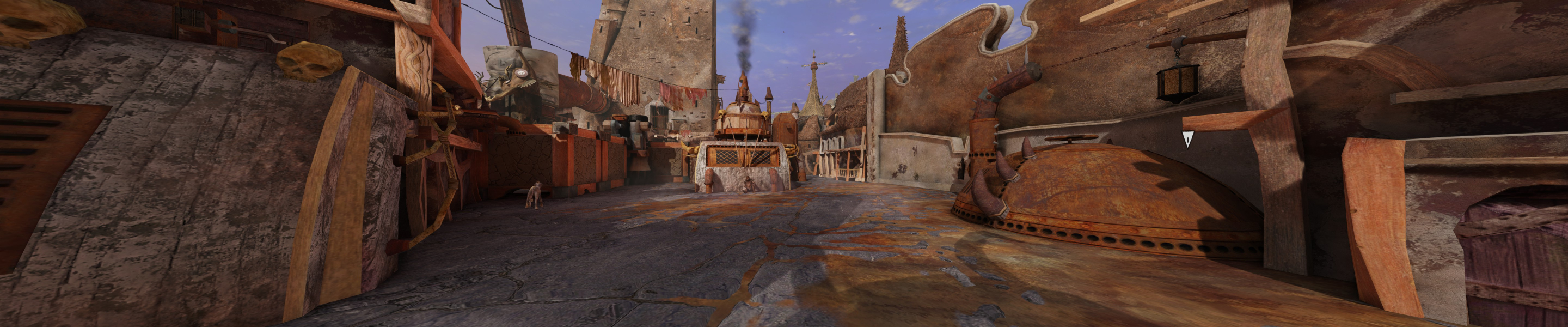
Menu Screenshots
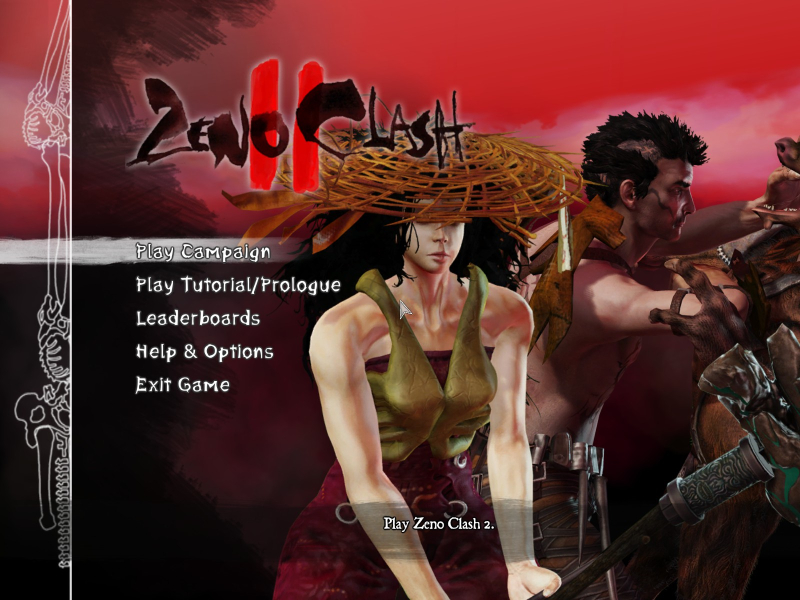

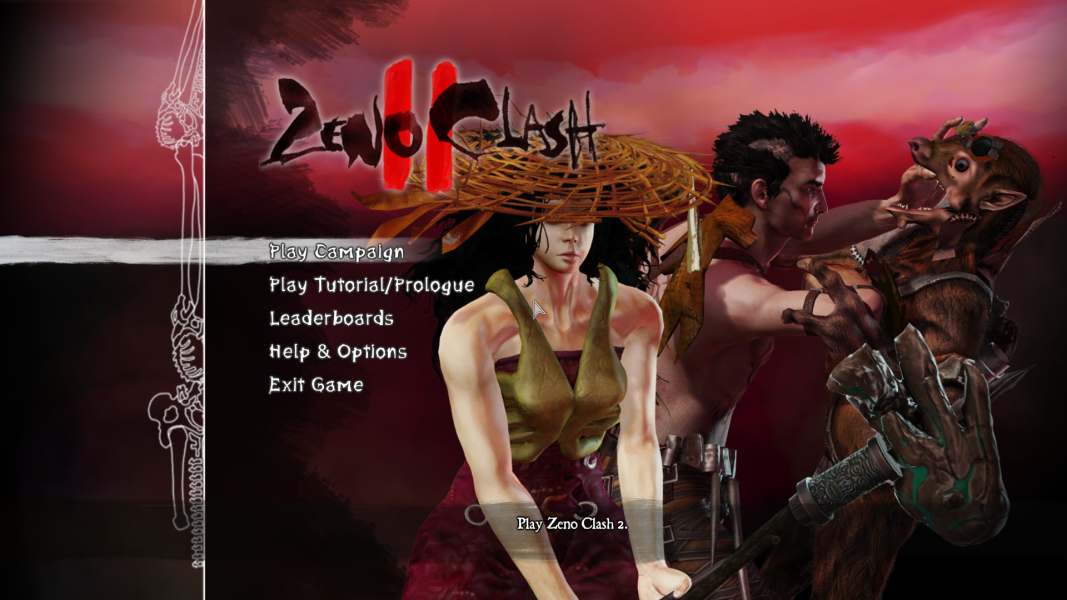

Additional Screenshots