





The Wheel of Time is a fantasy-themed 3D shooter based on the novel series of the same name by Robert Jordan. Combat is ranged, but the player character doesn't use any weapons and instead relies on artifacts called "ter'angreal". There are 40 types of ter'angreal in the game, which can be used for offensive as well as defensive purposes, e.g. shoot lightning and fireball, heal or hide the protagonist in a cloak, etc.
Support Summary
Game Information
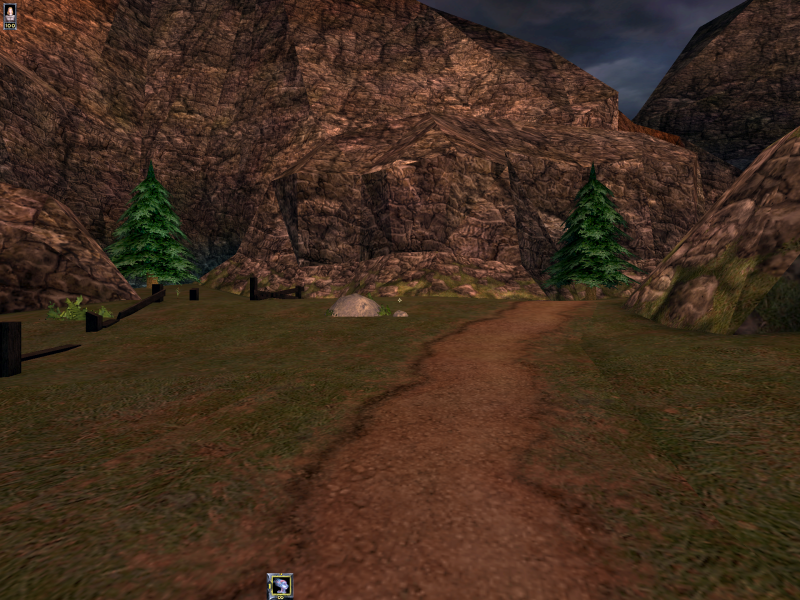
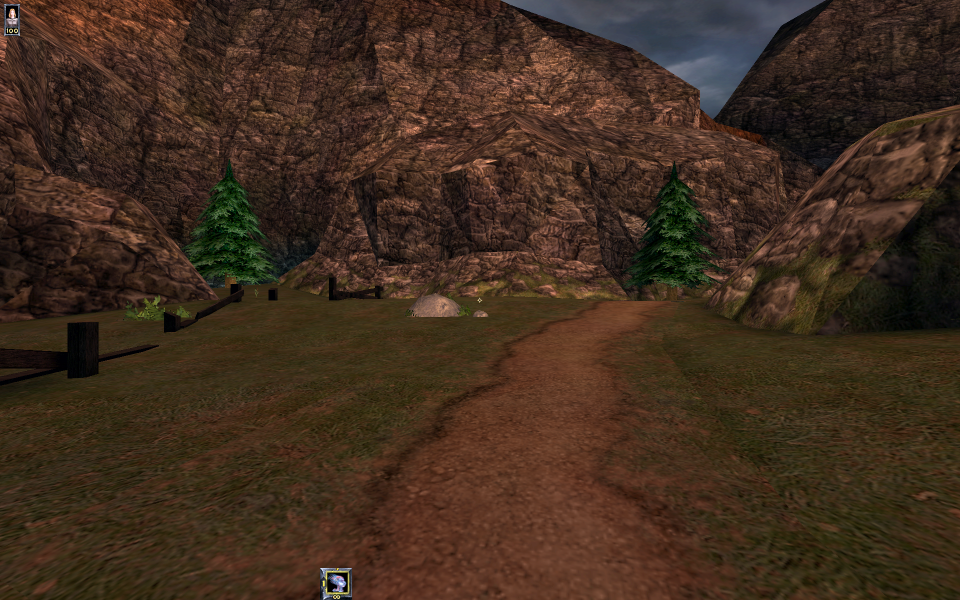
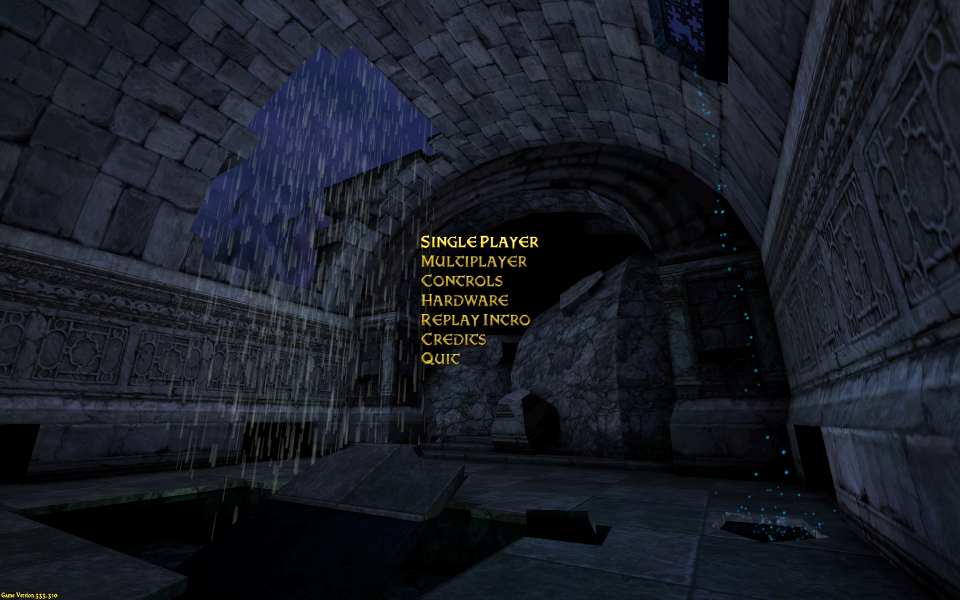
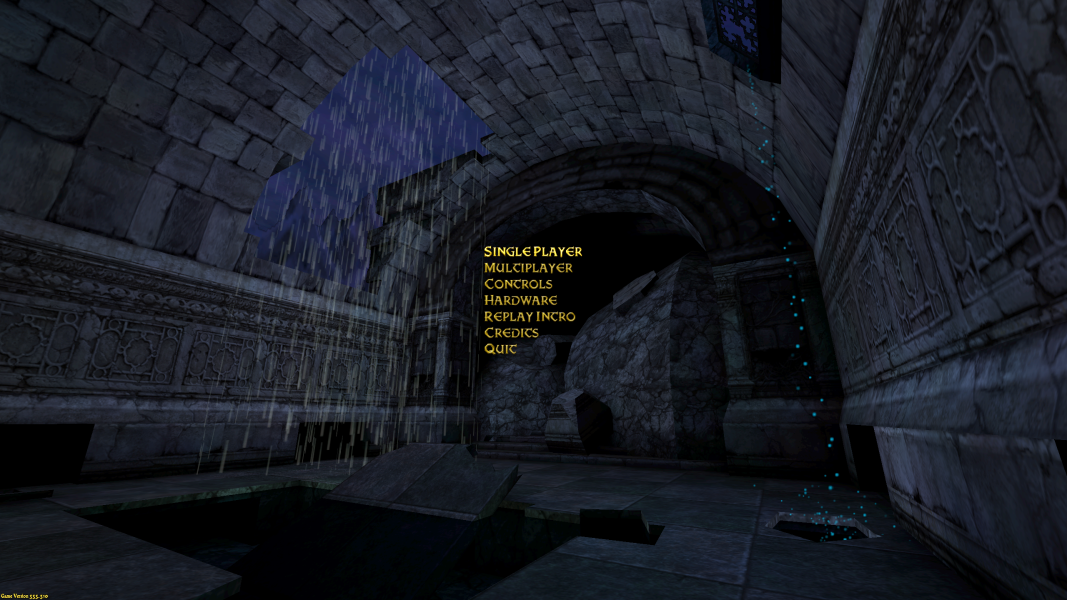
Screenshots Comparison
Solutions & Issues
1.Download dgVoodoo2 wrapper - http://dege.freeweb.hu/dgVoodoo2.html and extract it to ...\WheelOfTime\System
Copy 3 files: D3DImm.dll DDraw.dll and D3D8.dll from folder MS to the System folder
Run dgVoodooSetup.exe and make settings - see additional Screenshot Wheel.of.Time - voodoo.config.png
Run the Game - select Direct3D Support.
2.FOV - use my Attachment Wheel.of.Time - FOV.zip - extract and replace the file Engine.u in the System Folder / i hex edit the FOV so its not nec. to change it every Level.
3.Resolution edit --> go to \system. Open wot.ini. Find these lines:
FullscreenViewportX=xxxx
FullscreenViewportY=xxxx
Change them to set your resolution.
NOTES:Under Win10x64 it runs fine but under Win7x64 you have to select Disable display scaling on high DPI setting in Properties from WOT.exe.
Also when the Sound sounds terrible open wot.ini go to [Galaxy.GalaxyAudioSubsystem] --> UseDirectSound=false and Use3dHardware=true
---------------------------------------------------------------------------------------------------------------------------------
Optional Alternative FOV edit:
In the game, hit the ~ key and in the console, simply type 'fov 100' and you are set. Once you start playing the any savegames will pick up that setting, but each time you start a new level, it reverts back to the default of 90. I found that the easiest way to manage this is to bind a key to the command 'fov 100' so you can just tap it when entering a new level. You can do this by opening up the user.ini file in the Wheel of Time system directory and in the [Engine.Input] section find a unused key a set it to 'fov 100'. In my case the F key was unbound so the line reads: F=FOV 100
Same as above.
Gameplay Screenshots


Menu Screenshots


Additional Screenshots


