





Warp is a video game developed by Trapdoor and published by EA Partners on Microsoft Windows, PlayStation 3 and Xbox 360. The game allows the player to warp through doors and objects and cause creatures in the game world to explode. It was released on February 15, 2012 on Xbox Live Arcade as part of the second "Xbox Live Arcade House Party", with PlayStation Network and Microsoft Windows releases to follow on March 13, 2012.
Support Summary
Game Information
Screenshots Comparison
Solutions & Issues
Native "Vert+" support. To adjust the FOV to your liking, see the Multi-Monitor method detailed below.
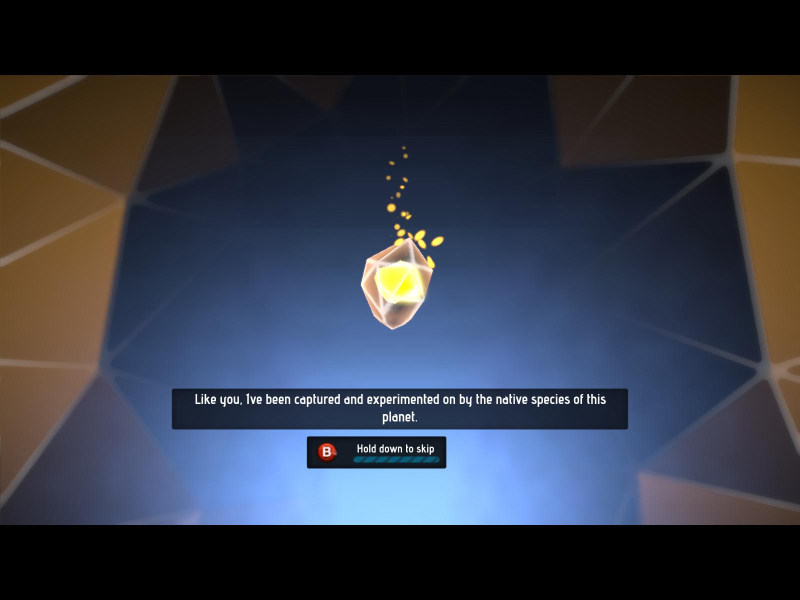
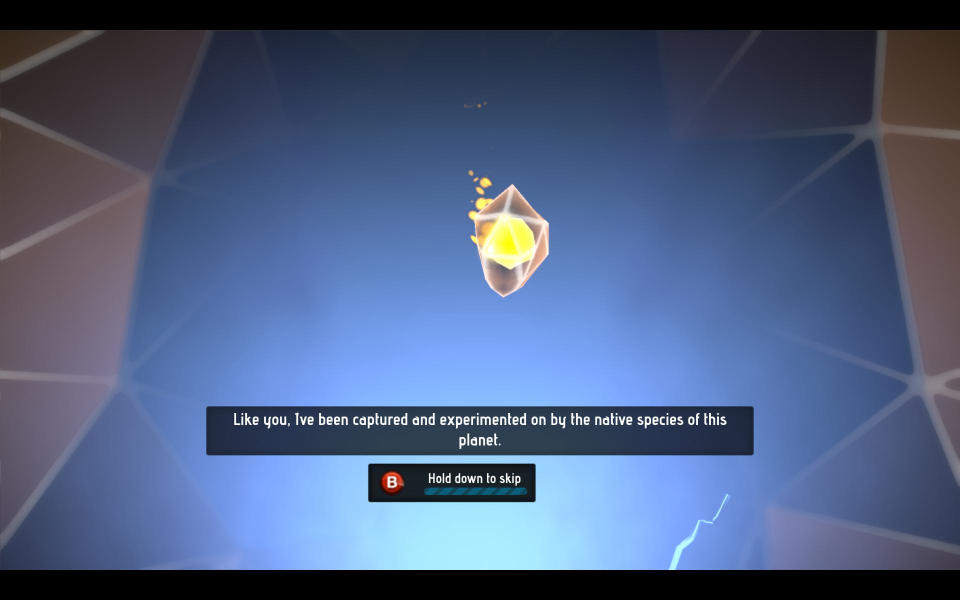
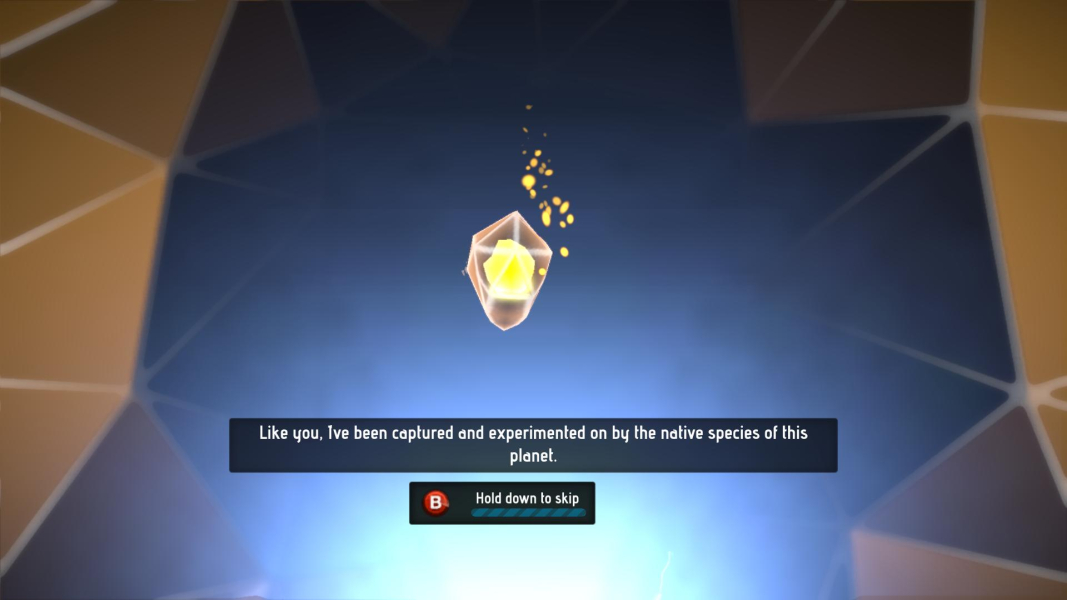
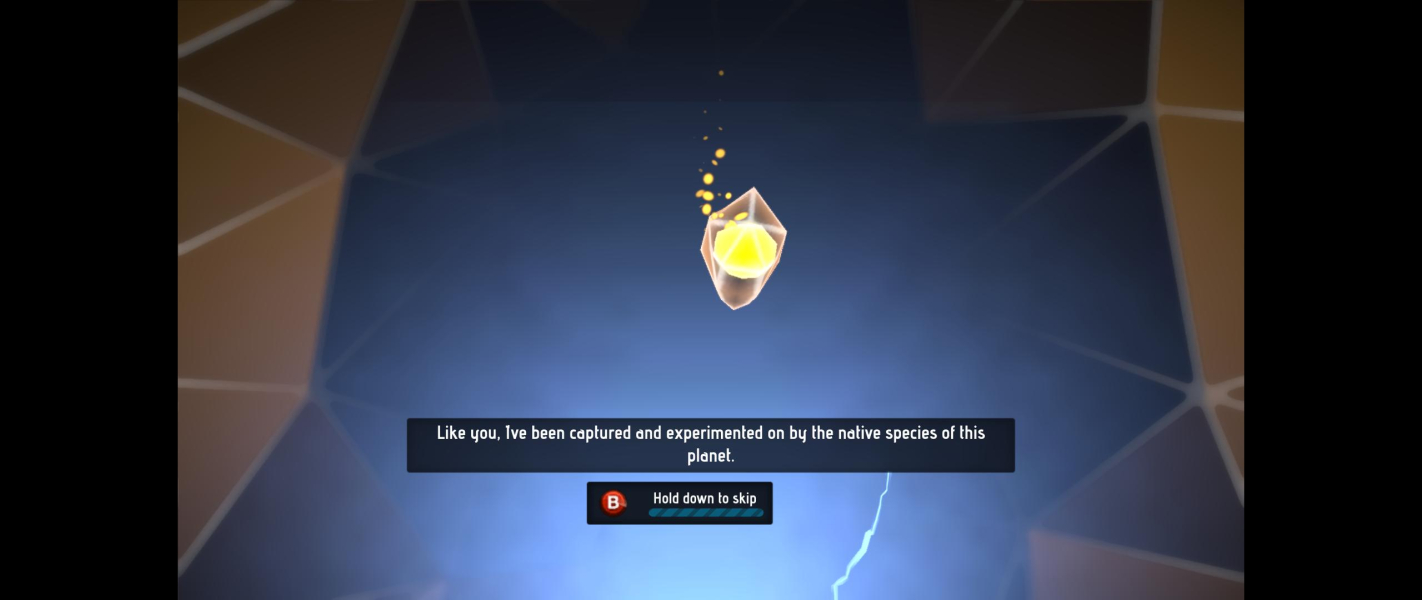
All cutscenes are 16:9 anamorphic and rendered in real-time; a custom FOV will affect them.
Unrelated to widescreen: by default, framerate is capped at 32 but can be unlocked in %USERPROFILE%\Documents\my games\WARP\WarpGame\Config\WarpEngine.ini
Look for the line MaxSmoothedFrameRate=32 and replace 32 with your display's refresh rate +2 (e.g 62 on a 60 Hz monitor)
Vert- FOV can be fixed using the method detailed below. Replace 140 with 96, or more accurately:
FOV 96.42 for 2560x1080
FOV 96.86 for 3440x1440
Hor+ through binding FOV values to game controls.
Do NOT change MaintainXFOV to MaintainYFOV in WarpEngine.ini ! Otherwise you'll get visible culling on the side screens, way too high a FOV during cutscenes and misaligned object highlights.
Open this file instead:
%USERPROFILE%\Documents\my games\WARP\WarpGame\Config\WarpInput.ini
Under [Engine.PlayerInput] add the following lines...
For X360 controller:Bindings=(Name="XboxTypeS_LeftShoulder",Command="FOV 80")
Bindings=(Name="XboxTypeS_RightShoulder",Command="FOV 140")
Press RB to fix the FOV. Press LB to restore the original FOV during cutscenes.
For keyboard:Bindings=(Name="LeftControl",Command="FOV 80")
Bindings=(Name="RightControl",Command="FOV 140")
Press Right Ctrl to fix the FOV. Press Left Ctrl to restore the original FOV during cutscenes.
FOV 140 is just an example, use FOVCalc to get the right value for any aspect ratio such as...
FOV 121.07 for 15:4
FOV 132.37 for 48:10
FOV 136.67 for 48:9
Gameplay Screenshots
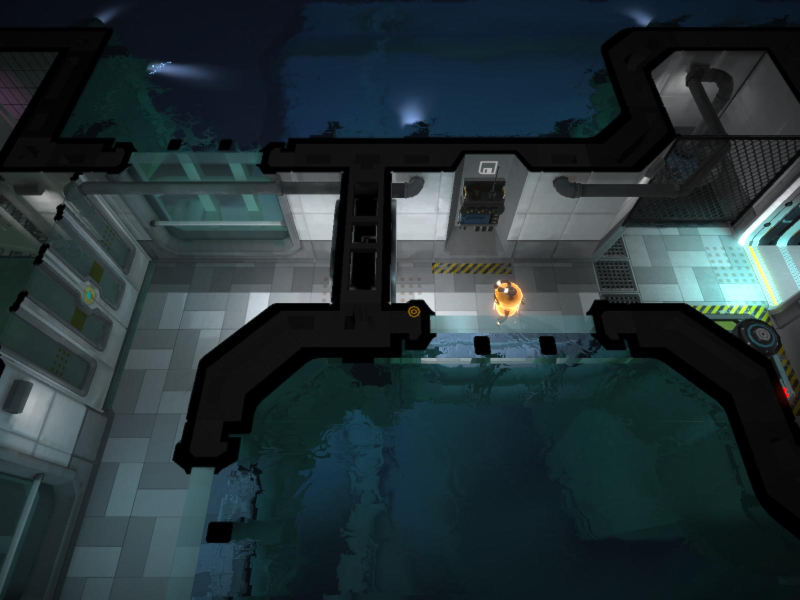

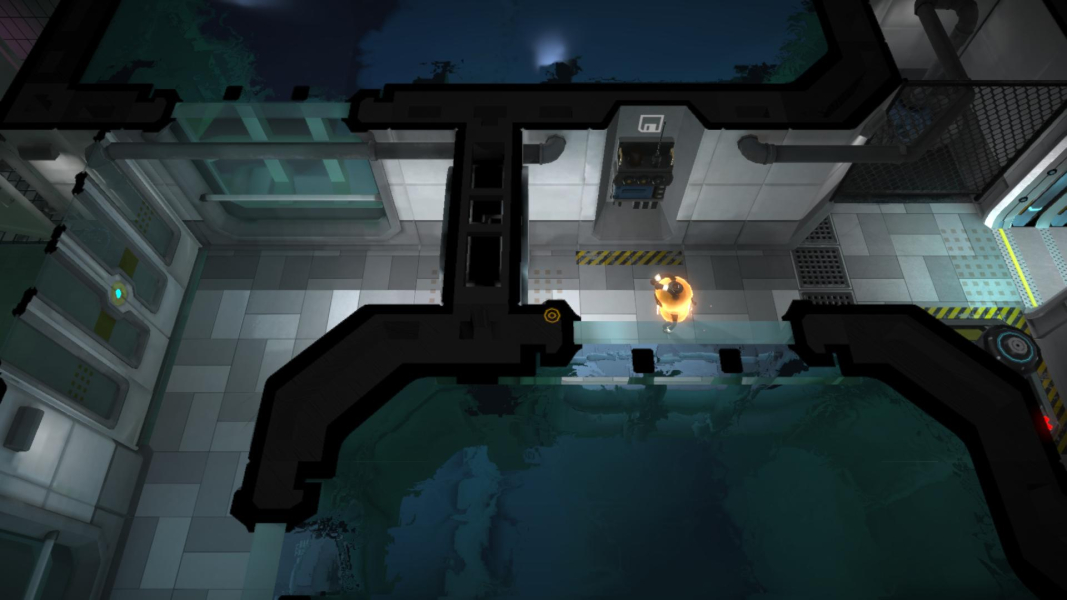
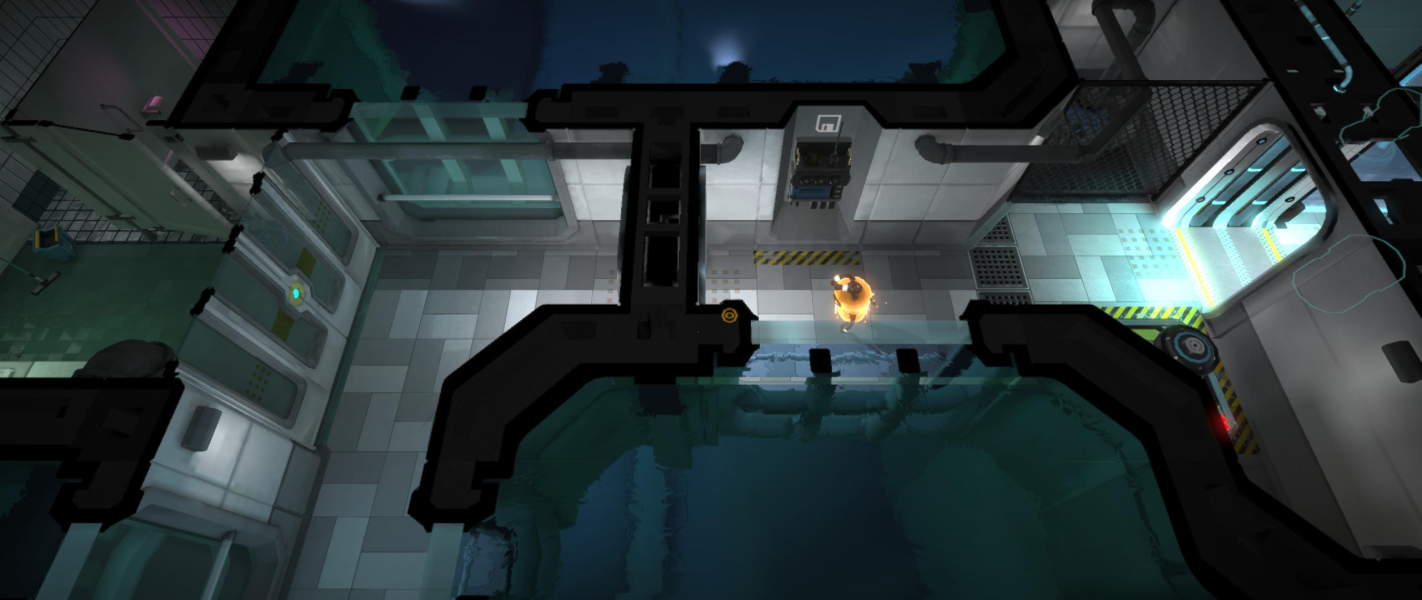


In-Game (Rendered) Cutscenes

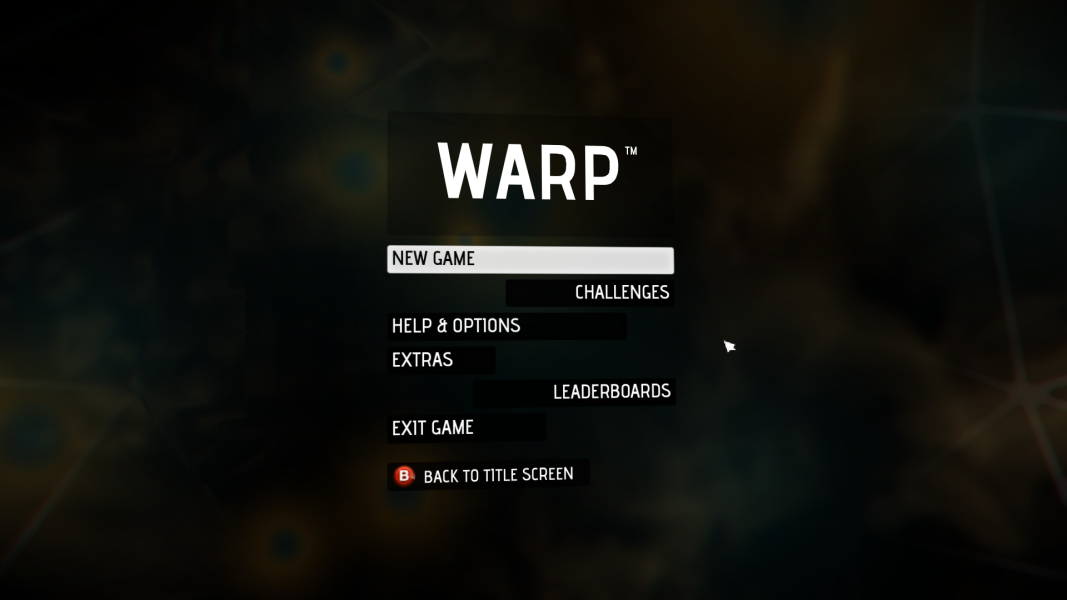
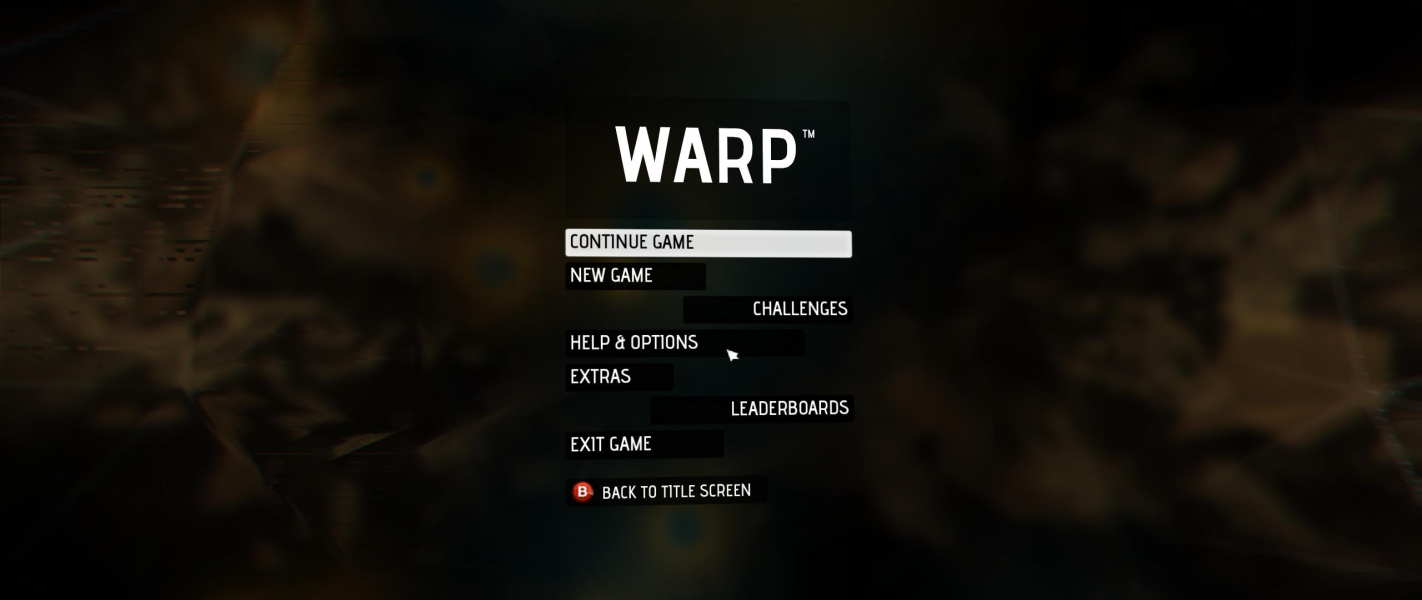
Menu Screenshots


Additional Screenshots




