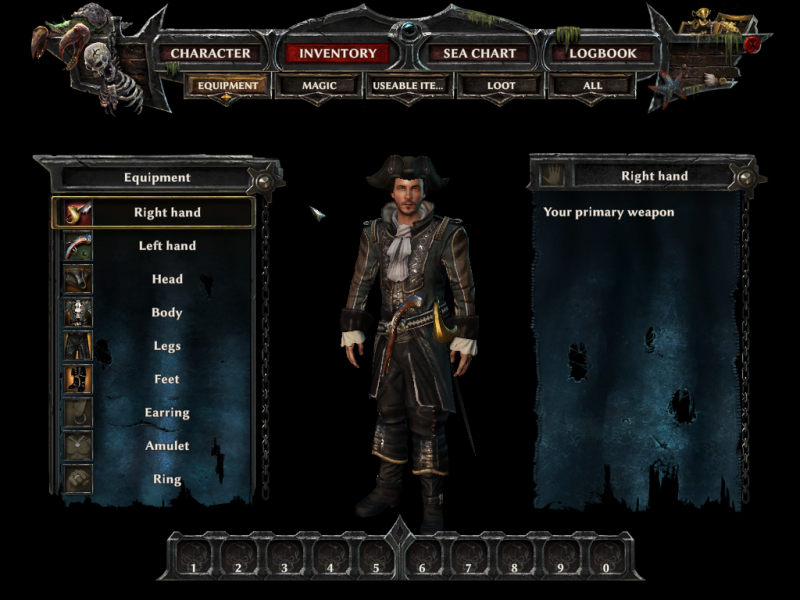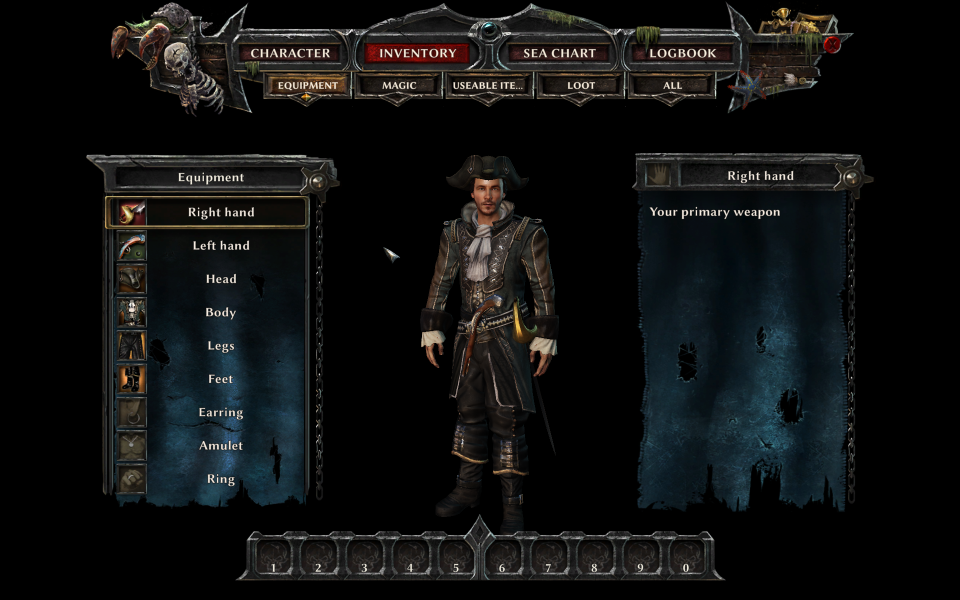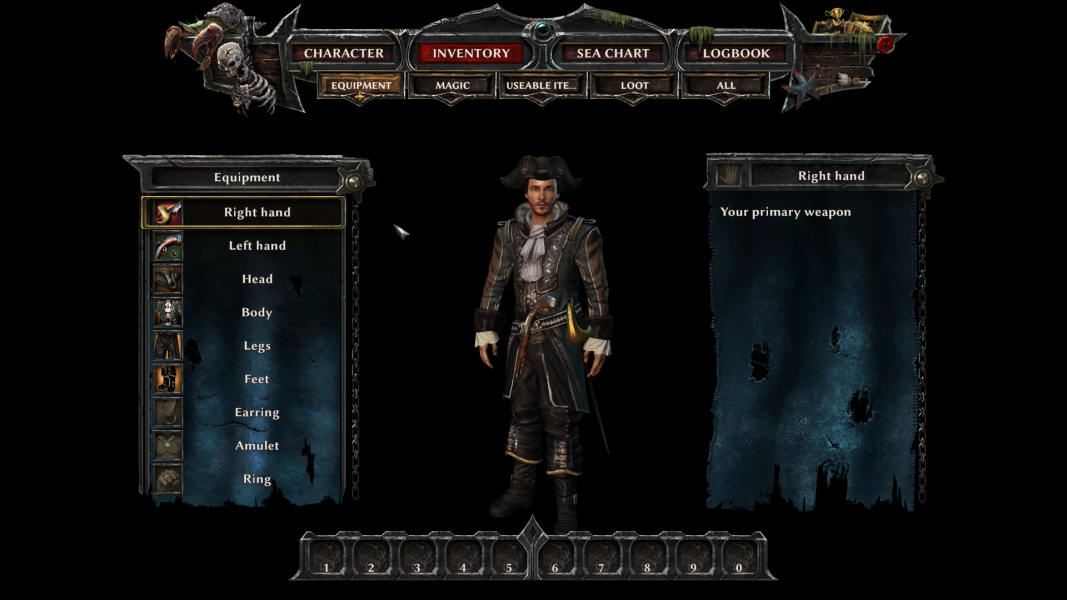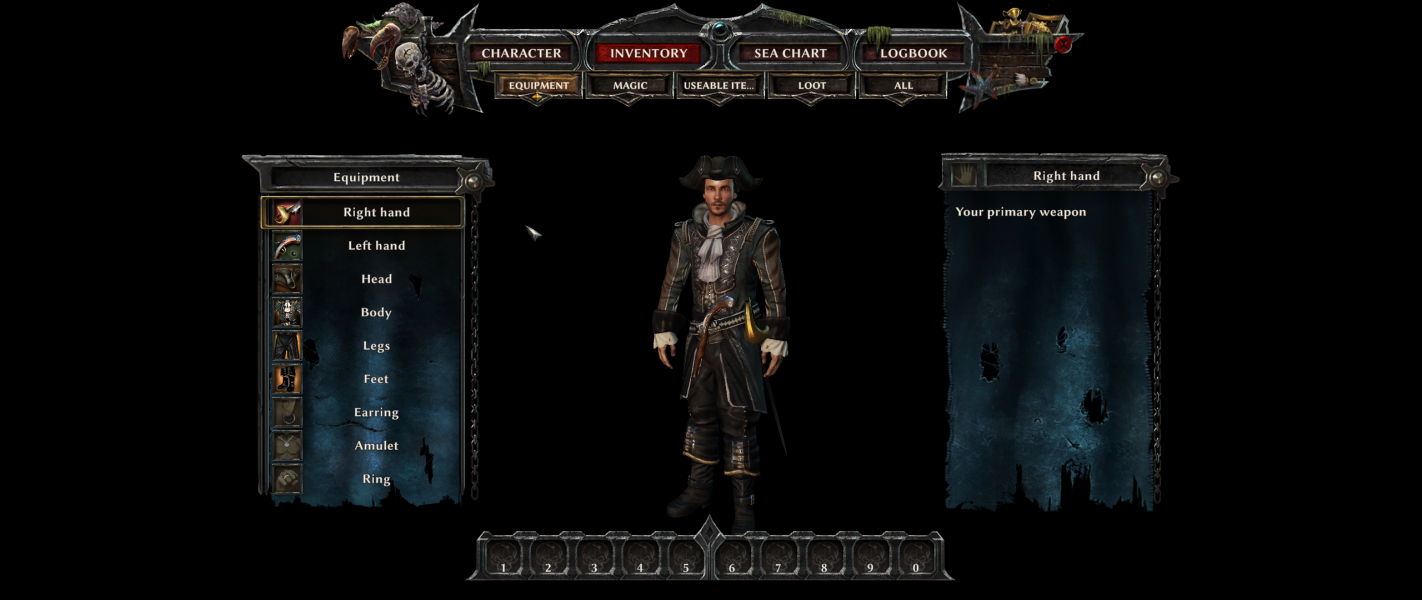


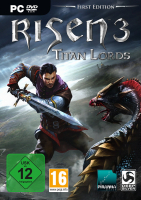


Risen 3: Titan Lords is a action role-playing game, the sequel to Risen 2: Dark Waters. The third installment will return to the medieval setting of the first Risen instead of reviving the pirate theme of the second.
Support Summary
Game Information
Screenshots Comparison
Solutions & Issues
32-bit game: use Helifax's solution
64-bit game: use jackfuste's solution files available from the PC Gaming Wiki Community Files (search there).
Old instructions:
Per this forum thread - http://www.wsgf.org/forums/viewtopic.php?f=63&t=27498
1. edit \data\ini\ConfigDefault.xml and set the following options:
*Note: some folks seem to suggest putting the proper aspect ratio into the "gui" section. For good meaure, I added "
", although I'm not sure if that would work for other resolutions
2. Edit %APPDATA%\Local\Risen3\Config\ConfigUser.xml, search for "FullScreen", and set it to:
FullScreen="false"
* So far, this will allow you to run Risen 3 at 2560x1080 in a window. However, the window will have thick borders (not fullscreen) and the Windows cursor might not disappear and show up in-game (seems it doesn't happen all the time). Continue onto these steps:
3. Download Fullscreenizer (search via Google). You can use this app to "fullscreenize" (aka remove windows borders) from any windowed application
* The next step is only useful if you're having an issue with the Windows cursor showing up in-game when you're in windowed mode
4. Download Nomousey.exe (Google search needed). Create a shortcut to the exe (I put mine on my desktop), and edit the shortcut's properties. You need to change the path of the "target", and add "/hide" to the end (so mine reads "C:\nomousy.exe /hide"). You can run this shortcut to remove the windows cursor, and run it again when you're done to bring it back.
And that's it. You should now be running at 2560x1080, fullscreen, without a windows cursor in the way. As far as I can tell there are no real issues with the UI or any of that. This technique may work for folks running even wider resolutions.
No native Multi Monitor mode! In Eyefinity the game is mirrored over 3 Screens.
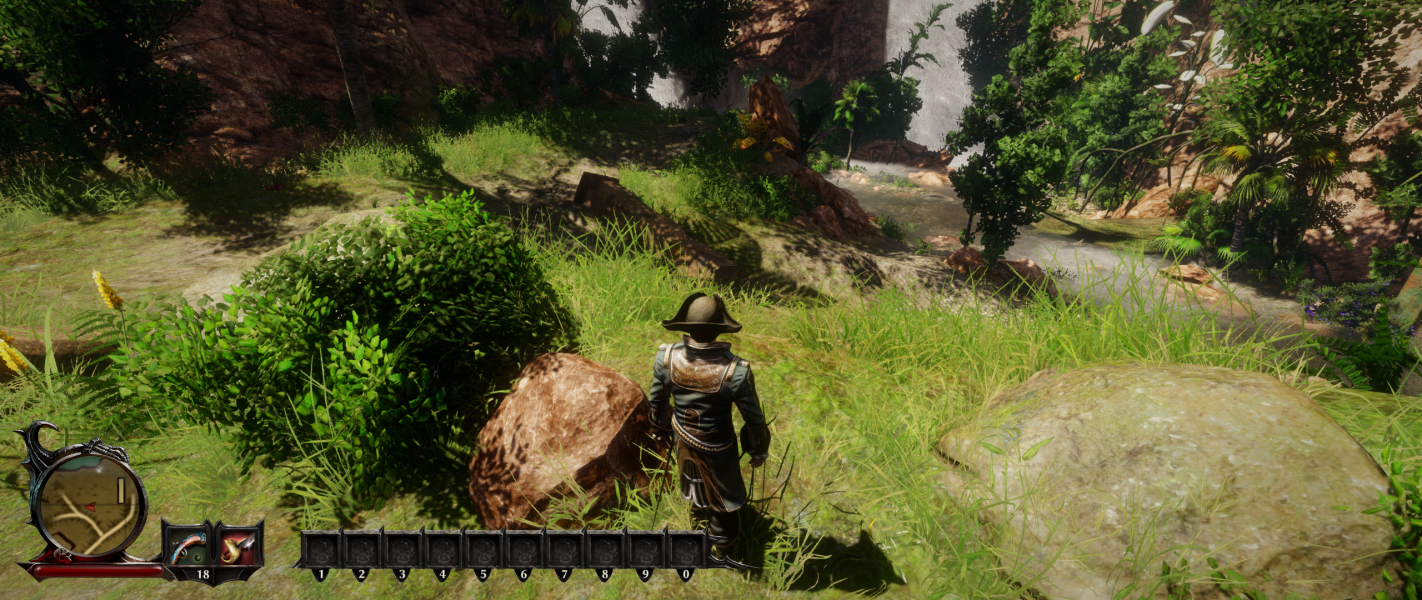
See ultra-widescreen solution. HUD is positioned to the far left. files available from the PC Gaming Wiki Community Files (search there).
Gameplay Screenshots




In-Game (Rendered) Cutscenes



Menu Screenshots