





Prey is a first-person shooter survival horror video game developed by Arkane Studios and published by Bethesda Softworks.
Support Summary
Game Information
Screenshots Comparison
Solutions & Issues
Native - use FOV Slider in the Options.
Technically vert- but the maximum available horizontal FOV value of 120 allows to compensate to some degree.
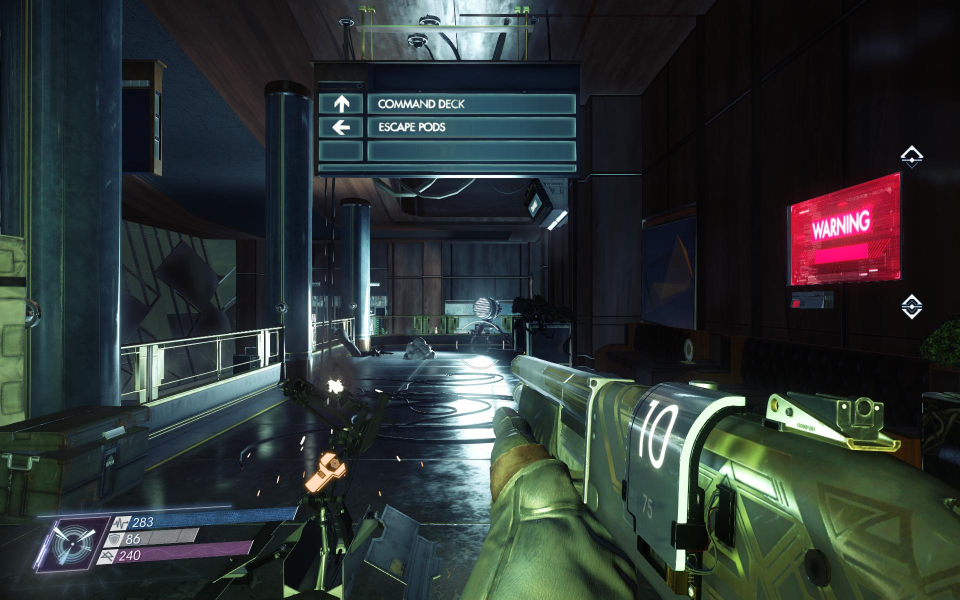
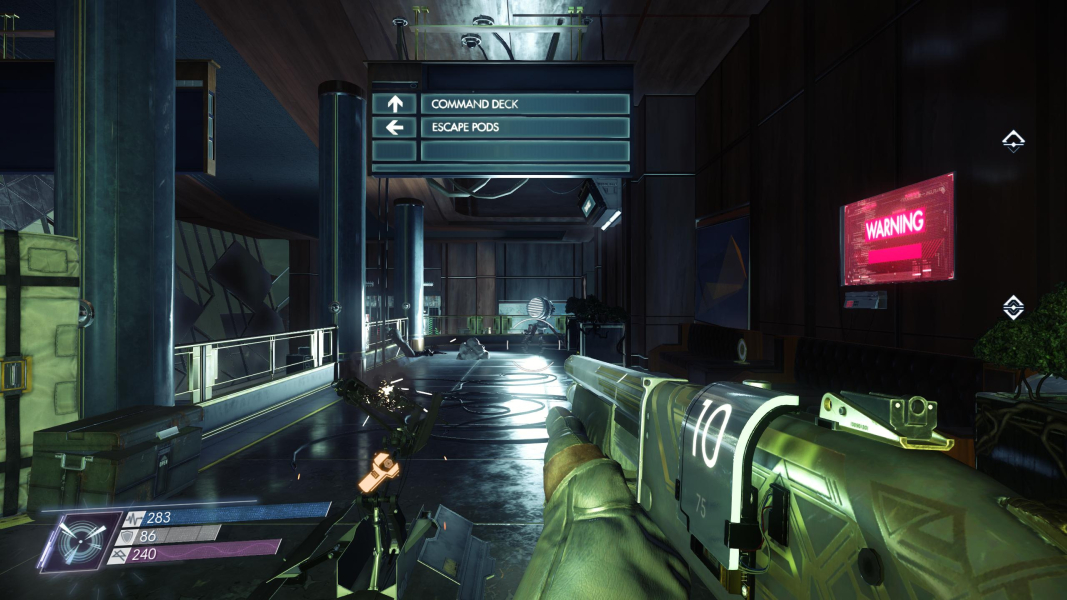
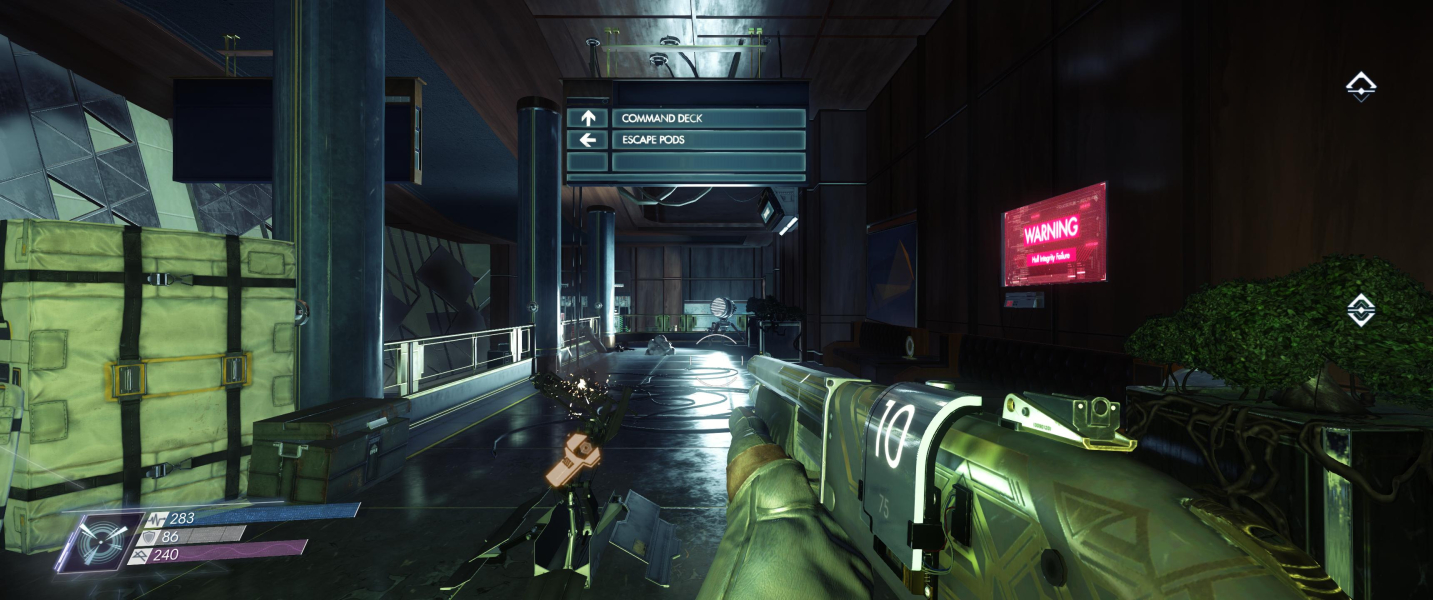
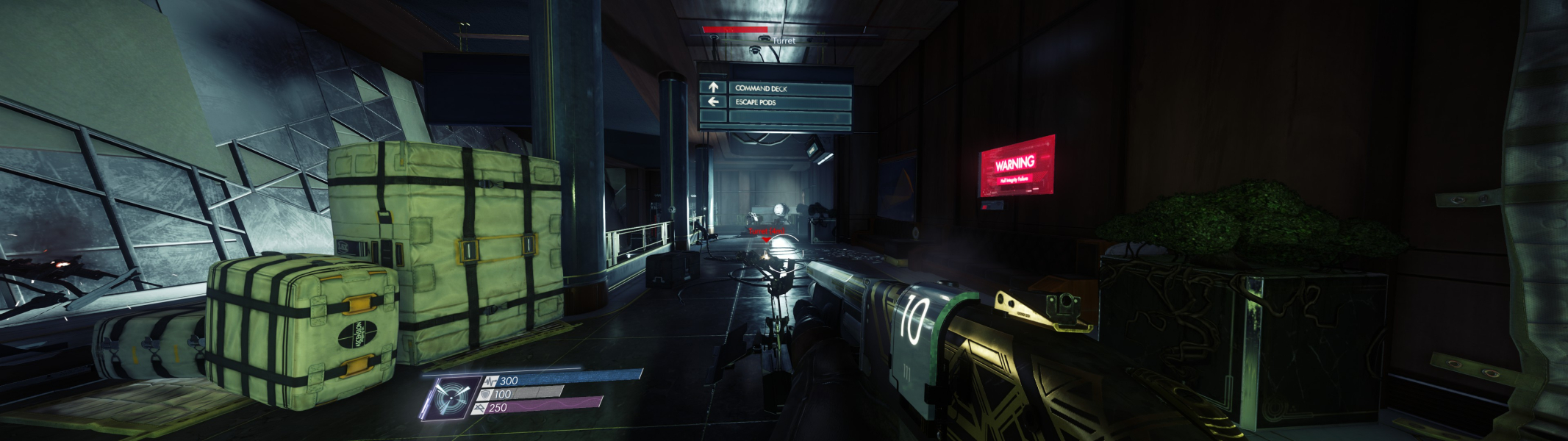
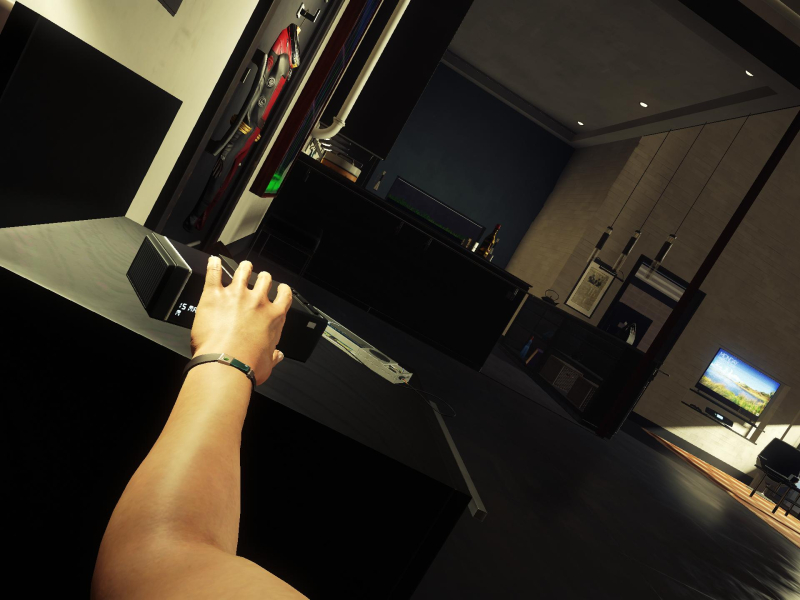
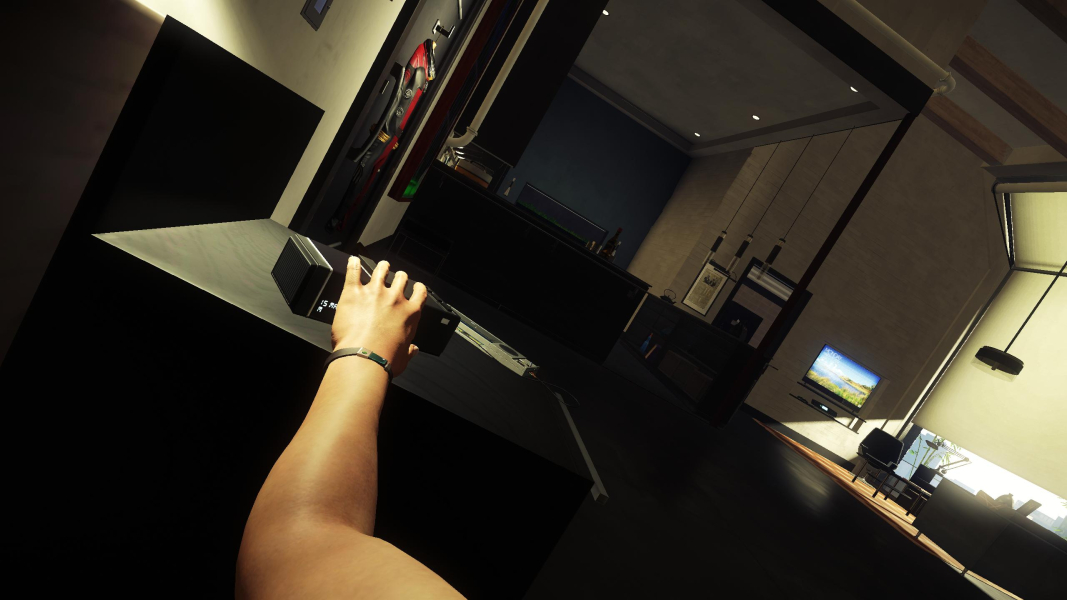
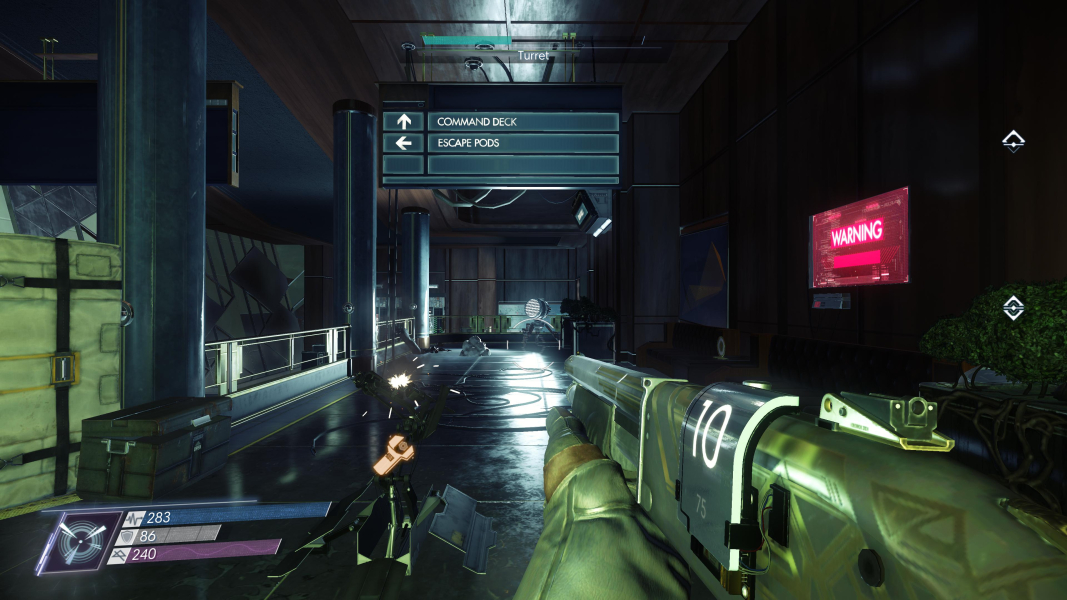
Super (32:9) and Ultra-Wide (21:9) both put the HUD elements on the far edges of the monitor. This can make it difficult for many people to see things like how to interact with objects and powers, health bar and etc. The markers for objects, inventory, in game menus and loading screens are all perfectly centered.
For those who would prefer to see all of the games HUD elements center more like 1080p, here are steps you can take to make Flawless Widescreen (FWS) to work with 21:9, 32:9 and 16:9 aspect ratios.
Ultra-Wide 21:9 Support Configuration:
For 3440x1440 (21:9):
* Select 3440x1440 in the game's video or display settings.
* Install Flawless Widescreen and load the Prey plugin, enable all settings, increasing/decreasing the FOV adjustment if you wish.
* In Flawless Widescreen go to Settings > Display Detection and configure the section as follows:
+ At the bottom right, click on "Enable Display Detection Override" than put in these values:
- Width: 3440
- Height: 1440
- Hud Width: 2560 - if you want this closer to center change this value to 1920.
- Hud Height: 1080 - if you prefer to have the HUD at the very top/bottom of your monitor set this value to 1440. Don't change to 1440 if you set Hud Width to 1920.
- Horizontal Display Count: 1
- Vertical Display Count: 1
- Hud X: 440 - if you changed HUD Width to 1920 change this value to 760
- Hud Y: 0
For 2560x1080 (21:9):
* Select 2560x1080 in the game's video or display settings.
* Install Flawless Widescreen and load the Mass Effect plugin, enable all settings, increasing/decreasing the FOV adjustment if you wish.
* In Flawless Widescreen go to Settings > Display Detection and configure the section as follows:
+ At the bottom right, click on "Enable Display Detection Override" than put in these values:
- Width: 2560
- Height: 1080
- Hud Width: 1920
- Hud Height: 1080
- Horizontal Display Count: 1
- Vertical Display Count: 1
- Hud X: 320
- Hud Y: 1080 - if you notice any of the HUD elements doing anything weird set to 0 and see if that fixes the problem.
----------------------------------------------
Super Ultra-Wide 32:9 Support Configuration:
For 3840x1080 (32:9):
* Select 3840x1080 in the game's video or display settings.
* Install Flawless Widescreen and load the Prey plugin, enable all settings, increasing/decreasing the FOV adjustment if you wish.
* In Flawless Widescreen go to Settings > Display Detection and configure the section as follows:
+ At the bottom right, click on "Enable Display Detection Override" than put in these values:
- Width: 3840
- Height: 1080
- Hud Width: 1920
- Hud Height: 1080
- Horizontal Display Count: 1
- Vertical Display Count: 1
- Hud X: 960
- Hud Y: 0
---------------------------------------
16:9 Support Configuration:
For 2560x1440 (16:9):
* Select 2560x1440 in the game's video or display settings.
* Install Flawless Widescreen and load the Mass Effect plugin, enable all settings, increasing/decreasing the FOV adjustment if you wish.
* In Flawless Widescreen go to Settings > Display Detection and configure the section as follows:
+ At the bottom right, click on "Enable Display Detection Override" than put in these values:
- Width: 2560
- Height: 1440
- Hud Width: 1920
- Hud Height: 1080 - if you prefer to have the HUD at the very top/bottom of your monitor set this value to 1440.
- Horizontal Display Count: 1
- Vertical Display Count: 1
- Hud X: 320
- Hud Y: 1080 - if you notice any of the HUD elements doing anything weird set to 0 and see if that fixes the problem.
The FOV Slider is to small and the HUD is not centered - use Flawless Widescreen to fix these Issues.
Native
Gameplay Screenshots


In-Game (Rendered) Cutscenes




FMV Cutscenes



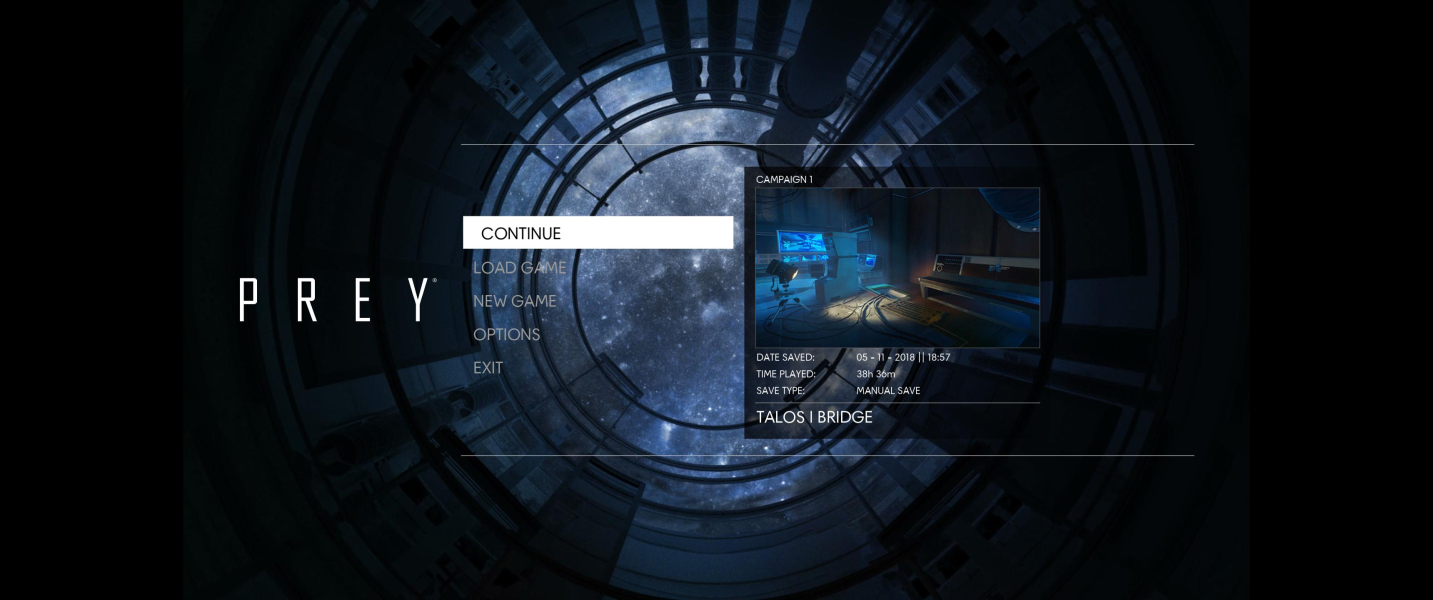
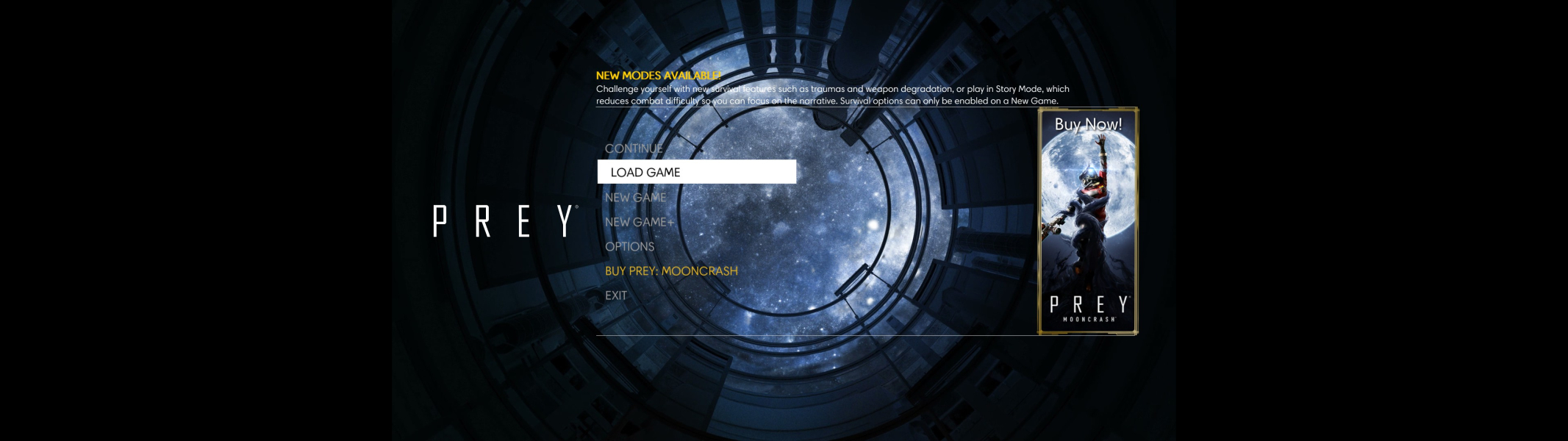
Menu Screenshots
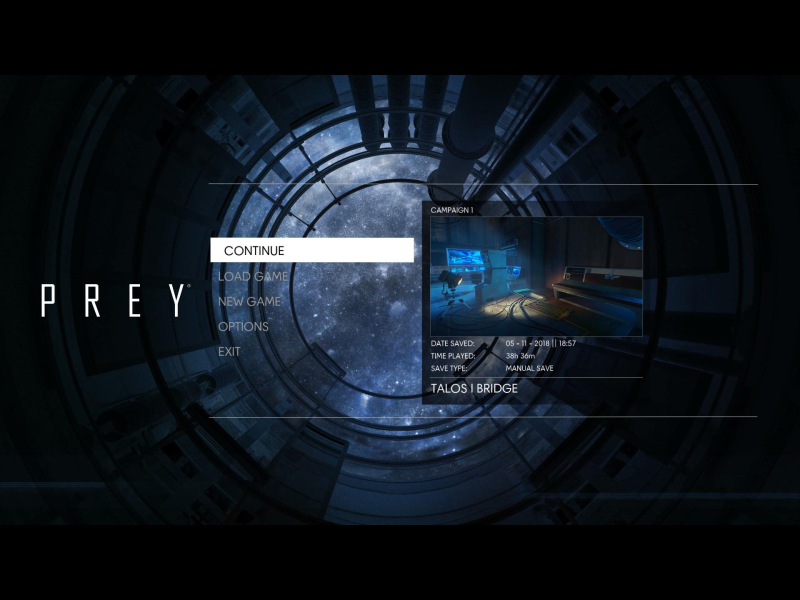
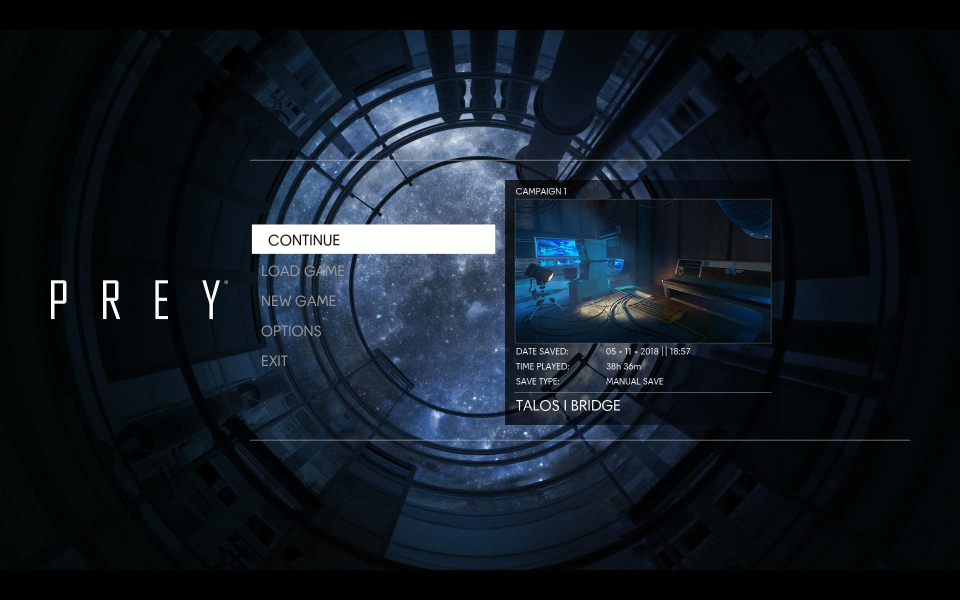
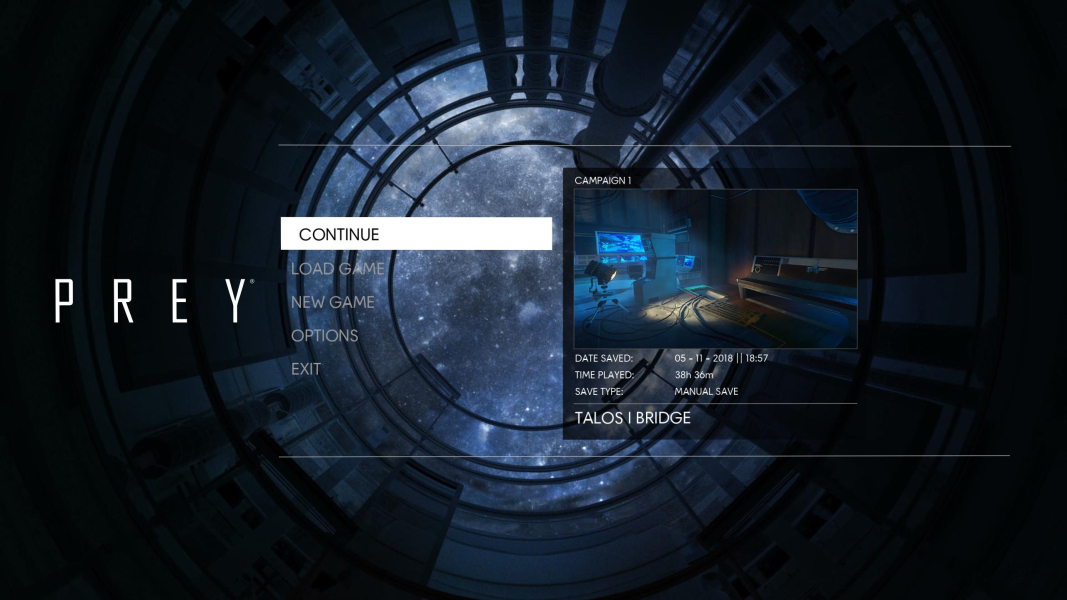

4K UHD Screenshots


Additional Screenshots


