




3rd-person action meets tower defense. Buy and place traps around corridors to stop waves of attackers, and when all else fails just finish'em off with your own weapons. Scores are made to be beaten, so feel free to revisit completed maps; all newly unlocked or upgraded gear will let you wreak even more havoc upon the not-so-uninvited greenskin horde.
Support Summary
Game Information
Screenshots Comparison
Solutions & Issues
The game will initially run at your current resolution. You can change it using the slider under Help & Options, Settings or by editing Documents\Orcs Must Die\VideoSettings.xml.
Gameplay is Vert- out of the box, but you can adjust the FOV using GeneralAdmission's tool (see WSGF Links above).
Simply extract the tool anywhere, run it, choose your FOV and launch the game. You can freely Alt+Tab from game to tool and change the FOV at any time.
Suggested values for Hor+ gameplay:
- Camera offset = Center (default)
- Camera offset = Left or Right
Aspect ratio 4:3 --- FOV 85 (default)
Aspect ratio 16:10 --- FOV 95
Aspect ratio 16:9 --- FOV 101
Aspect ratio 15:9 (1280x768) --- FOV 98
Aspect ratio 4:3 --- FOV 75 (default)
Aspect ratio 16:10 --- FOV 90 (lowest value in the tool; according to FOVCalc it should be 85.28)
Aspect ratio 16:9 --- FOV 91
Aspect ratio 15:9 (1280x768) --- FOV 88
Same method. Kudos to EvilEngineer and AlexV for their modding of earlier versions of the game, but GA's tool is the only working method by now.
Suggested values for Hor+ gameplay:
- Camera offset = Center (default)
- Camera offset = Left or Right
Aspect ratio 15:4 (3x 5:4) --- FOV 138
Aspect ratio 48:10 (3x 16:10) --- FOV 146
Aspect ratio 48:9 (3x 16:9) --- FOV 149
Aspect ratio 15:4 (3x 5:4) --- FOV 130
Aspect ratio 48:10 (3x 16:10) --- FOV 140
Aspect ratio 48:9 (3x 16:9) --- FOV 144
=====
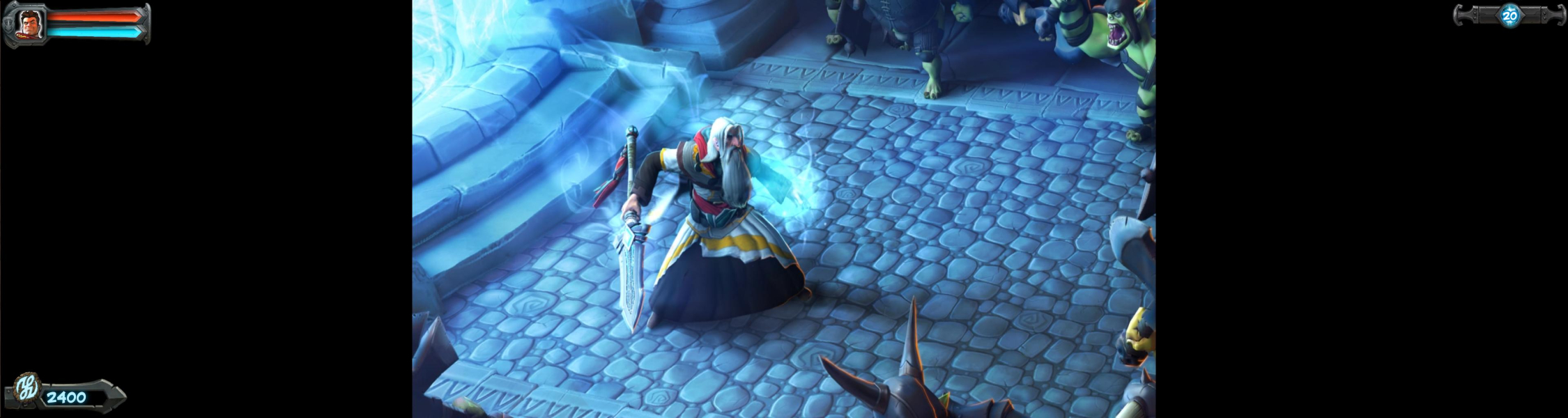
In-game help text is vertically streched in non-16:9 widescreen.
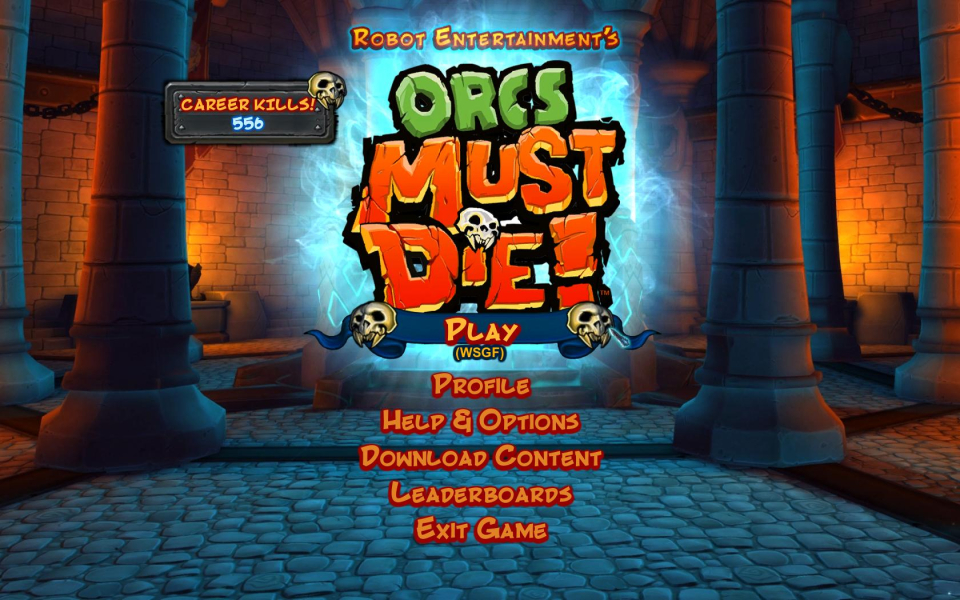
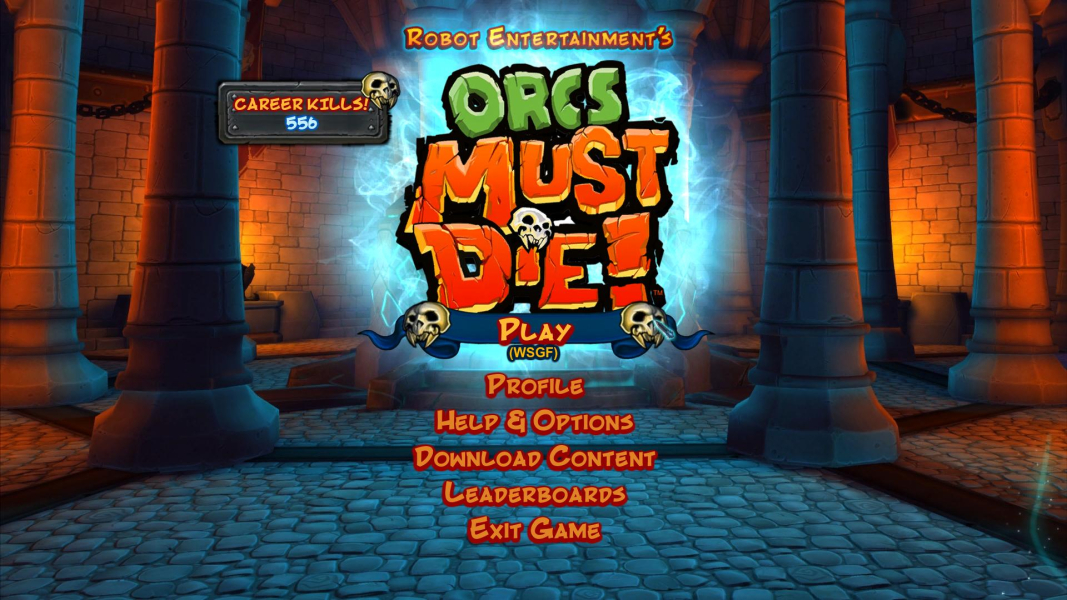
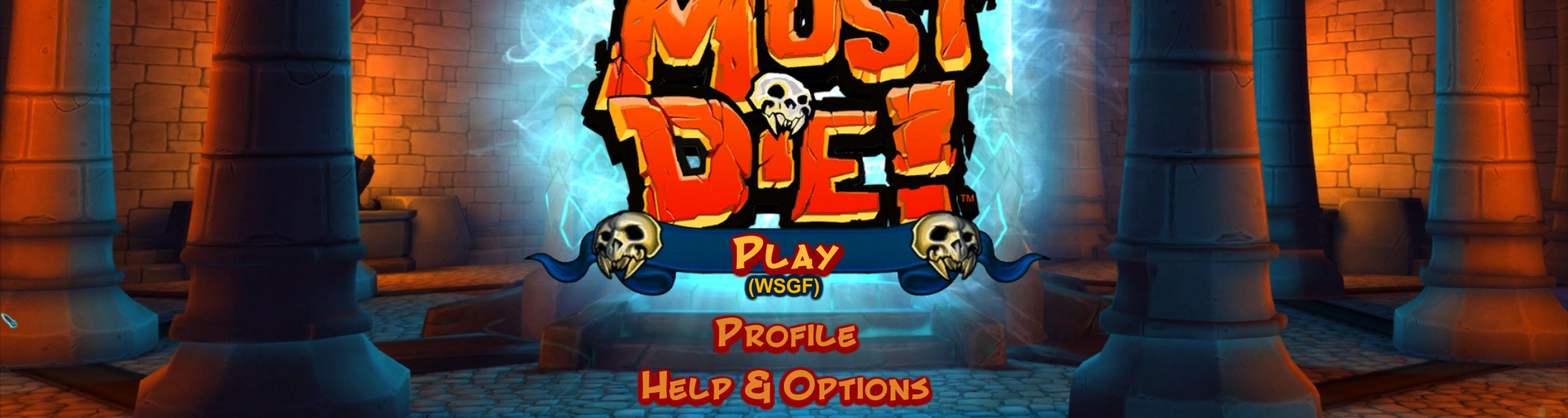
Multi-mon: main menu is cut-off (can be navigated blind). Submenus scale correctly.
Anomalies in v0.2 of the FOV Tool:
-Weapon zoom FOV
-Sprint FOV
-Slight camera jerk on weapon change
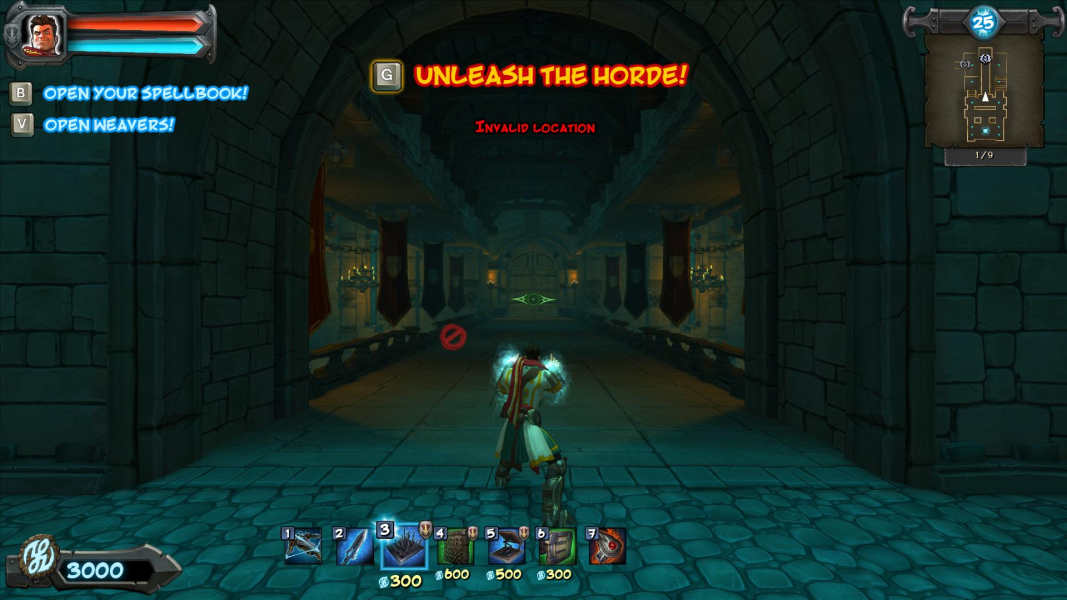
Gameplay Screenshots




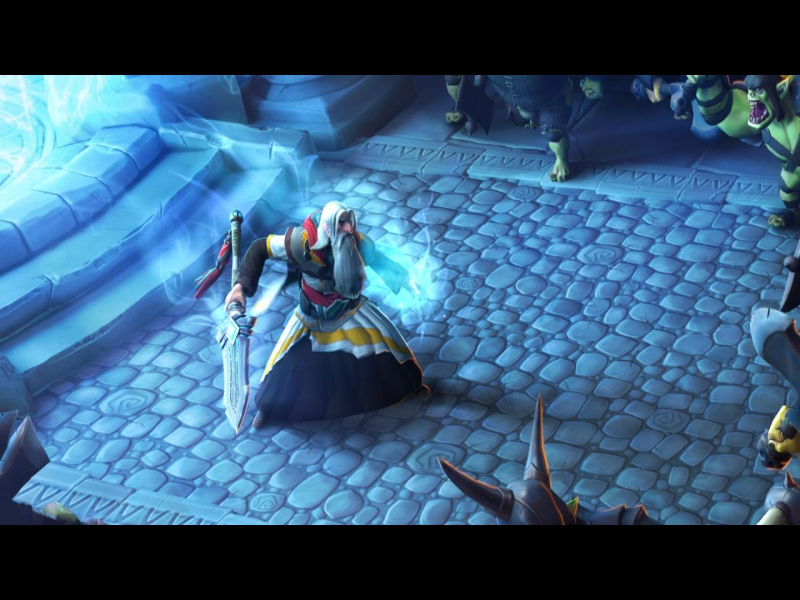
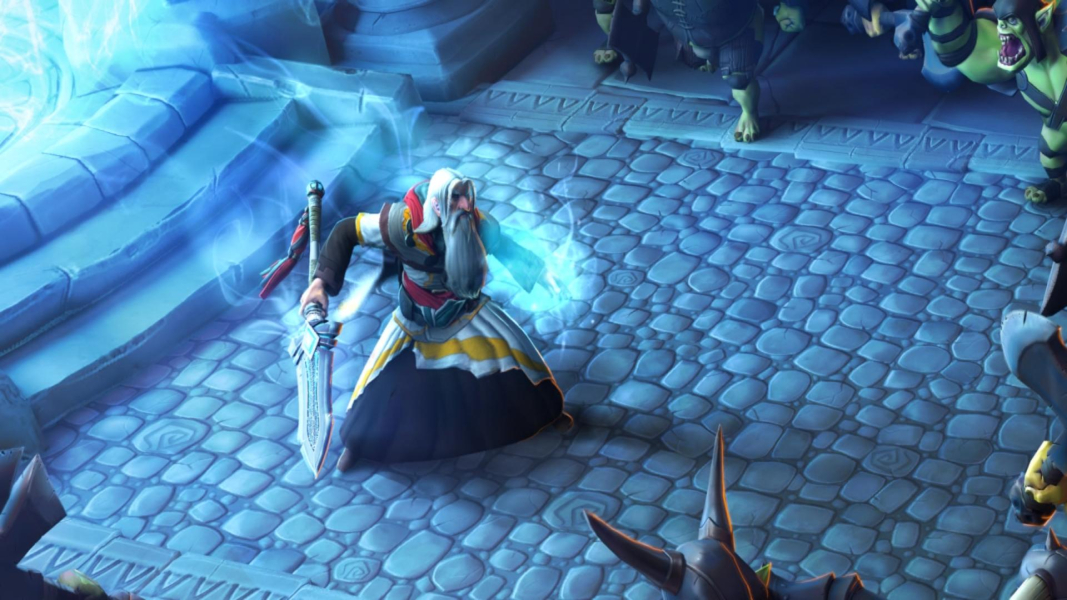
FMV Cutscenes

Menu Screenshots

Additional Screenshots


