


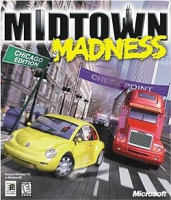


Midtown Madness (also known as Midtown Madness: Chicago Edition) is a racing game developed for Windows by Angel Studios (now Rockstar San Diego) and published by Microsoft.
Unlike racing games that restrict the player to a race track, Midtown Madness offers an open world recreation of Chicago. This setting was said to provide "an unprecedented degree of freedom to drive around in a virtual city".Players can explore the city via one of several modes, and can determine the weather and traffic conditions for each race. The game supports multiplayer races over a local area network or the Internet. The game received generally positive reviews from gaming websites.
Support Summary
Game Information
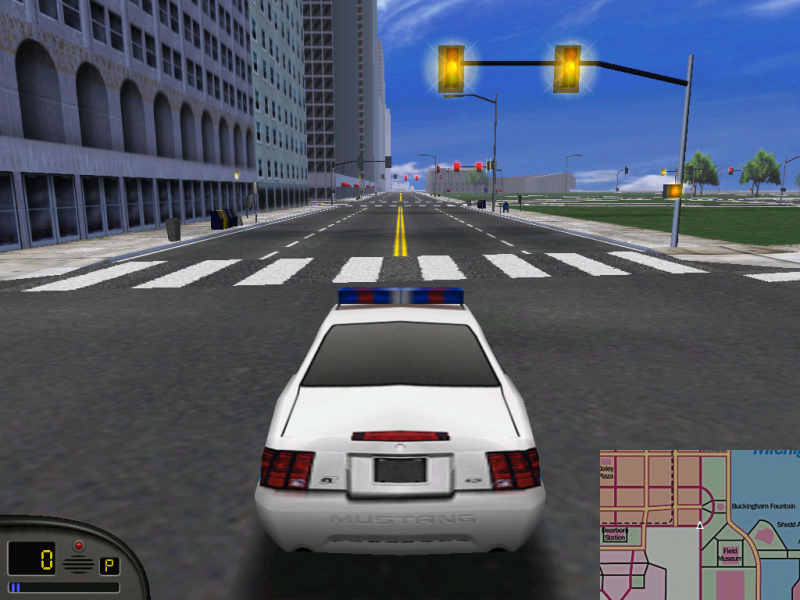
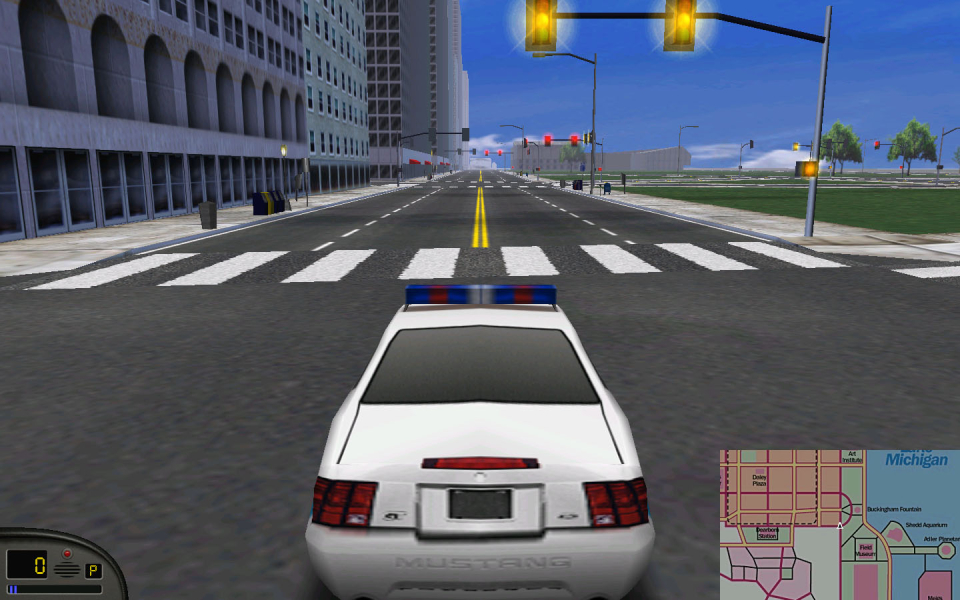
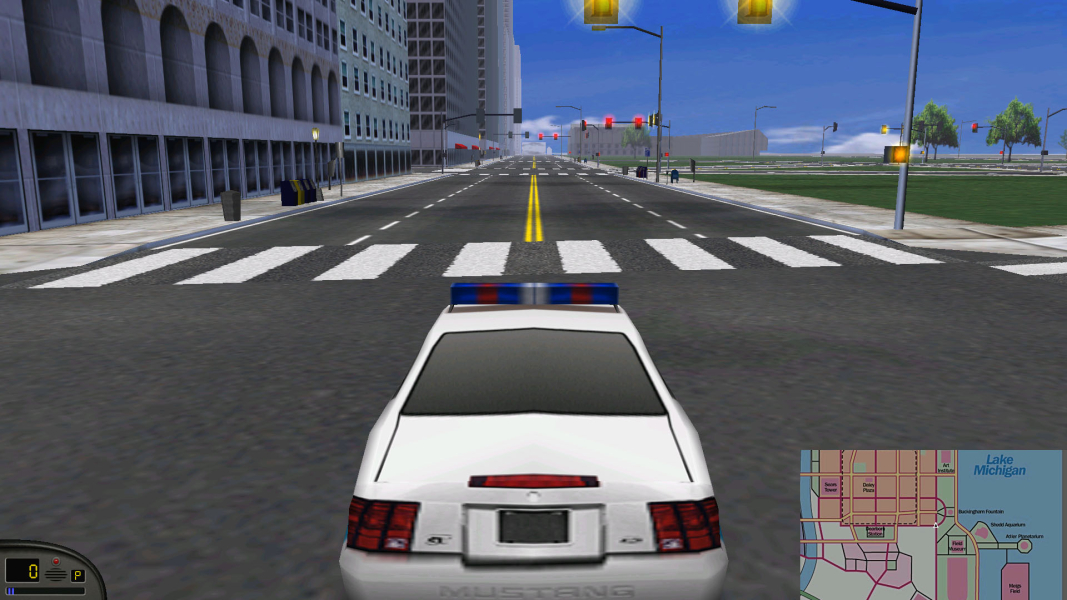
Screenshots Comparison
Solutions & Issues
Files available from the PC Gaming Wiki Community Files (search there)
Update: For Windows 8.1 & Windows 10 before using solutions you should use dgVoodoo2 as follows:
- Download dgVoodoo2 via available from the PC Gaming Wiki Community Files (search there)
- Extract the following files from the zip you just downloaded: dgVoodoo2.exe; In the "MS" folder - DDraw.dll; D3DImm.dll to the root directory of MM.
- Launch the dgVoodoo2.exe and do the following:
* click a button ".\" to create config file to MM directory.
* Go to "DirectX" tab and change the VRAM to at least 128MB.
* Click "Apply" and "OK" to exit. - Now rename Midtown.exe to MidtownMadness.exe and launch MM.
- Intro video may not work... just click to continue.
- MM should now be loaded... go to Options; Graphics; and choose "Hardware Renderer (T&L)" from Renderer drop down menu.
- Click Done
-------------------------------------------------------------------
There are 2 solutions for widescreen support:
With program:
- Download "Video Repair Tool" via files available from the PC Gaming Wiki Community Files (search there)
- Extract & open videopatcher2.exe file.
- Click Browse... and find video.cfg in game folder (you must run the game at least once to create the file!)
- Click Repair and select Render & Resolution...
Note : This tool only add these resolutions : 640x480 , 800x600 , 1024x768 , 1400x1050 , 1920x1080
---------------------------------------------------------------------
Edit video.cfg manually with a notepad (Notepad++ recommended)
If you want to have more resolution in the game, increase the number of "Resolutions=x" in video.cfg and add resolutions...
Gameplay Screenshots


Menu Screenshots


