

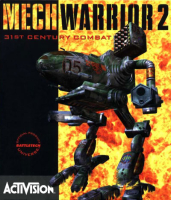


Choose your allegiance and fight for your clan in the second game in the MechWarrior series.
Support Summary
Game Information
Game Status:Released
Release Date:
Tested Version:3dfx
Setting:Sci-Fi
Developer:Activision
Screenshots Comparison
Solutions & Issues
Widescreen Solution & Issues:
These steps will only work with the 3dfx editions (other editions do not have the same MW2.DLL).
- Install the game with MechVM.
- Copy DPLAY.DLL from the directx folder on the CD to the game's installation folder.
- Open MW2.DLL in a hex editor.
- Search for AB AA AA 3F and change it to your aspect ratio (see Common HEX Values).
- Install nGlide.
- Run the nGlide Configurator from the Start menu.
- Set your resolution and ensure the aspect ratio is set to Fit to screen.
Menus and FMV cutscenes always use a fixed resolution.
The HUD will be partly cropped when using widescreen aspect ratios.
Higher resolutions (e.g. 2560x1440) do not work (the mission fails and returns to the menu).
Gameplay Screenshots
4:3 Screenshot
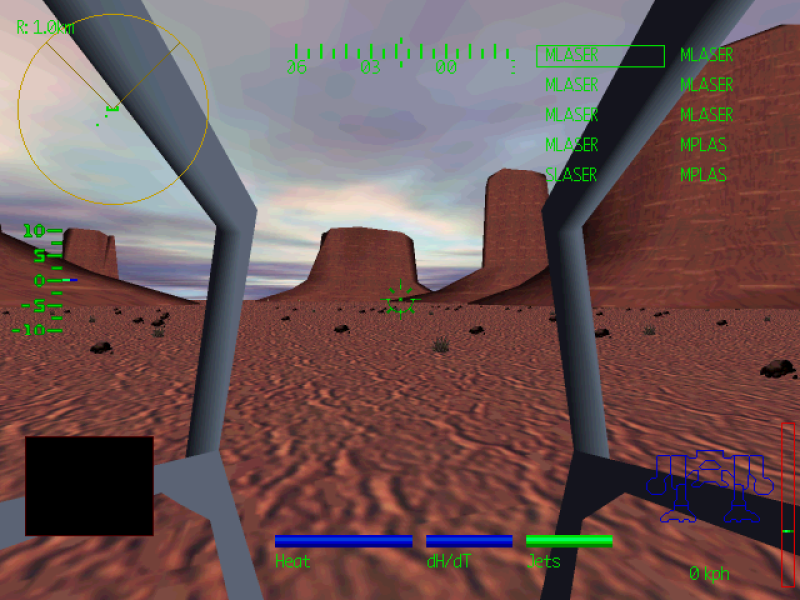
16:10 Screenshot

16:9 Screenshot
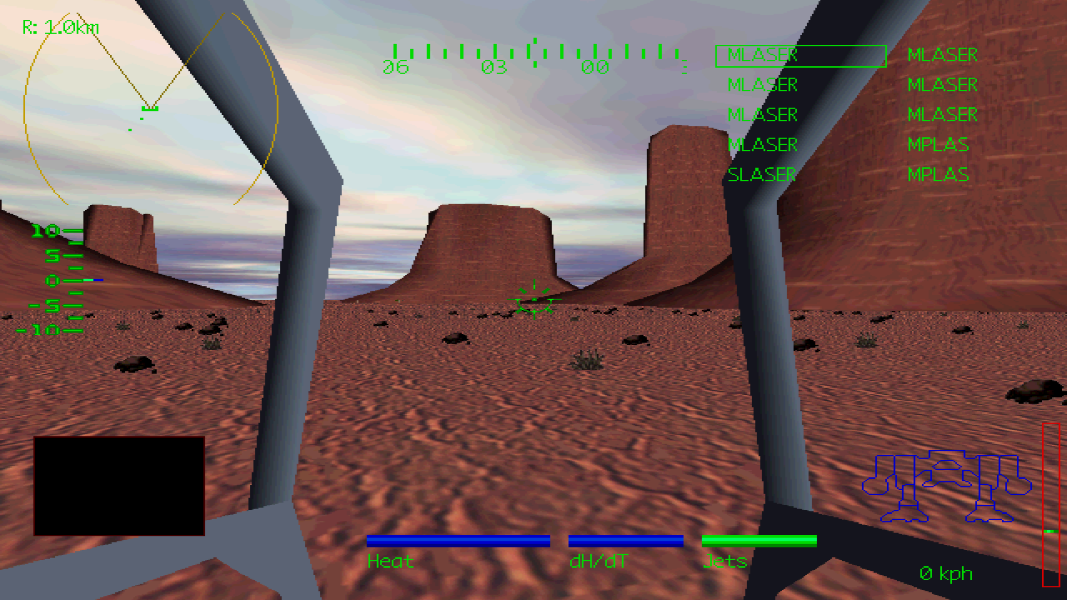
21:9 Screenshot

32:9 Screenshot

Eyefinity / Surround Screenshot

Additional Screenshots


