




Put the Magnetic Propulsion Device and your own resolve to the test in a series of life-threatening puzzle rooms. The gun can be used to push and pull metallic objects such as companion cu... uh, parallelepipedic pals. It also affects your own mass and can be used to eject from, levitate over or grab on to certain surfaces. An ongoing "psychological" evaluation will lead you to make choices that may open new paths and lead to any one of nine possible endings. Rooms cleared during the story may be replayed individually in time trial mode.
Support Summary
Game Information
Screenshots Comparison
Solutions & Issues
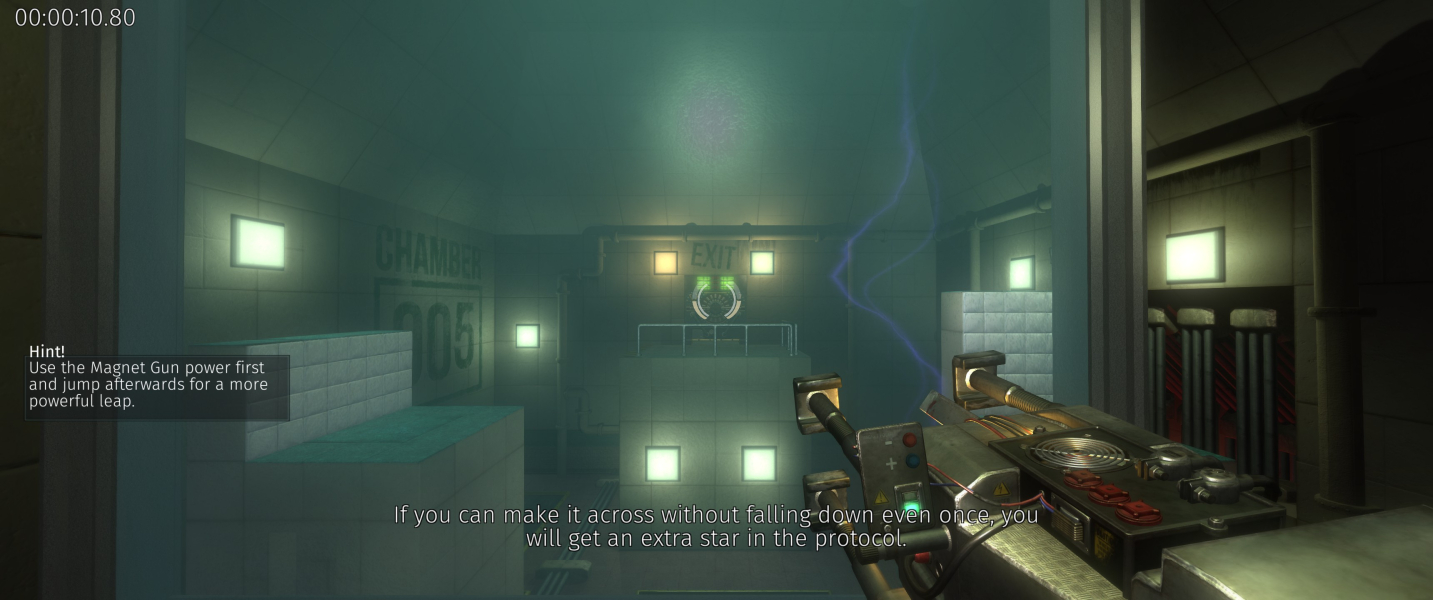
Native Hor+ support. A VFOV slider is present (range 60-90, default 70).
Only 16:10 and 16:9 resolutions are available. For less common widescreen aspects, use the method detailed below.
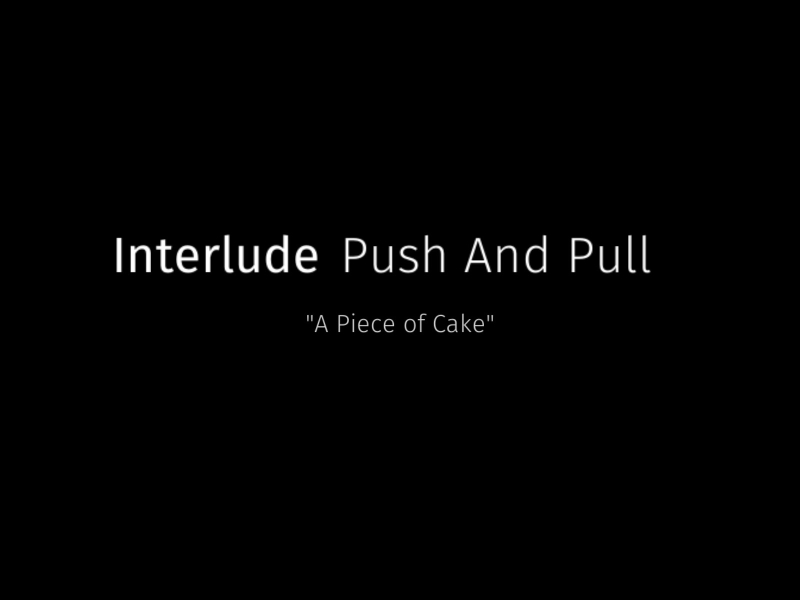
Cosmetic oddity: FMV layout is affected by display width.
Borderless Gaming + registry edit, see details below.
Borderless Gaming + registry edit.
- Launch the game and uncheck Fullscreen under Settings, Video Settings. Multi-mon resolutions are not available but that's not a problem - just disable Fullscreen.
- Run Borderless Gaming and add Magnetic_Cageclosed to the Favorites.
- Let BG do its thing. After a few seconds the windowed game will turn into fullscreen multi-mon.
- Important ! Every time you quit the game, display width must be reset in the registry or the main menu will show broken graphics on your next game.
- Open the registry editor and navigate to HKCU\Software\GuruGames\Magnetic_CageClosed\
- Or download files available from the PC Gaming Wiki Community Files (search there). and double-click magnetic.reg.
Look for the key Screenmanager Resolution Width_h182942802
Set it back to 1920 (decimal) or any other value narrower than your desired width.
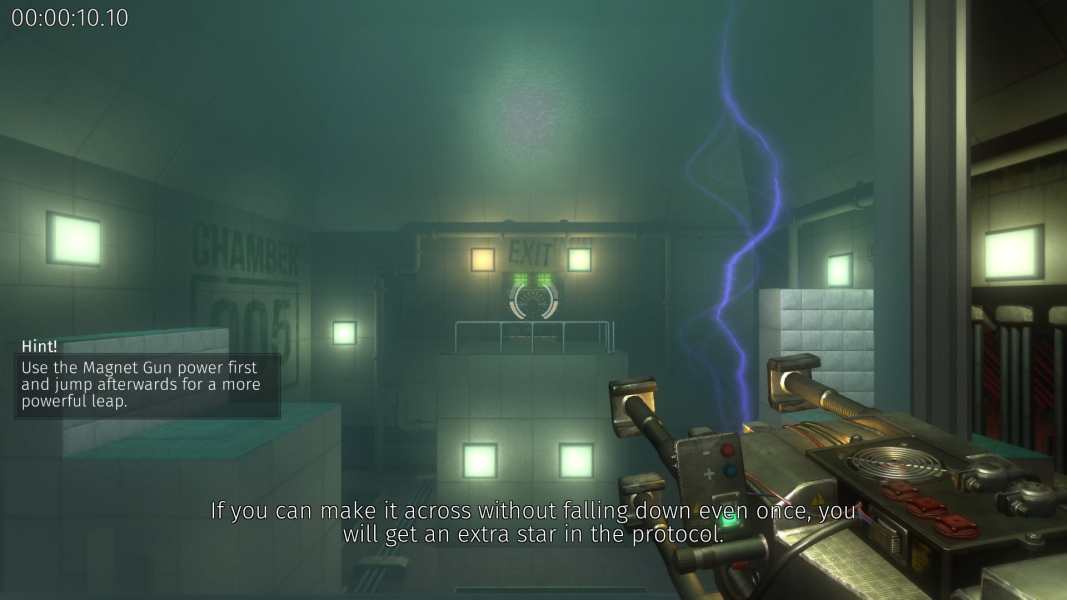
Gameplay Screenshots




In-Game (Rendered) Cutscenes
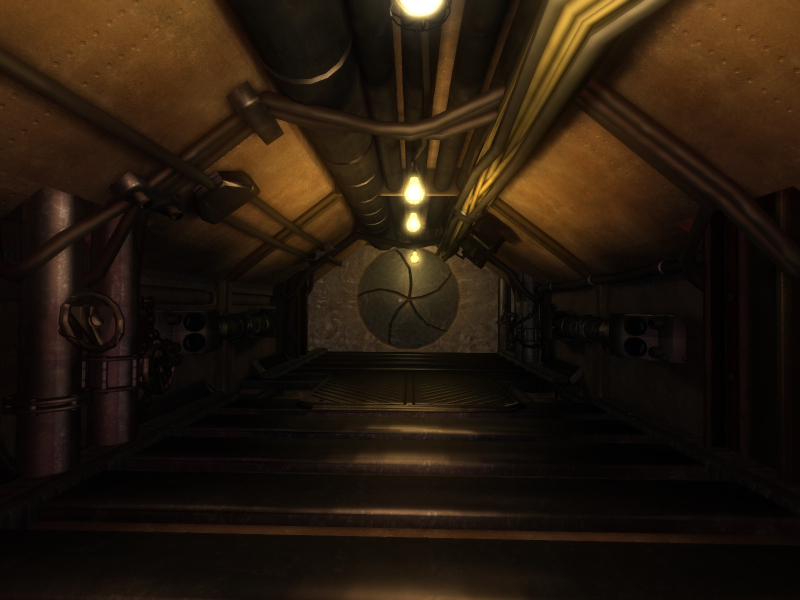
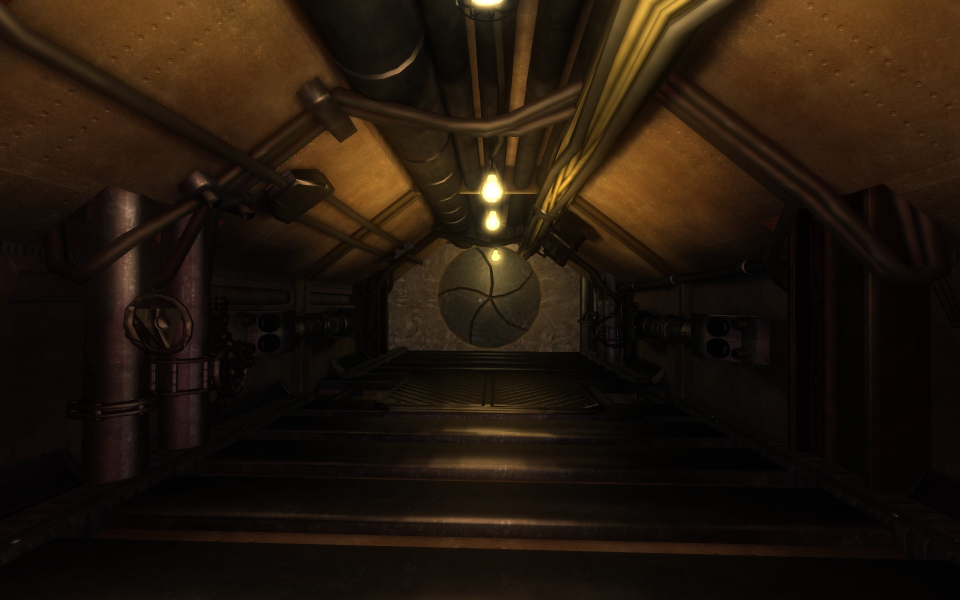
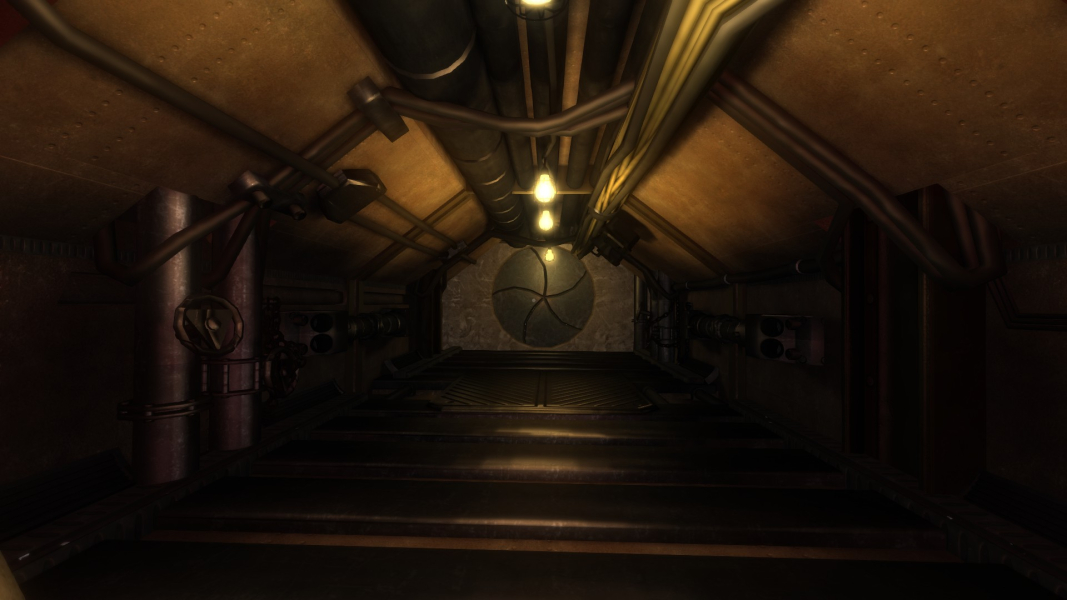
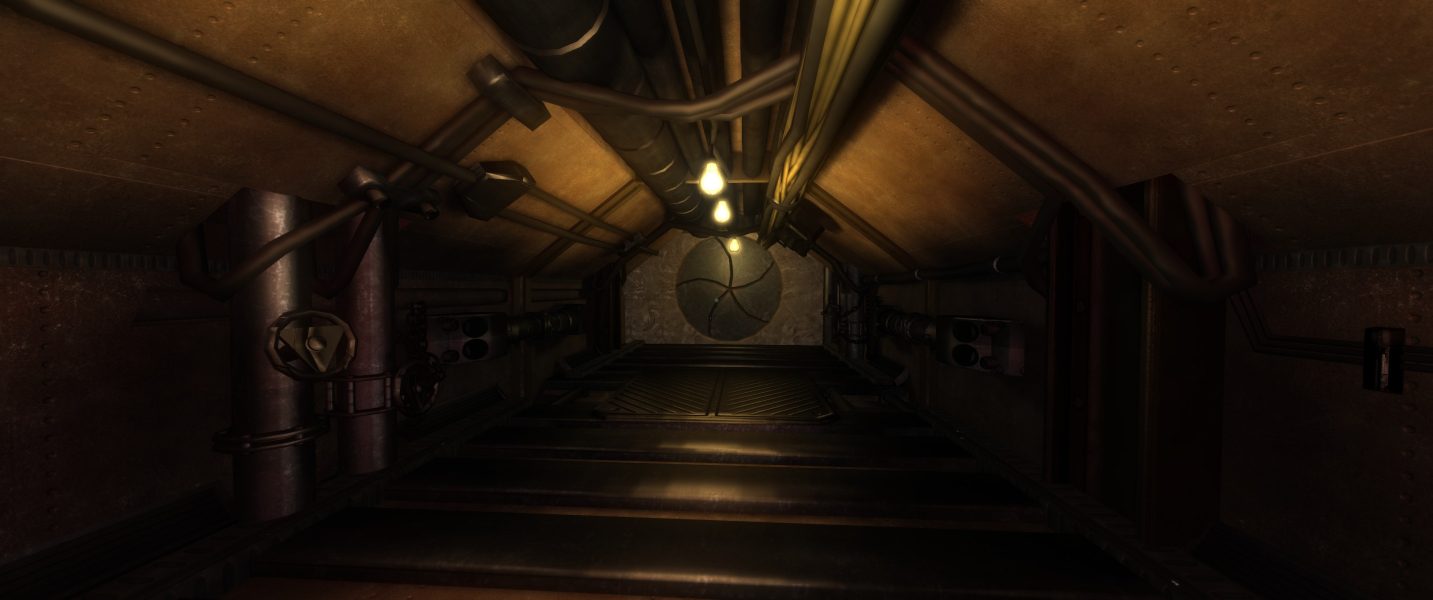

FMV Cutscenes

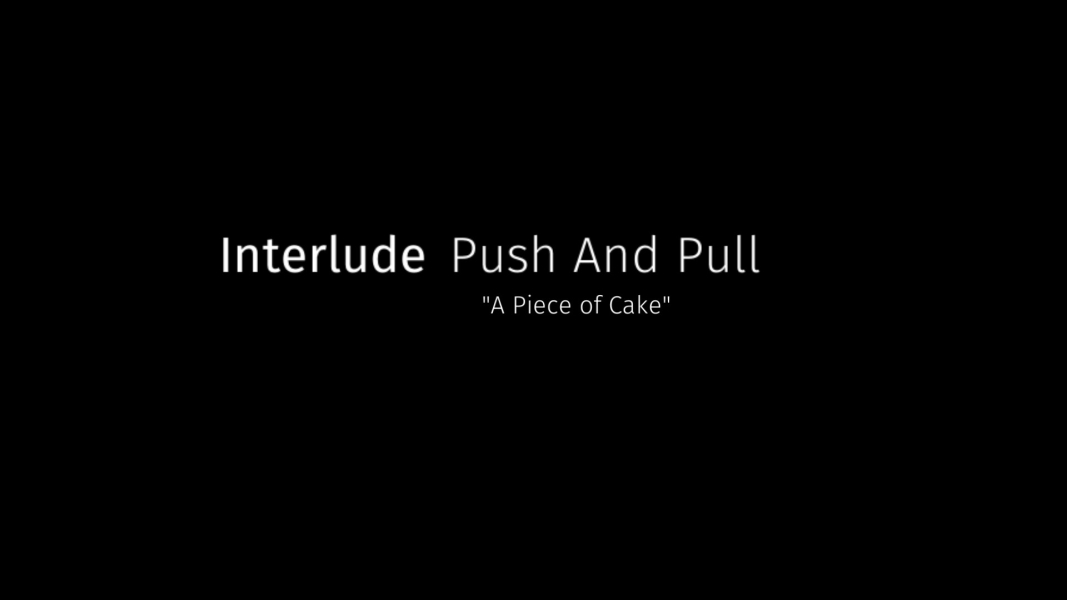
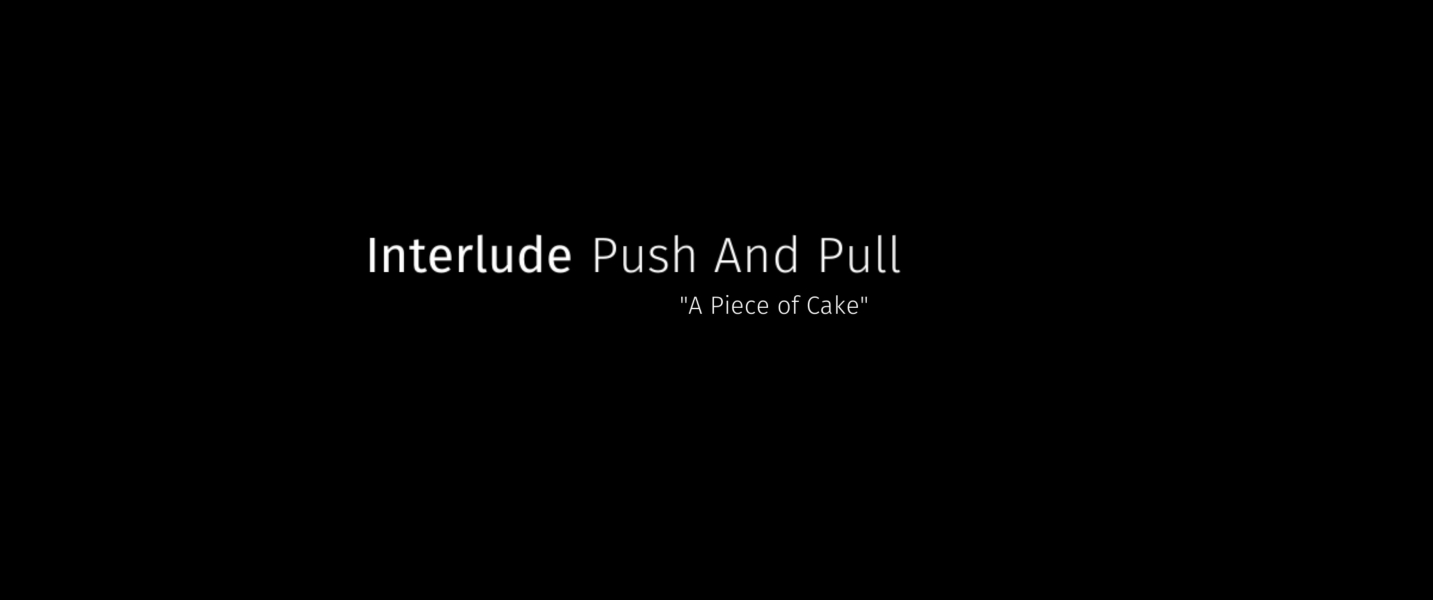

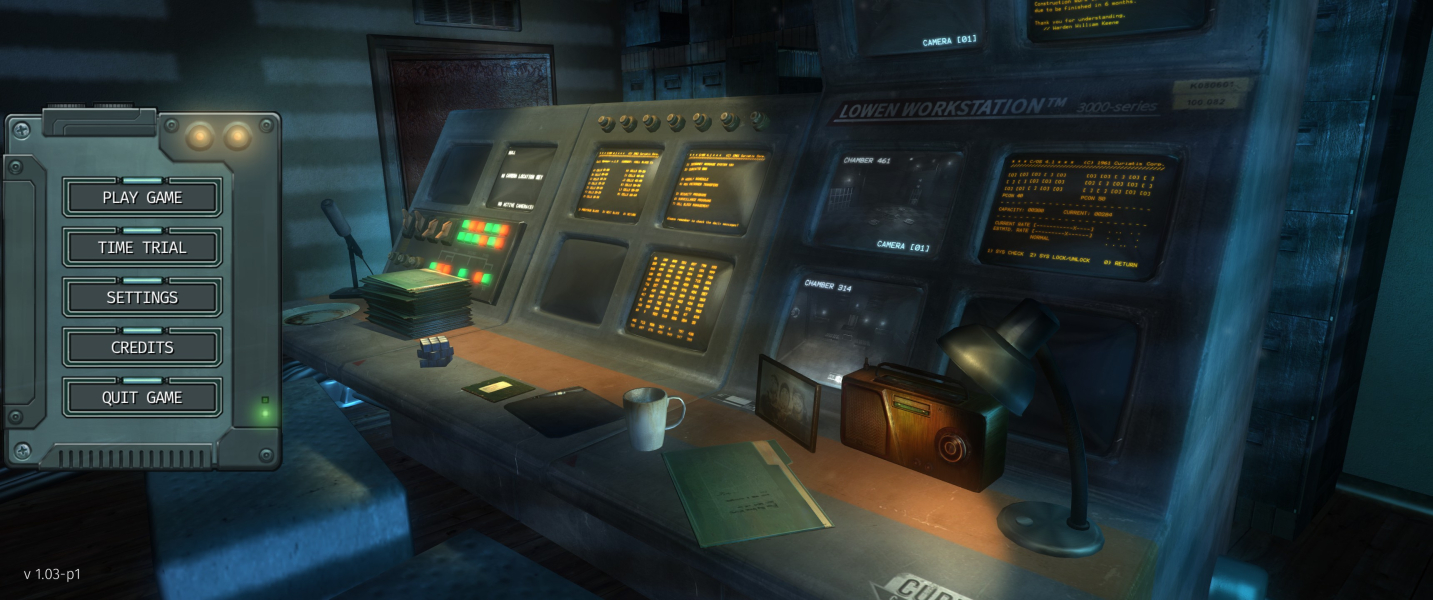
Menu Screenshots

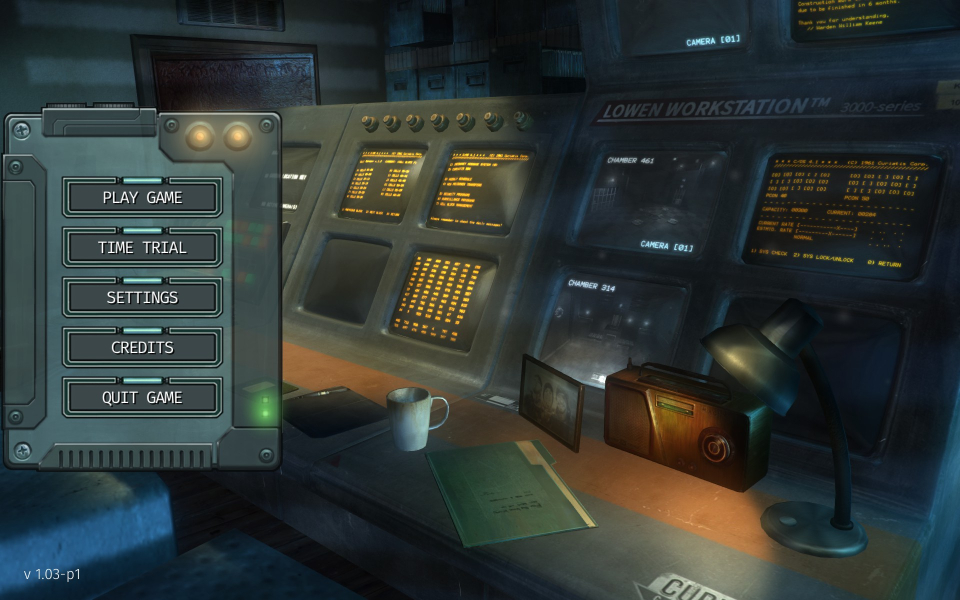
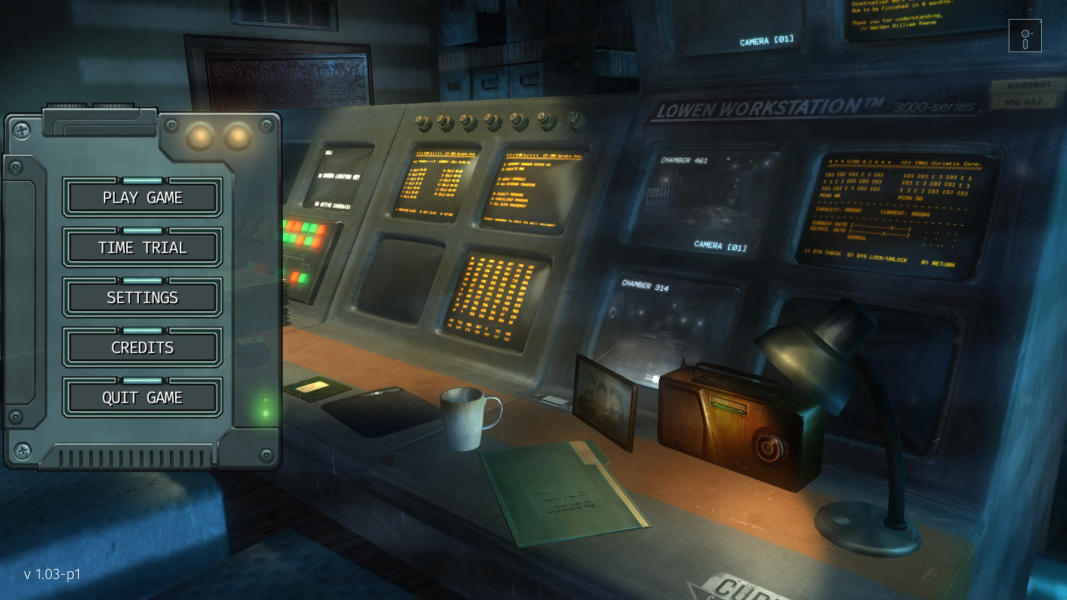

Additional Screenshots


