




Lichdom puts the crafter back in spellcrafter. Through a spell-centric loot system and extensive crafting and casting mechanisms, wielding magic has never felt so remote from the usual shooting frenzy with mana for ammo.
Equip any three Sigils out of the eight "magic schools", level them up individually, use them in synergy, create new devastating effects, and modify your play style radically by forging three types of magic shields, as you progress through linear levels seeking power and revenge. Fighting is but one half of the battle ahead: you will have to study, build and experiment. For every "badass mage" started out as an assiduous apprentice.
Support Summary
Game Information
Screenshots Comparison
Solutions & Issues
The game supports any and all resolutions. However the resolution picked by default seems to depend on several factors (native resolution, current desktop resolution, system specs).
Default FOV is "Vert+" and may be fine-tuned through a slider in Graphics Options (default 80, range 75-110, horizontal FOV).
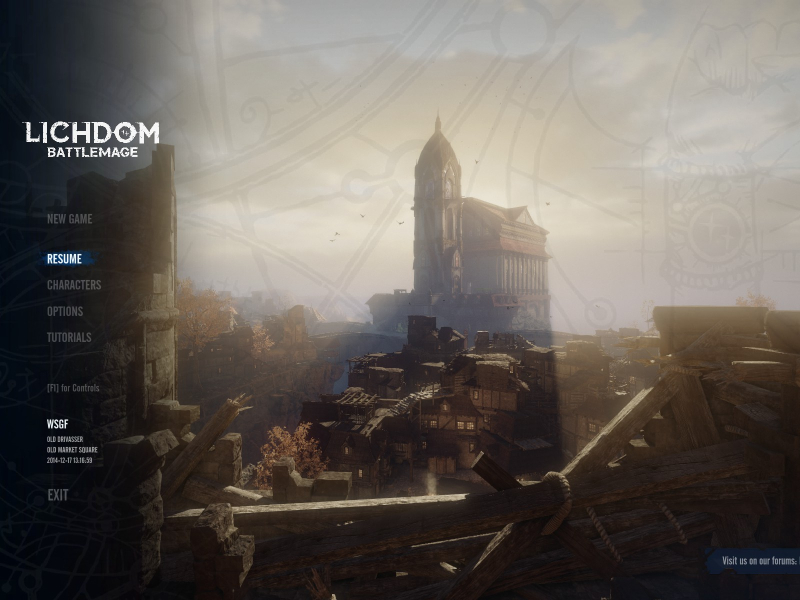
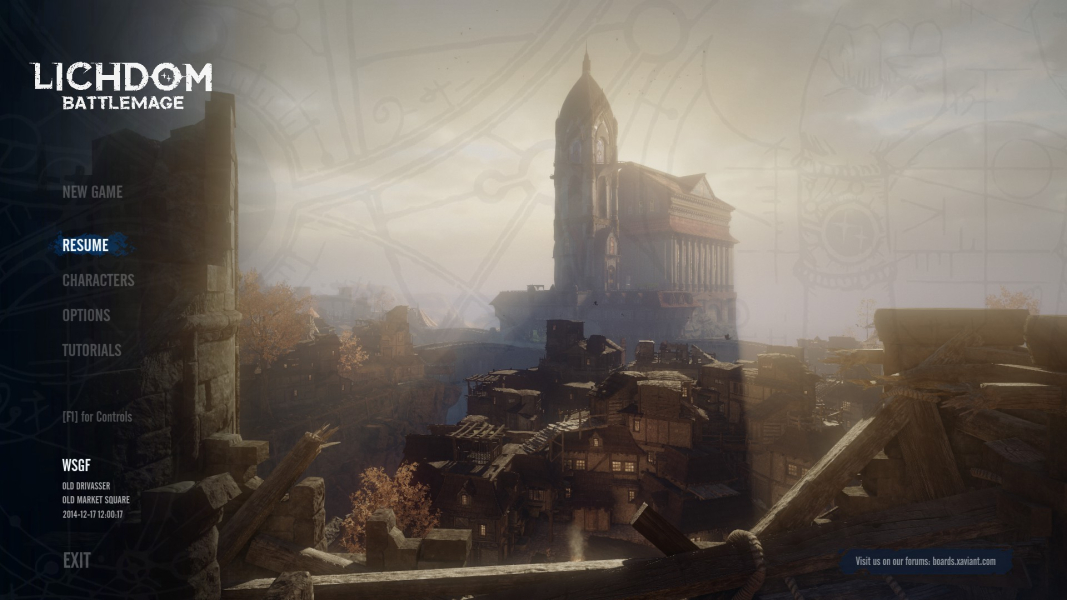
A custom FOV won't affect the main menu's cityscape or real-time rendered cut-scenes, so make adjustments while in a game to see the difference.
Support is basically native through the FOV slider: 17 notches over the default setting will make gameplay Hor+. However this won' t fix some Vert- areas of the game (dragon's hands, cut-scenes, main menu scene).
A better solution is to leave the FOV at default and use the cfg edit detailed in the Multi-Monitor section below.
The perfectionist's corner:
For 64:27 resolution 2560x1080 use cl_fov_aspect_ratio=1.3333
For 43:18 resolution 3440x1440 use cl_fov_aspect_ratio=1.3437
UI blemishes:
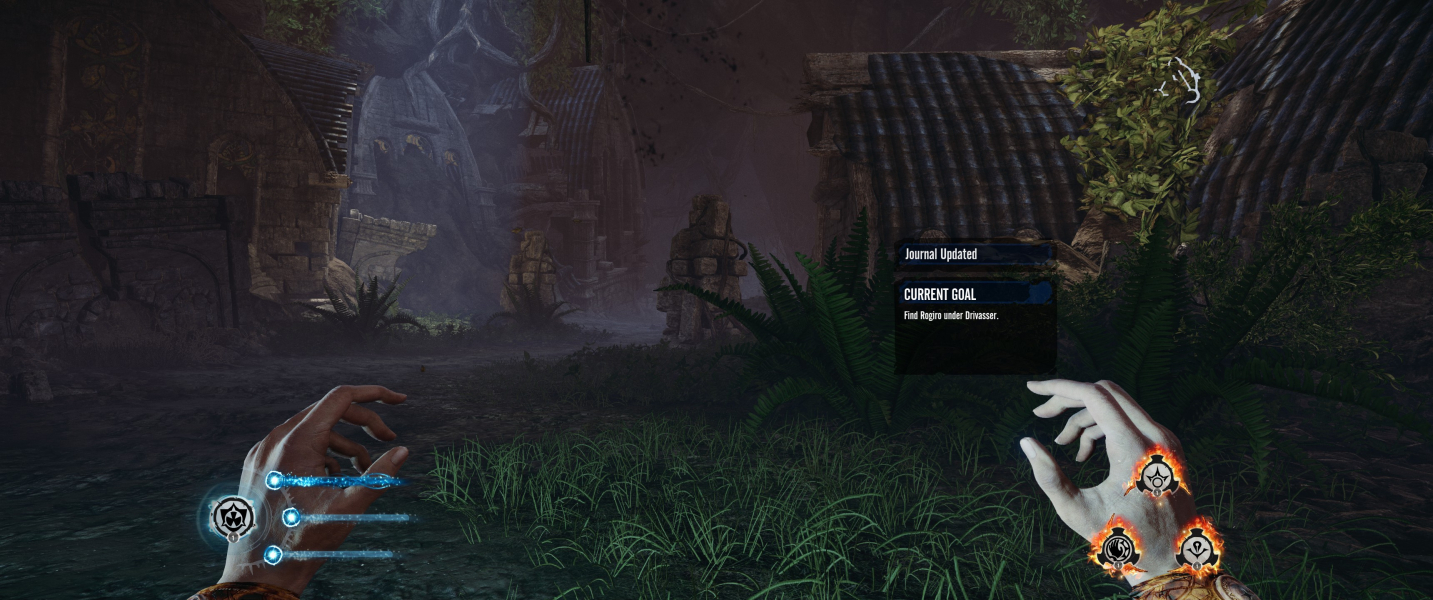
- Most of the UI doesn't scale (identical to 16:9).
- Some UI elements scale slightly to the left (objective reminders, loot descriptors).
- Bits of UI are visible on the leftmost part of the screen in menus and during load times.
- Inventory & Crafting: items are slightly magnified when dragged.
Pointy hats off to Toothless "Spoonie" Spoon for advocating Multi-Mon support and helping the devs help us since Early Access !
Default FOV is Vert- and fixing it requires a manual edit of %USERPROFILE%\Saved Games\Lichdom Battlemage\game.cfg
Add the following line at the end of the file: cl_fov_aspect_ratio=3
How it works:
FOV = (cl_fov)*(cl_fov_aspect_ratio)
cl_fov is the baseline FOV for 16:9 that can be adjusted with the slider. (The slider also affects cl_defaultfov but this value doesn't seem to have any effect of its own.)
cl_fov_aspect_ratio is a multiplier. 3 is good enough for pretty much any 3x1L setup, but you can easily calculate the precise value for your display. The formula is "your display's aspect ratio divided by 16/9".
e.g for bezel-compensated res 6060x1200:
aspect ratio= 6060 / 1200 = 5.05
16/9 = 1.7778
5.05 / 1.7778 = 2.84
cl_fov_aspect_ratio=2.84
To further adjust the FOV to your liking, do NOT use the in-game slider ! cl_fov_aspect_ratio will be wiped if you change ANY setting from the Graphics Options menu.
Edit the cl_fov= value instead, bearing in mind that it will be multiplied by the amount you just calculated.
UI blemishes:
- The HUD is "centered" as in identical to 16:9 and may be partially cut by bezel gaps on narrower monitors.
- Some UI elements scale to the left screen (objective reminders, loot descriptors).
- Piled up UI elements are visible on the left screen in menus and during load times.
- Character creation: texts are off the screen, so you may have to use the keyboard or a controller just to confirm your choice.
- Inventory & Crafting: items are greatly magnified when dragged.
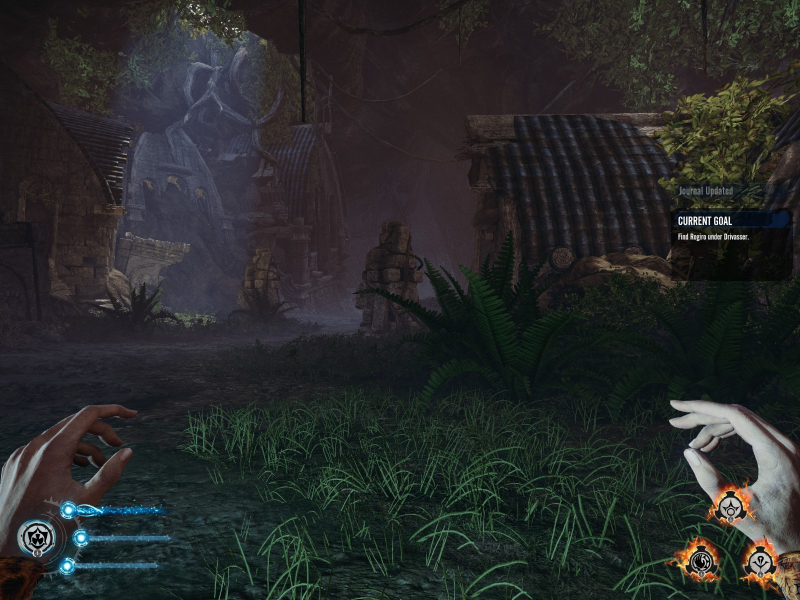
Gameplay Screenshots




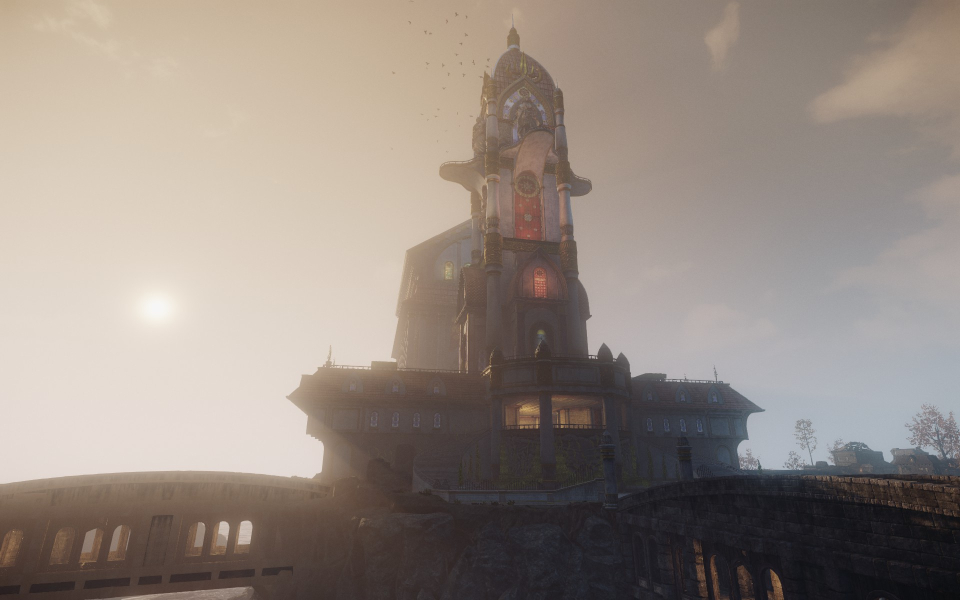
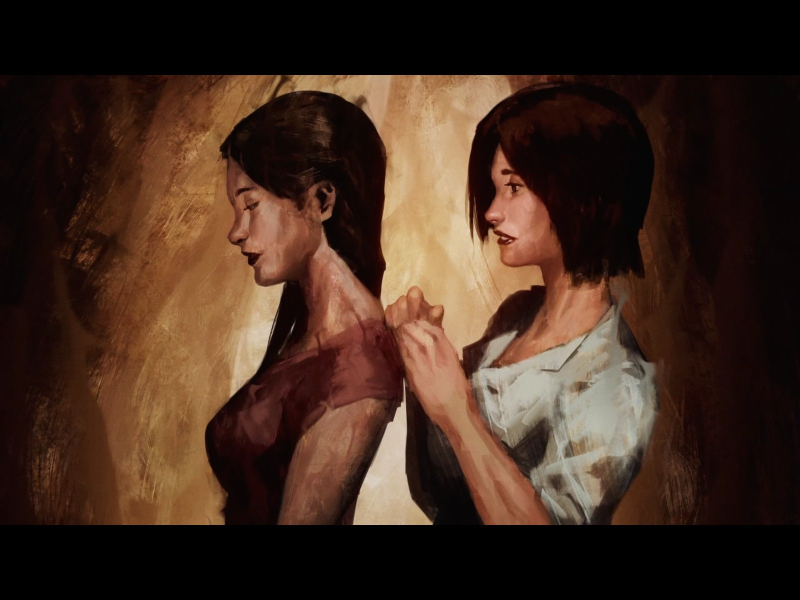
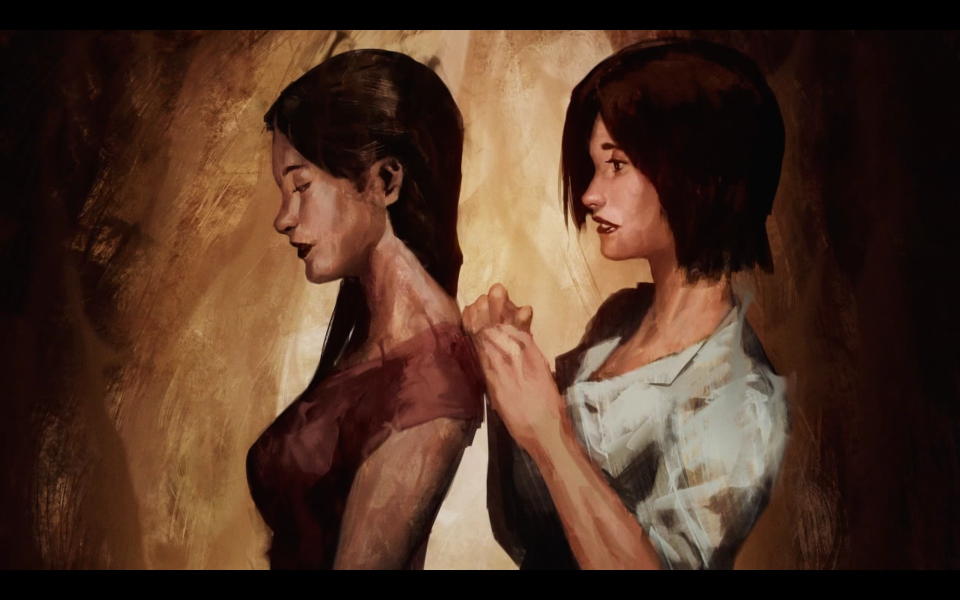
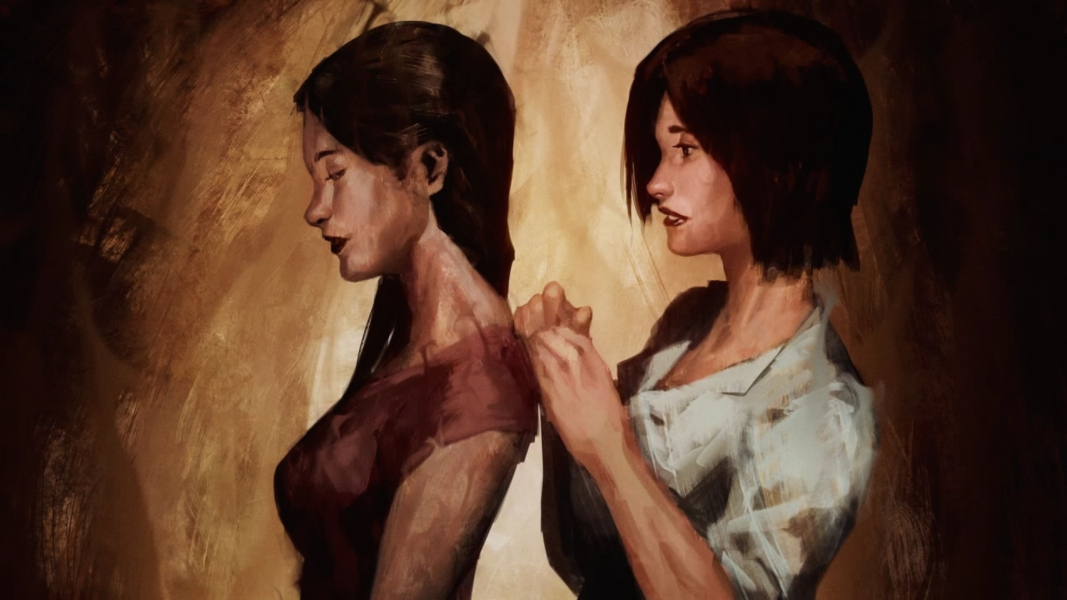
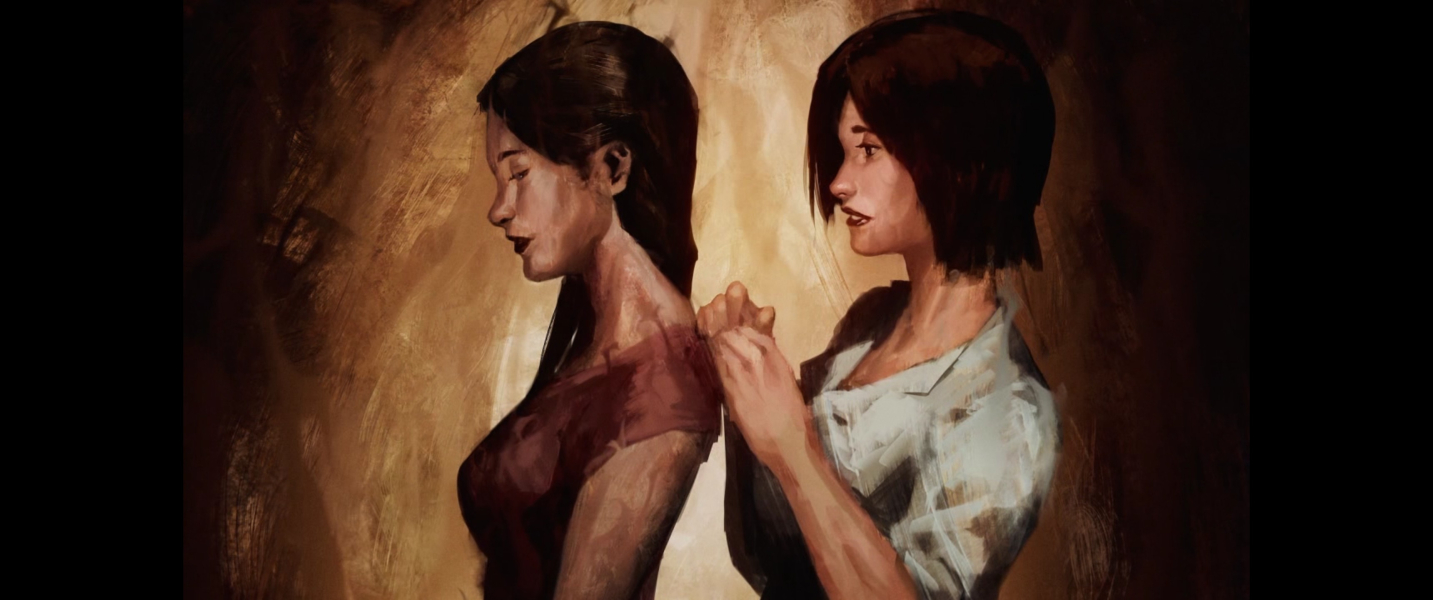
In-Game (Rendered) Cutscenes




FMV Cutscenes

Menu Screenshots



Additional Screenshots


