



Kingdoms of Amalur: Reckoning is a single-player action role-playing game for Microsoft Windows, PlayStation 3 and Xbox 360. Ken Rolston acts as the game's executive designer, R. A. Salvatore created the game universe and lore, with Todd McFarlane working on the artwork, and Grant Kirkhope creating the musical score. It wais developed by 38 Studios and Big Huge Games. The game was released on February 7, 2012 in North America and on February 9, 2012 in Europe. The first public demonstration was at the Penny Arcade Expo East 2011 on March 11, 2011.
Support Summary
Game Information
- Beta/Demo
- Released
Screenshots Comparison
Solutions & Issues
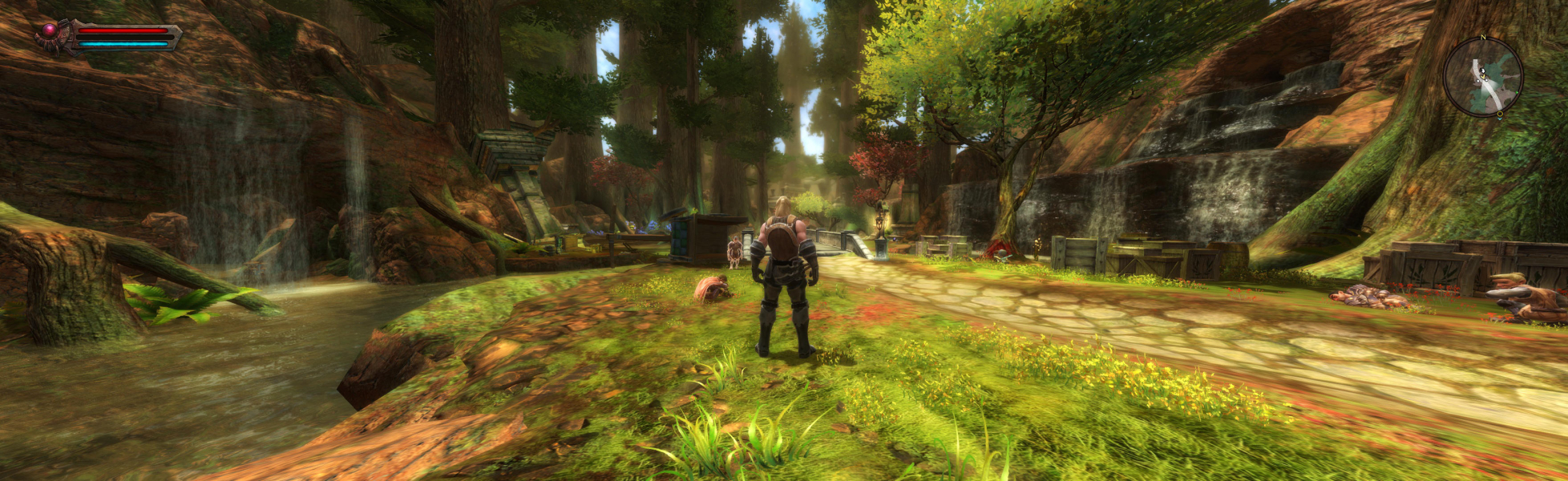
Native support. Screen change is Hor+/Vert+. Dialog scenes are Vert-.
Tested at 3440x1440, which worked wonderfully
Updated to v.1.0.1 Steam & Origin Release
Fixed in this release
- Fov for gameplay (both normal and the zoom one)
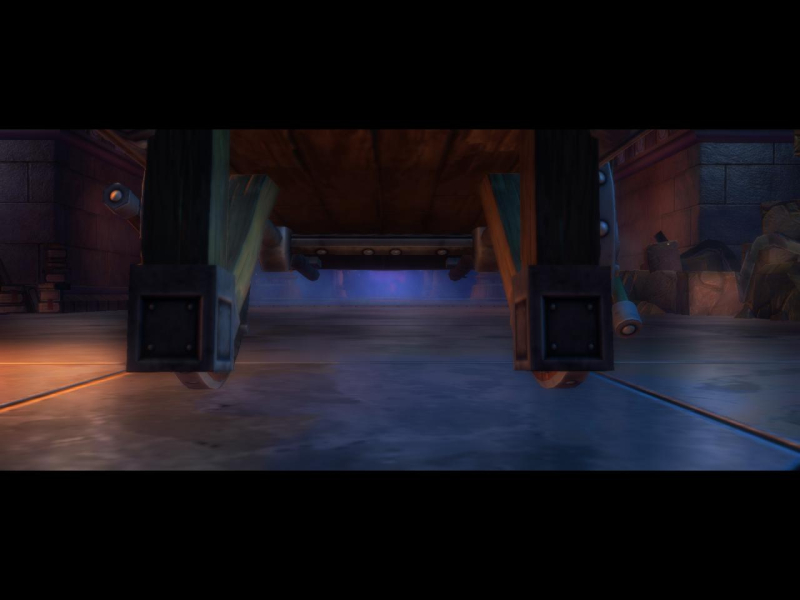
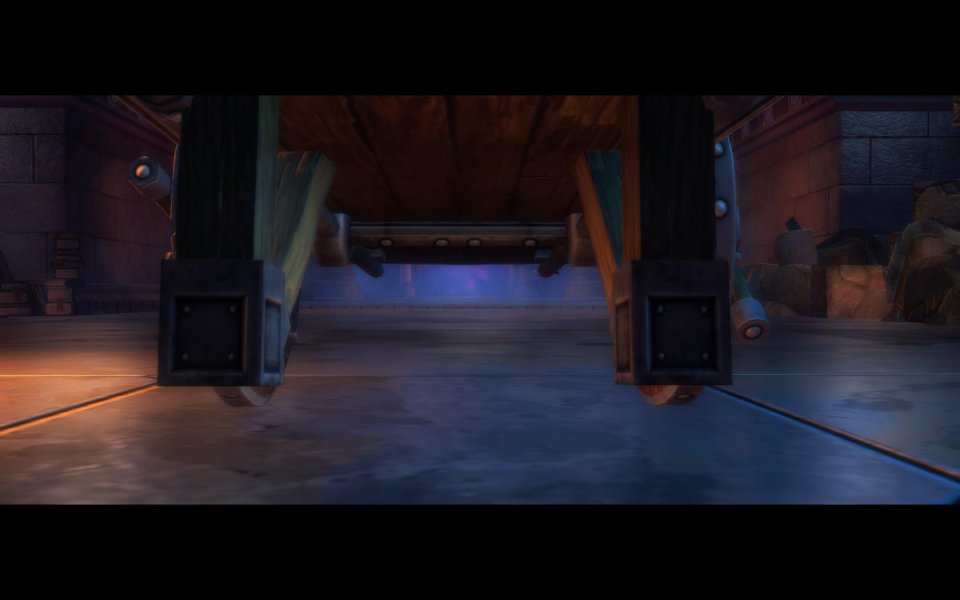
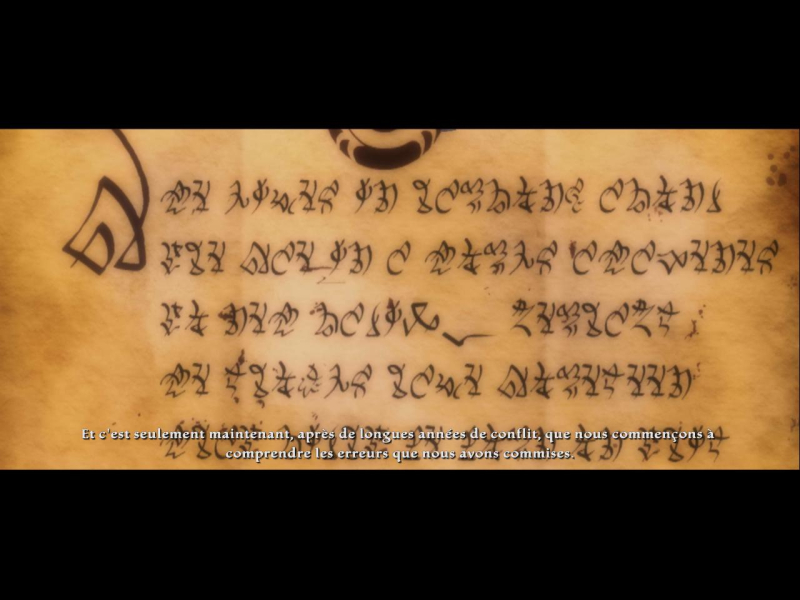
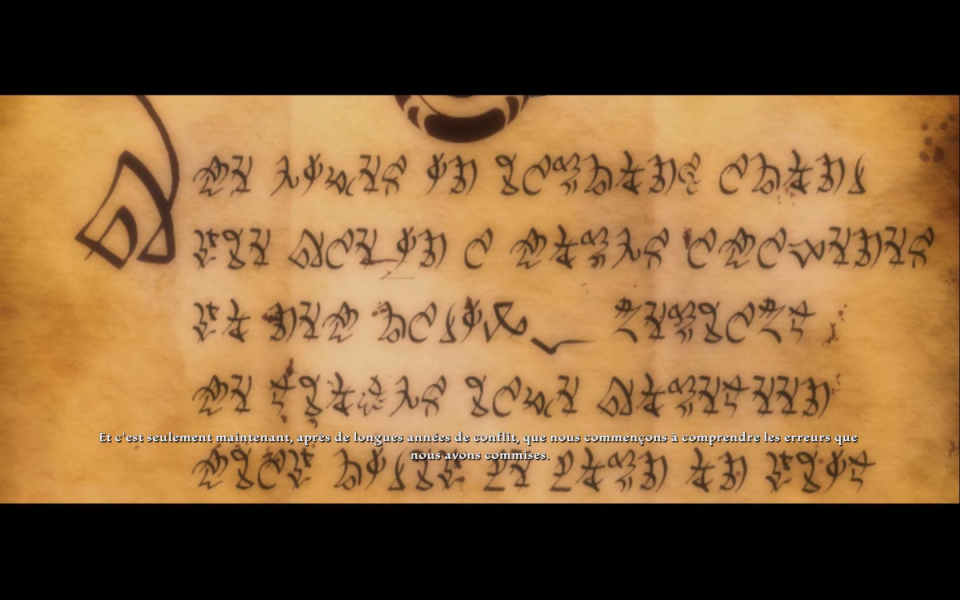
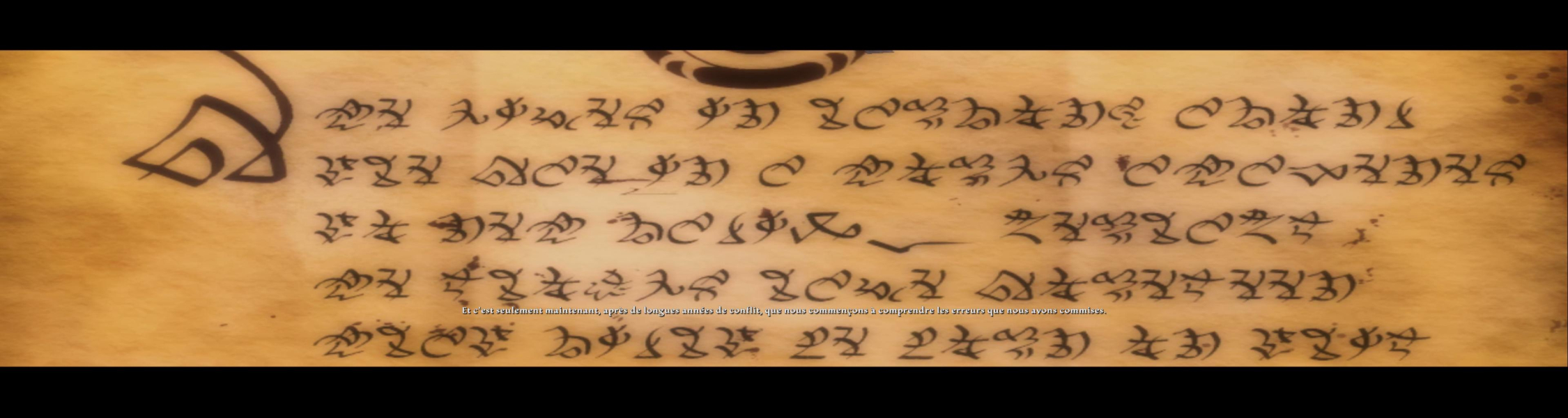
- Fov for all rendered cutscenes (bottom excessive black bar still is there except for conversations)
- Item scale in inventory (like character size)
Not fixed
- Menus (Only Quests Menu proves to be broken)
- obvious black bar thingy in cutscenes.
- FMVs still are zoomed and Vert -
- Improve the 3D Vision Ready-ness of the game;))
Recommended options & How To:
- Download this little file and put it in the "Plugins" folder of WideScreen Fixer: https://www.widescreenfixer.org/
- Start Widescreen Fixer, select the game and press the little COG (gear icon)
- Set your FOV and resolution (with bezel correction if you have)
- Press Save Settings and close the Window
- Start the GAME
- When you reach the Main Menu press the toggle to activate the fix
- As Quest menu is not working I highly recommend to use a WIDTH resolution LOWER than 4096 Then the QUEST Menu will be there. I didn't had the time to also fix this but at least I discovered (2 mins) ago where the problem lies. I will update it in the coming days.
- If the fov doesn't suit you: disable the fix, set your new fov in WSF, go back to game, enable the fix and press the ZOOM in button so the new fov is taken into consideration (On xbox controller is pressing the right analog handle / don't know for mouse).
- If the fix doesn't work from the 1st try restart the game and WideScreen Fixer and setup your configuration again
- I tested it only on 3x1L but I believe it will also work on 3x1P with a lower Fov setting.
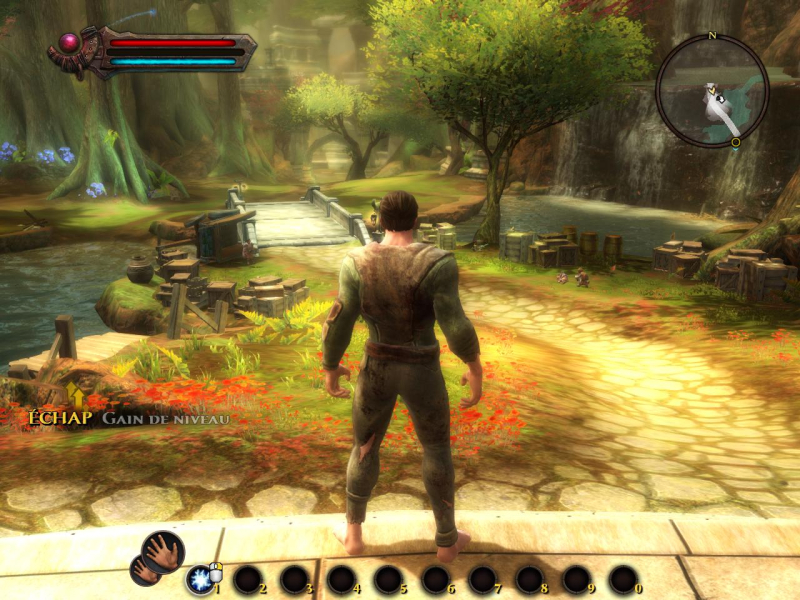
Gameplay Screenshots
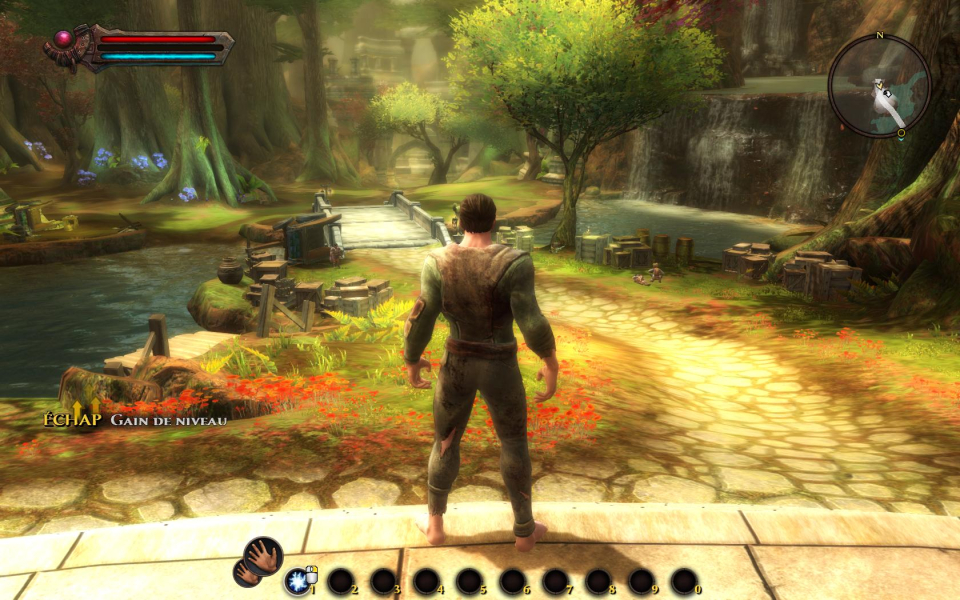


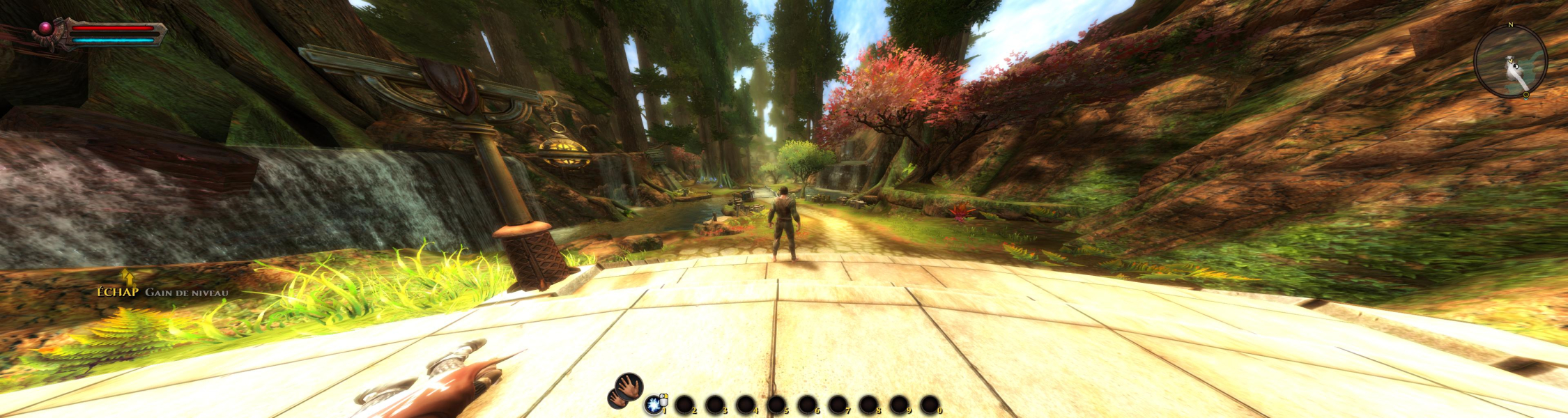
In-Game (Rendered) Cutscenes


FMV Cutscenes

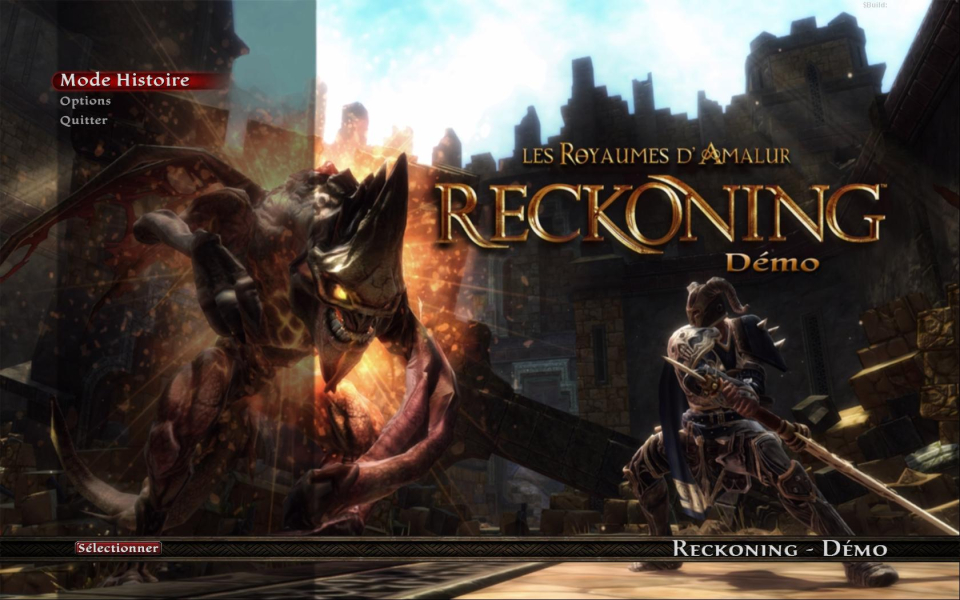
Menu Screenshots
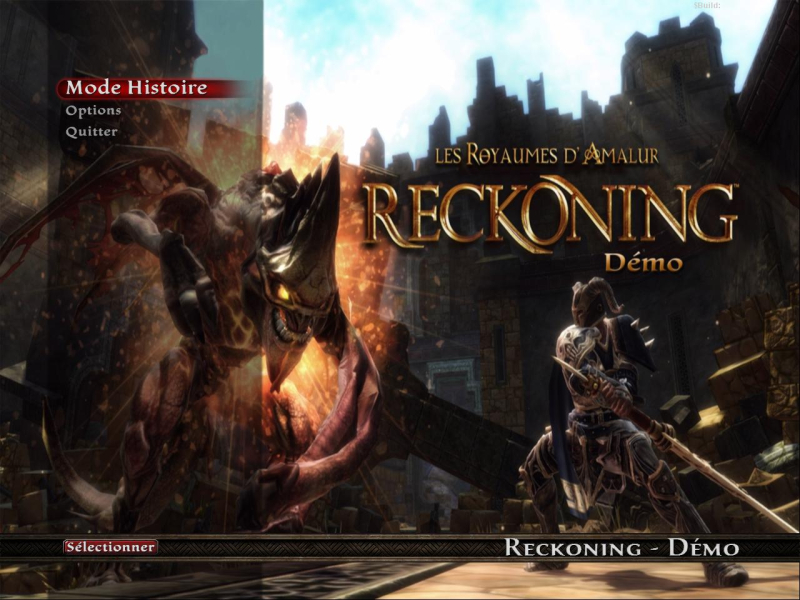


Additional Screenshots