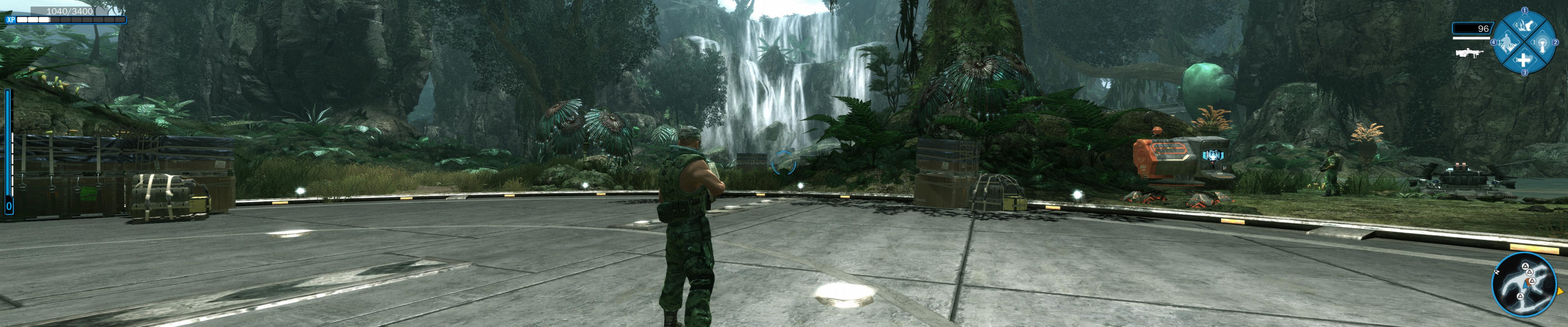




Avatar: The Game is a third-person shooter set a couple years before the movie on the same lush planet. As an RDA soldier, you'll first assist the colonial army but may eventually switch sides and "become" a tall tree-hugging Na'vi warrior. Mission objectives and "scanned" creatures will earn you experience points, and levelling up will upgrade the arsenal of weapons and techno/magical superpowers at your disposal.
Avatar supports both DX9 & DX10 and is compatible with a host of stereoscopic 3D display modes.
Support Summary
Widescreen | Ultra/Super‑Wide | Multi-Monitor | 4K Ultra HD | |
Support | ||||
Method | ||||
HUD | ||||
Cutscenes | ||||
FMVs |
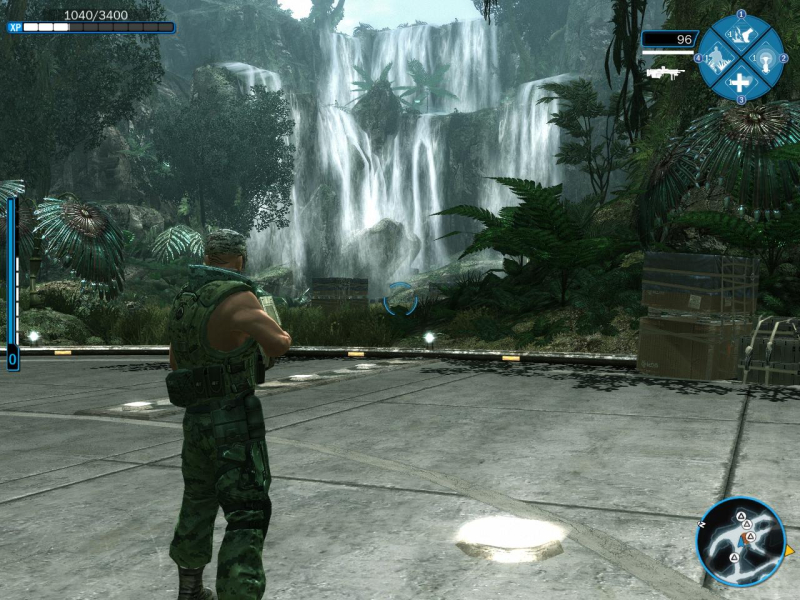
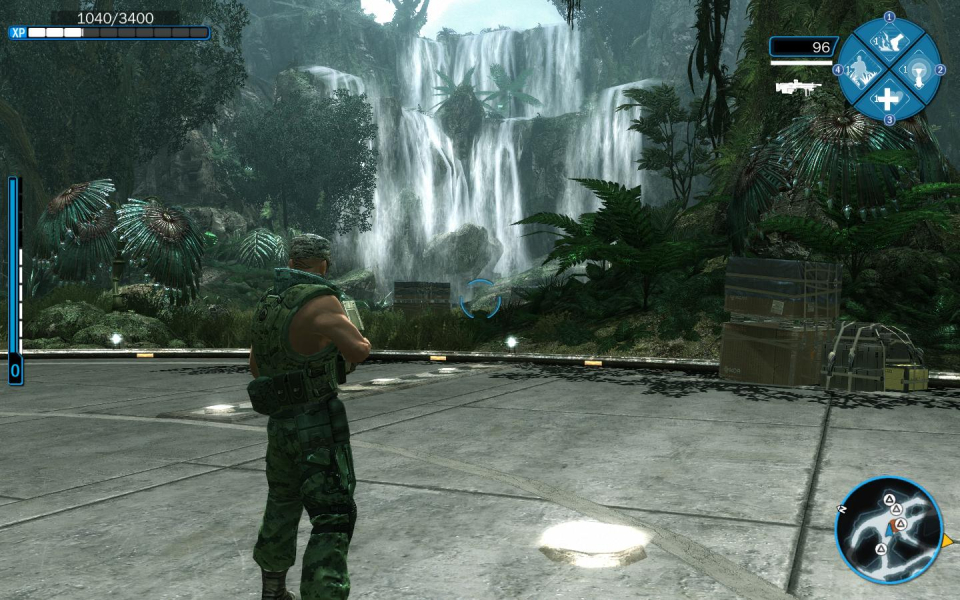
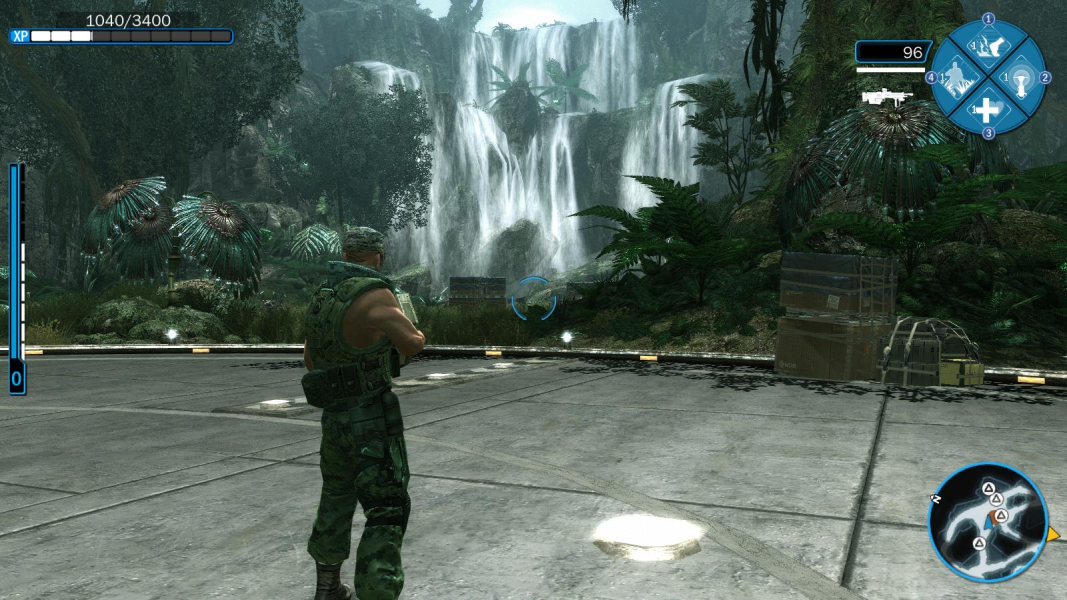
Screenshots Comparison
Solutions & Issues
Native.
1) Make sure your desktop's aspect ratio matches your desired in-game resolution's or the game will stretch/squish.
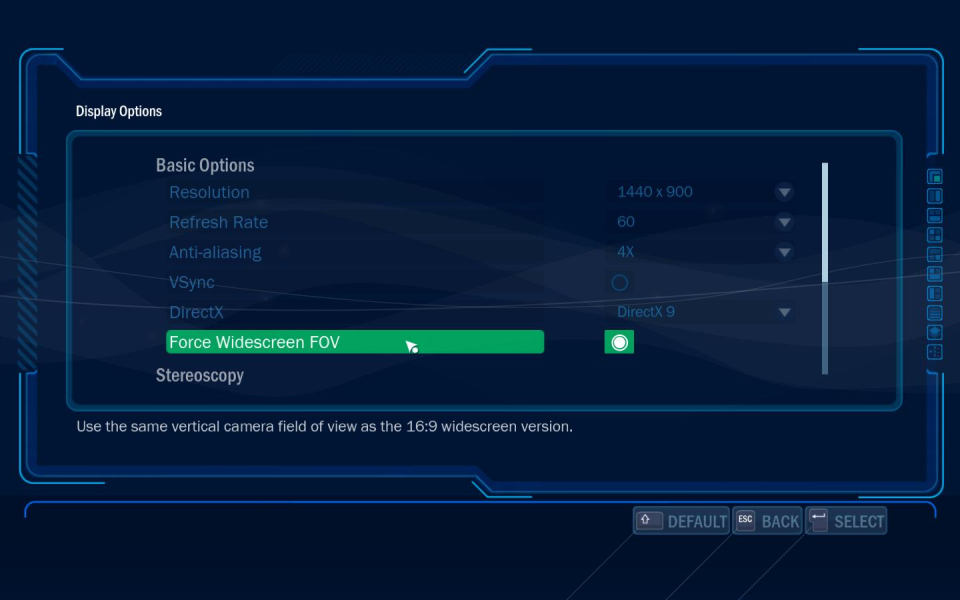
2) Check 'Force Widescreen FOV' under Display Options to fix the vertical FOV (refer to additional screenshot)
This option can be seen as a Vert-/Hor+ toggle.
However some may find it "better" to leave this unchecked when playing in 5:4, 4:3, 16:10 and 15:9; you'd then get the same horizontal FOV as the 16:9 baseline, plus a higher vertical FOV.
This report will focus on the strictly Hor+ solution though (Force Widescreen FOV on)
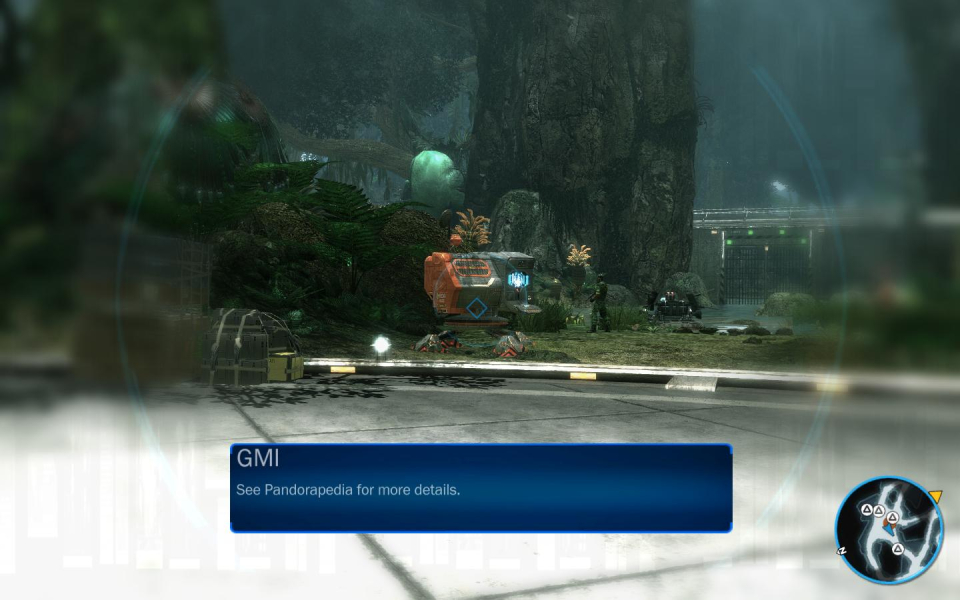
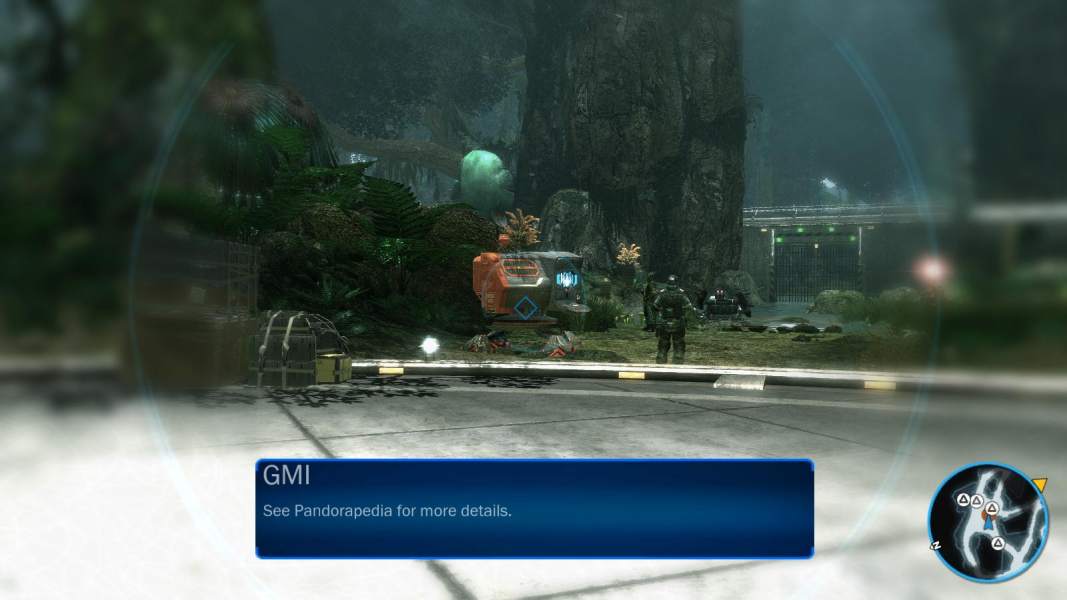
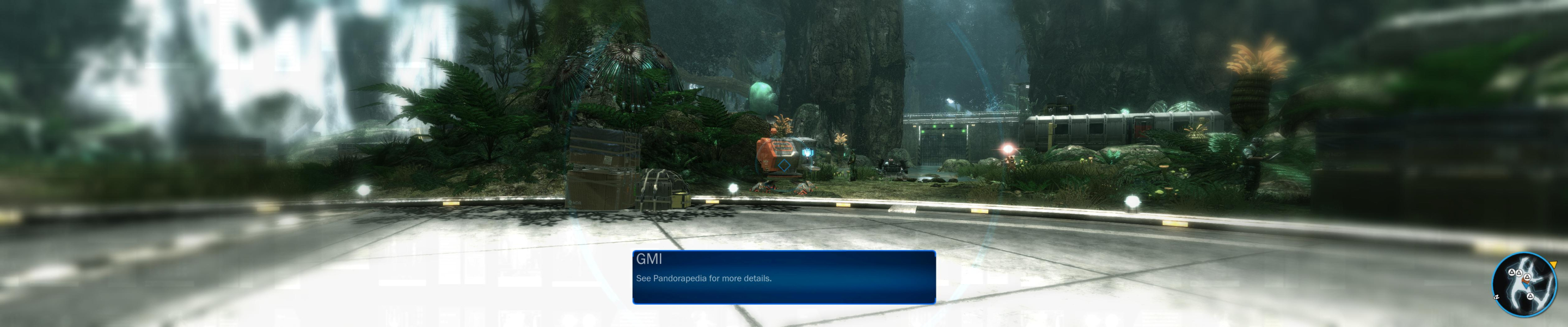
Cosmetic peculiarities in first-person "Scan" mode:
-the info text box moves upwards in ARs narrower than 16:9, just like the "press F to talk" icon on the topmost set of screens. These elements appear to scale with the display width while their position is relative to the crosshair.
-the circular cues and focal blur get "pushed in" by the edges of the display. You get smaller circles on narrower ARs.
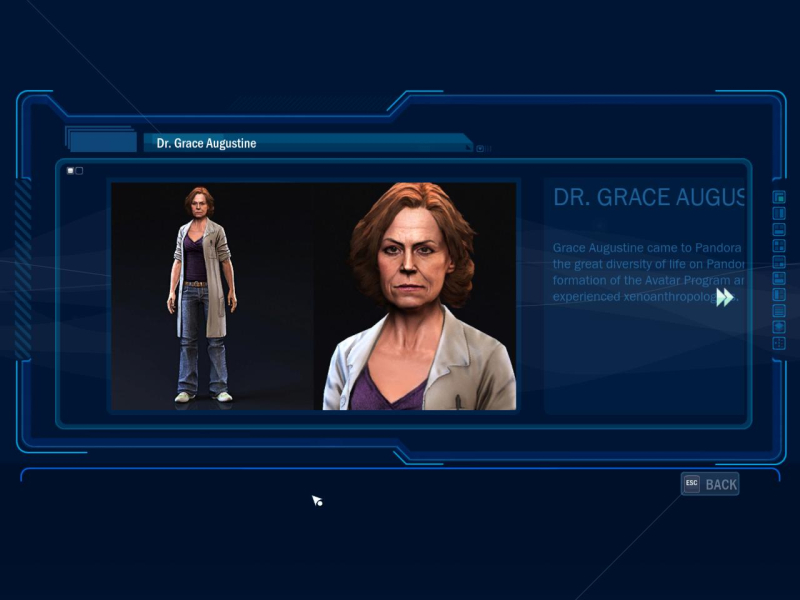
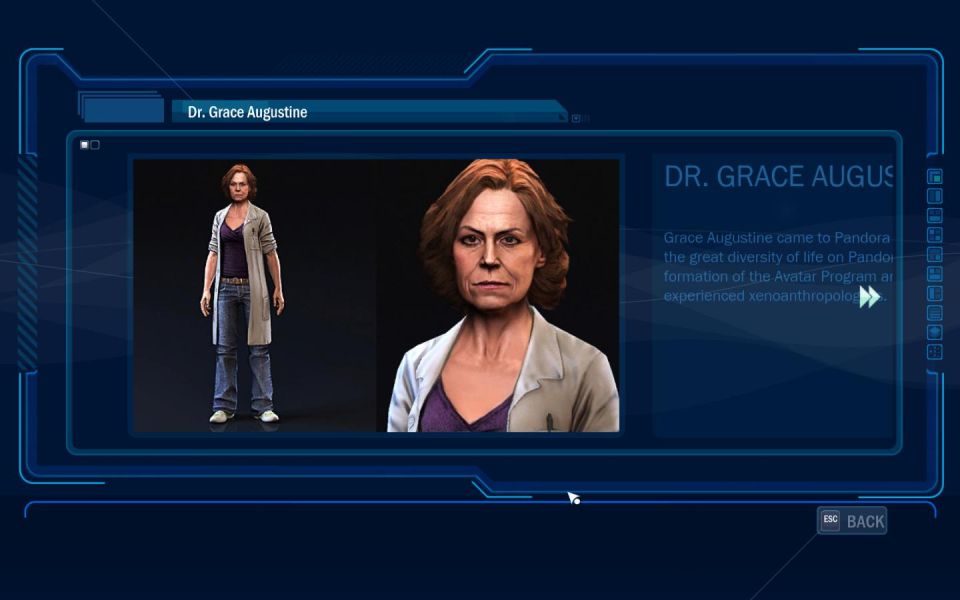
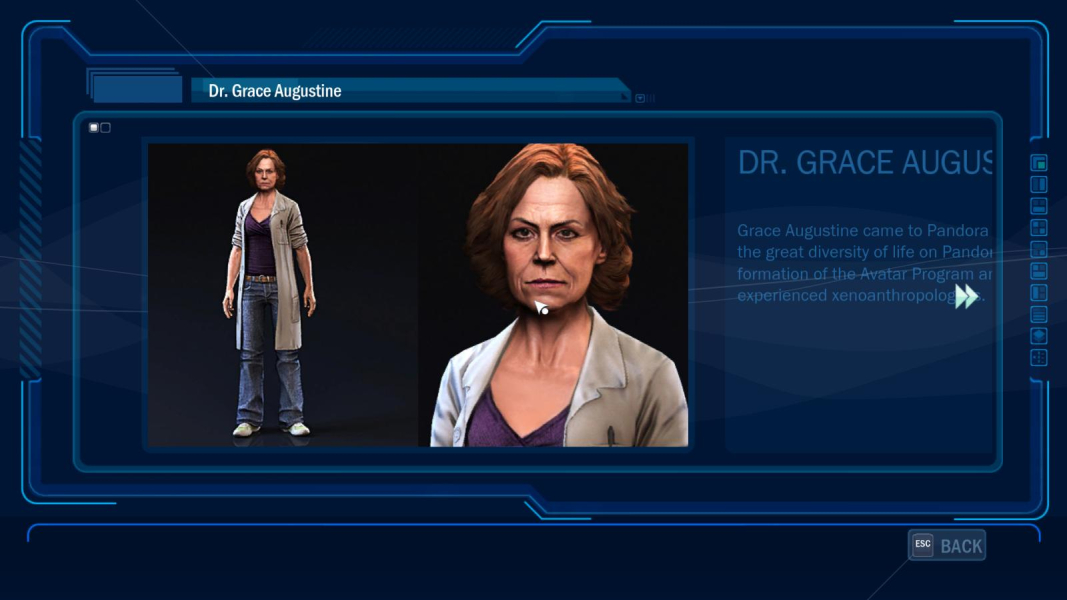
All 2D interface screens are formatted for 16:9 and anamorphic. Narrower ARs display more of the background instead of black bars.
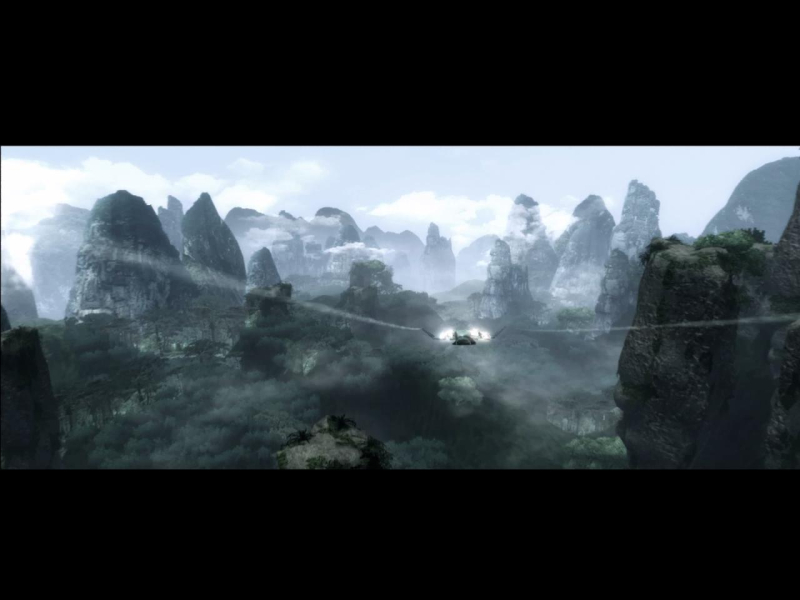
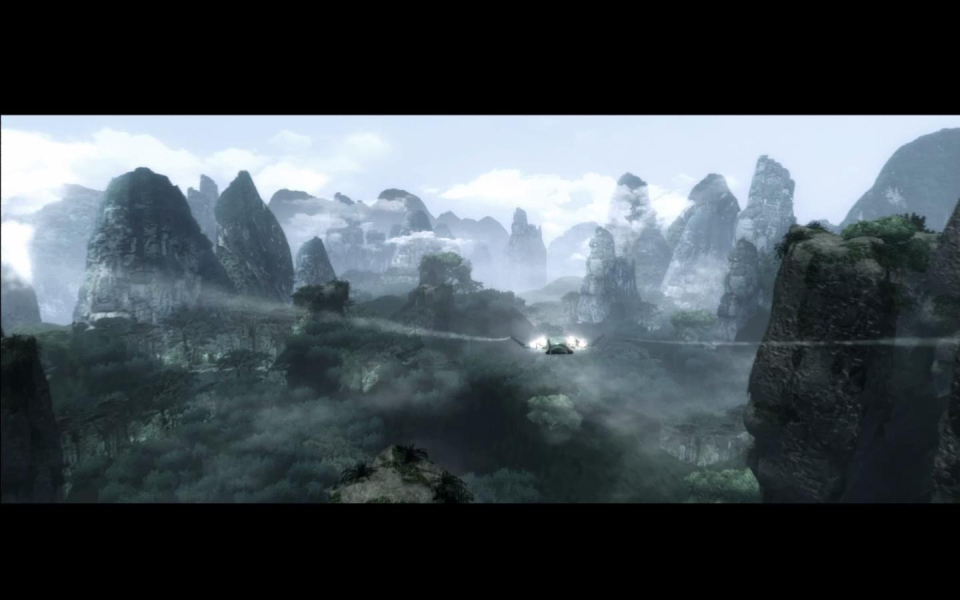
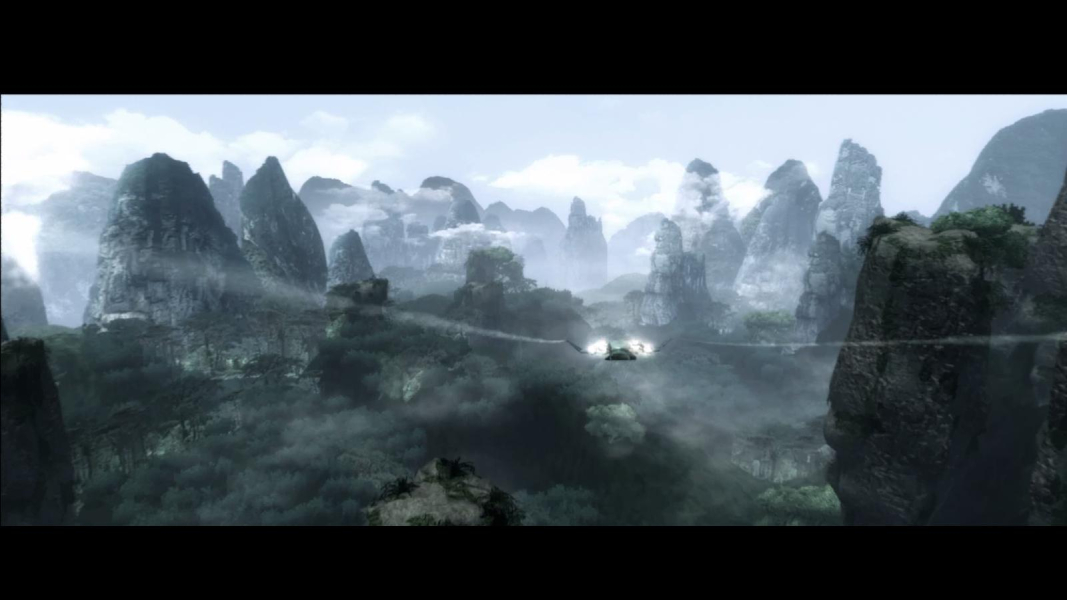
FMVs are anamorphic (actual picture aspect is an odd 2.46:1)
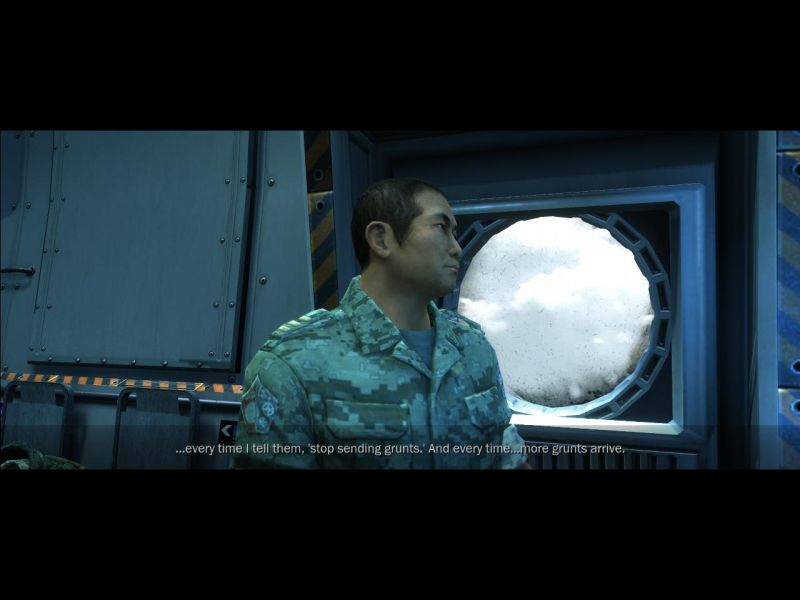
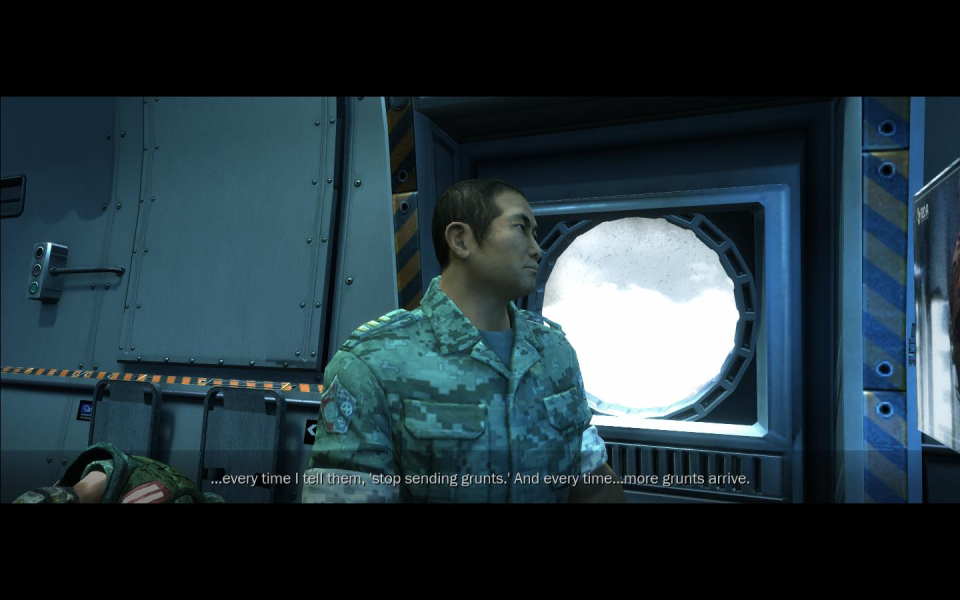
Real-time rendered cut-scenes are Hor+/Vert+ (actual picture aspect in 16:9 is 2.35:1 and gets wider in narrower ARs). 'Force Widescreen FOV' clearly has no effect here.
Native.
Make sure your desktop and in-game ARs match, launch the game and select 'Force Widescreen FOV'.
Scan view overlay is identical to 16:9, focal blur is limited to the side screens.
Cut-scenes: windowboxed.
Gameplay Screenshots
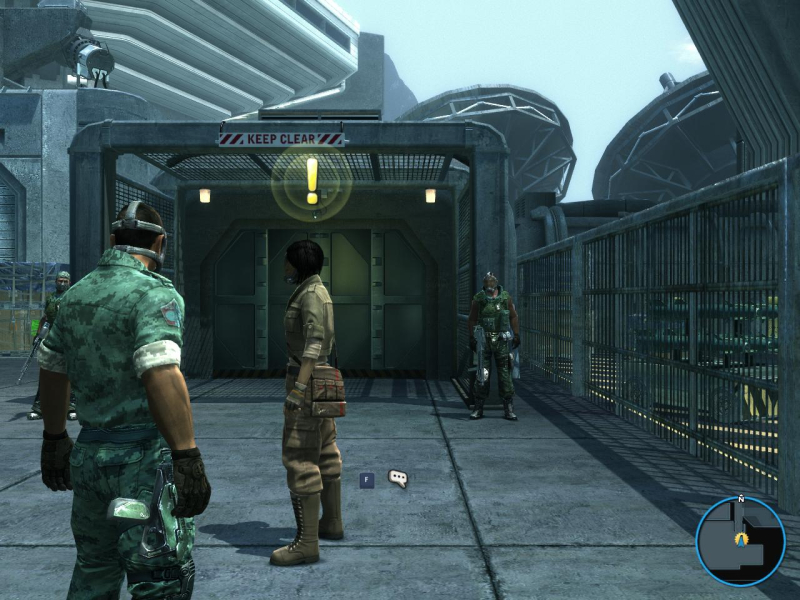
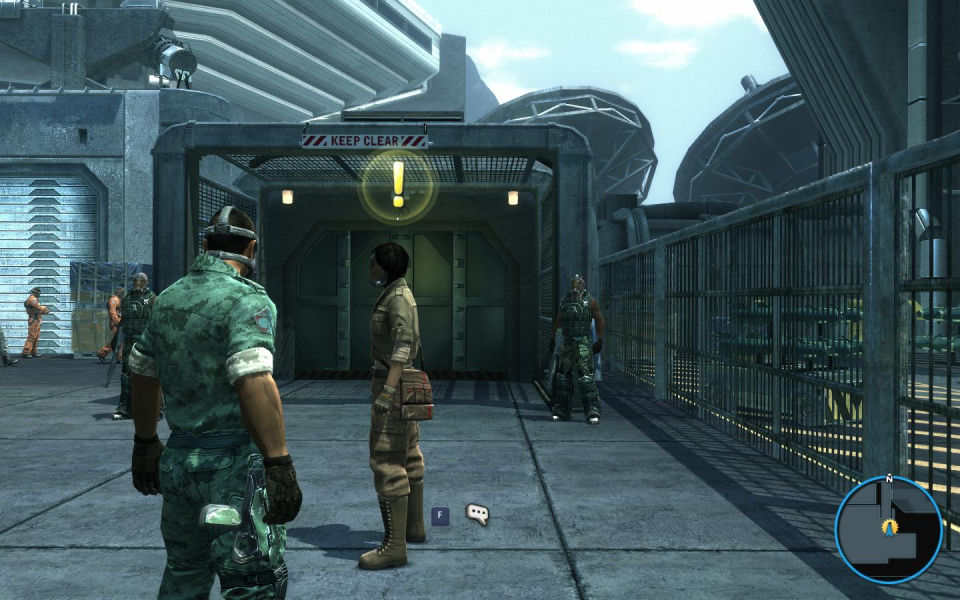
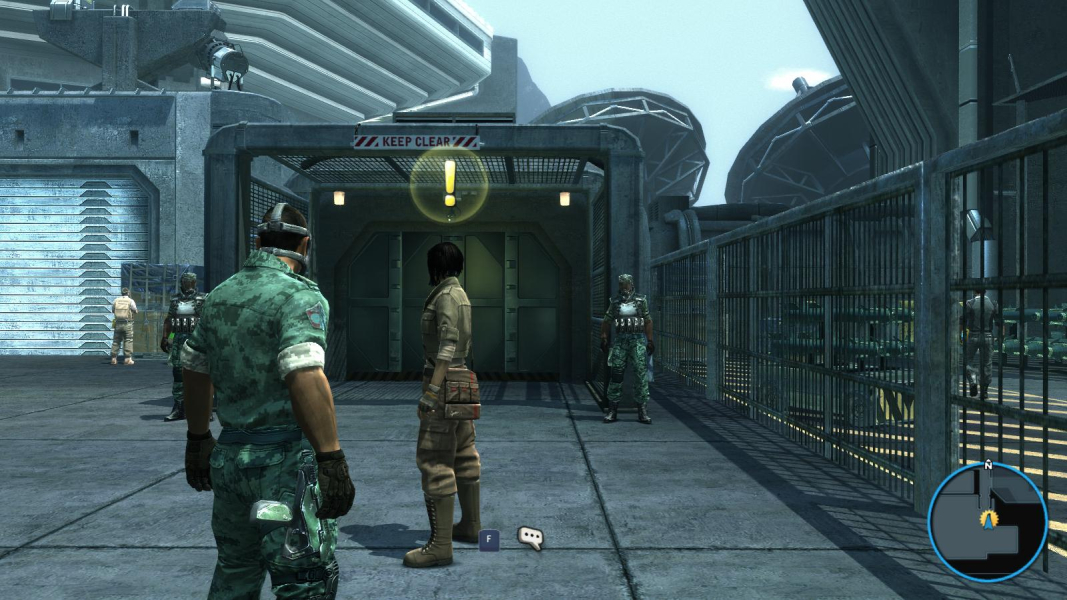


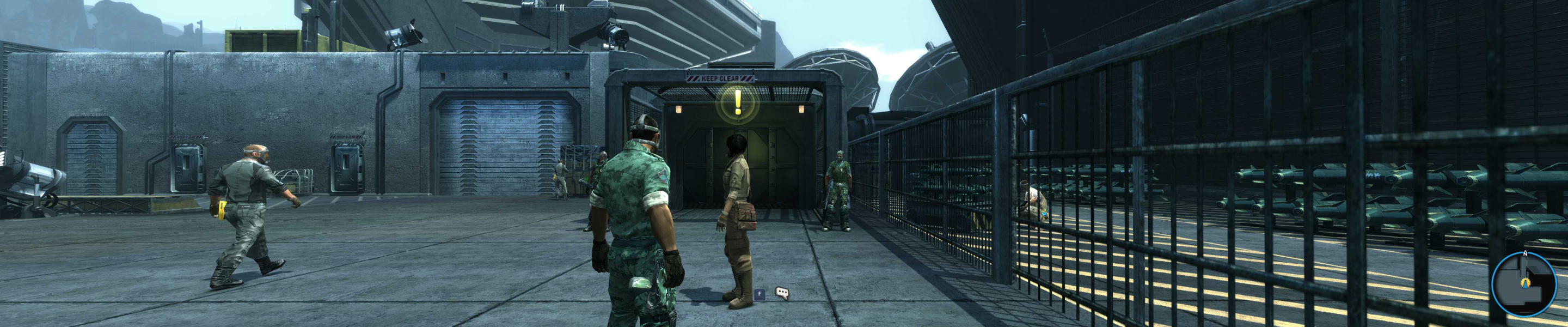
In-Game (Rendered) Cutscenes


FMV Cutscenes

Additional Screenshots