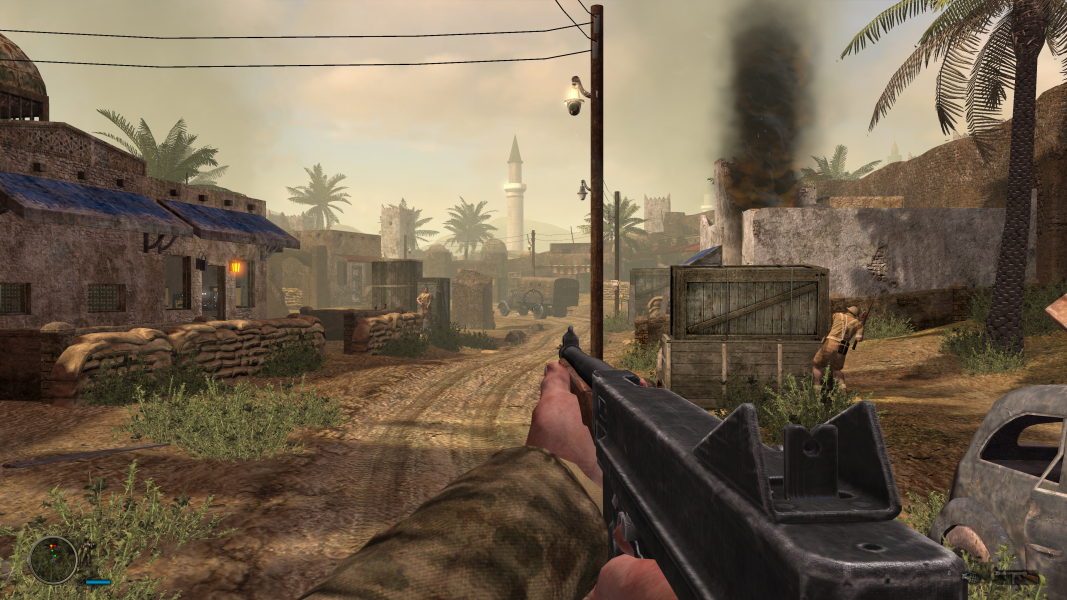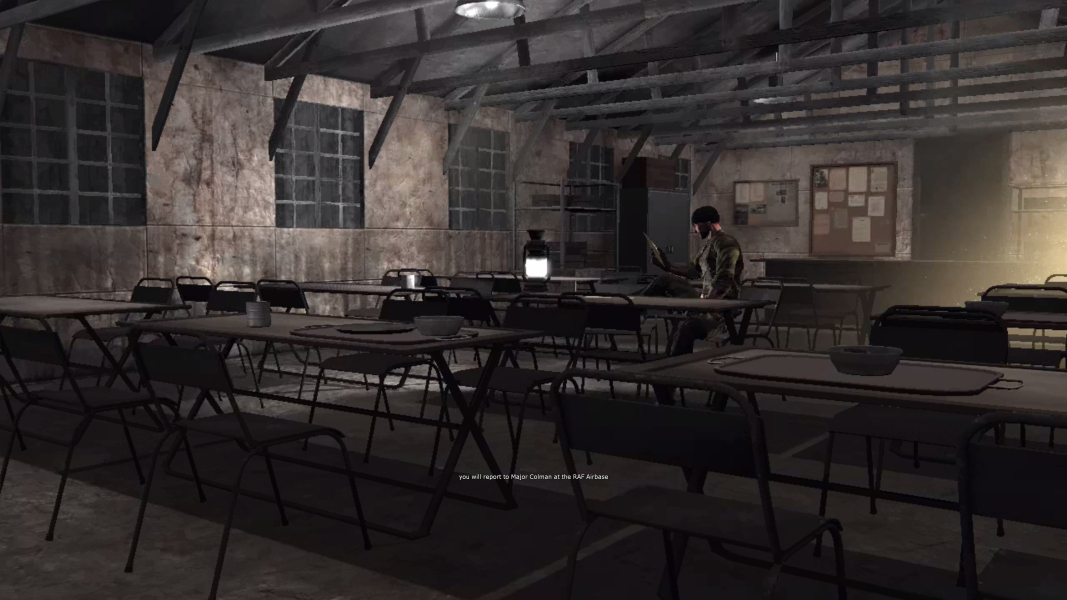


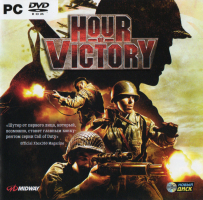


Hour of Victory is a first-person shooter video game developed by American studio N-Fusion Interactive and published by Midway Games for Xbox 360 and Microsoft Windows. A playable game demo was released on Xbox Live Marketplace on June 1, 2007. It was the first World War II game to use the Unreal Engine 3.
Support Summary
Game Information
Screenshots Comparison
Solutions & Issues
The game supports widescreen natively but screen is vert-. You can restore Hor+ by editing one of the ini files. Also the resolution choice in the game menu is limited. The biggest 16:9 resolution is 1920x1080 and for 16:10 is 2560x1600.
To select other resolutions like 2560x1440 or 3840x2160, change it HOVEngine.ini which is in % USERPROFILE% \ Documents \ Hour of Victory \ HOVGame \ Config.
Open the HOVEngine.ini for example in notepad ++ and find these lines to set yor resolution for example.
StartupResolutionX = 2560
StartupResolutionY = 1440
Save it and run the game.
To restore Hor+ go to % USERPROFILE% \ Documents \ Hour of Victory \ HOVGame \ Config, then open HOVInput.ini for example with Notepad++. Now search [Engine.PlayerInput] (It is at the top) and add this line at the very end (of course in [Engine.PlayerInput] section)
Bindings=(Name="F8",Command="FOV 90")
Save it.
When you start the game press F8, this causes that Hor + will be restored.
Of course you can set a different key than F8 and set a higher FOV. The choice is yours.
You will have to press the assigned key (F8 or other) each time you start the game and after loading a new mission, because the FOV will be reset by the game.
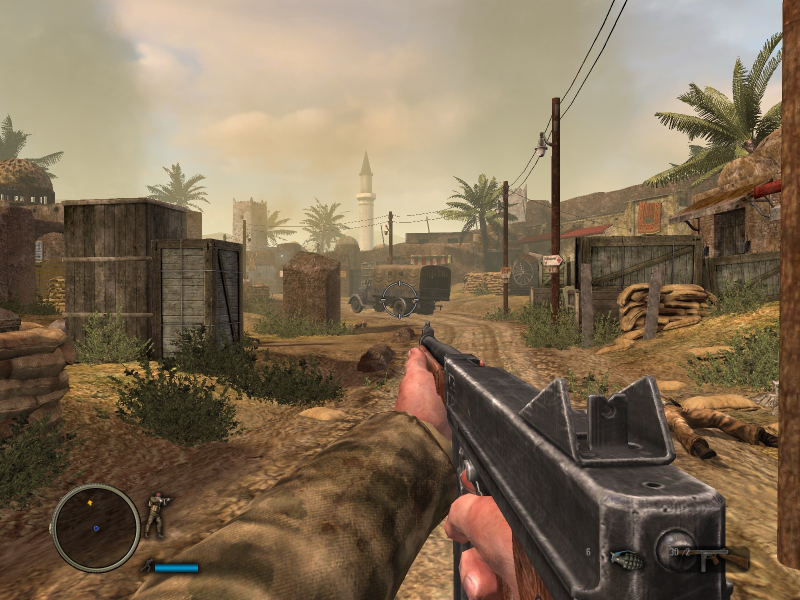
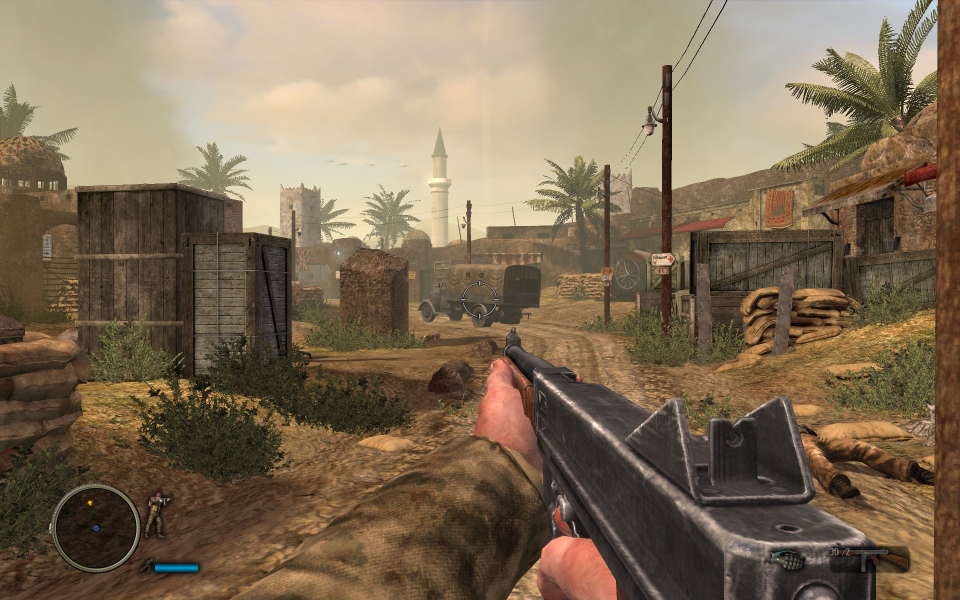
To see new FOV effect for aspect ratio 16:9 look at the new screenshoot.
To set 4K Ultra HD 3840x2160, change it HOVEngine.ini which is in % USERPROFILE% \ Documents \ Hour of Victory \ HOVGame \ Config.
Open the HOVEngine.ini example in notepad ++ and find these lines to set 4K resolution .
StartupResolutionX = 3840
StartupResolutionY = 2160
Save it and run the game.
To restore Hor+ go to % USERPROFILE% \ Documents \ Hour of Victory \ HOVGame \ Config, then open HOVInput.ini for example with Notepad++. Now search [Engine.PlayerInput] (It is at the top) and add this line at the very end (of course in [Engine.PlayerInput] section)
Bindings=(Name="F8",Command="FOV 90")
Save it.
When you start the game press F8, this causes that Hor + will be restored.
Of course you can set a different key than F8 and set a higher FOV. The choice is yours.
You will have to press the assigned key (F8 or other) each time you start the game and after loading a new mission, because the FOV will be reset by the game.
To see new FOV effect for aspect ratio 16:9 look at the new screenshoot.
Gameplay Screenshots


Menu Screenshots

4K UHD Screenshots