

Half-Life is a 1998 first-person shooter (FPS) game developed by Valve and published by Sierra Studios for Windows. It was Valve's debut product and the first game in the Half-Life series. Players assume the role of Gordon Freeman, a scientist who must escape the Black Mesa Research Facility after it is invaded by aliens. The gameplay consists of combat, exploration and puzzle-solving.
Support Summary
Game Information
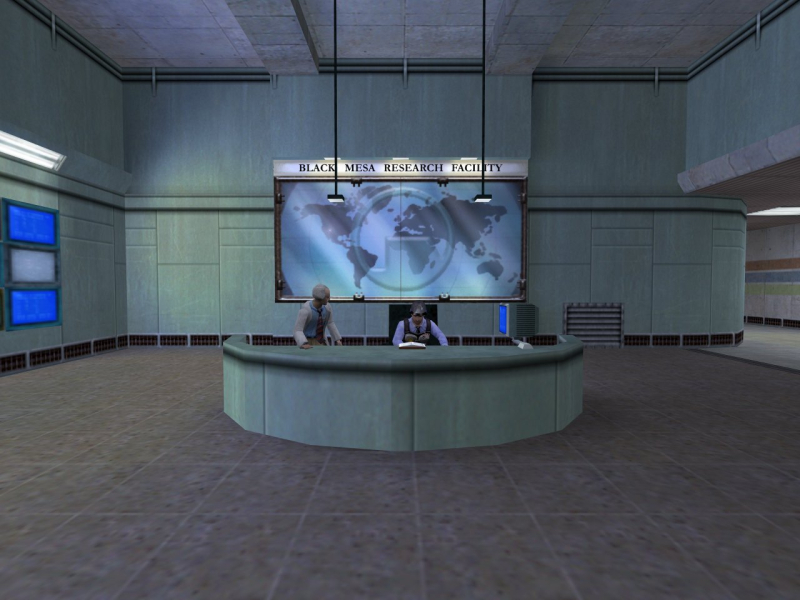
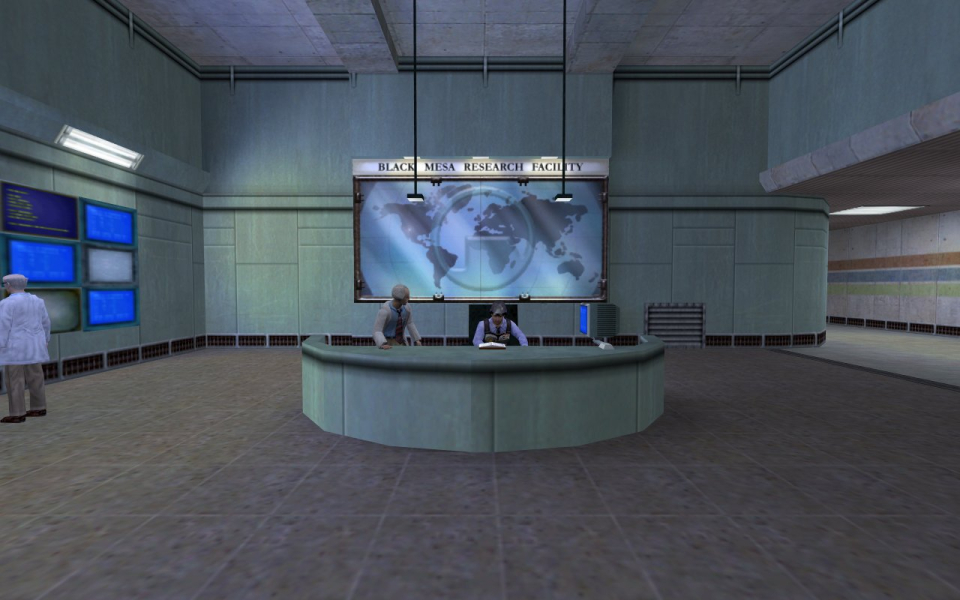
Screenshots Comparison
Solutions & Issues
This hack may work with older versions of Half-Life, but you'll most likely need to delete the file "hl.dat" from your \Sierra\Half-Life\ directory to avoid an error message. The file will be regenerated when you launch Half-Life and it shouldn't give you any more problems.
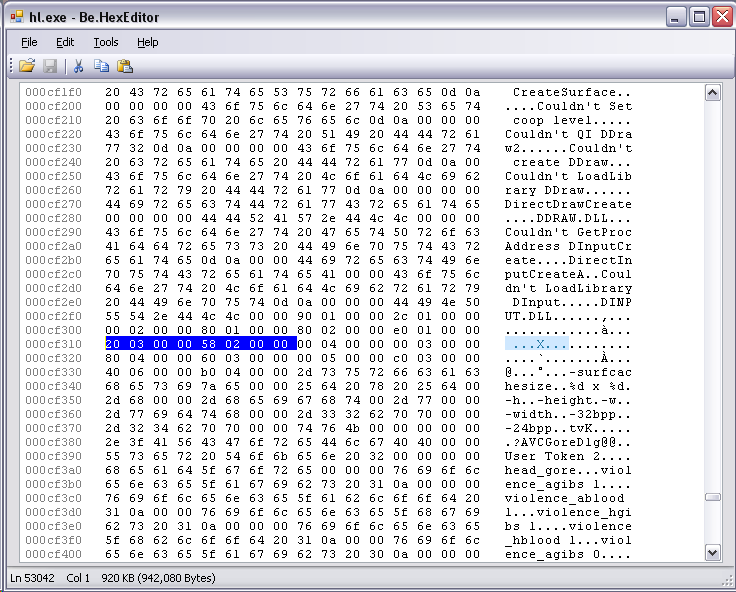
To add widescreen support to this game you'll need a hex editor such as Be.HexEditor. Open your hl.exe file with it and search for the following string: 20 03 00 00 58 02 00 00 (refer to Additional Screenshot 1).
The groups 20 03 and 58 02 represent the resolution 800x600. Replace those with the resolution of your choice.
1024x600 - Replace 20 03 with 00 04 and replace 58 02 with 58 02
1280x720 - Replace 20 03 with 00 05 and replace 58 02 with D0 02
1280x800 - Replace 20 03 with 00 05 and replace 58 02 with 20 03
1366x768 - Replace 20 03 with 56 05 and replace 58 02 with 00 03
1440x900 - Replace 20 03 with A0 05 and replace 58 02 with 84 03
1600x900 - Replace 20 03 with 40 06 and replace 58 02 with 84 03
1680x1050 - Replace 20 03 with 90 06 and replace 58 02 with 1A 04
1920x1080 - Replace 20 03 with 80 07 and replace 58 02 with 38 04
1920x1200 - Replace 20 03 with 80 07 and replace 58 02 with B0 04
Start the game and select your new (OpenGL) resolution.
You're also going to want to increase the default FOV (which is 90 / 0). Open your config.cfg file (located in the Sierra\Half-Life\Valve\ directory) and add to the bottom, the following:
For 16:10 resolutions (1280x800, 1440x900, 1680x1050, 1920x1200) add:
default_fov 100.39487232
For 16:9 resolutions (1280x720, 1366x768, 1600x900, 1920x1080) add:
default_fov 106.270273206
Alternatively, you can do the above through the game console (~). To enable the game console, right click the Half-Life shortcut and in the properties add -console to the end the command line (hl.exe -console).
If you're having trouble getting the FOV to stick what you can do is create a text file named autoexec.cfg in the Valve directory and insert the default_fov line into the contents. You can do this for any mod folders you have, as well.
Another thing to take into consideration is the in-game text (chat messages, scoreboard text, level titles, etc). Since this hack replaces 800x600, the game by default will use the default text formats for 800x600.
If you'd like larger text, you can copy the contents of the xxxx_textscheme.txt file (Half-Life\Valve\) of your choosing (choose whichever is closest to your new resolution) and paste it into the 800_textscheme.txt file (replacing the original content).
Gameplay Screenshots


Additional Screenshots