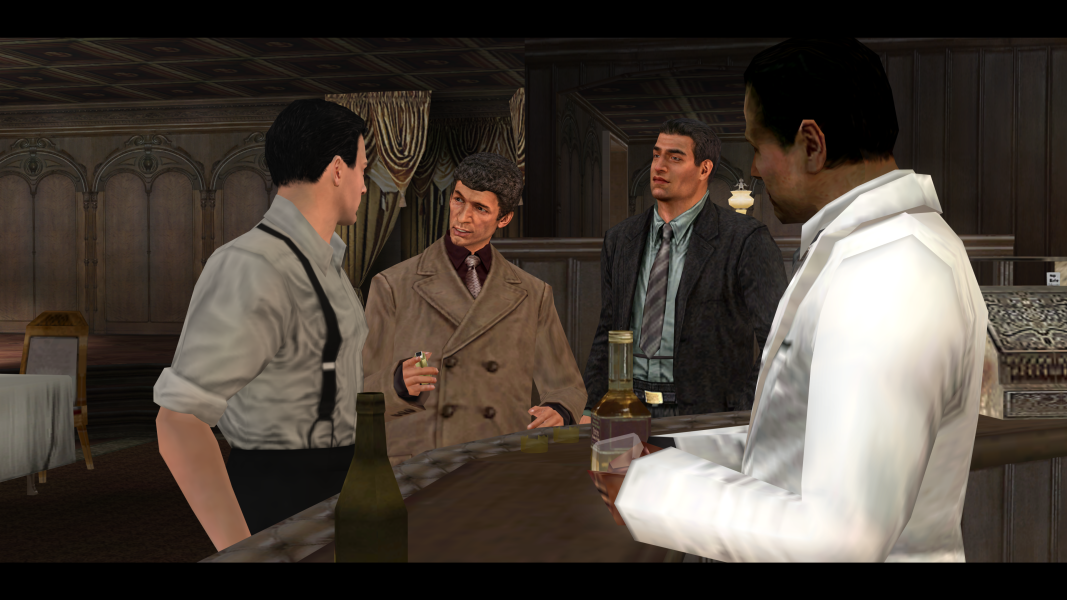


Set in post-WWII New York City, The Godfather: The Game follows the player-created character's rise through a crime syndicate based on the book and film franchises. Combining events from the movie with side-story missions, the player must earn respect by completing missions in territories controlled by New York's five crime families.
Largely open-ended, the game's story is driven by a series of missions where the player can use violence, intimidation, or diplomacy to affect the outcome and influence future events and other character's reactions. A third-person action game, The Godfather: The Game features a punching mechanism to brutally assert yourself, a car theft and driving engine, and a shooting system which allows for locational damage.
The game features a persistent offline world populated with locations from the franchise and characters who are often voiced by the actors who portrayed them onscreen.
Support Summary
Game Information
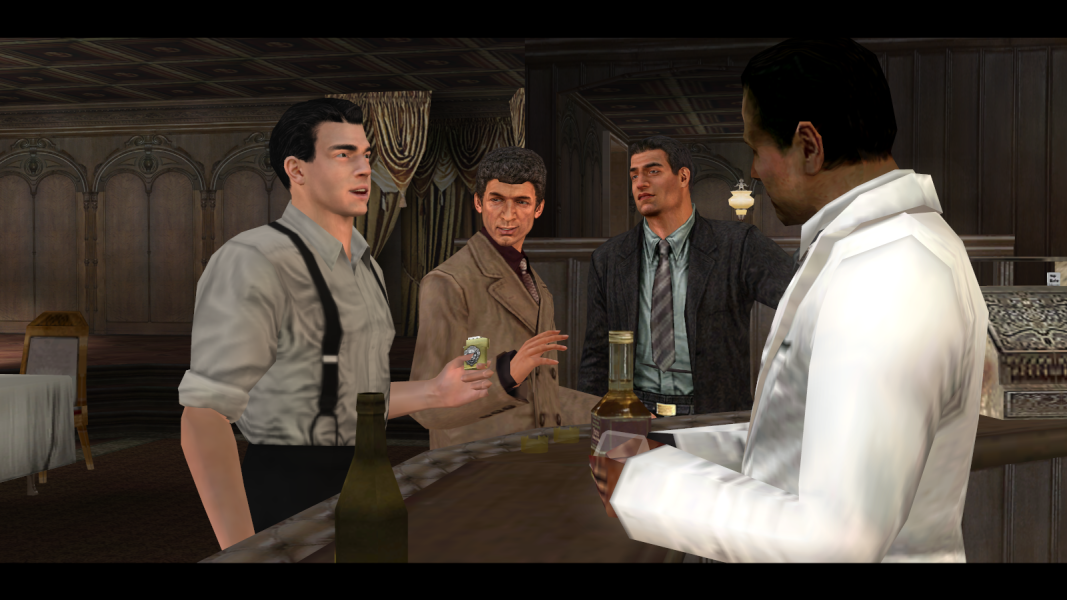
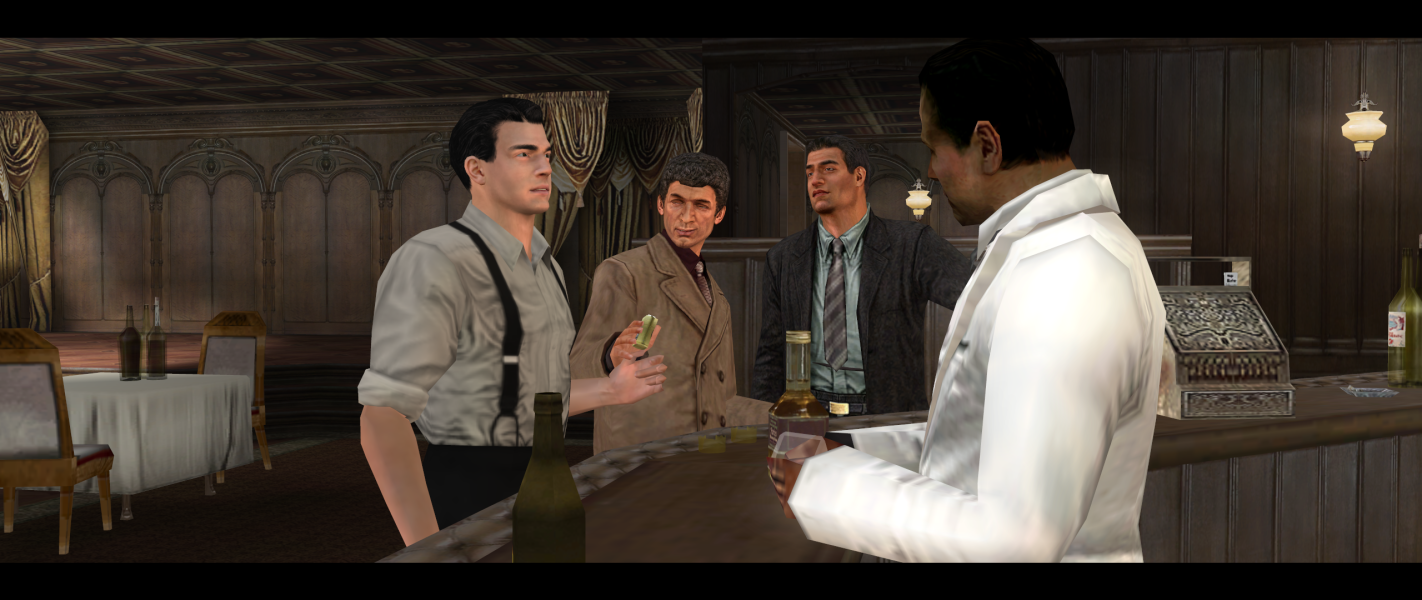
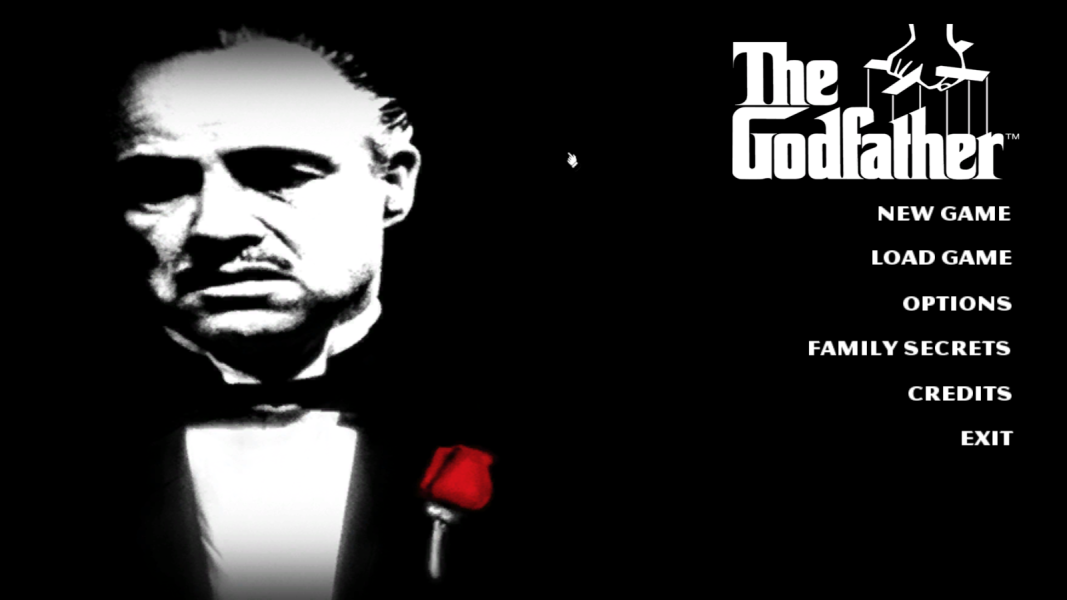
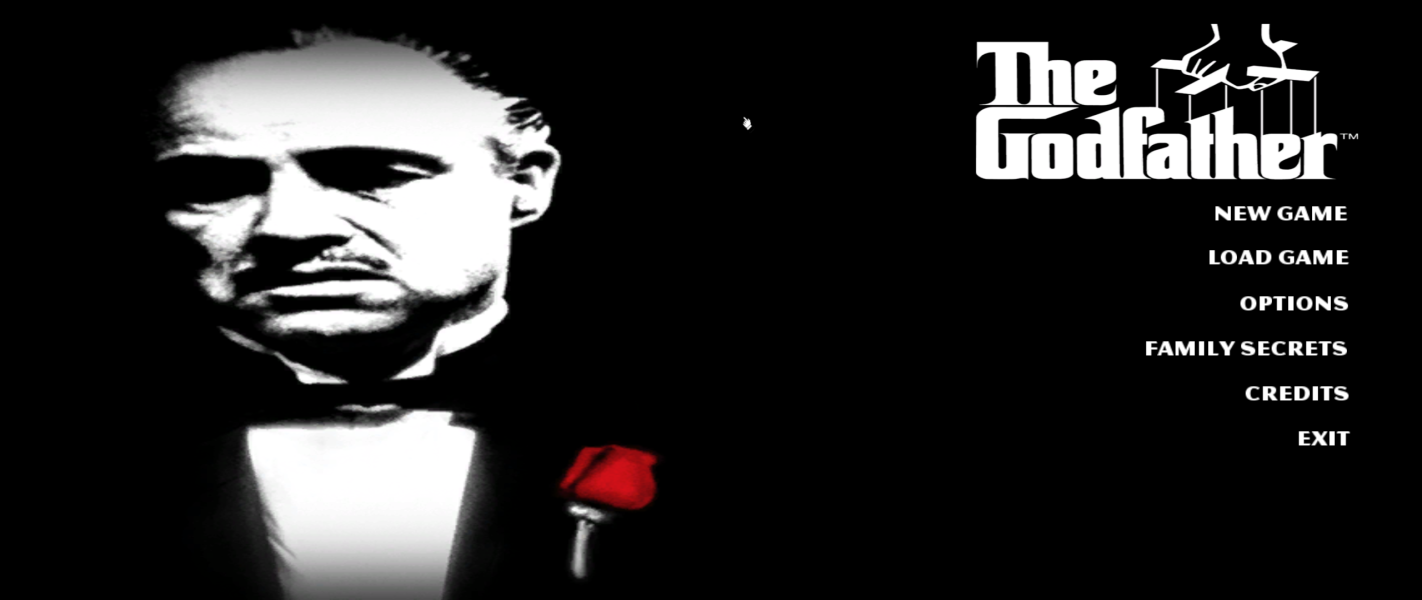
Screenshots Comparison
Solutions & Issues
Replace godfather.exe in the game folder from the fix available from the PC Gaming Wiki Community Files (search there).
For the guys who don't see widescreen resolutions in the game here is how to enter a custom resolution via the registry:
Back up your Registry first !
1. Click on Start then go to Run.
2. Type in regedit and click OK.
3. Left-Click once on the plus sign next to HKEY_CURRENT_USER.
4. Left-Click once on the plus sign next to a folder labeled Software.
5. Left-Click once on the plus sign next to a folder labeled Electronic Arts.
6. Left-Click once on the plus sign next to a folder labeled The Godfather the Game.
7. Left-Click on the Video Settings folder and we want to edit the Size X and Size Y.
8. First double click next to the Size X and change the value to 1360 then click ok.
9. Second double click next to the Size Y and change the value to 768 then click Ok.
10. Now you can close the registry editor.
Same as widescreen.
Same as widescreen.
Same as widescreen.
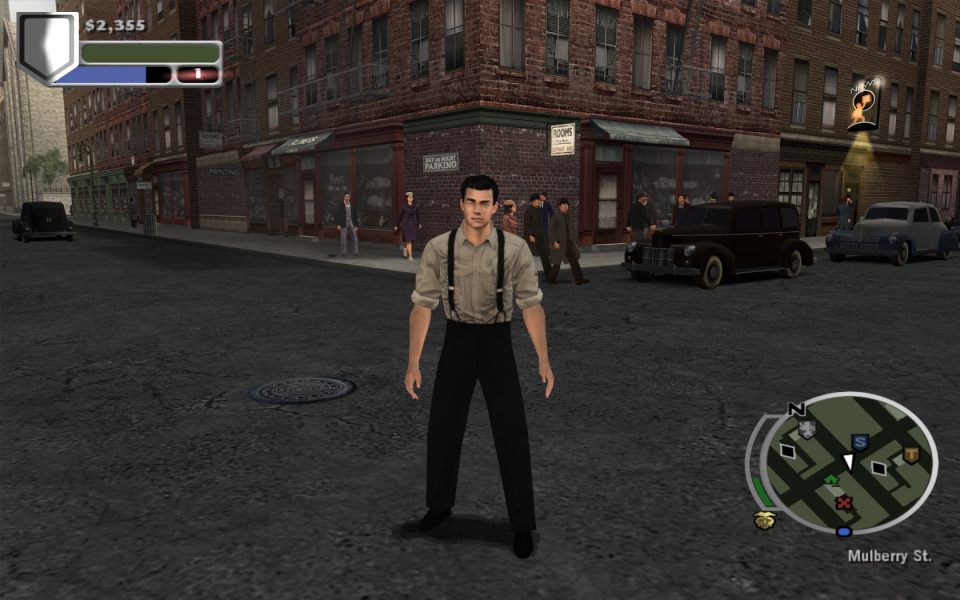
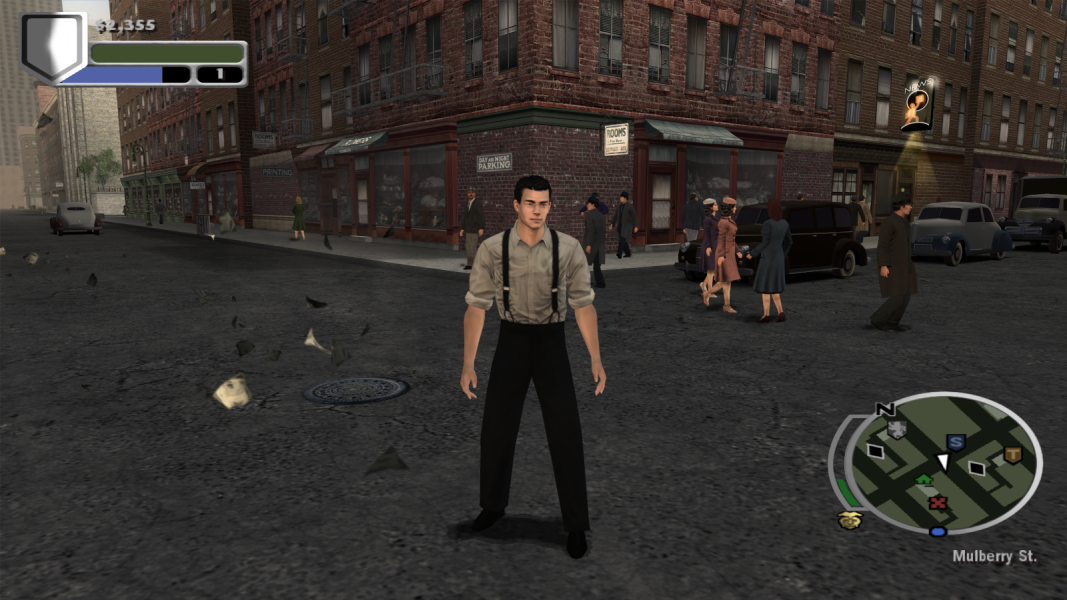
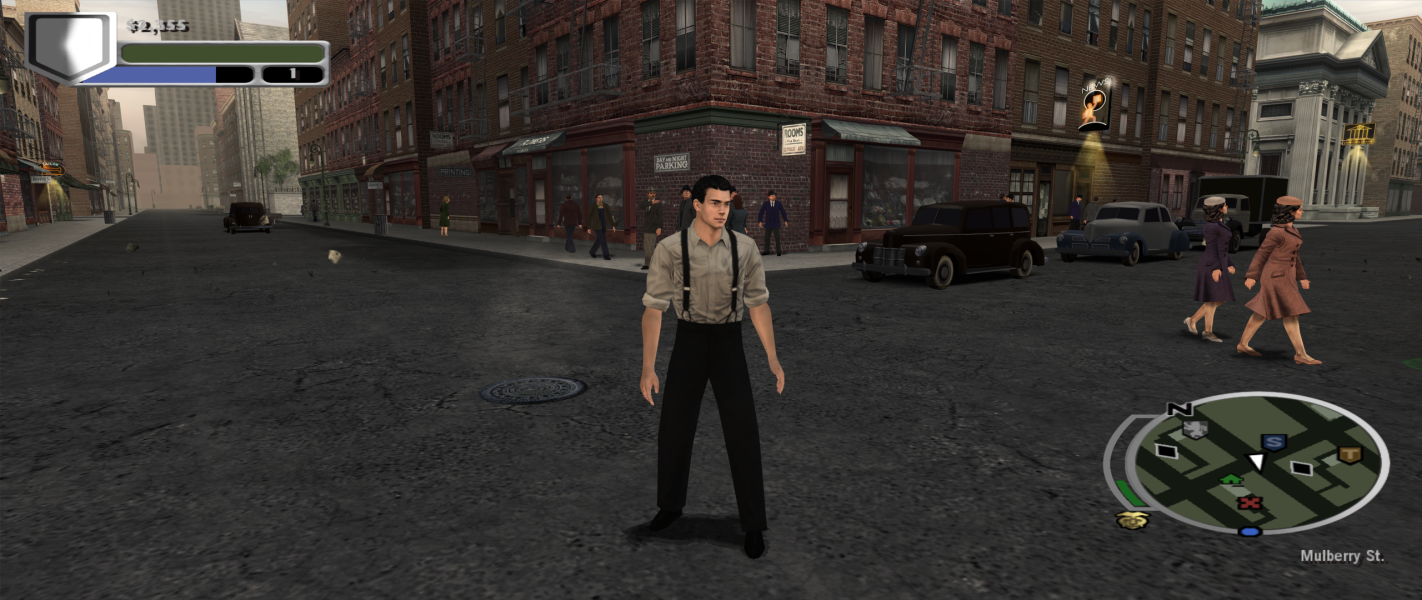
Gameplay Screenshots



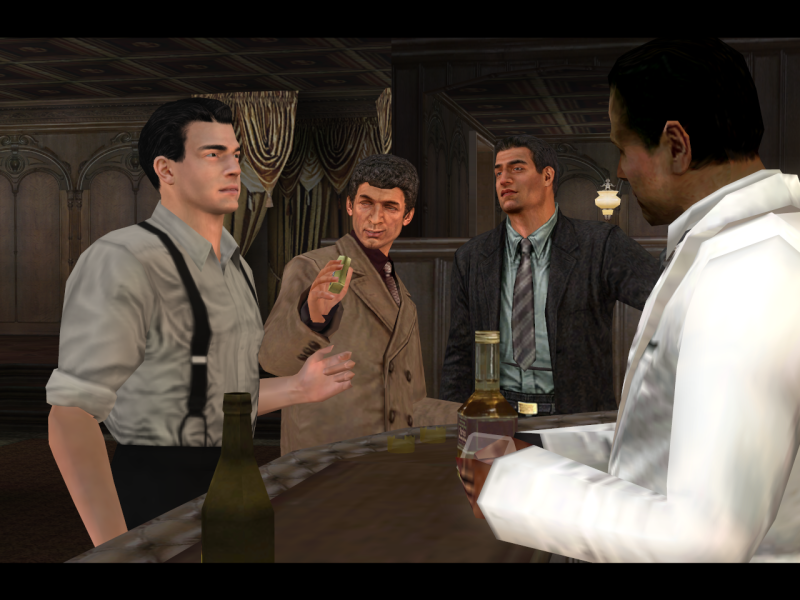
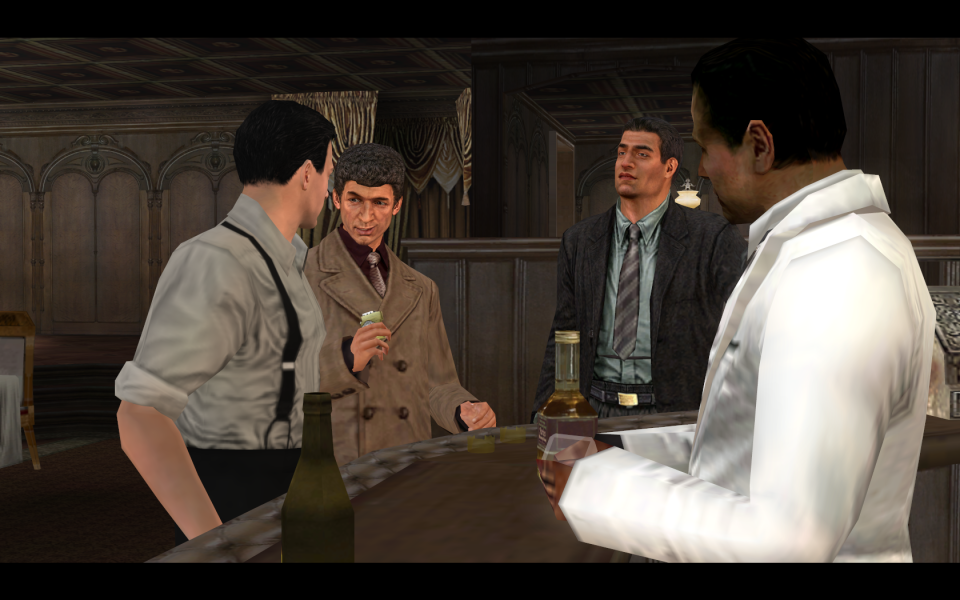
In-Game (Rendered) Cutscenes

Menu Screenshots



4K UHD Screenshots