



Eleusis is a 3d first-person adventure game for Windows developed by Nocturnal Works using the technology of the unreal engine. It takes place in a seemingly abandoned village in Greece where the player character, while trying to seek refuge, finds himself in the center of a whirlwind of mysterious events.As the plot unfolds he finds clues that indicate that the village is a nest of a cult which plans to revive a dark force through an ancient ritual and harness its power. The player character faces the challenge of unlocking the forgotten knowledge of the ancient mysteries in order to stop the cult from accomplishing their goal.
It is a story-driven game with emphasis on exploration and information gathering. The player is called to solve inventory item based puzzles in order to proceed and unlock new areas and solve the mystery. It is not a horror survival game but has horror elements, related mostly to the story and the game’s atmosphere. The game’s puzzles are made to challenge the player and are based on actual history, mythology and technology of ancient Greece.
Support Summary
Game Information
Screenshots Comparison
Solutions & Issues
There is no option for any 21:9 resolutions. Widescreen is Vert- in-game. Can be changed by altering the FOV if desired but gameplay impact is minimal. See Multi-monitor section for details on how to do this.
See multi-monitor section for solution. Note that the FOV will need to be adjusted appropriately for this aspect ratio.
The game actually runs quite well at this aspect ratio except for the fact that in-game cutscenes are still windowboxed (pretty minor) and the resolution still reverts when entering the menu.
The game does not support custom resolutions natively.
Although this game uses the Unreal engine, the console cannot be enabled (even through the .ini files) to be able to change the resolution there. Nevertheless, console commands can be bound to keys in the .ini files:
1) Open "UDKGame.ini" in the "...Eleusis\UDKGame\Config" directory.
2) Search for "Bindings=(Name="N"" (I used the 'N' key but any other key can also be used).
3) Replace the entire line with this following line (replace the resolution and FOV to your own preferences):
Bindings=(Name="N",Command="Setres 5760x1080x32f | FOV 143",Control=False,Shift=False,Alt=False,bIgnoreCtrl=False,bIgnoreShift=False,bIgnoreAlt=False)
bInvertMouse=False
4) Save the .ini file.
5) Do the above steps for the "UDKInput.ini" file in that same directory.
6) When in-game, press the 'N' key and your resolution and FOV will be changed to the ones specified.
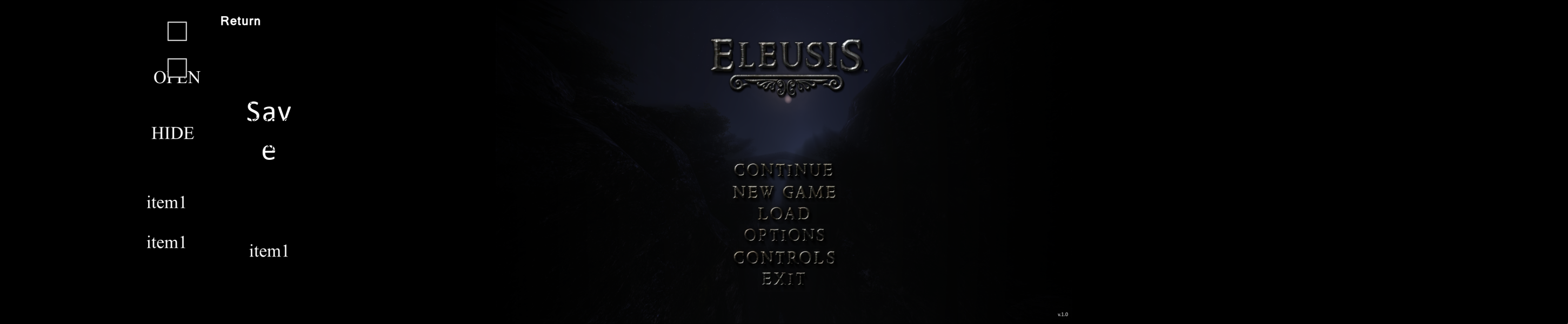
Doing this for very wide resolutions (like mult-monitor ones) will result in the following anomalies:
--> Some weird debug text will appear in the left third of the screen.
--> Entering into the menu will cause the resolution to be reverted to the one set in the Options menu.
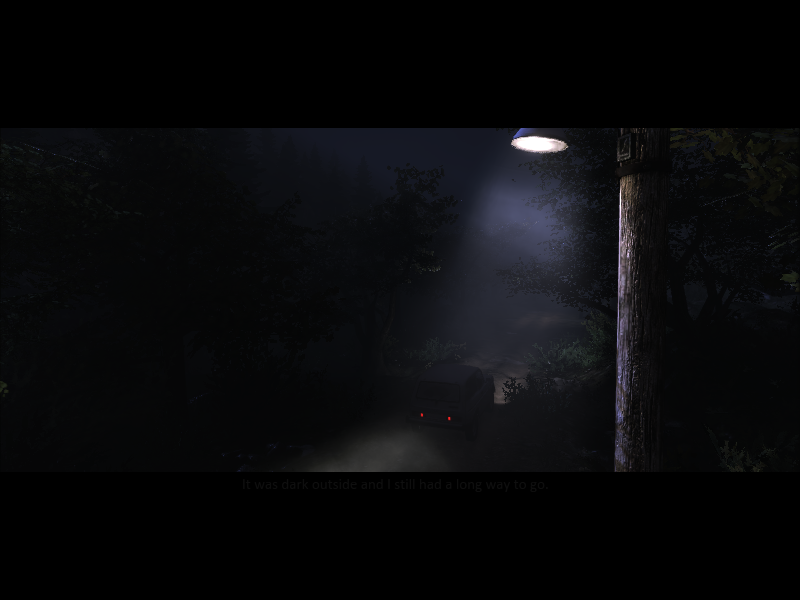
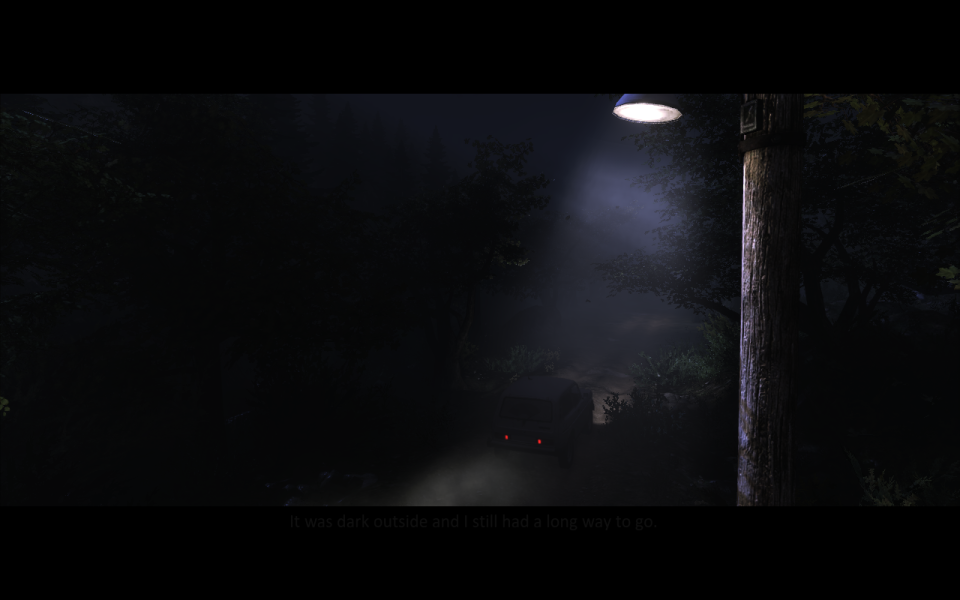
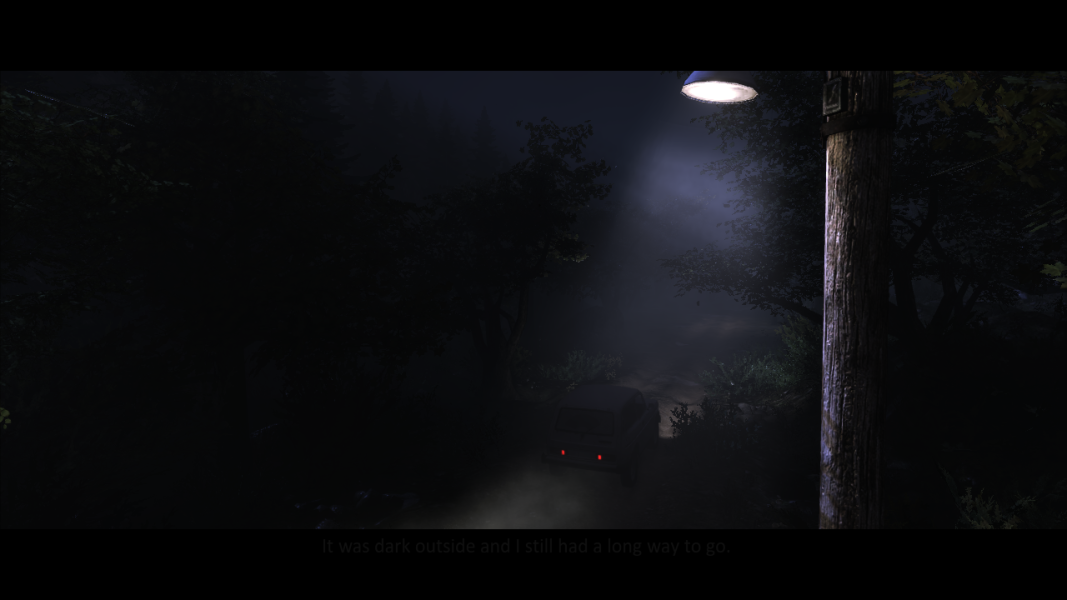
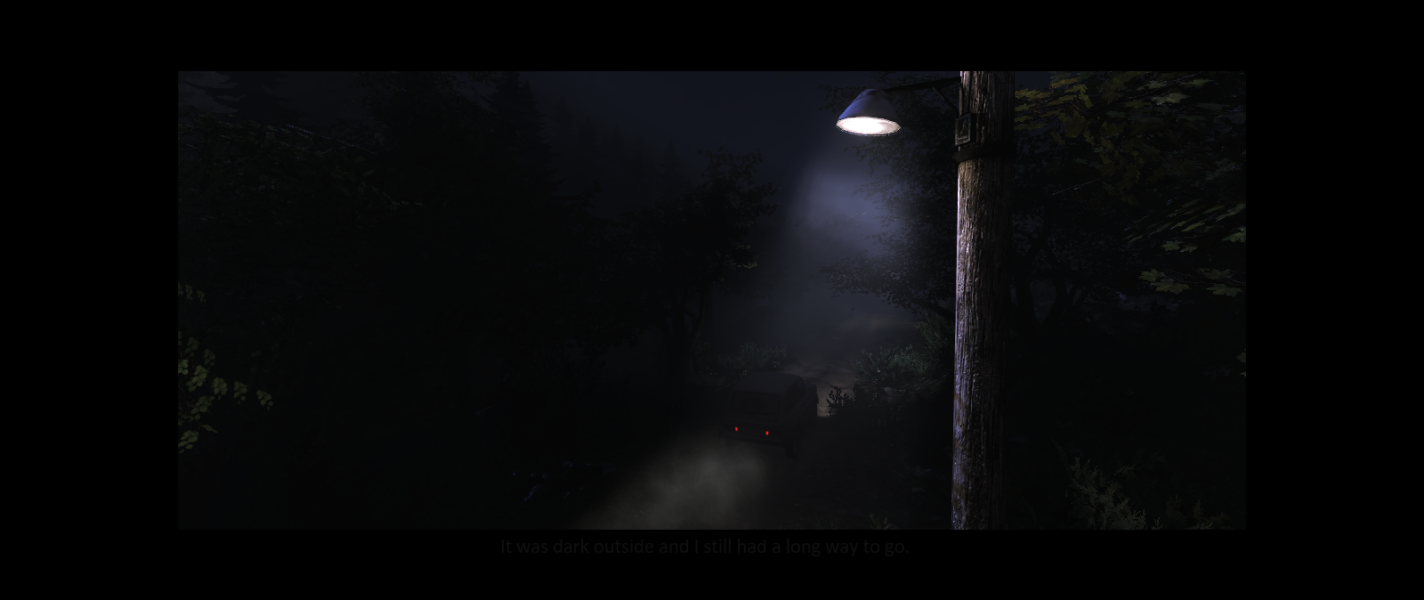
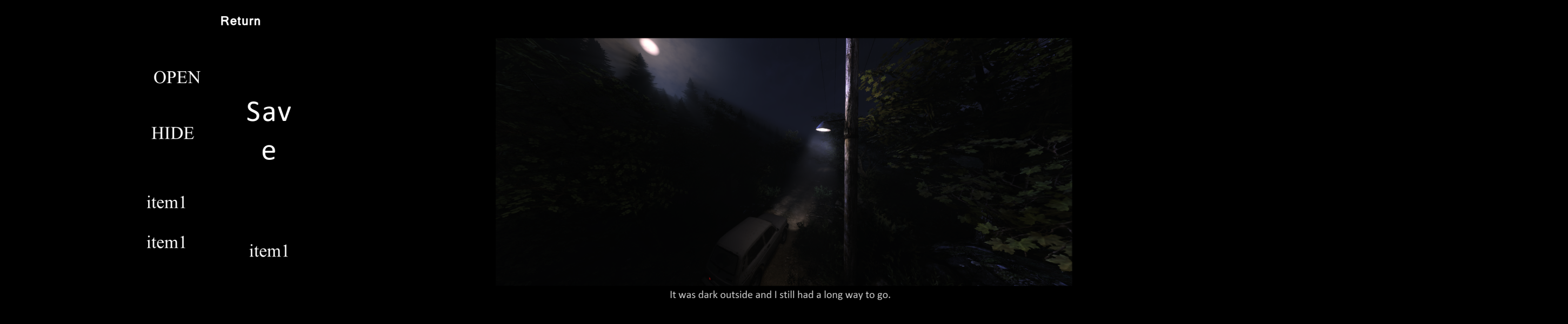
--> In-game cutscenes are windowboxed and your custom FOV is squished into that window causing the cutscenes to suffer from major fisheye.
This is a very temporary solution and if the strange debug text doesn't bother you on the left, then your in-game experience will be very enjoyable (personally, I can get used to that strange text especially over playing on one monitor).
Gameplay Screenshots
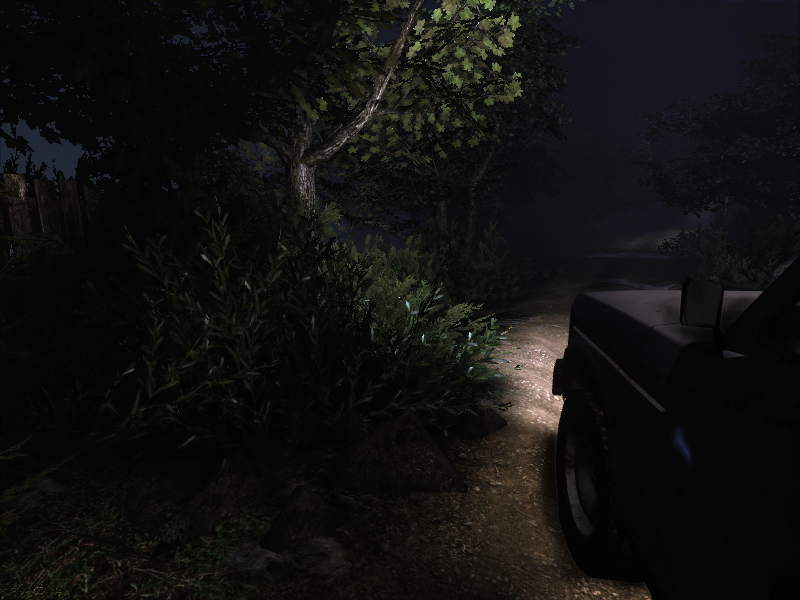

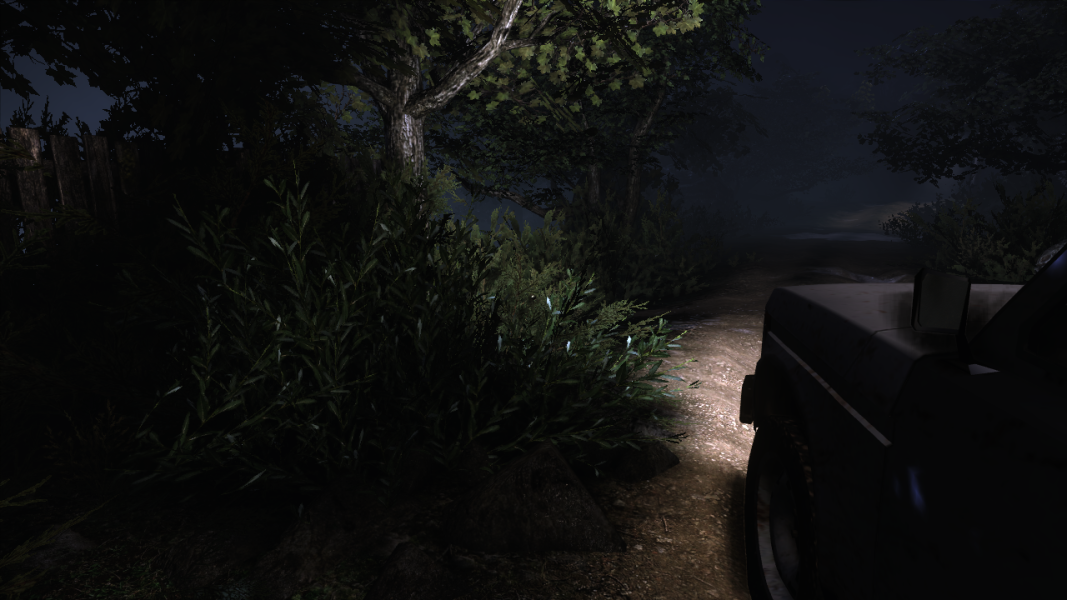


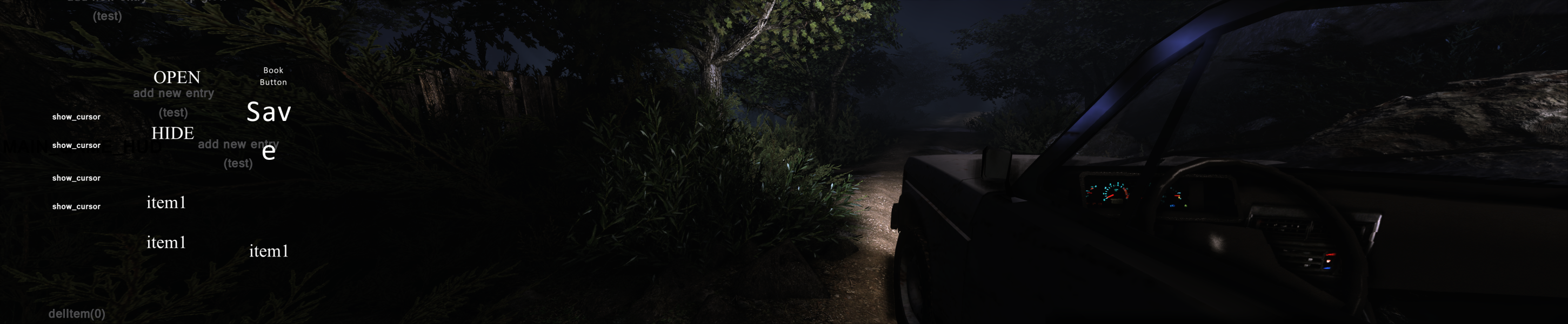
In-Game (Rendered) Cutscenes
Menu Screenshots