

The sequel to Deus Ex. As with most sequels, it didn't live up to the original.
Support Summary
Game Information
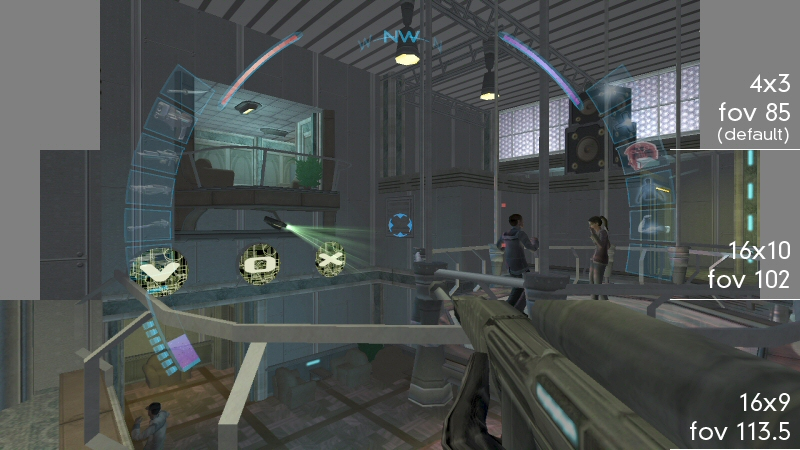
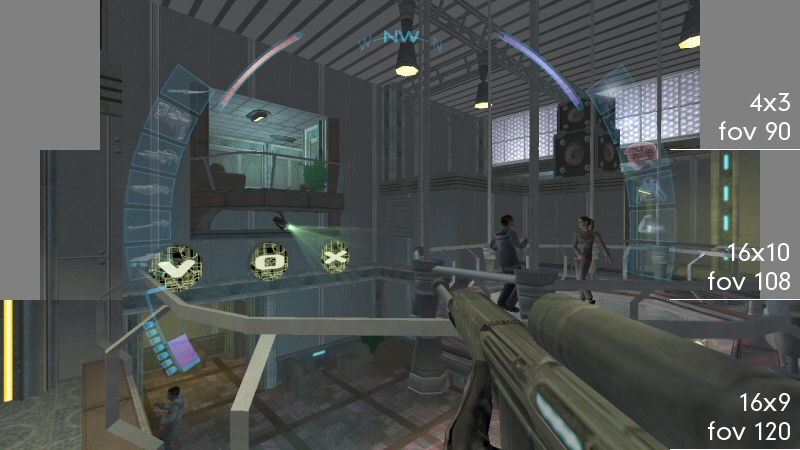
Screenshots Comparison
Solutions & Issues
Fix available from the PC Gaming Wiki Community Files (search there) to adjust the hard-coded FOV setting in Engine.d2u for FOV values up to 127. Default settings are suggested based on the aspect ratio of your resolution or you can set your own. Changing some video settings in-game may reset the resolution; simply run the tool again to fix it.
Here are some suggested settings (used to make the screenshots on this page):
4:3: FOV 90, HUD 67
16:10: FOV 108, HUD 58
16:9: FOV 120, HUD 53
15:9: FOV 112.5, HUD 50
For FOV values wider than 127:
- Open System\Engine.d2u in a hex editor.
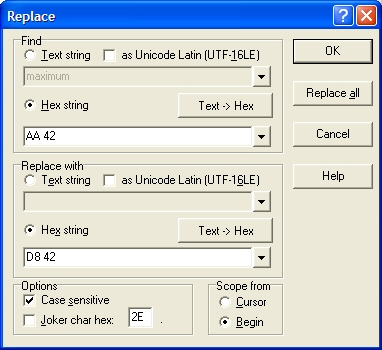
- Change all three instances of 00 00 AA 42 to the hex FOV you want (IEEE reversed pairs).
- Edit System\Default.ini
- Change AssumedUIScreenWidth__d= to the single-monitor width
- Edit %USERPROFILE%\Documents\Deus Ex - Invisible War\user.ini
- Change FullscreenViewportY= and FullscreenViewportX= to your resolution.
== Method to correct cut-scenes ==
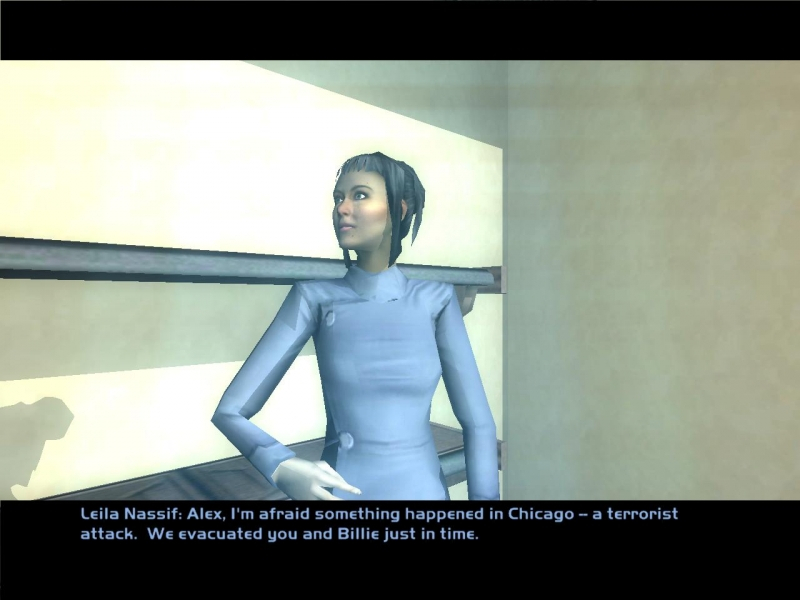
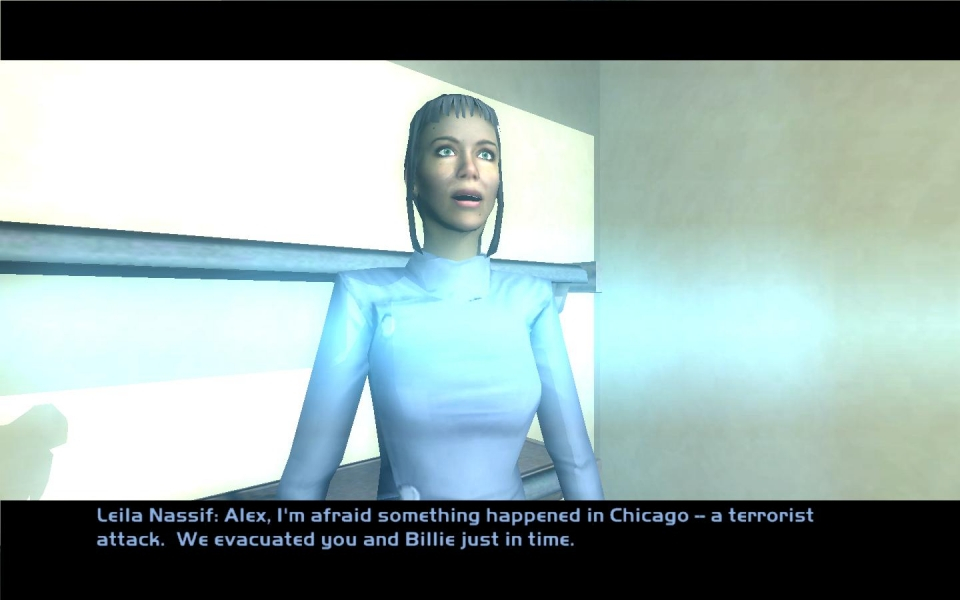
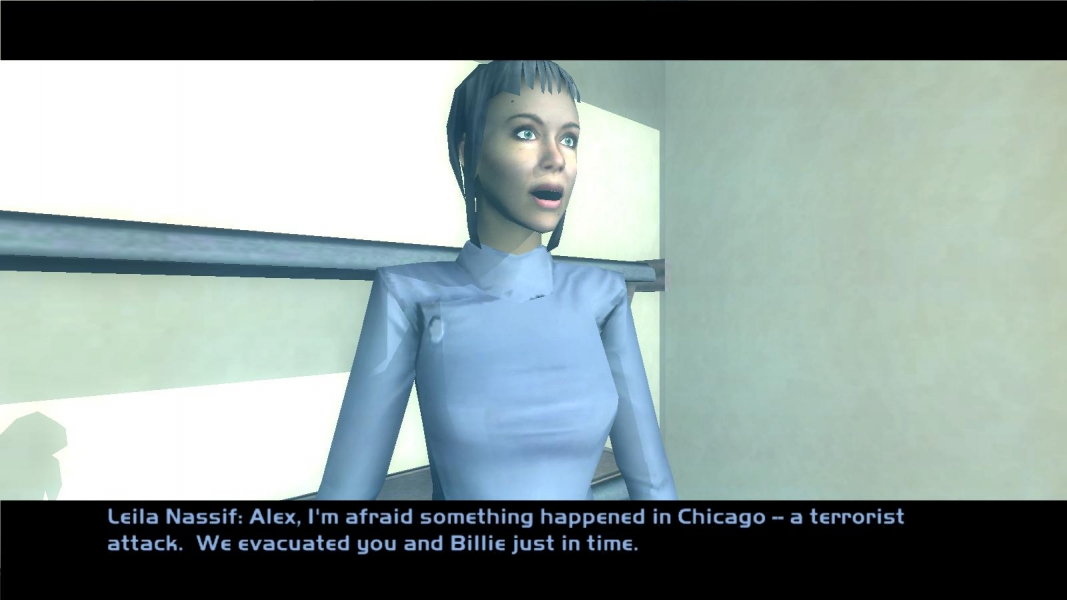
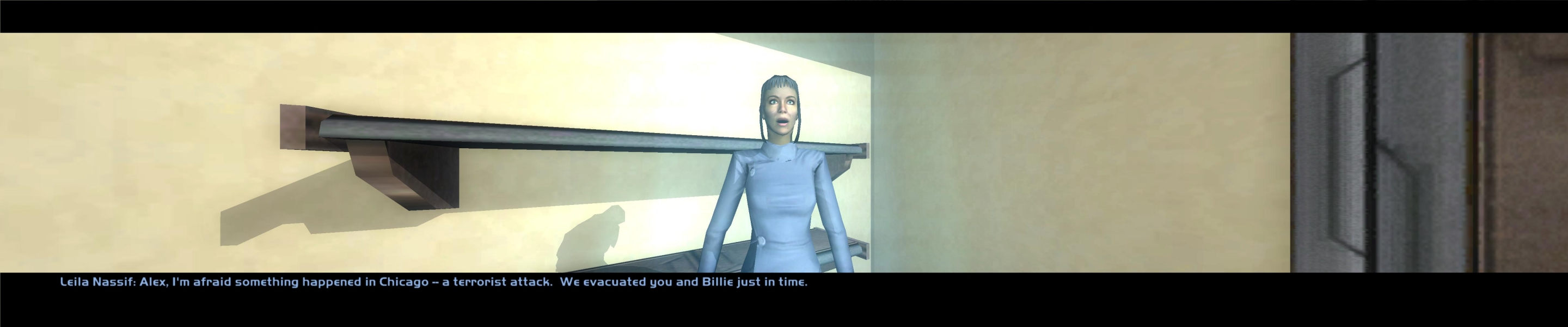
The in-game, engine-rendered cutscenes were a bit tricky in that I couldn't get good screenshots. Sometimes things seemed fine and sometimes the tops of heads were cut off. I guess I'd go with vert- here, but it's nothing too disruptive.
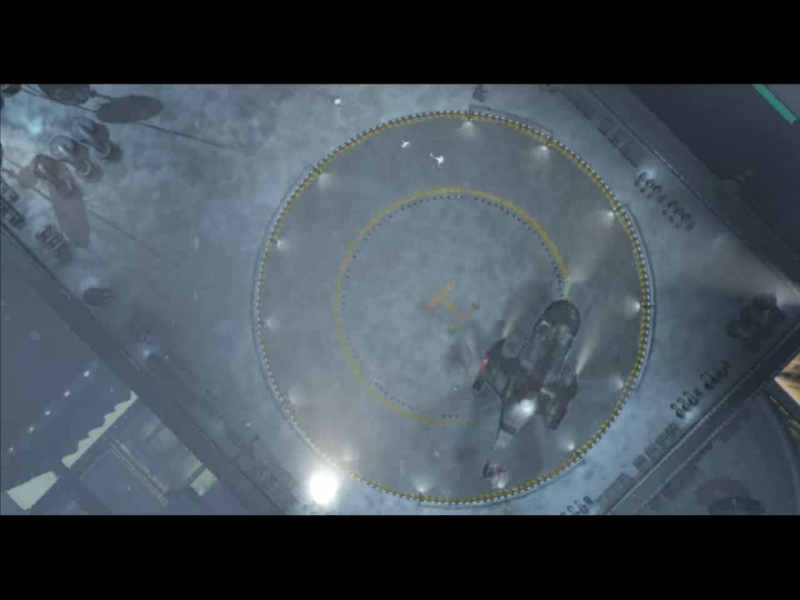
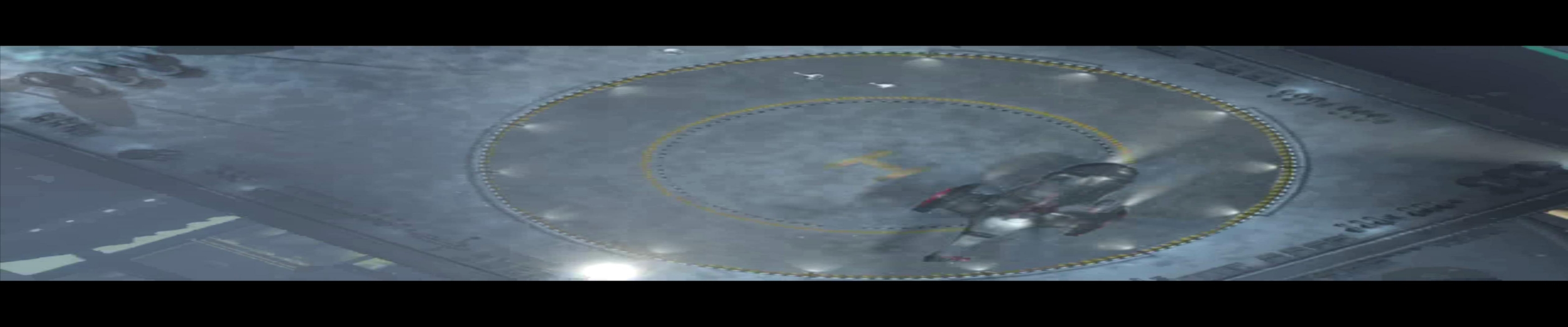
The intro and ending cutscenes are prerendered bink files. They stretch.

1280:720 Plainly, that helipad is too elliptical to be correct.
Download and install the RAD Video Tools. Open and navigate to ...\deus ex invisible war\content\DX2\VideoTextures.

The relevant files are;
EndgameIlluminati.bik
EndgameJC.bik
EndgameStranger.bik
EndgameTemplar.bik
Intro.bik
Single click to select and hit the Bink It! box in the lower left corner. You should see this window;

For the sake of simplicity leave everything other than the highlighted cropping section alone. Hit Bink to start encoding and expect it to take some time. The above setting would apply if you intend to use a 16:10 resolution. The "Endgame" videos are letterboxed to 16:10 so you'll need different settings for them when using wider aspect ratios.
For 15:9 use;
for Intro.bik and;

for the Endgame videos.
For 16:9 use;
for Intro.bik and;

for the Endgame videos.
When the encoding is finished, open Windows Explorer and go to ...\deus ex invisible war\content\DX2\VideoTextures. Delete, rename or move the original videos and remove the "New_" prefix from your new videos. That's it, stretch no more.

1280:720 Happy day, circular circles.
Same method as widescreen. HUD is centered for 4:3. Example values (used for screenshots on this page):
FOV hex: 00002043
HUD FOV: 41
AssumedUIScreenWidth__d=1137
To center and unstretch prerendered cutscenes: Divide your aspect ratio by 1.3333. Multiply the quotient by 640 and enter the product in the Frame size (cropping) Width field in RAD's Bink Compressor screen. Subtract 640 from Width then divide by 2. Enter the negative of this calculation in the Left field. Optional: to remove top black bar enter 400 in the Height field. Click Bink and replace the .bik file in the game's Video Textures folder.
Doesn't stretch or otherwise distort and should handle about anything you throw at it. Well, anything with an FOV below 127.5. So any single monitor setup will work.
The HUD maintains its relative dimensions properly, but needs to be resized as described above.
Prerendered cutscenes: same as for Ultra/Super-Wide
The in-game, engine-rendered cutscenes were a bit tricky in that I couldn't get good screenshots. Sometimes things seemed fine and sometimes the tops of heads were cut off. I guess I'd go with vert- here, but it's nothing too disruptive.
The intro and ending cutscenes are prerendered bink files. They stretch.
Same .ini+hex method as widescreen
1) Resolution
Documents\Deus Ex - Invisible War\user.ini
FullscreenViewportY=1050
FullscreenViewportX=5040
2) FOV
Program Files\Deus Ex Invisible War\System\Engine.d2u
For 48:10: Replace all 3 instances of 00 00 AA 42 with 00 00 9A 43 (equivalent to decimal FOV 308)
For 48:9: Use 0000B443 (FOV 360)
3) UI
Program Files\Deus Ex Invisible War\System\Default.ini
fov__d (scale of the "wheel" interface) - use 21 for 48:10, 19 for 48:9
AssumedUIScreenWidth__d=1680 (your single-screen width)
AssumedUIScreenHeight__d=480 (default height)
Some strange camera angles result.
You can fix some of these by editing the [ConversationCamera] settings in Default.ini. I don't know exactly how, but dividing all Angle and Dist values by two is much better already.
Code:
[ConversationCamera]
SlightAngle=7.5
AboveAngle=30.0
ShoulderAngle=7.5
ShoulderMult=0.7
HeadMult=0.25
FaceScalar=0.38
SideTightDist=1.0
SideMidDist=1.5
SideAboveDist=1.0
SideAbove45Dist=1.0
ShouldersLeftDist=1.0
ShouldersRightDist=1.0
HeadTightDist=1.2
HeadMidDist=2.75
HeadLeftDist=1.2
HeadRightDist=1.2
HeadSlightLeftDist=1.2
HeadSlightRightDist=1.2
StraightAboveDist=1.16
Gameplay Screenshots



In-Game (Rendered) Cutscenes
FMV Cutscenes


Additional Screenshots