


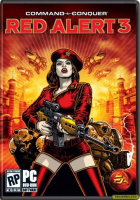


Command & Conquer: Red Alert 3 is the sequel of Command & Conquer: Red Alert 2. The Soviets are almost dead, the Allies celebrate their victory.
In this hard time dr.Zelinsky invent a time machine. Similar to Einstein's one.
Premier Cherdenko and general Krukov are using device to delete Einstein (responsible for Allies technology advancement) from history and bring victory to motherland.
Trick works and USSR is strong again. However, there are unforeseen consequences.
The Empire of the Rising Sun is trying to conquer the world with their advanced technology and spirit of fight.
Incredible? Welcome to Red Alert.
Support Summary
Game Information
Screenshots Comparison
Solutions & Issues
Native Hor+, not native for 5:4 other than 1280x1024 and 1280x768. TH and DH too.
To activate these resolutions, you have to modify C:\Documents and Settings\[user name]\Aplication data\Red Alert 3\Profiles\[profile name]\Options
Game is Hor+ except for cinematics (anamorphic 16:9), Vert- for TH and DH.
Just thought I'd share a hack a friend figured out to get around the brutal lack of zoom EA screwed up with Red Alert 3.
*** NOTE ***
- first of all, this is not a "fix", but a temporary work around -- this procedure will need to be done every time you play the game!
- I can't take any credit for this other than writing out these steps and confirming that yes they do work for me
- before you do anything you may want to backup your machine as I take absolutely no responsibility for anything going wrong if you follow these steps!
To get started you will need Cheat Engine 5.5 installed. You can get it here :
http://cheatengine.org/downloads.php
The rest of the steps follow
=-=-=-=-=-=-=-=-=-=-=-=
1 ) Run the game by launching it from whatever schortcut you have for RA3
2 ) Choose "Versus" -> "Skirmish" from main menu and start the game
3 ) Once map loads up using the mouse wheel zoom your view all the way IN to the map as far as you can zoom in
4 ) Alt-Tab out of the game and start CheatEngine
5 ) Click on the first button from the left on the button bar to bring up the "Process List" window
6 ) Scroll through the list until you find the Red Alert 3 executable process in memory, my process was called "ra3_1.7.game" (the demo version will be named differently from the retail version) -- if you're not sure which one it is open up your Task Manager and sort your processes by memory usage and it will be the RA3 process that's using the most memory
7 ) With the process selected click on the "Open" button to close the "Process List" window
8 ) On the right side of the CheatEngine window click on the checkbox next to "Hex" and in the "Value" text box enter in "43AF0000" (without quotes)
9 ) Click on the "First Scan" button -- this will result in about 6,000+ matches on the left side of the program window don't worry about these for now
10 ) Alt-Tab back into the Red Alert 3 game and now using the mouse wheel again zoom your view all the way OUT as far as you can zoom out (as we know already this won't be very far due to the lazy programming at EA)
11 ) Alt-Tab again out of the game and back to the CheatEngine program window
12 ) in the Hex "Value" text box now enter in "44098000"
13 ) Click on the "Next Scan" button -- this will result in only one Address found in the result area
14 ) Double click on this one Address and in the lower half of the program window will be the memory values for that address
This is the memory address for the "zoom out" value for RA3, but we don't want this specific address, we want the address which locks the zoom values.
The good news is that we know where this lock address is because you just add 4 to the "zoom out" address.
If you're not familiar with HEX addition you can use the Windows Calculator to help you. Open up the Windows Calculator and in the "View" menu click on "Scientific" and then click on the "Hex" radio button option.
Now add 4 to the "zoom out" address. As an example my "zoom out" address was "1045702C", and using the Calculator adding 4 gives me the new address "10457030".
15 ) Back in the CheatEngine window right-click on the lower-half memeory record (where it says "No description") and choose "Change record" -> "Address" to open the "change address" window
16 ) Enter in the new calculated address and click "OK"
This is the memory record of the "zoom lock" for Red Alert 3. You can see the "Value" as "0x00000001" (which translates to the binary value "1").
Programmers usually use the binary value "1" to turn options "On" and so if we change this value to "Off" this should help us.
17 ) Right click on this memory record and choose "Change record" -> "Value" to open the "Value" window
18 ) Change the "0x00000001" value to "0x00000000" (or just "0") and click "OK"
19 ) Alt-Tab back into Red Alert 3 and using the mouse wheel zoom IN and OUT all as far as you want now!
Congratulations! You have just cirumvented the absolute stupid zoom lock EA incorporated into the game engine. Why did EA do this? Who knows. Why couldn't they just have this value as a variable in the "Options.ini" file? Who knows.
You can now zoom in way past the surface of the map, and zoom out to a point where they have a permanent fog-of-war effect going on. Probably something to do with graphical performance that they didn't want to have the game engine figure out too many things at once.
What kills me about all this is that we're being force to "cheat" to enjoy the game the way it should have been programmed in the first place.
AND by having paid my hard earned money for this game EA probably will take that as a sign that they are doing things the right way. Ugh!
Good luck with this
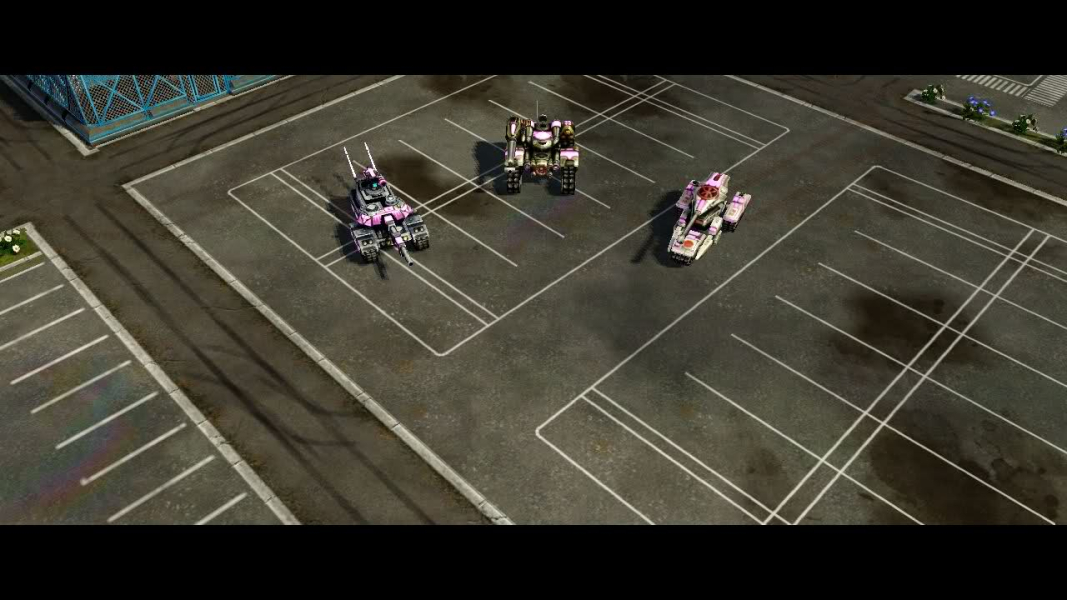
Gameplay Screenshots
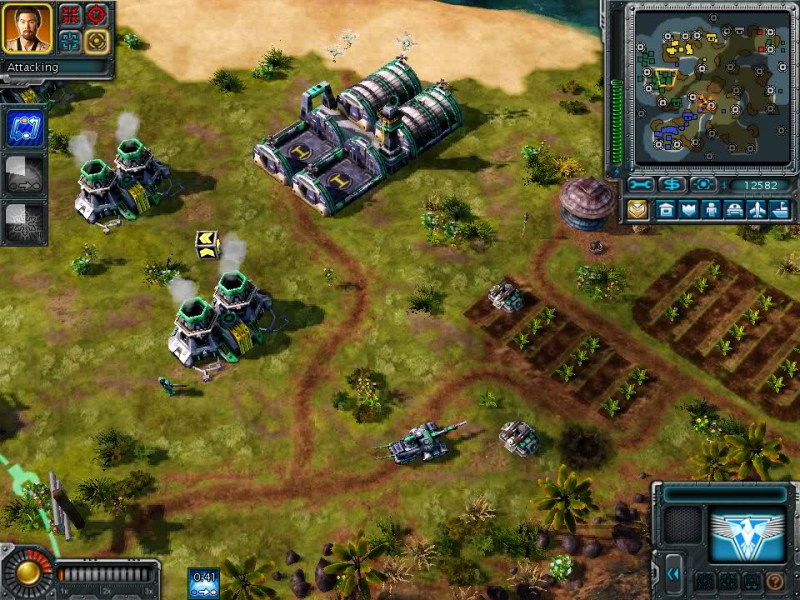
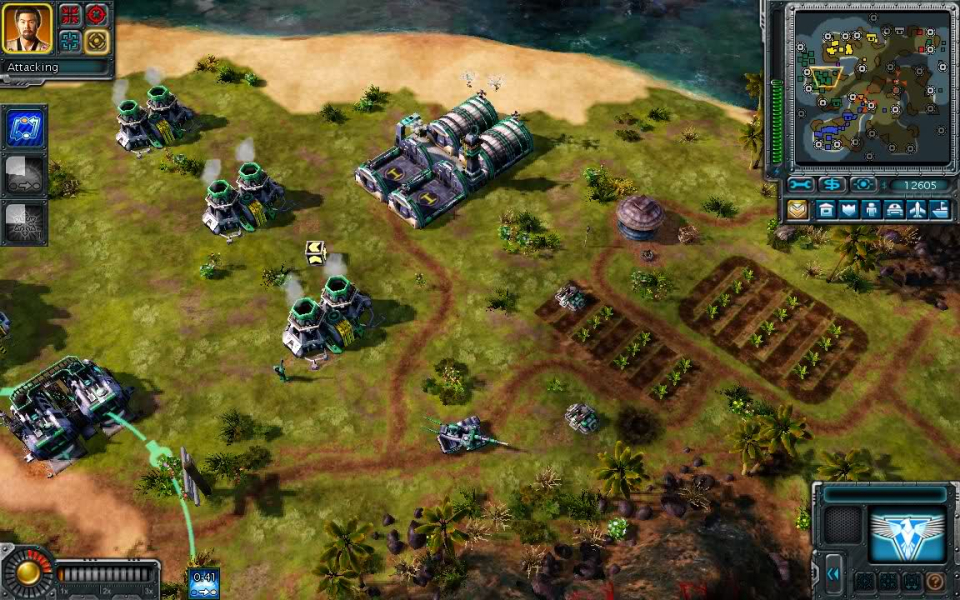


In-Game (Rendered) Cutscenes
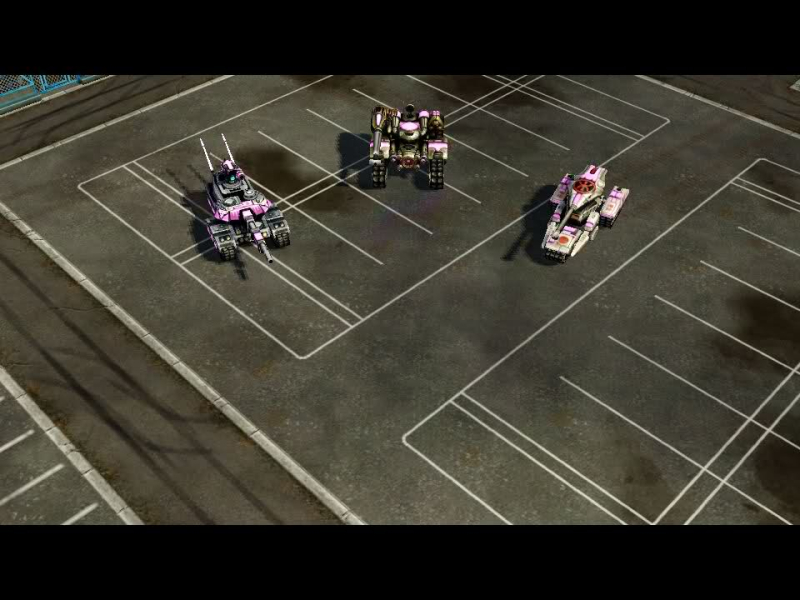

FMV Cutscenes

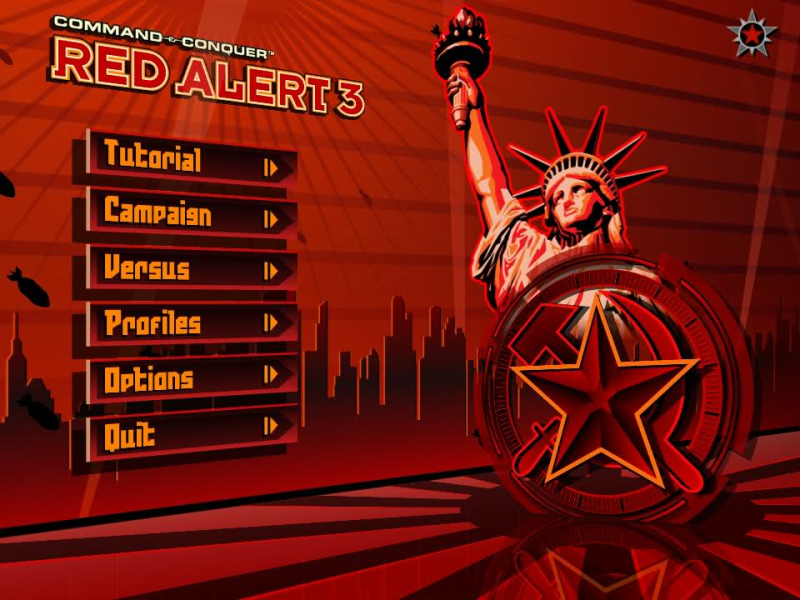
Menu Screenshots

Additional Screenshots


