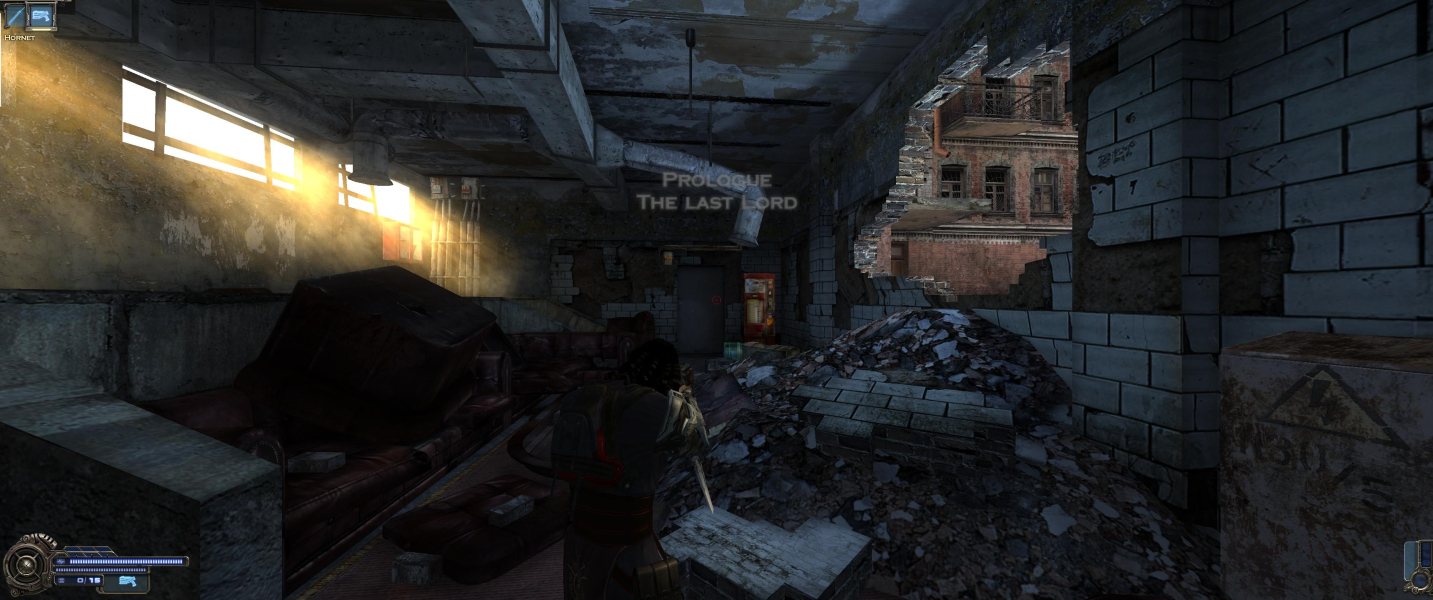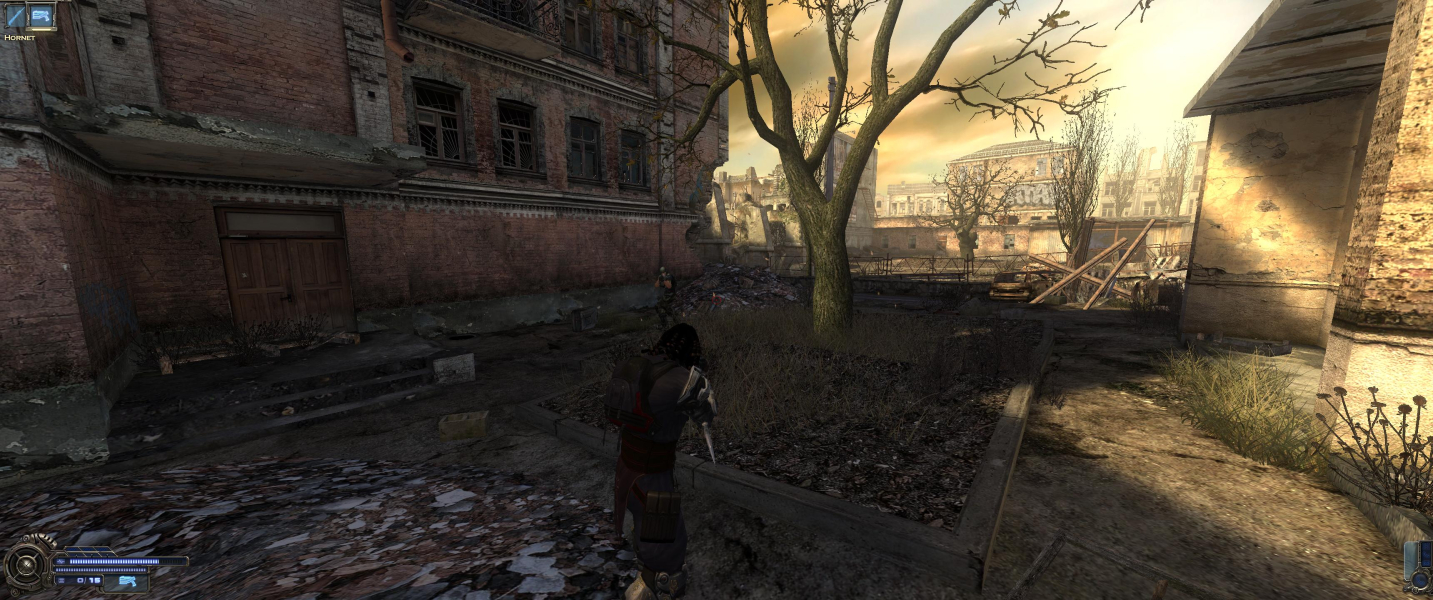


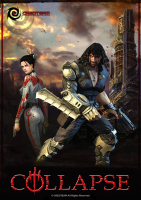


" In 2013 the Central Europe (Ukraine, Kiev) witnessed a catastrophe. Everybody was mystified by its cause. What happened was beyond our comprehension. Somebody called it the collision of worlds or the stratification of two dimensions. " - Steam store page
Support Summary
Game Information
Screenshots Comparison
Solutions & Issues
Normal widescreen resolutions are detected in-game. Custom/unlisted resolutions can be set by editing %USERPROFILE%\Documents\Creoteam Collapse\setup.ini
NOTE: aspect ratio detection uses the current desktop resolution, not the resolution used in-game. If the two aspect ratios differ the game output will be skewed.
HUD size is always the same rather than scaling as the resolution increases.
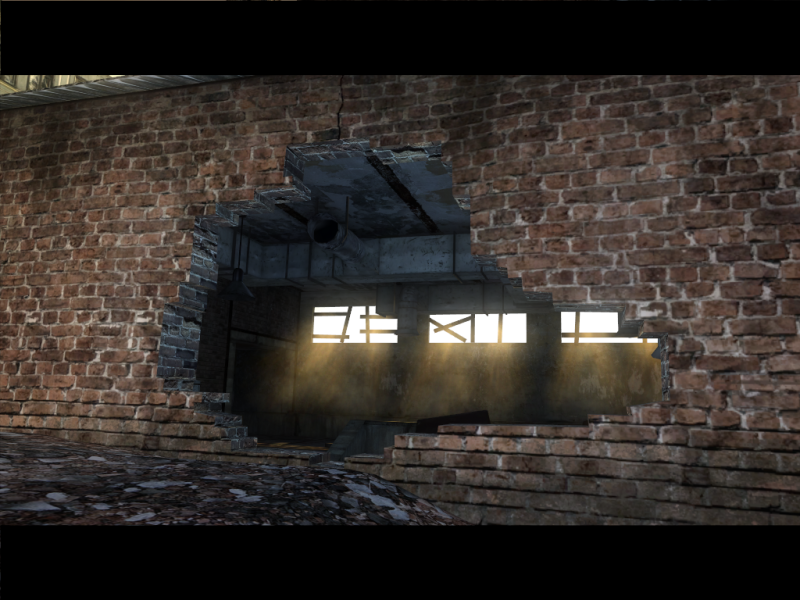
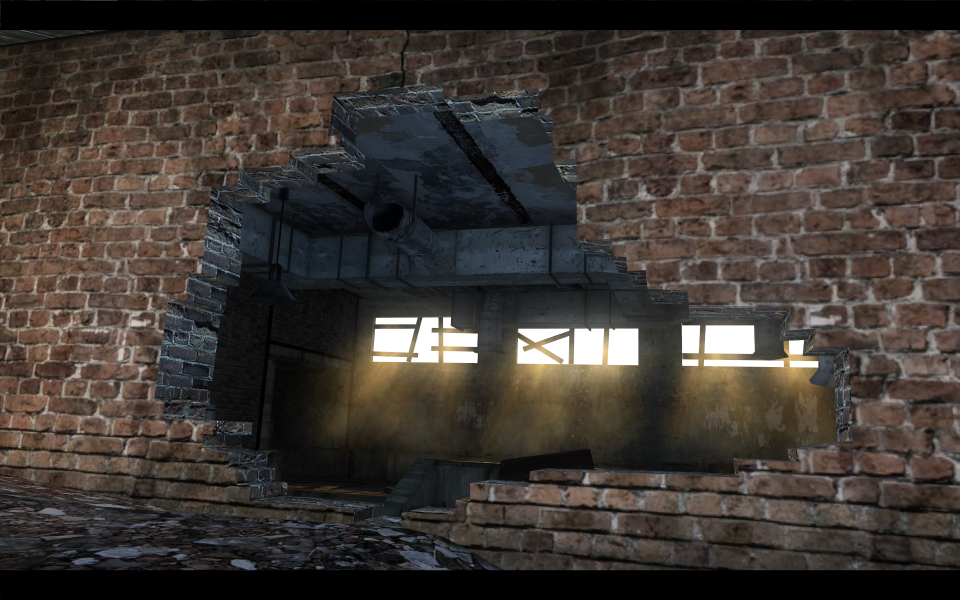
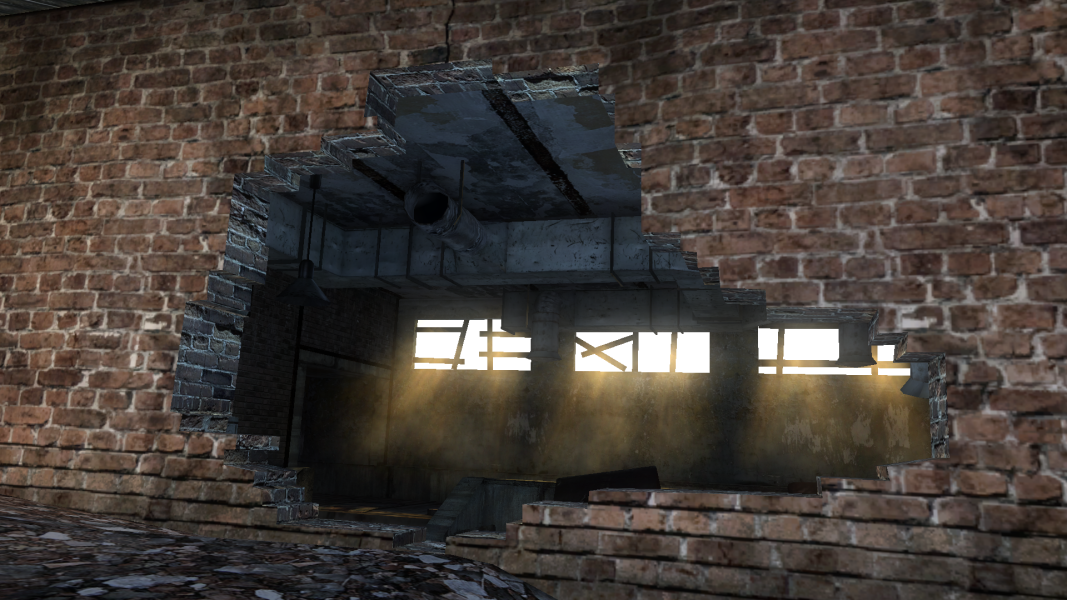
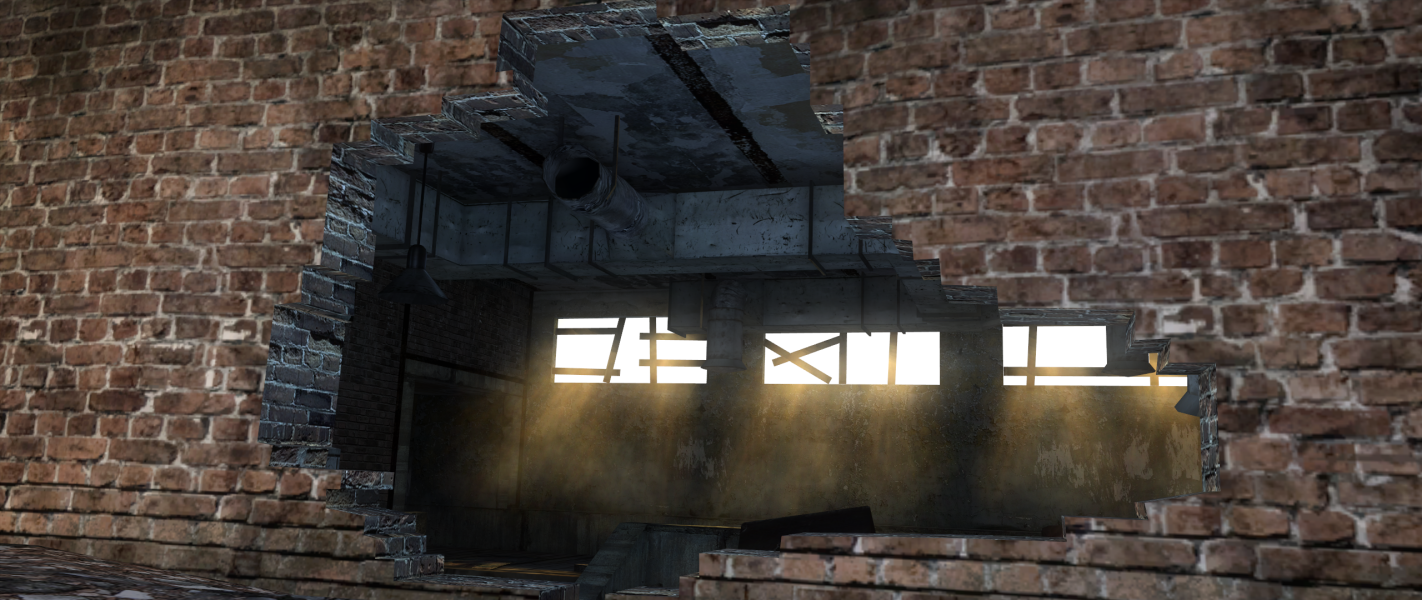
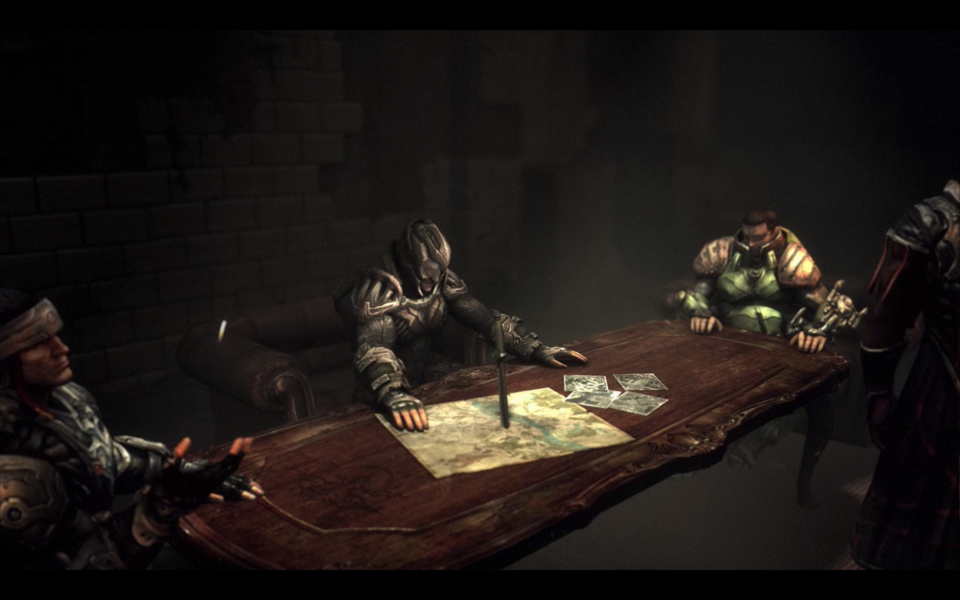
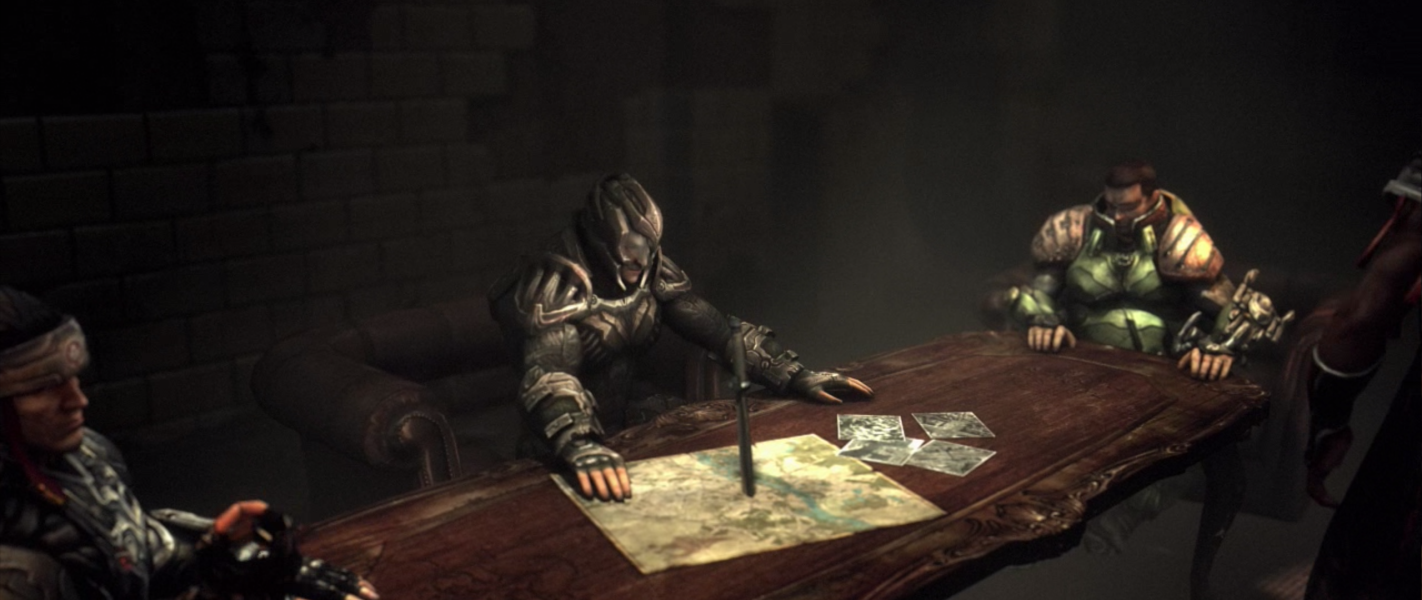
Cutscenes are designed for 16:9; anything wider than this will introduce cropping.
What you need to do: Go to --> %USERPROFILE%\Documents\Creoteam Collapse\setup.ini
Under [display] add this Line: FOV: 100
Save it and make itRead-only or the edited FOV Line will be gone after starting the Game.
For 16:10 add FOV: 84 and for 16:9 add FOV: 90
The FOV change does not affect real-time cutscenes (cutscenes are always Vert-).
What you need to do: Go to --> %USERPROFILE%\Documents\Creoteam Collapse\setup.ini
Under [display] add this Line: FOV: 120
Save it and make itRead-only or the edited FOV Line will be gone after starting the Game.
For 21:9 add FOV: 107 but i suggest a FOV: 120 - see Additional Screenshots
What you need to do: Go to --> %USERPROFILE%\Documents\Creoteam Collapse\setup.ini
Under [display] add this Line: FOV: 143.13
Save it and make itRead-only or the edited FOV Line will be gone after starting the Game.
Suggested FOV is for 48:9 (change value to whatever you want).
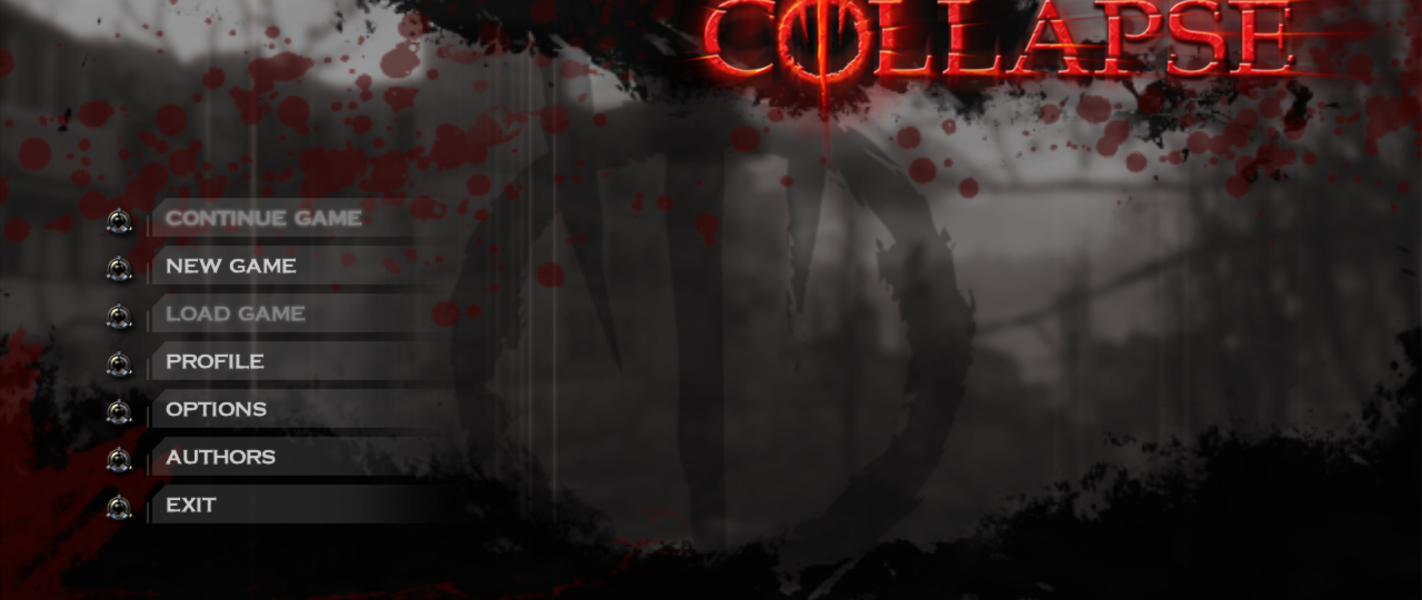
UI shown during gameplay fits within the resolution. Some pre-game menu options are off-screen (see menu screenshots). These options can be selected blindly using the keyboard. It is recommended to set in-game options with a normal resolution and then apply the resolution change last.
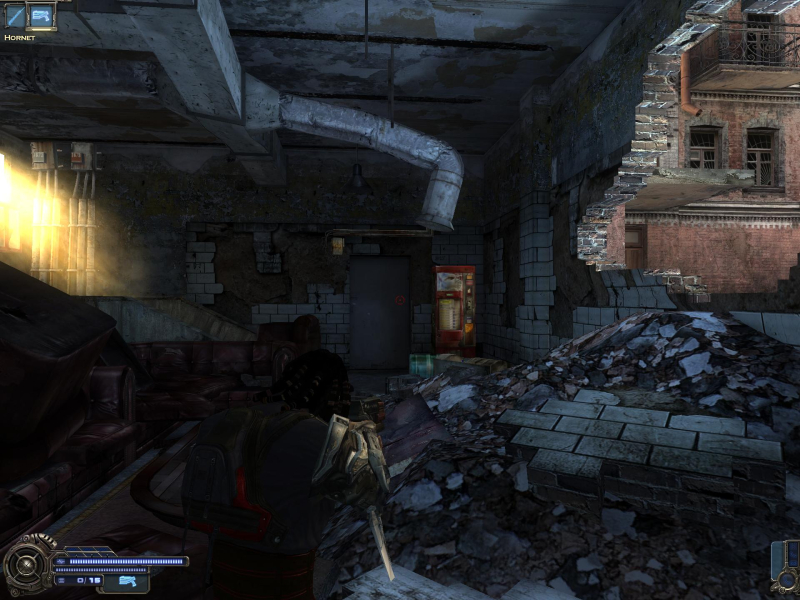
Gameplay Screenshots

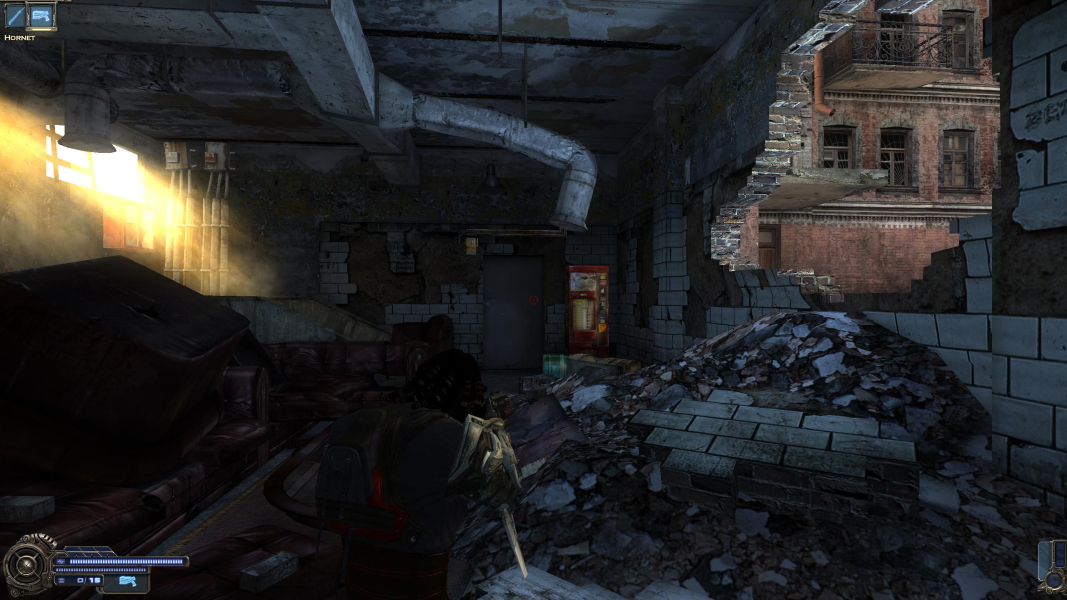
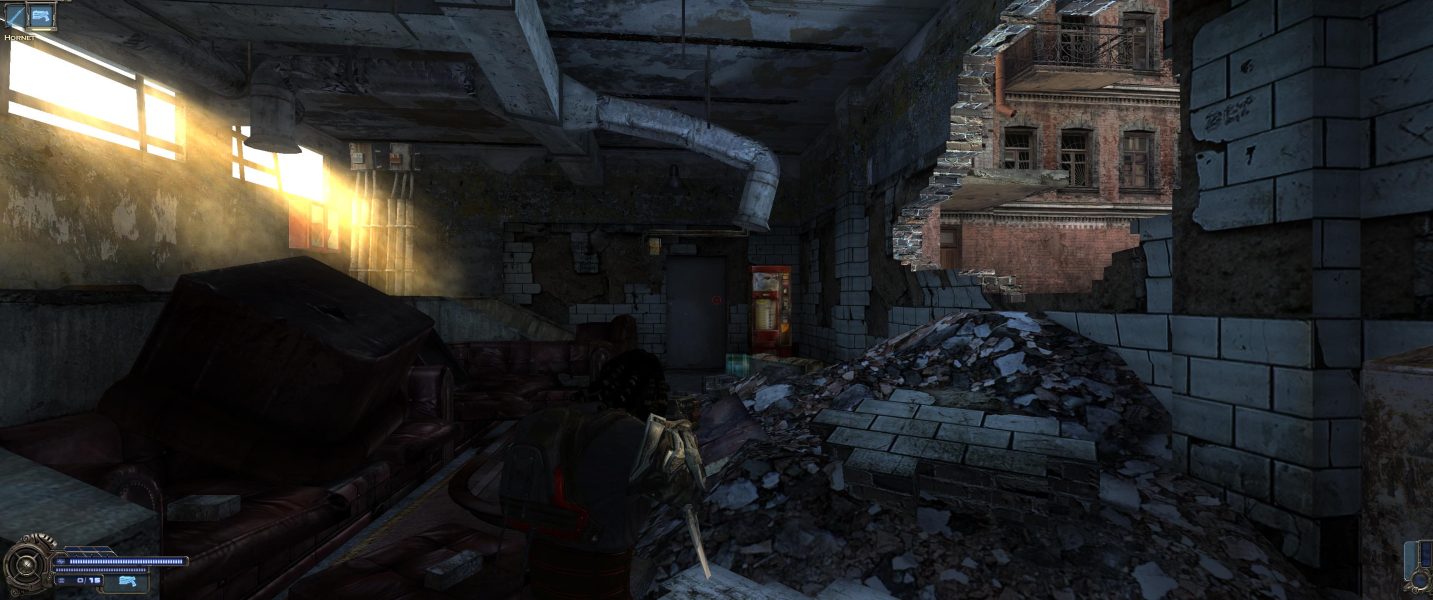


In-Game (Rendered) Cutscenes

FMV Cutscenes



Menu Screenshots

Additional Screenshots