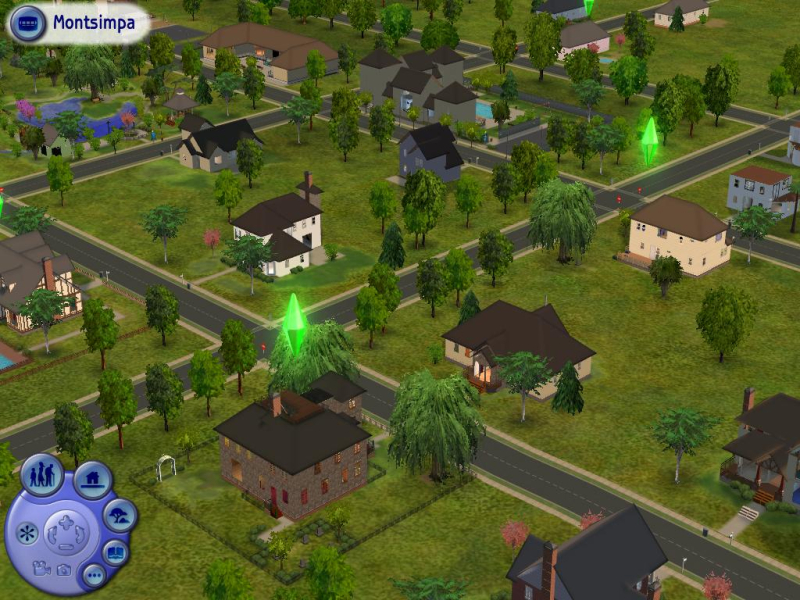
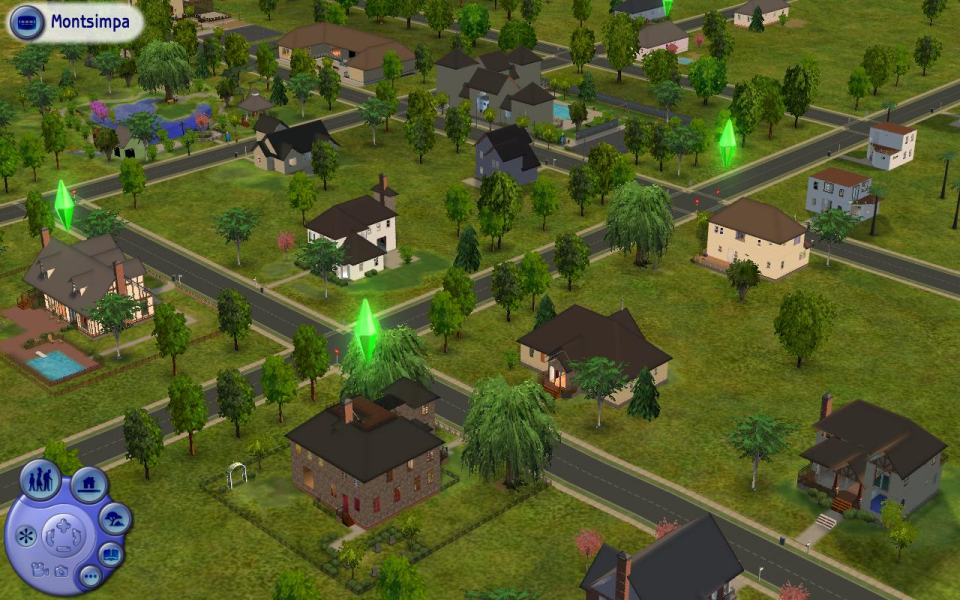
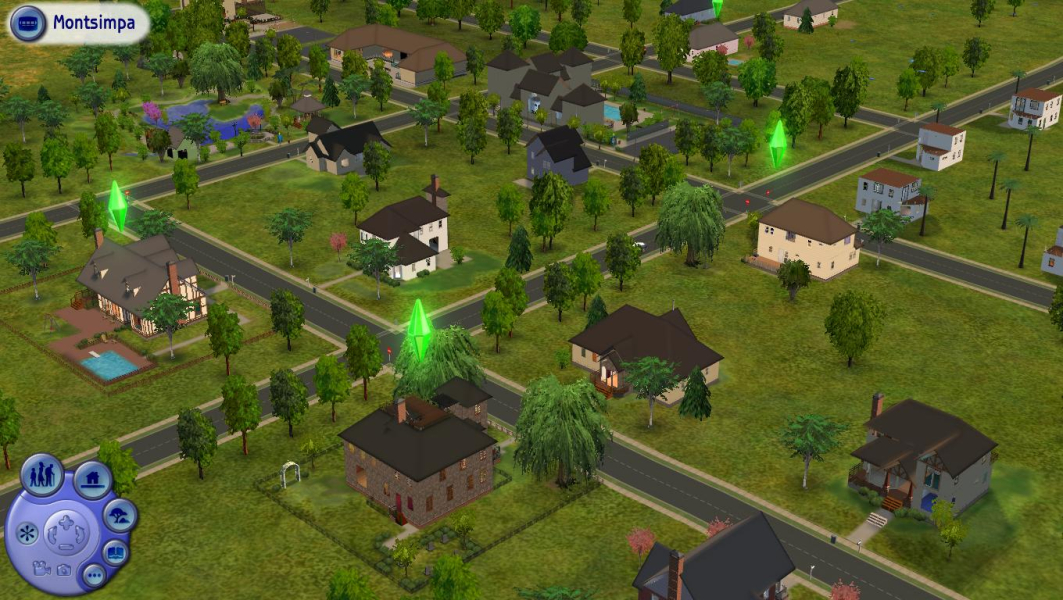
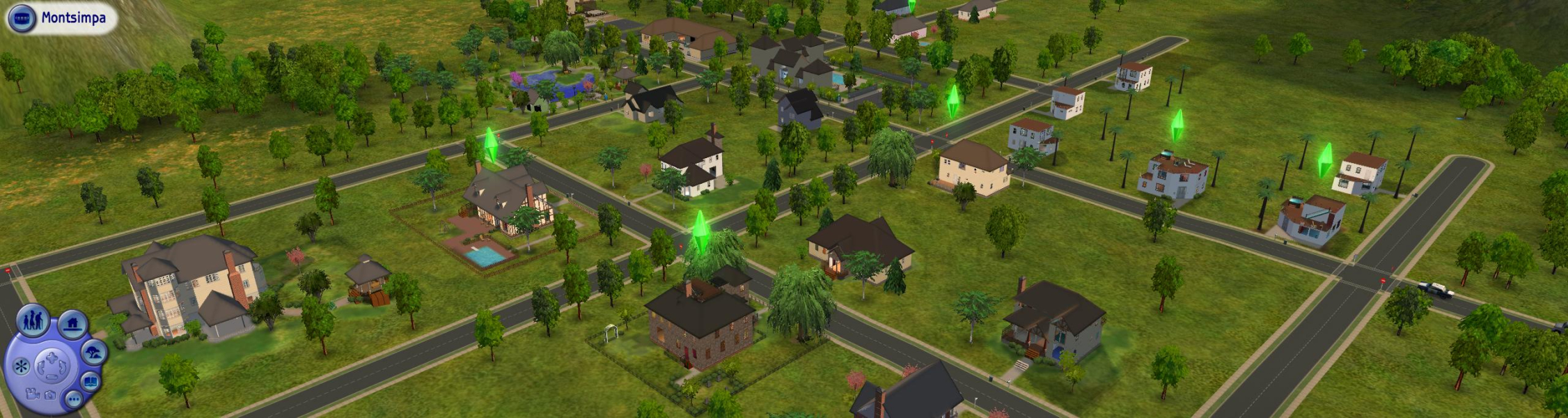
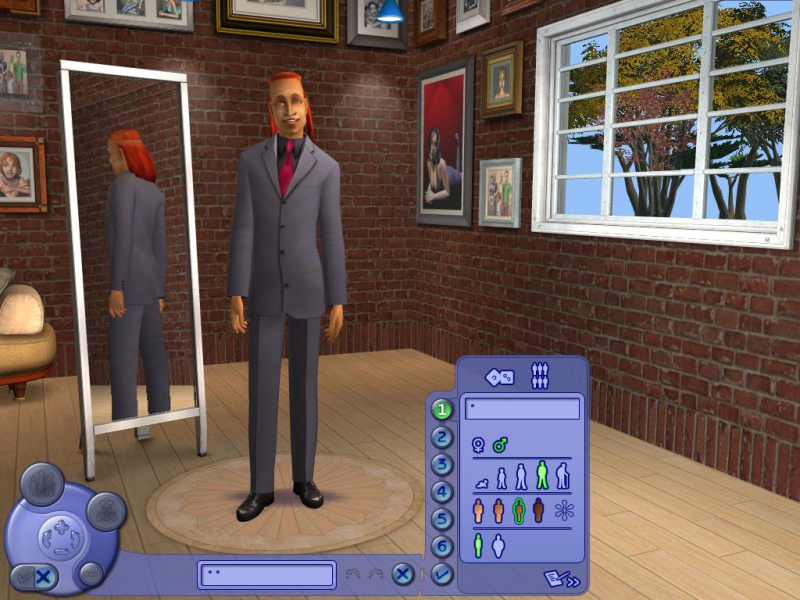
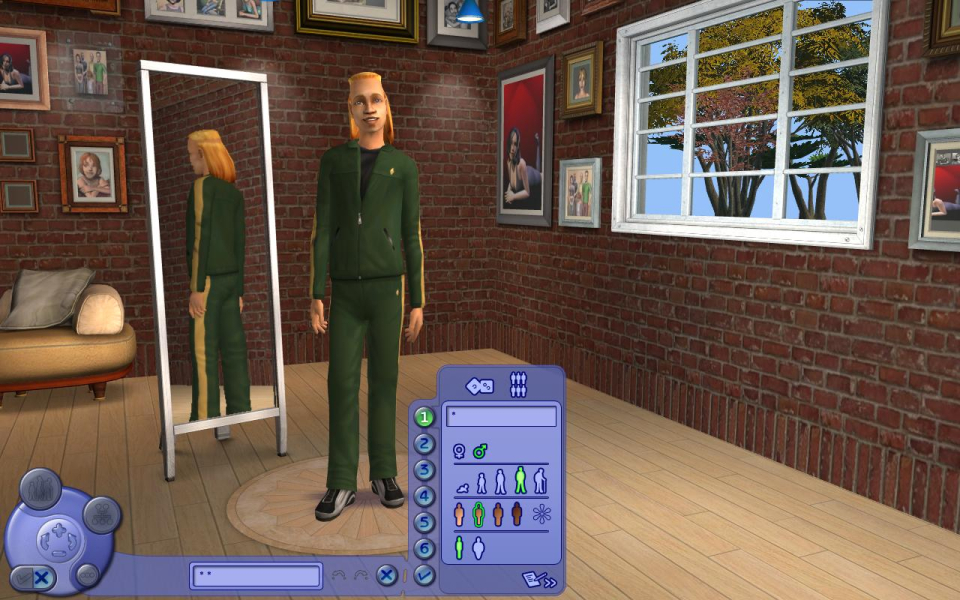
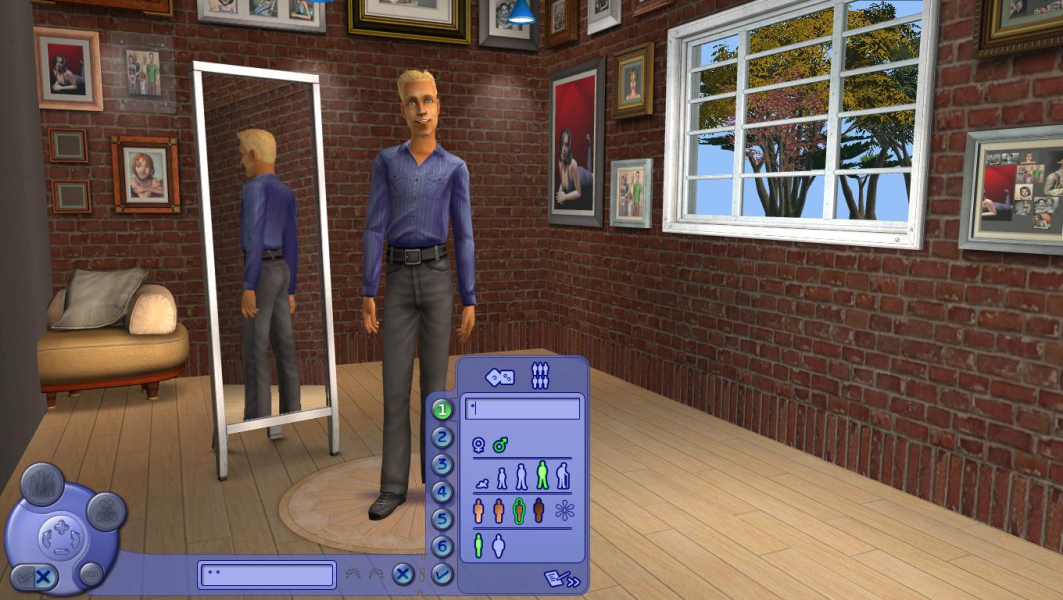
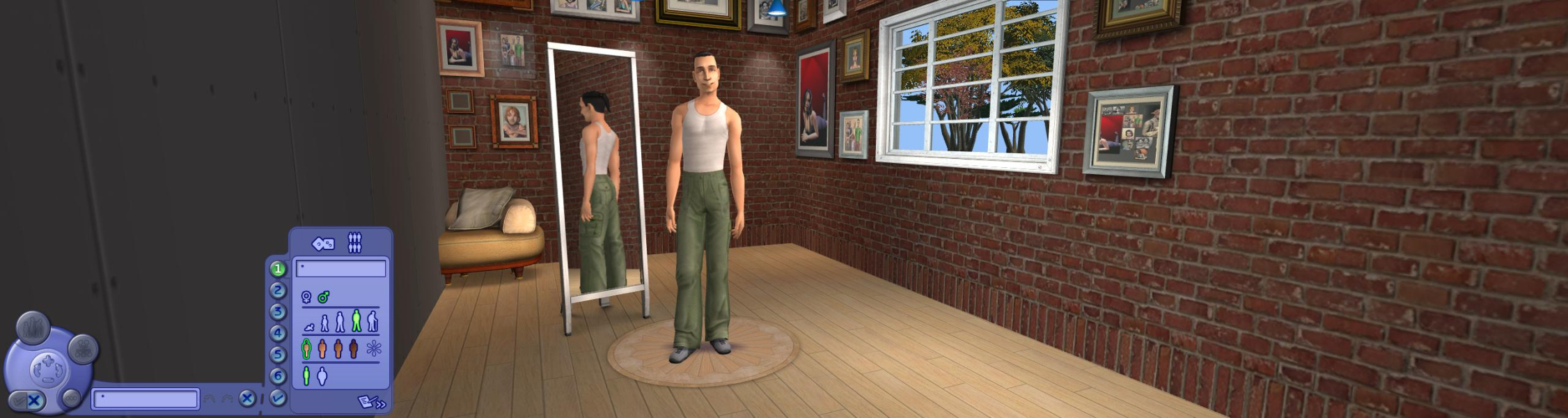
The successful social interactions simulator and virtual home creation tool suite comes back in full-3D graphics. Guide your Sims throughout their entire existence, or just buy them neat furniture and cool clothes and watch them indulge their needs, pursuit their desires and deal with the mundane or epic challenges of their everyday suburban life.
Support Summary
Game Information
Screenshots Comparison
Solutions & Issues
The solution detailed below is for the base game. If you have any EP installed, edit the contents of \The Sims 2 \ instead of \The Sims 2\.
1) Resolution
The game's max res is 1600x1200. For higher resolutions you need to edit C:\Program Files\EA GAMES\The Sims 2\TSData\Res\Config\Graphics Rules.sgr and set maxResWidth and maxResHeight to your display's native width and height, or copy/paste the following :
option ScreenModeResolution
setting $Low
uintProp maxResWidth 2560
uintProp maxResHeight 1600
uintProp defaultResWidth 800
uintProp defaultResHeight 600
setting $Medium
uintProp maxResWidth 2560
uintProp maxResHeight 1600
uintProp defaultResWidth 1024
uintProp defaultResHeight 768
setting $High
uintProp maxResWidth 2560
uintProp maxResHeight 1600
uintProp defaultResWidth 1024
uintProp defaultResHeight 768
end
2) FOV
The Sims 2 is Vert- out of the box, but the FOV settings of the various in-game cameras are stored in easily accessible text files.
- Download the file attached below.
- Open the archive, then the folder pertaining to your aspect ratio (16:10, 16:9, 15:4, 48:10) or the one closest to it.
- Extract all *Camera.txt files from the archived folder to My Documents\EA Games\The Sims 2\Cameras\ replacing existing files.
That's it ! The game should now support any resolution and have Hor+ gameplay.
Download attached file "TS2 21-9 Cameras.zip".
Extract all *Camera.txt files from the archived folder to My Documents\EA Games\The Sims 2\Cameras\ replacing existing files.
Same method.
Example : to play in 5040x1050 you should
-edit Graphics Rules.sgr so that maxResWidth and maxResHeight are at least 5040 and 1050 respectively for both High and Medium settings.
-download and unzip the files for 48:10 (archived folder "48.10 wide TH") to your Cameras folder.
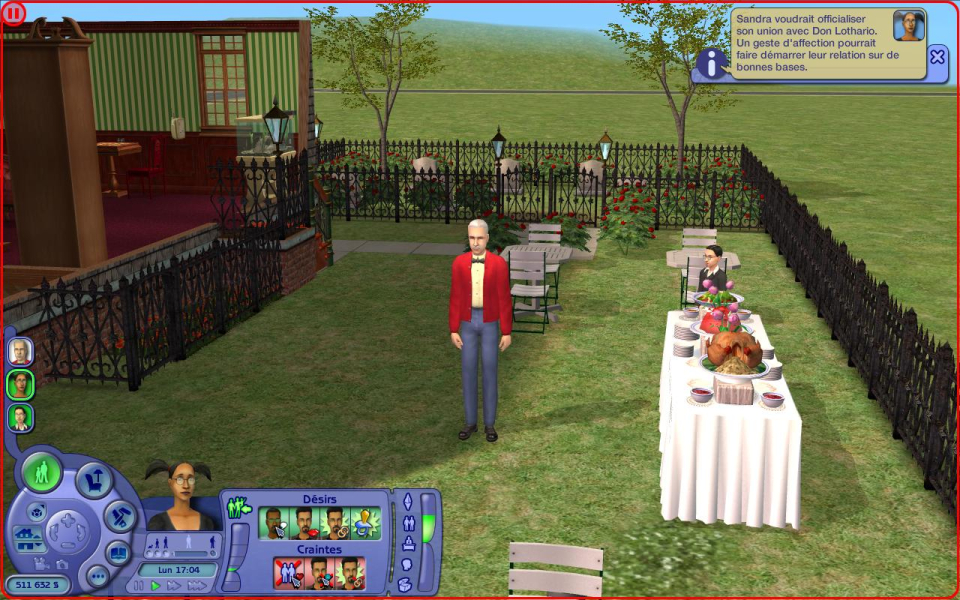
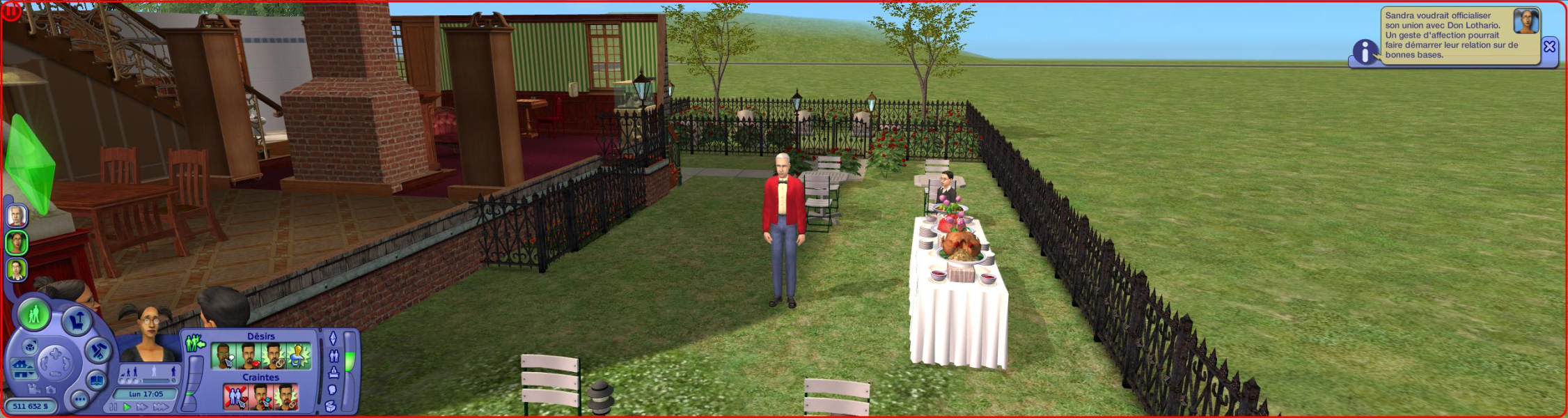
Gameplay Screenshots



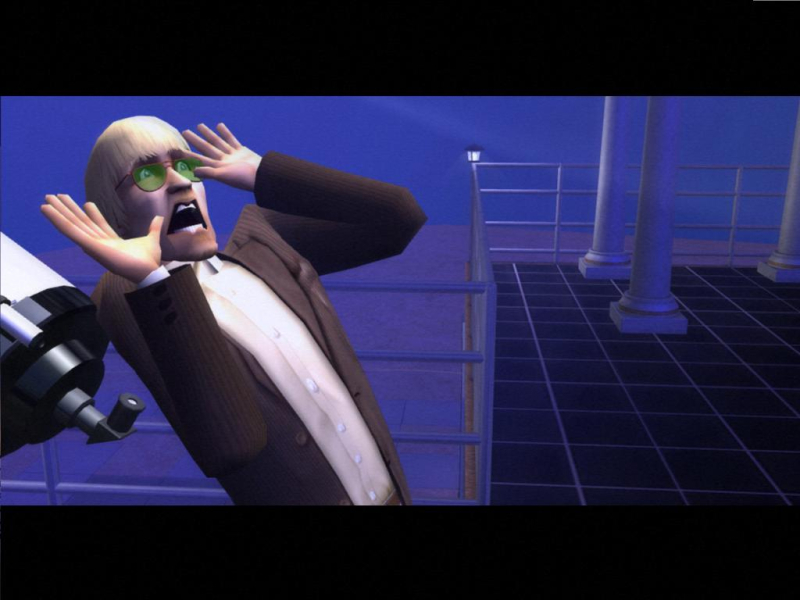
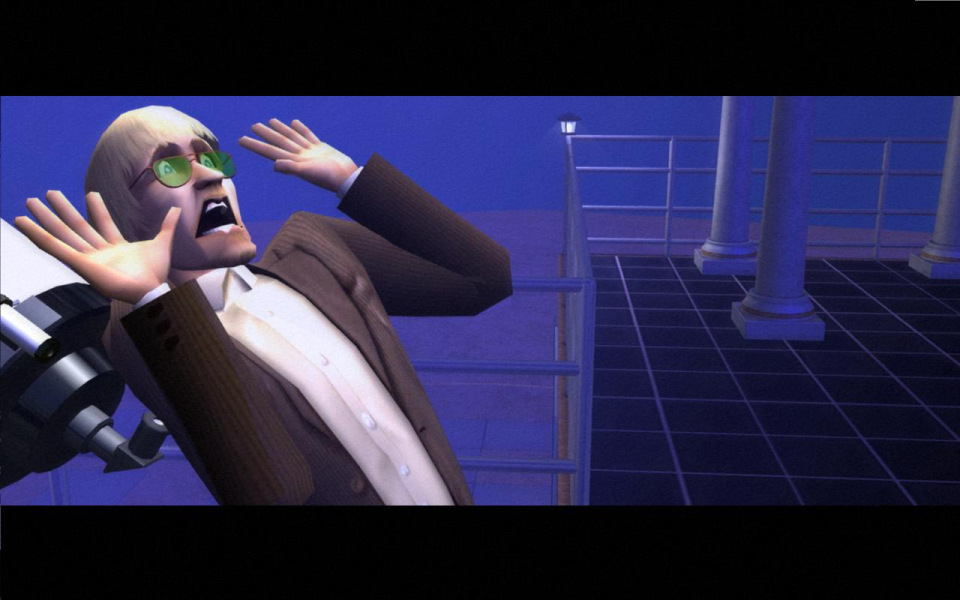
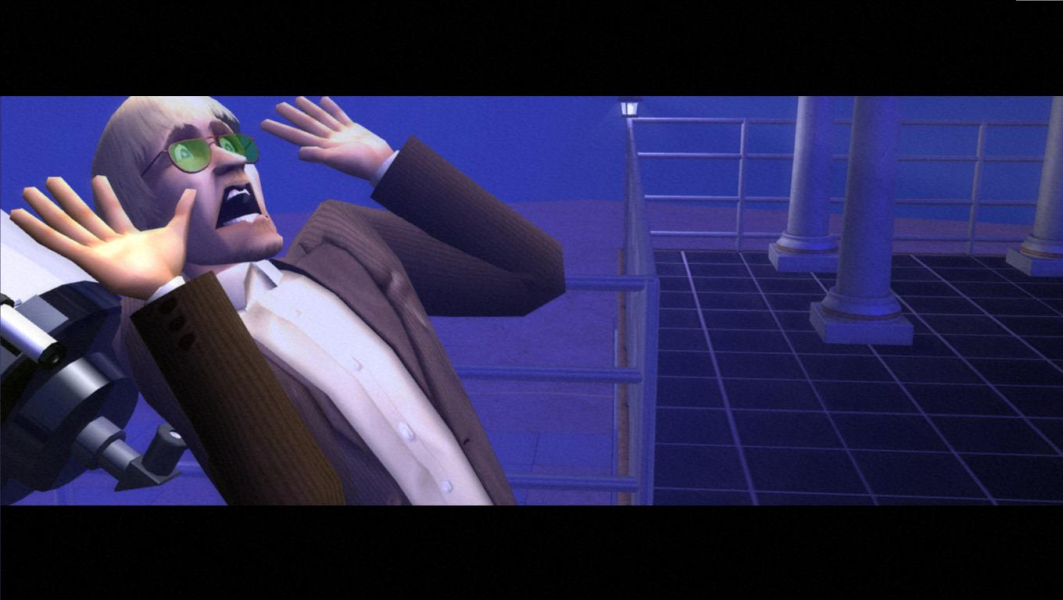
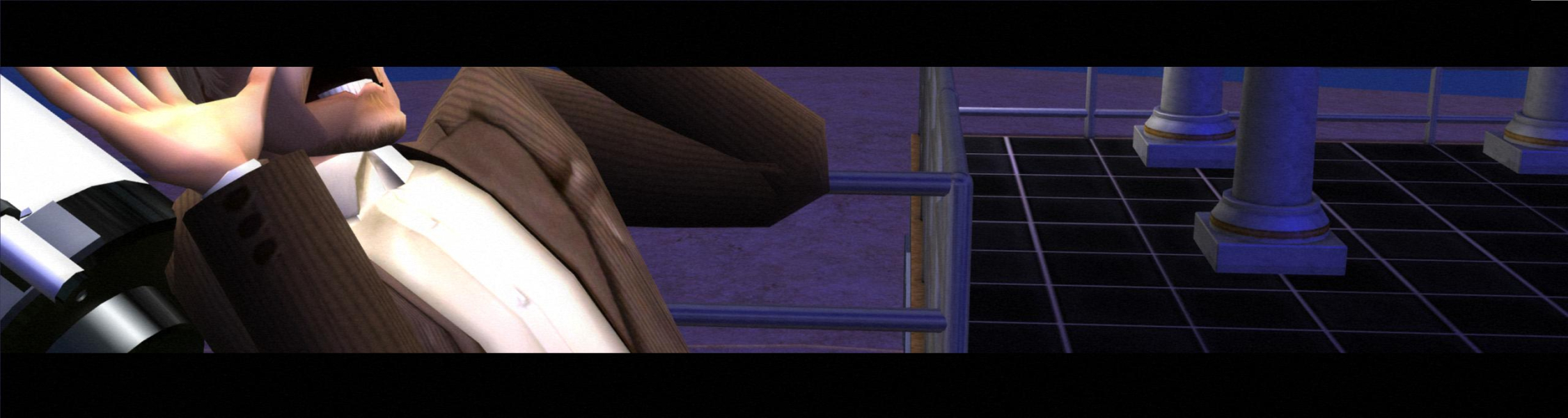
In-Game (Rendered) Cutscenes
Additional Screenshots