


Silent Hill 3

Detailed breakdowns of how games react to widescreen, ultra-wide, 4k and multi-mon
Post Reply
User avatar
Paddy the Wak
Editors
Editors
Posts: 3436
Joined: 27 Jul 2004, 17:42

Silent Hill 3

Post by Paddy the Wak »


Widescreen Grade: C
Ultra-Widescreen Grade: Incomplete
Multi-monitor Grade: Unsupported
4k Grade: Incomplete

Read Full Detailed Report - Silent Hill 3

Silent Hill 3 is a survival horror game published by Konami and developed by Team Silent, a production group within Konami Computer Entertainment Tokyo. It is the third installment in the Silent Hill survival horror series and is a direct sequel to the first Silent Hill game.

Set seventeen years after the events of Silent Hill in which Harry Mason defeats the god of the town cult and is given a baby girl to care for, Silent Hill 3 focuses on Heather, a teenage girl who finds herself being drawn into Silent Hill's alternate reality. She discovers that the cult plans to use her to birth their god, and becomes caught in a conflict within the cult.

Heather in an "otherworld" amusement park. Gameplay in Silent Hill 3 resembles closely that of its two predecessors, the three main gameplay elements being combat, exploration, and puzzle solving.
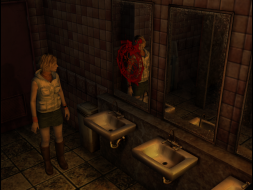


4:3


16:10
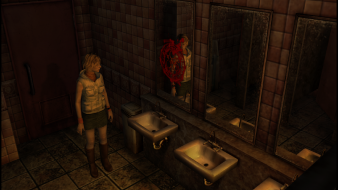

16:9


3x1

Last edited by Paddy the Wak on 16 Jan 2018, 13:03, edited 6 times in total.
Reason: Edit
tsotelo
Posts: 1
Joined: 09 Apr 2012, 16:38

Silent Hill 3 Eyefinity.

Post by tsotelo »

Attached screenshots of the game working ok with Eyefinity. Resolution 4320x900. All this using the FOV hack Racer_S. Instructions here.

Hardware:
2x Radeon HD 6850 in CrossfireX
Intel Core i7 930
6 GB Ram

Software:
Microsoft Windows 7 64 Bit
AMD Catalyst 12.3 Driver

Uploaded with ImageShack.us

Uploaded with ImageShack.us

Uploaded with ImageShack.us

The menus look bad, but the gameplay is almost perfect.
DSpider
Posts: 4
Joined: 06 Nov 2011, 15:28

For a more convenient way to

Post by DSpider »

For a more convenient way to start it up, create a batch file in the install directory (I named mine "SH3.bat" but you can name it anything you want, like "Start Game.bat", etc) and add this:

Code: Select all

@echo off

   
   title "Hide Stupid-Ass CMD Window"
   for /f %%a in ('CMDOW ^| find "Hide Stupid-Ass CMD Window"') do CMDOW %%a /hid
   
   start /min sh3FOV.exe
   sh3.exe
   
   taskkill /im sh3FOV.exe


Next, create a shortcut to the desktop (right click - Send To - Desktop). Right click it, choose Properties and set the proper game icon from the sh3.exe file. While you're in the Properties window, set it so that it starts minimized (so that the black command prompt screen doesn't pop up briefly) from "Run - Normal window" to "Minimized".
 
 
Note: What this does is basically hides the black command line screen, starts the FOV trainer minimized and then runs sh3.exe (no start in front of it so that the next command, taskkill, waits for sh3.exe to finish). Then after you exit the game the trainer also closes, since you don't need it anymore.

Hope it helps! If you want, you may include it in the Silent Hill 3 main page and possibly in other games that use FOV trainers as well. You have my blessing. I spent about 4 hours trying to figure this out. Tested on Windows XP Pro SP3.

Cheers.
DSpider
Posts: 4
Joined: 06 Nov 2011, 15:28

Revised version. This one

Post by DSpider »

Revised version. This one also hides the FOV changing tool. Much cleaner this way.
Sorry for the double post.

Code: Select all

@echo off

   
   title "Hide Stupid-Ass CMD Window"
   for /f %%a in ('CMDOW ^| find "Hide Stupid-Ass CMD Window"') do CMDOW %%a /hid
   
   start /min sh3FOV.exe
   for /f %%a in ('CMDOW ^| find "FOV Hack - Silent Hill 3"') do CMDOW %%a /hid
   sh3.exe
   
   taskkill /im sh3FOV.exe
joeboo
Posts: 5
Joined: 09 Oct 2012, 01:55

I have uploaded pics of what

Post by joeboo »

I run my games in 5760x1080 (5880x1080 with bezel management) as one continuous game screen across all three monitors. My video card is one single NVIDIA GTX 670 than connects and runs all three monitors as well as my 61" TV at the same time.

I have uploaded pics of what Silent Hill 3 looks like, but it looks much better on 3 screens. As you can see you get a much wider FOV! Click on the link below each picture to see a higher-resolution picture:


http://imageshack.us/a/img811/596/sh3triscreen1.jpg


http://imageshack.us/a/img228/4070/sh3triscreen2.jpg


http://imageshack.us/a/img405/2908/sh3triscreen3.jpg


http://imageshack.us/a/img825/1482/sh3triscreen4.jpg


Anything that is 2D (pre-rendered movies,menus,hud,etc) is stretched REALLY wide. The cut-scenes that use focus or depth of field effects also look a little wierd. SH3's real-time shadows will also look a little wierd. Other than that it runs really well.

You do see some wierd things like Douglas hiding to the side (in a non-rendered area) when Heather walks by Happy Burger, and other things the game developers never intended for us to see.

To get this to work is the same process as running it in 1920x1080,etc..

Just set your resolution to 5760x1080, and your FOV as 0.57 (Width) and 2.0 (Height)
Ashir
Posts: 1
Joined: 23 Sep 2013, 23:23

Re: Silent Hill 3

Post by Ashir »

Image

In case someone is interested, this is the same image but in 16:10
DaemonXHUN
Posts: 16
Joined: 20 Aug 2017, 14:29

Re: Silent Hill 3

Post by DaemonXHUN »

For those who want to play this game in 21:9, here's some help:

1. First download the Silent Hill 3 FOV Tool |Link: http://www.moddb.com/games/silent-hill- ... s/fov-tool
2. Unpack the downloaded rar file and copy it's contents to Silent Hill 3 main folder.
3. Start the game once in order for the game to create the disp.ini file (and while you are here you can also change your graphics quality settings).
4. Open the disp.ini file (it's in the savedata folder) and change "size" to your desired resolution (for example: size=2560x1080), then save the file.
5. Open up sh3FOV.exe, then set Height FOV to 1,2 and Width FOV to 0.64 (the FOV settings work weird here, the lower you go, the more FOV you got, but this is the most correct, most "strechless" setting).
6. Start the game and when you are in-game, hit * to activate the FOV tool.

You can also change FOV settings without having to quit from the game, just make sure to hit * again after you adjusted the slider.
Post Reply

Who is online

Users browsing this forum: No registered users and 2 guests