

Splinter Cell: Pandora Tomorrow is a third-person action-adventure set in Tom Clancy's world of Splinter Cell. The game follows the exploits of covert operative Sam Fisher, who utilizes stealth and impressive gadgetry to dispose of his enemies and accomplish his objectives. CS:PT is the second game in the series.
Support Summary
Screenshots Comparison
Solutions & Issues
Splinter Cell Pandora Tomorrow Widescreen Fix: http://thirteenag.github.io/wfp#scpt
Old solution:
Make sure to set all your in-game video options before you follow this method.
Step One
In the root game directory go into the folder "offline" and then into the folder "system". Open up "core.dll" with a HEX editor. Search for all or part of the following HEX values...
FF FF 80 02 00 00 75 10 81 BD 9C F1 FF FF E0 01 00 00 0F 84 A6 00 00 00 81 BD 98 F1 FF FF 20 03 00 00 75 10 81 BD 9C F1 FF FF 58 02 00 00 0F 84 8A 00 00 00 81 BD 98 F1 FF FF 00 04 00 00 75 0C 81 BD 9C F1 FF FF 00 03 00 00 74 72 81 BD 98 F1 FF FF 00 05 00 00 75 0C 81 BD 9C F1 FF FF 00 04 00 00 74 5A 81 BD 98 F1 FF FF 40 06 00 00 75 0C 81 BD 9C F1 FF FF B0 04 00 00
Each two bolded pairs corresponds to an in-game resolution. Select the resolution that you currently have selected in the game.
640x480 = 8002 E001
800x600 = 2003 5802
1024x768 = 0004 0003
1280x1024 = 0005 0004
1600x1200 = 4006 B004
Change this HEX value pair to your desired widescreen resolution. Remember to flip the order when entering the values. For example 1920 is 0780 in hexadecimal. I would enter the value as "8007".
If I wanted to change the 1600x1200 value to 1920x1200 it would look like this.
FF FF 80 02 00 00 75 10 81 BD 9C F1 FF FF E0 01 00 00 0F 84 A6 00 00 00 81 BD 98 F1 FF FF 20 03 00 00 75 10 81 BD 9C F1 FF FF 58 02 00 00 0F 84 8A 00 00 00 81 BD 98 F1 FF FF 00 04 00 00 75 0C 81 BD 9C F1 FF FF 00 03 00 00 74 72 81 BD 98 F1 FF FF 00 05 00 00 75 0C 81 BD 9C F1 FF FF 00 04 00 00 74 5A 81 BD 98 F1 FF FF 80 07 00 00 75 0C 81 BD 9C F1 FF FF B0 04 00 00
Step Two
In the same "system" folder open up "SplinterCell2.ini" with a text editor. Search for...
WindowedViewportX=****
WindowedViewportY=****
You should find these values listed in the "[WinDrv.WindowsClient]" section. Change "****" to your desired widescreen resolution.
Step Three
In the same "system" folder open up "SplinterCell2User.ini" with a text editor. Search for...
DesiredFOV=***
DefaultFOV=***
You should find these values listed in the "[Engine.PlayerController]" section. Change "***" to the proper FOV for your aspect ratio. Here are some common values...
Default FOV = 75.0
16:9 FOV = 91.3154482287
16:10 FOV = 85.2812718522
You can use the FOV tool hosted on this site for other aspect ratio FOV values.
Step Four
In the root game directory open up "Pandora.ini" with a text editor. Search for...
FullscreenViewportX=****
FullscreenViewportY=****
You should find these values listed in the "[WinDrv.WindowsClient]" section. Change "****" to your desired widescreen resolution.
The last two steps are for multiplayer mode. However, multiplayer stretches. If you would rather play multiplayer at a standard resolution than have it stretched, then skip these steps.
Step Five
In the root game directory go into the folder "online" and then into the folder "System". Open up "Default.ini" with a text editor. Search for...
WindowedViewportX=****
WindowedViewportY=****
FullscreenViewportX=****
FullscreenViewportY=****
MenuViewportX=****
MenuViewportY=****
You should find these values listed in the "[WinDrv.WindowsClient]" section. Change "****" to your desired widescreen resolution.
Step Six
In the same "System" folder open up "DefaultProfile.ini" with a text editor. Search for...
ScreenRes=*
You should find this value listed in the "[SBase.SPlayerProfile]" section. Change "*" to "-1". You need to repeat this part of the method for any existing profiles in this folder. The naming format is "*Your Profile Name*_prf.ini".
=====
This game supports multiplayer. Everything is stretched in widescreen resolutions. The tutorials were tested but not the online component.
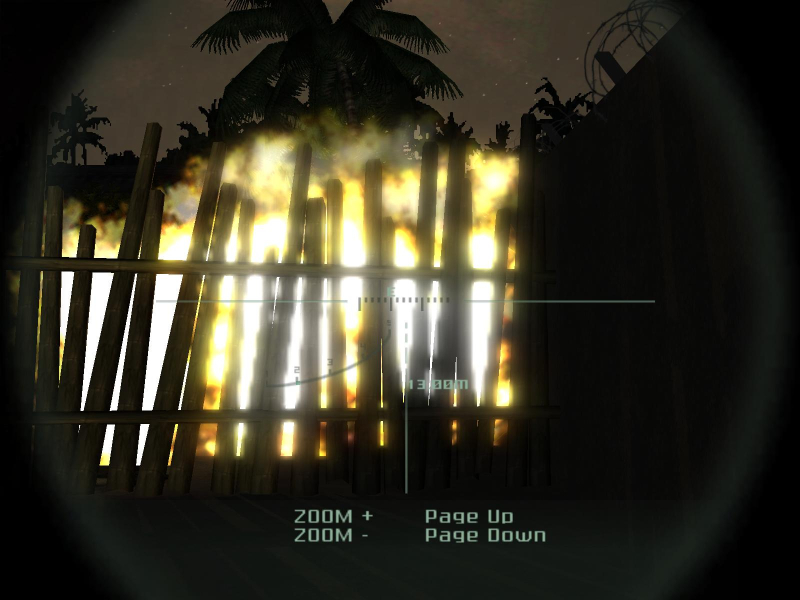
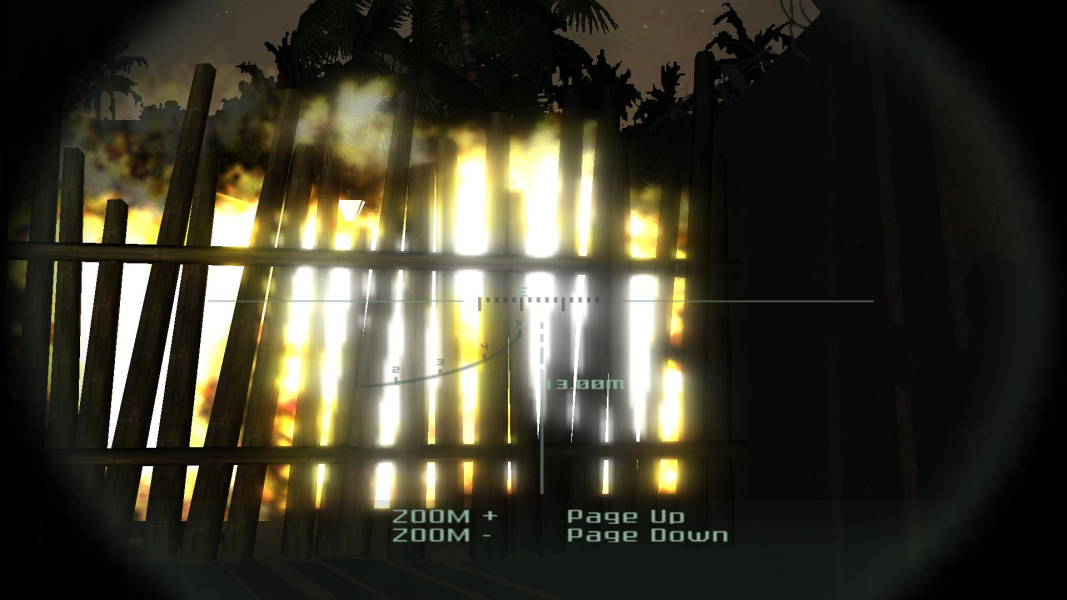
The scope-zoom and camera views are Vert - in widescreen resolutions.
The HUD and all two-dimensional elements are stretched in widescreen resolutions.
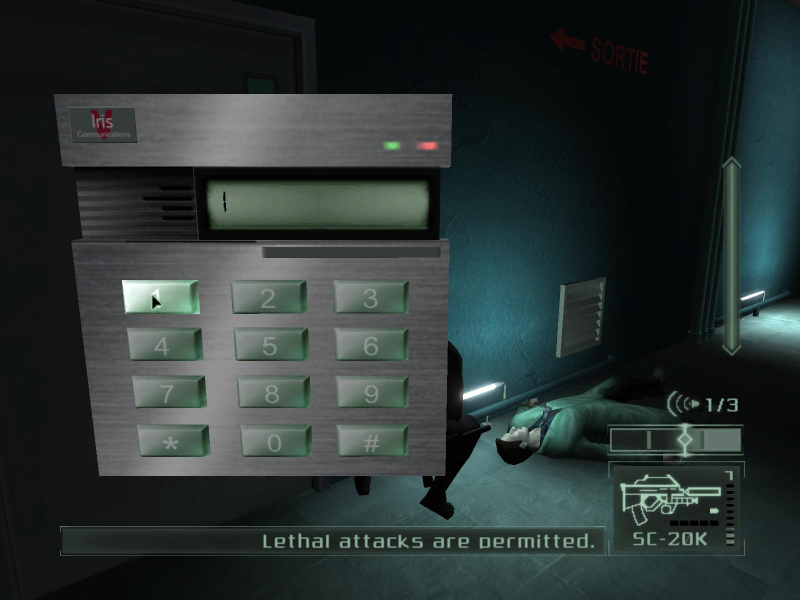
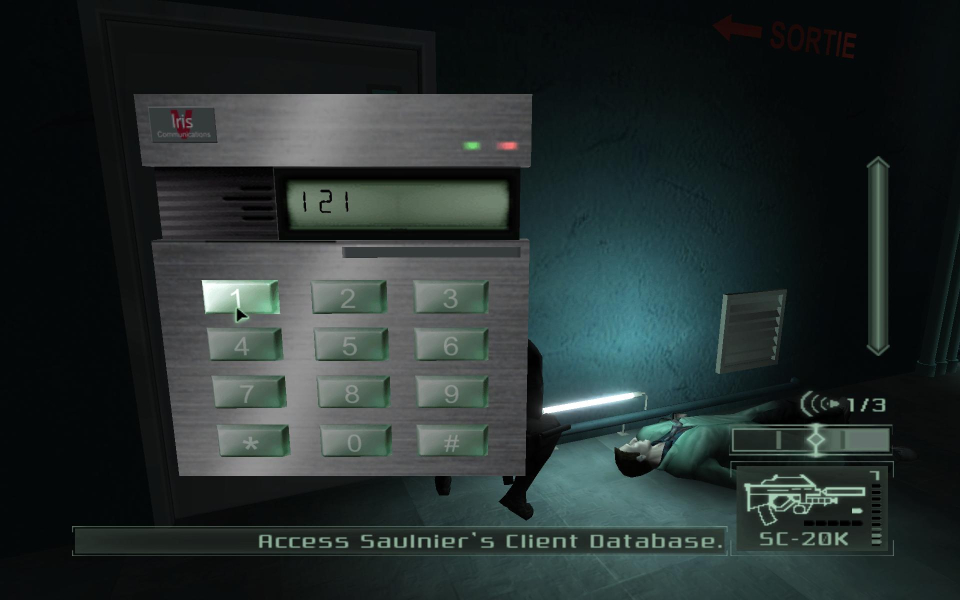
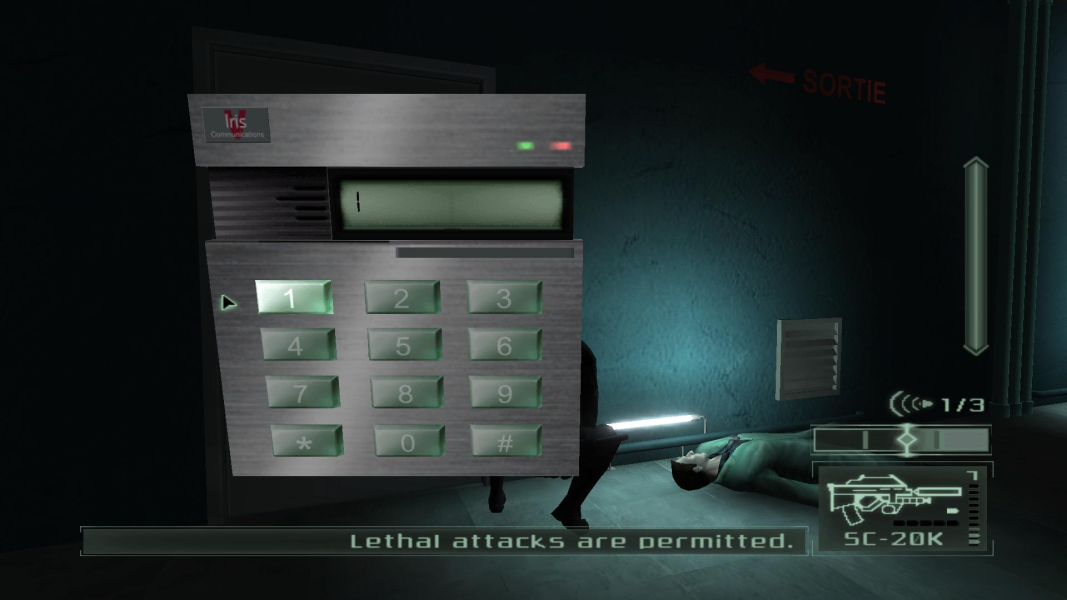
The keypad mouse-click detection areas are misaligned with a left shift in widescreen resolutions. The detection width is the same so if a button will only detect a click on the left half of the button the remaining detection area will have been shifted to the left of the button. All coverage stats listed start from the left side of the button.
Button Coverage
100% - Normal coverage. The entire button has mouse-click detection.
75% - Normal mouse-click detection except for the right quarter of the button.
50% - The left half of the button is selectable.
0% - There is no mouse-click detection on the button. You must click the left area beside the button.
First column
4:3 - 100%
16:9 - 0%
16:10 - 50%
Second column
4:3 - 100%
16:9 - 50%
16:10 - 75%
Third column
4:3 - 100%
16:9 - 100%
16:10 - 100%
In the splintercell2user.ini file change the binding for an unused key, eg.
F2=
change to (i.e. 3840x1024):
F2=setres 3840x1024x32
During the game (ie. when Sam is on screen, not the menu) pressing F2 resets the resolution. I need to press F2 every time I restart - but I can live with that.
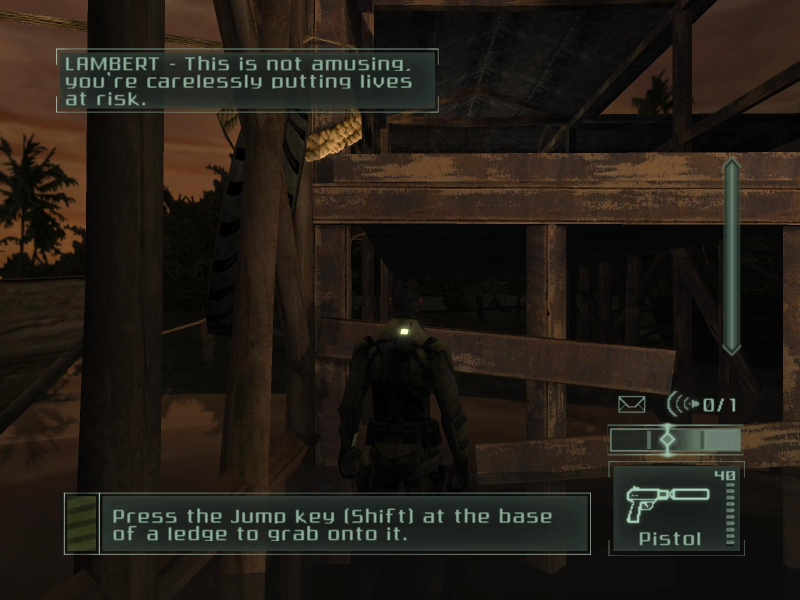
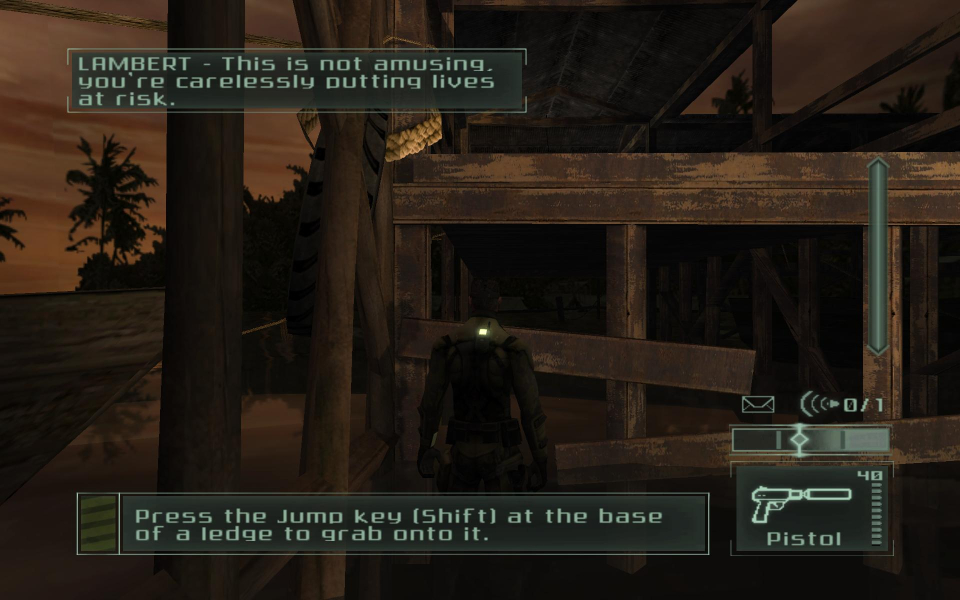
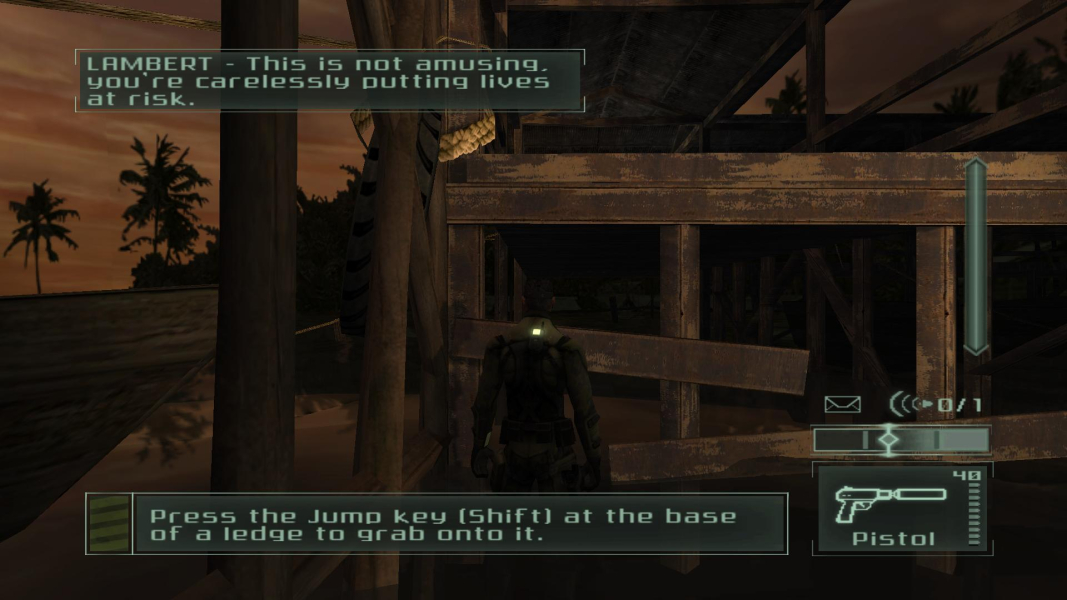
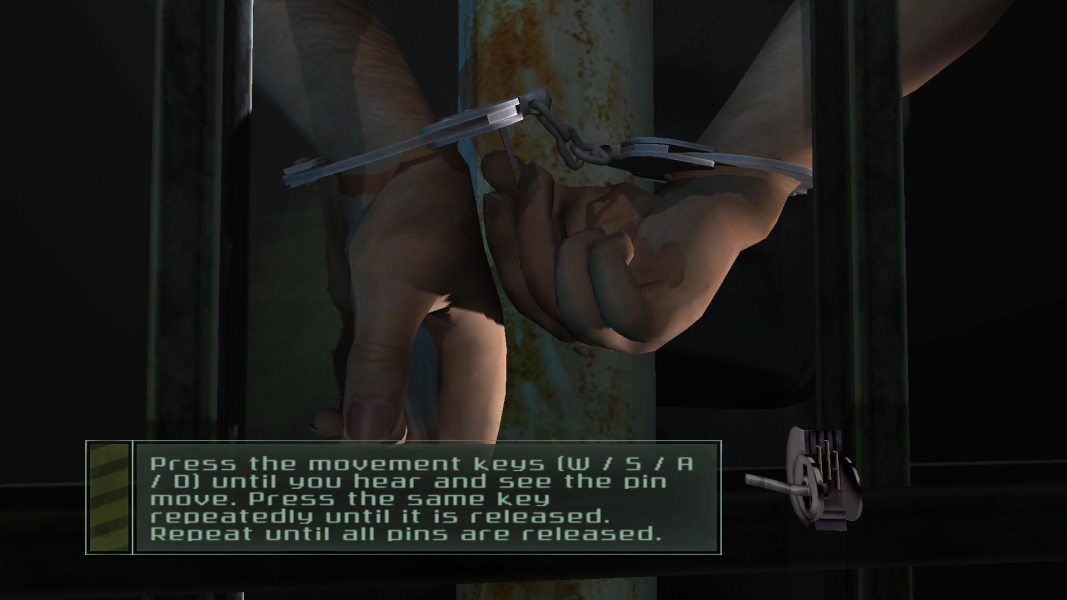
Gameplay Screenshots


In-Game (Rendered) Cutscenes

FMV Cutscenes


Additional Screenshots