Assetto Corsa is a racing game/simulation with a strong focus on realism.
It is developed by Kunos Simulazioni, a small indie developer based in Italy best known from two other racing sims: Ferrari Virtual Academy and NetKar Pro.
While the game is still in developement, a Technology Preview (v0.9.9) is available to all owners of NetKar Pro, containing one car - the Lotus Elise SC and one track - Autodromo dell'Umbria aka Magione. The full game will contain a large number of licensed cars and tracks, but a full content list has not yet been disclosed.
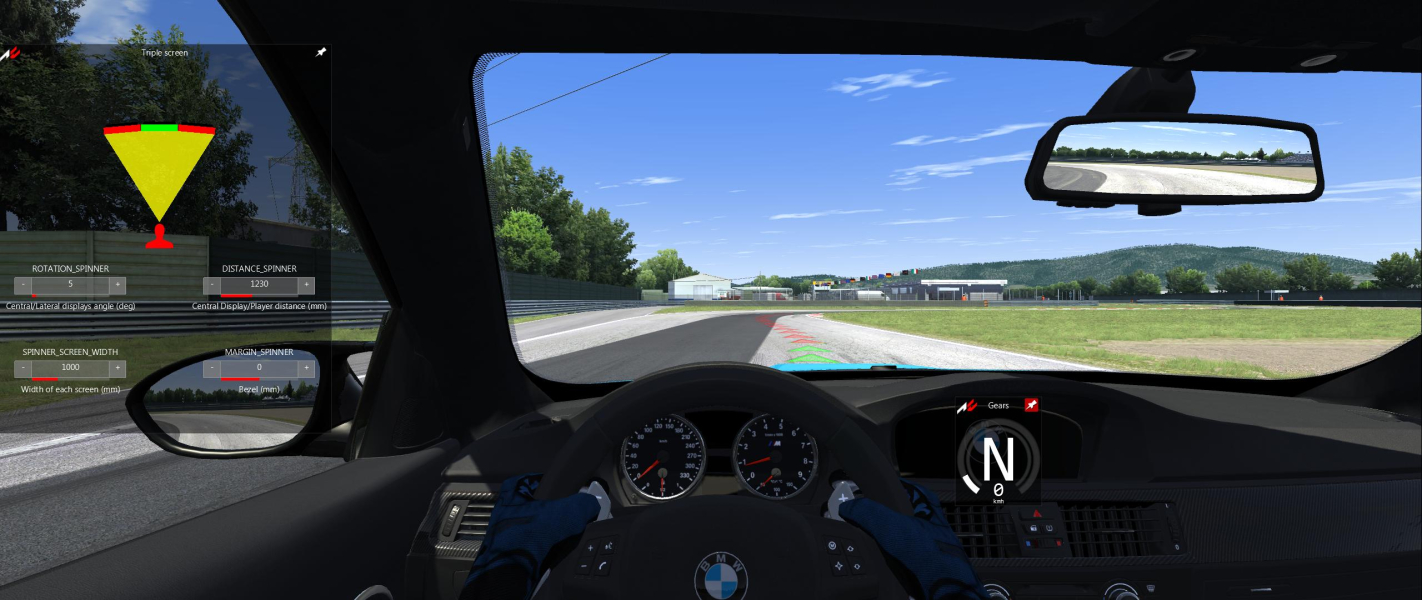
The technology preview already offers excellent triple screen support; it has a "Triple Screen" selection box in the menu that, when ticked, enables the player to alter several surround parameters while in the car through a graphical interface.
On November 8, 2013 the still-unfinished game appeared on Steam Early Access.
Support Summary
Game Information
Screenshots Comparison
Solutions & Issues
Native support.
The main UI will always run at desktop resolution, but rendering resolution must be selected from the Options menu's drop-down list.
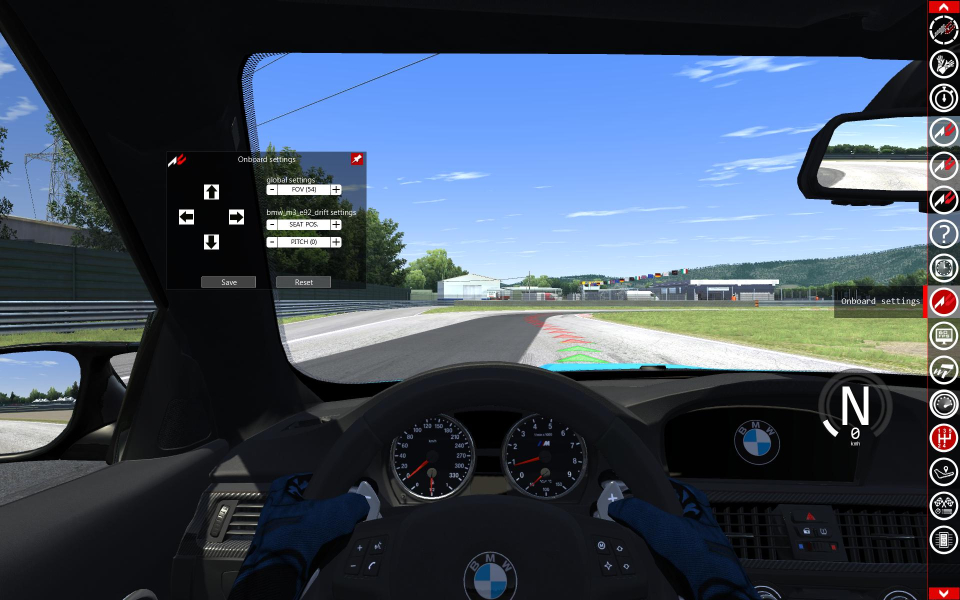
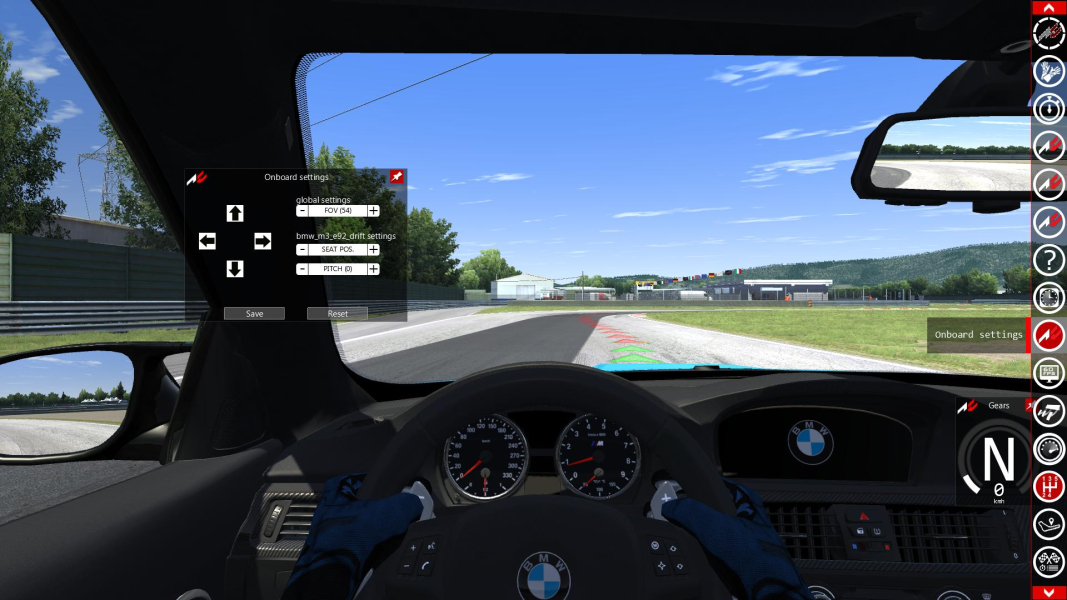
HFOV is natively Hor+, VFOV can be adjusted to your liking: press Numpad +/- or open the Onboard settings widget.
The HUD is entirely customizable; every widget can be drag-n-dropped anywhere on the screen.
The toolbars themselves scale to the sides of the display (left for pits tweaks, right for in-race apps).
Activating the Camera Editor (dev tool) will let you manage individual view presets:Steam\steamapps\common\assettocorsa\system\cfg\assetto_corsa.ini
ENABLE_DEV_APPS=1
Nanoblemish: aspect ratio affects the FOV of rear-view mirrors.
Same as Widescreen.
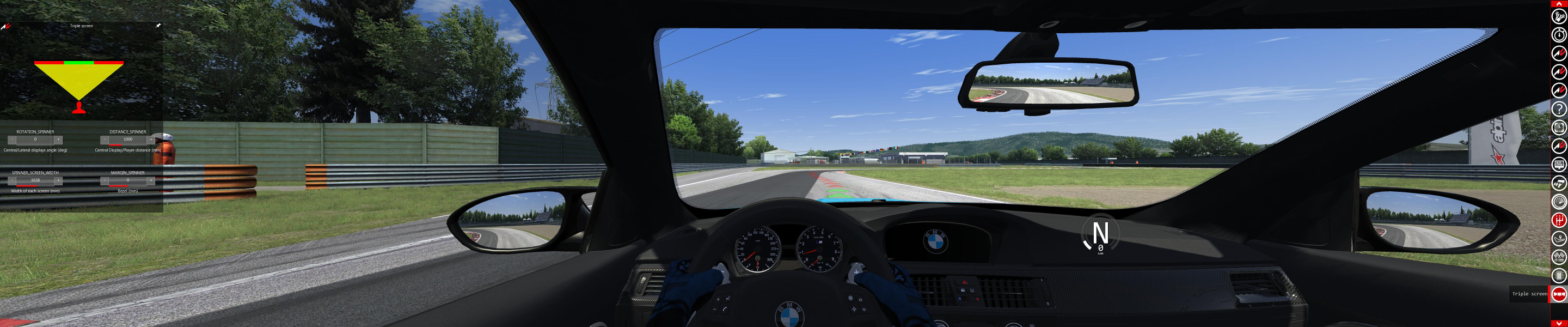
Although not required for Hor+ gameplay, Triple Screen Rendering Mode works great to eliminate edge distortion (suggested values: Distance 1250, Angle 5, Margins 0). See below for more details.
Native support through manual settings.
The main UI will always run at desktop resolution, but rendering resolution must be selected from the Options menu's drop-down list.
For the best results, select a [b]regular[/b] resolution (no bezel compensation) and [b]Triple-Screen Rendering Mode[/b].
Triple Screen mode moves the pre-race toolbar toward the left of the center screen; in-race toolbar remains on the far right though.
The Triple Screen in-race app also allows for complete customization of the display:
ROTATION_SPINNER(or Angle) will effectively compensate edge distortion on the side screens. Experiment with it, there is no absolute "good" setting.DISTANCE_SPINNER(or Distance) is a metric setting used to adjust the FOV. Decrease Distance to increase FOV.SPINNER_SCREEN_WIDTH(or Screen Width) has the inverse effect as Distance. Increase Width to increase FOV.MARGIN_SPINNER(or Margins) is used for bezel compensation and only affects the rendering (not the toolbars). Neat !
For example in 48:10 eitherDistance 1000, Screen Width 1638 orDistance 610, Screen Width 1000
result in a perfectly Hor+ cockpit view.
If you're not interested in fiddling with these settings, select Single Screen Rendering Mode instead. Shame on you, though.
Notes:
- Default FOV is Vert- in Triple Screen Rendering Mode, but Multi-Mon with Single Screen Rendering is Hor+.
- VFOV adjustment from either the Video Options menu, Onboard settings or Showroom view does not work in Multi-Mon resolutions. Other camera settings work but FOV must be adjusted in-race through Triple Screen widget. This indirect FOV setting will stick, you can adjust it once and forget about it forever.
- Triple Screen FOV adjustment does not quite replace a locked VFOV; each camera view may not require the exact same amount of "fixing", but getting one camera right will make all others at least vastly Hor+. See Pit Stop comparison in Additional Screenshots.
- Likewise, Showroom FOV is two-fold:
- external view is Hor+ by default, becomes Hor+/Vert+ after in-race adjustments.
- interior view is Vert- by default, becomes Hor+ after in-race adjustments.
Native support.
- UI is tiny. Note that the "launcher" (main menu) can be run windowed independently of gameplay.
- Windows DPI settings can be ignored via a checkbox in Options, General.
Gameplay Screenshots



FMV Cutscenes



Menu Screenshots
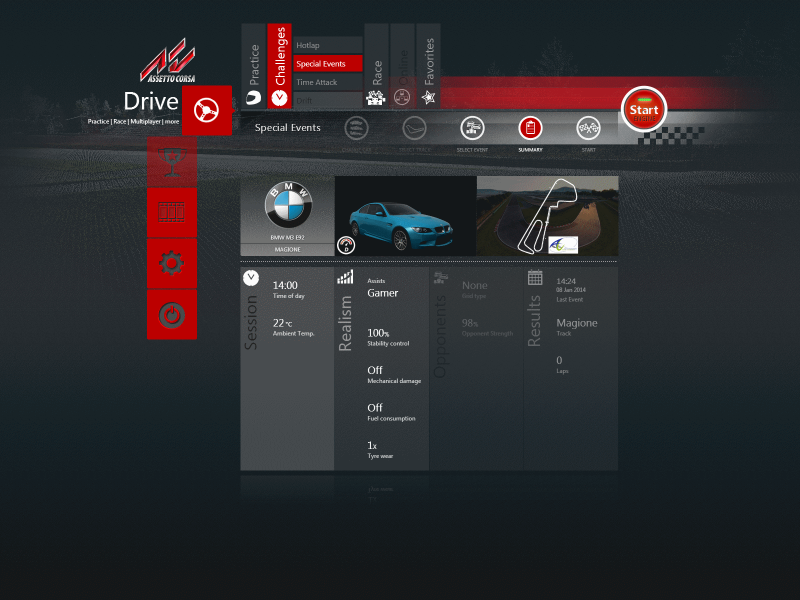
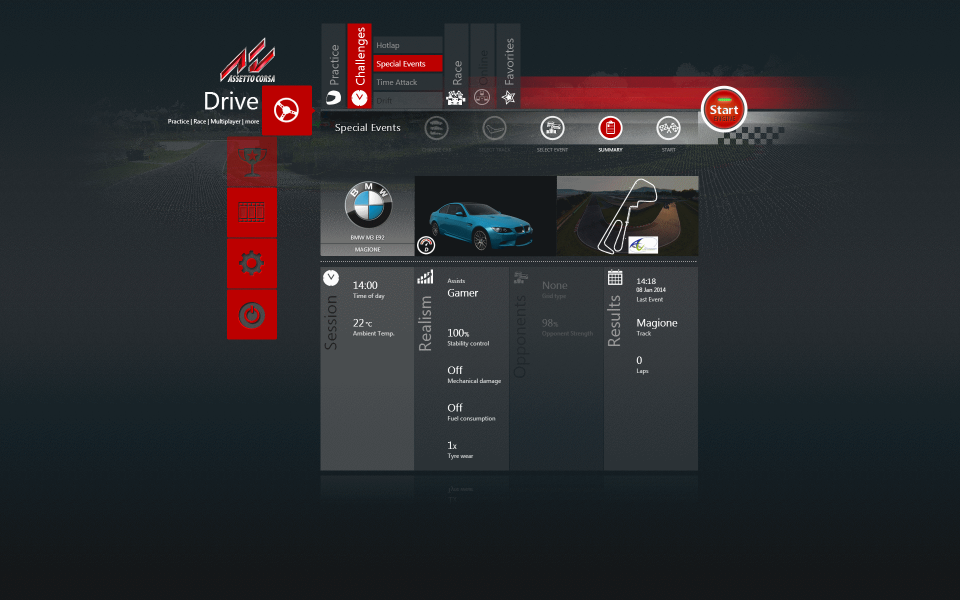



4K UHD Screenshots

Additional Screenshots