


Appears that the Black Mesa project is releasing the first chapter of the Half-Life 1 revamp on September 14th.
Carlos Montero, leader of the 40-strong Black Mesa development team, said it decided to release a shorter version instead of making people wait longer for the whole thing.
Alien intrusion
The large chunk of Half-Life that is finished lets players guide hero Gordon Freeman to a section of the original gameplay known as Lamda Core. Finishing this first chunk should take players between eight to 10 hours.
The final section yet to be finished takes place in the alien Xen dimension. An expanded Xen section would be released at an unnamed date in the future, said the team.
Source
UPDATE:- Black Mesa - Half Life 1 community port to Source E
UPDATE:- Black Mesa - Half Life 1 community port to Source E
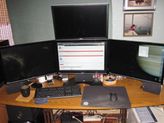
| Gigabyte X79S-UP5-WiFi Skt2011 | i7 4820k @4.4GHz Watercooled (Ivy Bridge-E) | Corsair Vengence 32GB @2133MHz 11-11-11-27 2T Quad-Channel (8x4GB) | AMD R9-Fury-X 4GB @1140/505MHz + EKWB Watercooled | 256GB Crucial MX200 SSD | 8x 1TB Samsung F3 SATA-II | Corsair 850W TX PSU | 3x Dell S2209W 22"wide TFT's (5760x1080res) | Logitech Z-5400 5.1ch speakers | Win7 Ultimate x64 |
-
KryptoNyte
- Posts: 108
- Joined: 15 Sep 2006, 22:58
Is it possible to play this
Is it possible to play this in Eyefinity or Surround resolutions? I'm only seeing options for 4:3, 16:9, and 16:10 resolutions.

Widescreen options are
Widescreen options are available only under the "16:9" selection drop down box in the video menu similar to other source games.
Just pick that and then under resolution you can select your res. Even if its NOT 16:9 it will be listed here.
I have been playing at 5916x1200 and the HUD is all out of wack, huge.
Apparently the Hudlayout.res auto-editor @ https://www.wsgf.org/fovcalc.php is NOT functioning correctly for this game.
You can however, use what the FOV calculator tells you, to adjust the HUD to a centered version on your own.
Use a program (free) like Notepad ++ ( http://notepad-plus-plus.org/download/v6.1.7.html ) to open and edit your Hudlayout.res
First create a copy of the Hudlayout.res file so you have a backup of the original if things go wrong.
It is located at "driveletter://Program Files (x86)/Steam/Steamapps/Sourcemods/BMS/scripts/HudLayout.res
Use the link above for the WSGF FOV calculator and put in your desired resolution. Put in your desired resolution under "Required Fields", in my case the fields I changed were
Single monitor res: 1920x1200
Using bezel compensation?: CHECK
Bezel corrected res: 5916x1200
The upload feature isn't working however the calculator will however give you a number. In my case it was ---> 798
Near the bottom of the calculator it will give you this value.
---------------------------------------
From the details provided above, the HUD
"xpos" values need to be incremented by a
value of 798
---------------------------------------
If you open the original HudLayout.res file in notepad ++ and do a search (ctrl + F) for "xpos" this value occurs many times in the file.
Do as the FOV Calc. says and "increment" each of these values by the number given to you by the FOV Calc.
So if you see, "xpos "276"
Increment this value by the number given to you by the FOV calculator, in my case 798. So I would change this line to read 276+798 or...
"xpos" "1074"
You have to search the entire file for EVERY instance of "xpos" and increment each value by the the FOV Calc number.
Its a good idea also to save the original value in the file so if you want to change it back you can. This is done using a Comment. To create a comment in the file, just use "//" in front of the line. This will cause the engine to ignore these lines when they are read and you can preserve the original values.
An example from the file:
HudCloseCaption
{
"fieldName" "HudCloseCaption"
"visible" "0"
"enabled" "1"
// "xpos" "c-250"
"xpos" "c548"
"ypos" "276"
"wide" "500"
"tall" "136"
In the above example we take the original value of "xpos" "c-250" and comment the line out so it is not read with the // . Then we know what the value use to be.
Then we increment the value of -250 by my FOV Calc. number, 798 which gives us 548. You WILL have some Negative numbers and after incrementing they do become positive so don't worry about that.
If the value has a "c" or "b" or any letter in front of it, just change the number, keep the letter OR TEXT the same.
Example:
//"text_xpos" "8" (original value)
"text_xpos" "806" (8 + 798 in my case)
Again, ANYWHERE it says "xpos". This is the X position of onscreen elements.
This correctly centered "most" of the HUD. There are a few outlying issues however the game by and large is much more playable.
The other main issue which I corrected was the "Gun select" menu at the top left of the screen. The one that pops up every time you switch weapons. I messed around in the .res file until I found the values that are associated with this. They are as follows.
CHudWeaponPanel
{
"enabled" "1"
"font" "VerySmallNumber"
"textAlignment" "east"
"paintbackground" "1"
"visible" "1"
"brighttext" "1"
"bucket_box" "10"
//"selection_w" "86"
//"selection_h" "22"
"selection_w" "15"
"selection_h" "4"
}
Here you can see the original values in my file, your values will be different depending on the resolution you are running.
//"selection_w" "86"
//"selection_h" "22"
My res and "most" triple monitor resolutions are 5:1 or 6:1 so I just divided these original numbers by 6 to get my new values.
86 / 6 = 14.3333 so I just rounded this to "15"
22 / 6 = 3.66667 so I just rounded this to "4"
You can use 15 and 4 in these values and it will make the weapon selection pop up MUCH smaller and MUCH less annoying.
The only outlying issue is the freaking Crosshair. It is stretched on all guns and there is no way I can find in the HudLayout.res to fix it. But the changes are way better than the default HUD so give it a try and mess around with the values till you find what works for you.
Don't forget to save your file in Notepad ++ BEFORE launching the game or you won't see the changes take effect.
Make sure the game is not running when you save changes to the .res file or you will not see the changes take effect.
As always, use at your own risk, good luck!
And can someone PLEASE help with the crosshair scaling issue??? :)
Just pick that and then under resolution you can select your res. Even if its NOT 16:9 it will be listed here.
I have been playing at 5916x1200 and the HUD is all out of wack, huge.
Apparently the Hudlayout.res auto-editor @ https://www.wsgf.org/fovcalc.php is NOT functioning correctly for this game.
You can however, use what the FOV calculator tells you, to adjust the HUD to a centered version on your own.
Use a program (free) like Notepad ++ ( http://notepad-plus-plus.org/download/v6.1.7.html ) to open and edit your Hudlayout.res
First create a copy of the Hudlayout.res file so you have a backup of the original if things go wrong.
It is located at "driveletter://Program Files (x86)/Steam/Steamapps/Sourcemods/BMS/scripts/HudLayout.res
Use the link above for the WSGF FOV calculator and put in your desired resolution. Put in your desired resolution under "Required Fields", in my case the fields I changed were
Single monitor res: 1920x1200
Using bezel compensation?: CHECK
Bezel corrected res: 5916x1200
The upload feature isn't working however the calculator will however give you a number. In my case it was ---> 798
Near the bottom of the calculator it will give you this value.
---------------------------------------
From the details provided above, the HUD
"xpos" values need to be incremented by a
value of 798
---------------------------------------
If you open the original HudLayout.res file in notepad ++ and do a search (ctrl + F) for "xpos" this value occurs many times in the file.
Do as the FOV Calc. says and "increment" each of these values by the number given to you by the FOV Calc.
So if you see, "xpos "276"
Increment this value by the number given to you by the FOV calculator, in my case 798. So I would change this line to read 276+798 or...
"xpos" "1074"
You have to search the entire file for EVERY instance of "xpos" and increment each value by the the FOV Calc number.
Its a good idea also to save the original value in the file so if you want to change it back you can. This is done using a Comment. To create a comment in the file, just use "//" in front of the line. This will cause the engine to ignore these lines when they are read and you can preserve the original values.
An example from the file:
HudCloseCaption
{
"fieldName" "HudCloseCaption"
"visible" "0"
"enabled" "1"
// "xpos" "c-250"
"xpos" "c548"
"ypos" "276"
"wide" "500"
"tall" "136"
In the above example we take the original value of "xpos" "c-250" and comment the line out so it is not read with the // . Then we know what the value use to be.
Then we increment the value of -250 by my FOV Calc. number, 798 which gives us 548. You WILL have some Negative numbers and after incrementing they do become positive so don't worry about that.
If the value has a "c" or "b" or any letter in front of it, just change the number, keep the letter OR TEXT the same.
Example:
//"text_xpos" "8" (original value)
"text_xpos" "806" (8 + 798 in my case)
Again, ANYWHERE it says "xpos". This is the X position of onscreen elements.
This correctly centered "most" of the HUD. There are a few outlying issues however the game by and large is much more playable.
The other main issue which I corrected was the "Gun select" menu at the top left of the screen. The one that pops up every time you switch weapons. I messed around in the .res file until I found the values that are associated with this. They are as follows.
CHudWeaponPanel
{
"enabled" "1"
"font" "VerySmallNumber"
"textAlignment" "east"
"paintbackground" "1"
"visible" "1"
"brighttext" "1"
"bucket_box" "10"
//"selection_w" "86"
//"selection_h" "22"
"selection_w" "15"
"selection_h" "4"
}
Here you can see the original values in my file, your values will be different depending on the resolution you are running.
//"selection_w" "86"
//"selection_h" "22"
My res and "most" triple monitor resolutions are 5:1 or 6:1 so I just divided these original numbers by 6 to get my new values.
86 / 6 = 14.3333 so I just rounded this to "15"
22 / 6 = 3.66667 so I just rounded this to "4"
You can use 15 and 4 in these values and it will make the weapon selection pop up MUCH smaller and MUCH less annoying.
The only outlying issue is the freaking Crosshair. It is stretched on all guns and there is no way I can find in the HudLayout.res to fix it. But the changes are way better than the default HUD so give it a try and mess around with the values till you find what works for you.
Don't forget to save your file in Notepad ++ BEFORE launching the game or you won't see the changes take effect.
Make sure the game is not running when you save changes to the .res file or you will not see the changes take effect.
As always, use at your own risk, good luck!
And can someone PLEASE help with the crosshair scaling issue??? :)
i7 sandy 4.4ghz with a snorkel
1080gtx
8gb RAM
Gigabyte P67-UD7 rev. B3
OS -Samsung 840pro 256GB ssd
Games -Samsung 840pro 500GB ssd
Pagefile -crucial 60GB ssd
Storage -2x 4TB WD
PWS -Seasonic Prime 1k Titanium
1080gtx
8gb RAM
Gigabyte P67-UD7 rev. B3
OS -Samsung 840pro 256GB ssd
Games -Samsung 840pro 500GB ssd
Pagefile -crucial 60GB ssd
Storage -2x 4TB WD
PWS -Seasonic Prime 1k Titanium

Re: UPDATE:- Black Mesa - Half Life 1 community port to Sour
Need to alert that my mirror is now down, no longer a need for it, you may remove the link.
Current build: Intel i5-4670k | 32GB DDR3 | RAID0 2x250GB 850EVOs | nVidia GTX980Ti (MSI G1 Gaming Edition) | SoundBlaster Zx | Dell 2405FPW (Landscape, primary) & HP w2338h (Portrait)
Re: UPDATE:- Black Mesa - Half Life 1 community port to Sour
Cynagen wrote:Need to alert that my mirror is now down, no longer a need for it, you may remove the link.
updated, cheers.
| Gigabyte X79S-UP5-WiFi Skt2011 | i7 4820k @4.4GHz Watercooled (Ivy Bridge-E) | Corsair Vengence 32GB @2133MHz 11-11-11-27 2T Quad-Channel (8x4GB) | AMD R9-Fury-X 4GB @1140/505MHz + EKWB Watercooled | 256GB Crucial MX200 SSD | 8x 1TB Samsung F3 SATA-II | Corsair 850W TX PSU | 3x Dell S2209W 22"wide TFT's (5760x1080res) | Logitech Z-5400 5.1ch speakers | Win7 Ultimate x64 |
Who is online
Users browsing this forum: No registered users and 3 guests