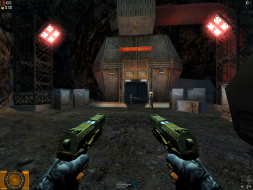
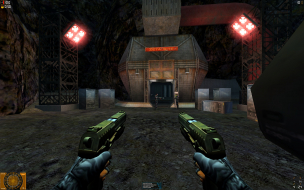
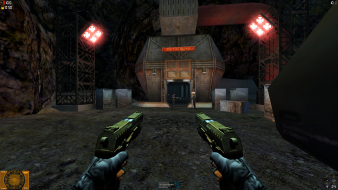
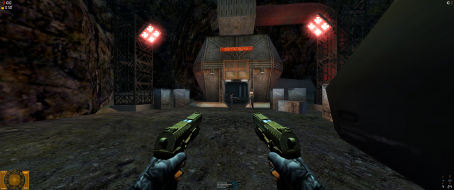
[-noun] Web community dedicated to ensuring PC games run properly on your tablet, netbook, personal computer, HDTV and multi-monitor gaming rig. https://www.wsgf.org/phpBB3/
Aliens versus Predator 2 is a video game developed by Monolith Productions and published by Sierra Entertainment, which was released through Fox Interactive in 2001. The game is a sequel to Aliens versus Predator, which is based loosely on the movies of the Alien and Predator series.
This Gold Edition combines Aliens Versus Predator 2 and its expansion pack, Primal Hunt, into one package.
Load game.
In-game, hit Enter.
Type mpfov.
You should now be able to modify the FOV using the A & D keys.
Change FOV to suit your taste
Hit Enter.
Type mpfov.
Now you are back in regular gameplay mode with the adjusted FOV.
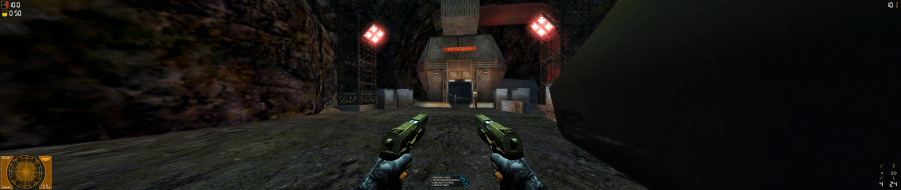
Oh my gosh, AvP2 is Hor+ in TripleHead ! :shock:
The weapons positions seem tied to the edges of the display, though. This is true for the widescreen pics as well, and might look odd in real TH. (If only I could find my darn CD...)
Lol... hey... don't make fun of the arms on the side, for all you know frosty could be a larger than life fellow so his arms are more to the side.. minus the ingame cinematics if you fix the aspect ratio so it's not streched... but leave frosty alone! :P
Anywho, though I'd add this.. saw it on filefront... and this part caught my eye for this widescreen patch:
This little tool does such a trick...
It corrects the FOV (Field Of View) for widescreen ratios and eliminates the stretch-effect.
It has been tested with game version 1.0.9.6 and it works in both, Singleplayer and Multi-player mode.
this would be the one game where I wouldn't agree with getting hor+ in multiplayer (even for single player it's borderline cheating)
all the game stands on is the whole "life form detection system"
(which is the main interesting point of the game let's face it)
and by getting a super hor+ TH view a human negate one (not all of course) advantage the alien has over humans unless that alien also gets a super hor+ TH view ...
and even then that means it becomes way more difficult to be "invisible" for an alien.
(I wonder by the way if it doesn't become a weird 360°+ view or something like that given the original and by design fish eye view)
Well, yeah, an alien with TH would get a super hor+ view - more so than a TH human's added peripheral. As for staying invisible, trying to hide just outside the foveal vision is a bad idea anyway. Much better to crawl on the ceiling (which hor + does nothing to help expose) and drop on their heads.
I really liked the uniqe gameplay each class offered, alien was my favorite offering a lot of exploration/puzzle solving feel to the states since you had to think in 3 dimensions on how to get around.
Cant wait for the new AVP game to get out.
Hey.The widescreen patch
Posted: 26 May 2012, 14:02
by DSpider
Hey.
The widescreen patch didn't work for me ("AVP2_WSP_169.exe", and not even "AVP2_WSP_1610.exe" which was supposed to be better supported by the author since he said he bought a 16:10 monitor), so I decided to make a script that types " mpfov 109 78" for me. It's not true what the main page says, by the way - that you can't set it to exact value, nor can you see the current value. That's hogwash.
See?
Download AutoHotkey from http://www.autohotkey.com.
; Run the game and press enter for the "PLAY" entry.
; It's important that you point it at the game directory as well, or else it won't find AVP2.REZ or the .cfg file and it will keep asking you for the graphics settings.
Run, D:GamesAliens vs. Predator 2AVP2.exe, D:GamesAliens vs. Predator 2
WinWait, A
Send {Enter}
WinWaitClose, ahk_class LithTech
ExitApp
Return
; Initial FOV change (by actually typing it) using the "Numpad *" key. Looks fine on 16:9 but you can easily adjust it for 16:10 or whatever.
NumpadMult::
BlockInput, On
Send {Enter}
Send <cheat> mpfov 109 78
Send {Enter}
BlockInput, Off
Return
; Instant FOV change using the Caps Lock key (eg. after quick loading). If you type something else you'll have to press the Up arrow a bunch of times or re-run the initial FOV change.
CapsLock::
BlockInput, On
Send {Enter}
Send {Up}
Send {Enter}
BlockInput, Off
Return
Tip: for a quicker start delete the Movies folder or rename it something else.
Other single player anomalies that I have noticed (apart from the lack of FOV settings in the cutscenes): In the Marine campaign, "Collateral Damage" level, when viewing security cameras the FOV isn't changed. But it's only a minor issue. You only see it for a few seconds, at best.
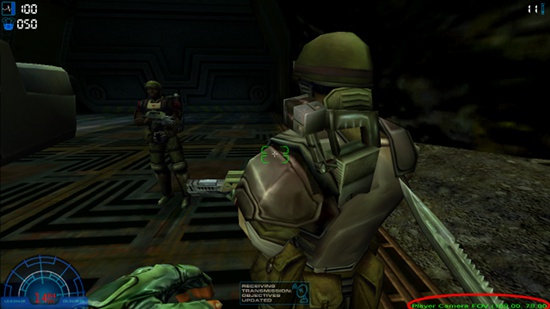
PS: I also attached a 16:9 screenshot for a moderator to add to the main page (because it's missing one):
Thanks for all the details
Posted: 19 Jun 2012, 11:07
by scavvenjahh
Thanks for all the details :cheers I've added the 16:9 shot to the DR, and it only makes it obvious that the original comparison is a bit off.
You now have enough posts under your belt to start editing DRs yourself (Edit button is on the bar right below the game title), so feel free to post a new and improved set of comparison shots !
A list of actual FOV-per-AR values would be great, too. Any idea what the default 4:3 FOV is ?
Re: Aliens Versus Predator 2
Posted: 12 Feb 2015, 13:58
by czarman
Here is another Solution for 21:9 - 3440 x 1400 (and maybe higher)
Copy D3DIM700.DLL in root folder (thanks too jackfuste)
Change the des. Res. 3440x1440 in autoexec.cfg
Copy fov120.rez in root folder and in the Launcher go to Options and put in the commandline arguments: -rez fov120.rez (i created different FOVs in the zip)
Done!
Example FOV 120
Re: Aliens Versus Predator 2
Posted: 12 Feb 2015, 15:14
by scavvenjahh
Awesome ! I've attached the zip to the DR. Feel free to upload screenshots
Re: Aliens Versus Predator 2: Gold Edition
Posted: 25 Oct 2016, 08:39
by czarman
New Solution works for the Addon too - Updated DR
Re: Aliens Versus Predator 2
Posted: 19 Jan 2017, 05:31
by Mind_Depth01
czarman wrote:Here is another Solution for 21:9 - 3440 x 1400 (and maybe higher)
Copy D3DIM700.DLL in root folder (thanks too jackfuste)
Change the des. Res. 3440x1440 in autoexec.cfg
Copy fov120.rez in root folder and in the Launcher go to Options and put in the commandline arguments: -rez fov120.rez (i created different FOVs in the zip)
Done!
Example FOV 120
I have a native screen resolution of 2560x1440. Will this solution work?