Widescreen Scrolling and Scaling Solutions using 162.18 XP

User created game mods, skins, texture packs and camera tools
Post Reply
Zarath
Posts: 3
Joined: 31 Jul 2007, 21:49

Widescreen Scrolling and Scaling Solutions using 162.18 XP

Post by Zarath »

This is my first time posting on here and I've only been reading these forums a few days since I got my widescreen LCD. As with many other here I was looking for answers about the scrolling and scaling issues with widescreen LCDs and think I found a solution. At least it works for me anyway. =P

Ok, after reading a lot of posts about the whole problem with widescreen monitors scaling incorrectly to lower resolutions I managed to find a solution by combining bits and pieces from other's suggestions and solutions (Thanks to all those posters from this forum and others). I won't guarantee this works for everyone but hopefully it will for you. I also haven't tested it thoroughly and only with one resolution (1024x768) but I successfully recreated the solution several times and it seems to work for the few games I have at the moment as well as just manually switching the resolution. I don't see why it wouldn't work for any resolution or any game but you never know.

I'll be giving the steps for the resolution I used, you'll have to adjust your settings accordingly. This is also for Nvidia only. I have no idea how ATI's drivers and such work since I've never owned one. I also don't know the whole technical aspect behind it all but it works and seems to be doing well so far.

I'm also throwing in how to fix the scrolling issue where the desktop seems larger than the monitor when using these drivers. Feel free to skip this step if you for some reason don't have this problem. Again these are the solutions for the problems I was having with these drivers, video card, and monitor.

(NOTE: This will be rather LONG and just as a precaution you'll have to make some registry changes as well so work at your own risk.)
(NOTE: I have the Nvidia Desktop Manager and the Nvidia Tray Icon disabled. I wouldn't recommend changing resolutions or anything using the Nvidia Tray Icon as it seemed to mess things up at times, who knows why.)


My Setup:

Monitor: HannsG HW191D 19" Widescreen LCD 1440x900 native resolution connected through the DVI cable.
Video Card: BFG Nvidia GeForce 7800 GS OC AGP
Operating System: Windows XP Professional
Drivers: 162.18 forceware winxp 32bit


The Problems:

Problem 1: The desktop being larger than the monitor and causing it to scroll from side to side.
Problem 2: Running games in 1024x768 centered with a black border, no stretching, and correct pixel aspect ratio (aka scaling) with 1440x900 native resolution monitor.
Problem 3: Settings for 1024x768 keep resetting.


The Solutions:

(NOTE: We'll be working with both the *NEW* and the *OLD* nvidia control panels. I'll indicate which accordingly and I'll explain how to get the old version back when we need it.)


Solution to Problem 1: Desktop Scrolling

First order of business is fixing the scrolling issue that comes with the 162.18 XP drivers. There's a pretty quick and easy fix I found in the link below, although he seems to have some additional steps that were unnecessary, for me at least:

Credit:
http://forums.nvidia.com/index.php?showtopic=21993&hl=custom+timing
Post #1 by nullassult

The steps I took are listed below:

1. *NEW* NVIDIA Control Panel > Display > Manage custom timings.
2. Click [Create...]
3. Under Custom display mode values:
Horizontal desktop pixels: 1440
Vertical desktop lines: 900
GDI Refresh rate: 60
Bits per pixel: 32
("Interlaced" unchecked)
4. Click [Advanced >>]
5. Under "Back-end parameters":
Timing standard: DMT
Desired refresh rate: 60
(the rest of the fields are grayed out)
6. Under "Front-end parameters"
Scaling type: Display (none)
7. Click [Test]
8. Click [OK]

Your desktop should now be resized to fit the screen instead of being larger.


Solution to Problem 2 and 3: Scaling

First we're going to get the registry settings out of the way. We need the old control panel and we need the refresh rate override settings for problem 3 later on. So might as well do both now.


Step 1

Credit:
http://www.dslreports.com/forum/r18768439-nVidia-Forceware-release-162-question
7th post down by Anon

It's possible to still use the old Control Panel with a little registry tweak. Open regedit and go to...

HKEY_LOCAL_MACHINESOFTWARENVIDIACorporationGlob alNvCplApiPolicies and edit the ContextUIPolicy DWORD value.

The values are:

1 For the old Control Panel
2 For the new Control Panel
3 To use both Control Panels

We want 3 for both old and new control panels.


Step 2

Credit:
http://www.ntcompatible.com/Latest_NVIDIA_drivers_-_no_more_Override_Refresh_Rate_t31970.html
Post #161301 by Wilhelmus

For the refresh rate override settings (which only seem to appear in the old control panel) we need to again open regedit and go to:

Browse to path "HKEY_LOCAL_MACHINESOFTWARENVIDIA CorporationGlobalNVTweak".
Create new DWORD "NvCplDisableRefreshRatePage", value 0 (in hexadecimal).

Now we have our old control panel equipped with the refresh rate override.


Step 3

Now for the fun stuff. Go into the *NEW* NVIDIA Control Panel > Display > Manage custom timings. Your first custom resolution that you made earlier to solve the scrolling problem will be listed there. In my case it reads "1440x900 at 60.0Hz (60Hz as reported by OS), Progressive". Select it and hit the Edit button. We're not going to edit anything here we're just looking for some values. Ignore any of the white (editable) boxes, even though some of the values may be different than what you set before (such as the Bits per pixel reading 8 instead of 32 and the Timing Standard set as Auto instead of DMT), don't ask, it's weird. You'll want to hit Advanced and write down all the greyed out box's settings in the Back-end parameters section. Just for clarification see the picture below:
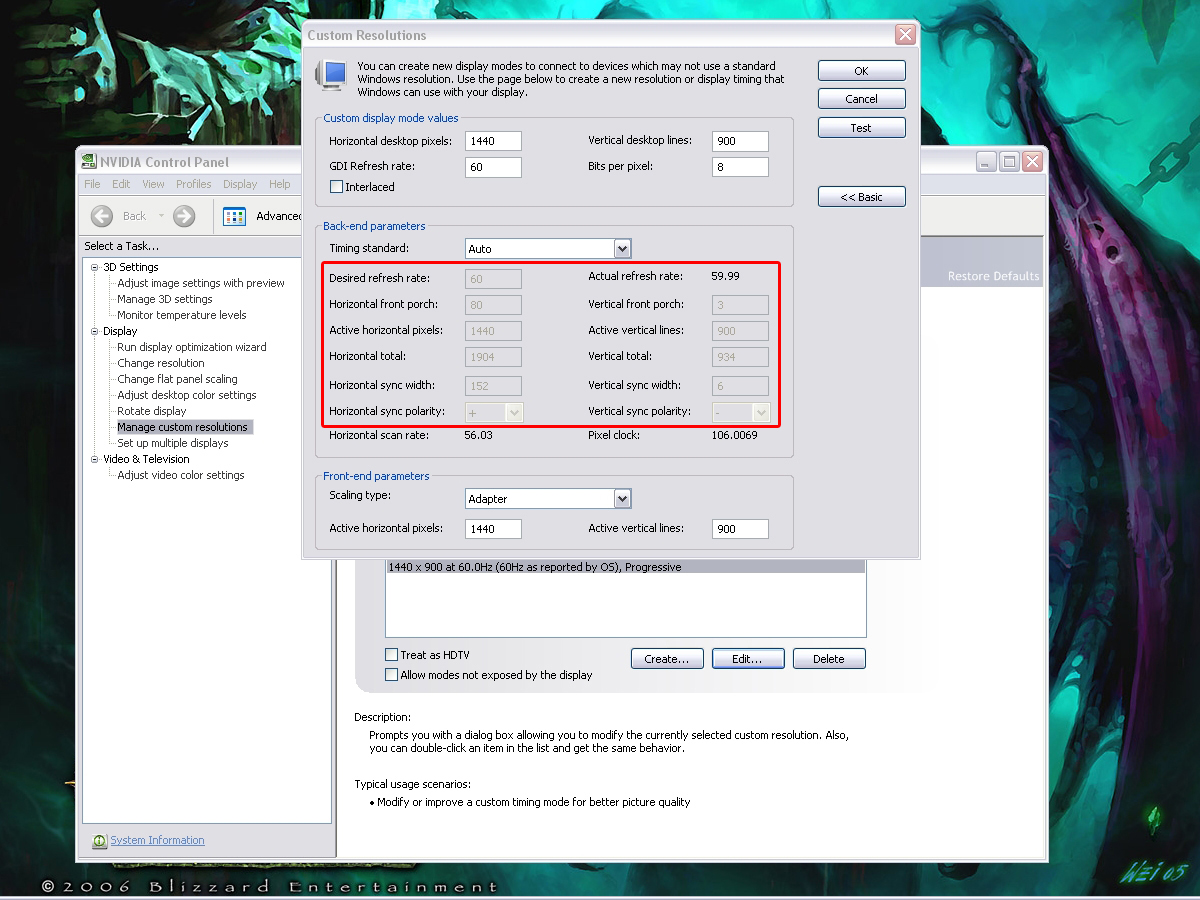


Once you have those written down you'll need to create another custom resolution, but this time for 1024x768:

1. *NEW* NVIDIA Control Panel > Display > Manage custom timings.
2. Click [Create...]
3. Under Custom display mode values:
Horizontal desktop pixels: 1024
Vertical desktop lines: 768
GDI Refresh rate: 60
Bits per pixel: 32
("Interlaced" unchecked)
4. Click [Advanced >>]
5. Under "Back-end parameters":
Timing standard: Manual
Fill in the rest of the values exactly as the ones you wrote down from your other custom resolution
6. Under "Front-end parameters"
Scaling type: Centered
Active horizontal pixels: 1024
Active vertical lines: 768
7. Click [Test]
8. Click [OK]

Ok, you should now have two custom resolutions, the 1440x900 one for the scrolling and the 1024x768 one for the scaling. Close the *NEW* control panel, we are finished here, and again, don't be alarmed if you go back and select Edit only to find some of the values are different, it's just weird like that.


Step 4 and Solution to Problem 3: Preserving your 1024x768 settings through resolution switches

Now it's time to work in the 1024x768 resolution and old control panel. Right-click on the desktop, go to properties and change the resolution to 1024x768. Yes, it should look all stretched as if we did nothing. That's normal but we have to work in this resolution for the rest of this to work. Click Advanced then open the Nvidia GeForce 7800 GS tab. Click the Additional Properties button to enter the *OLD* control panel.

You should now be in the good old *OLD* control panel. Locate the Refresh Rate Overrides option in pop-out side menu. Simply select Override refresh rates then click on the Default for the 1024x768 resolution and change it to 60 Hz and hit Apply. This will force the 1440x900 and 1024x768 resolutions to have matching refresh rates, which in turn preserves your 1024x768 settings. For me the 1024x768 resolution kept resetting to 75 Hz for whatever reason and that was resetting all my values that I set in the next step. And later on if you go back into the old control panel while in 1024x768 it'll most likely say it is running in 75 Hz when it's actually not, that I know of anyway.


Step 5

Click on Screen Resolutions & Refresh Rates from the pop-out side menu. The slider should be 1024x768, 32 bit, and the refresh rate may read 75 Hz, change it to 60 Hz and hit Apply.
Now click on the Advanced Timing button. We only need to change a few of values in here:

1. Flat panel scaling: Centered output
2. Under "Horizontal pixels":
Back-end active: 1440
3. Under "Vertical lines":
Back-end active: 900
4. Click [Apply]
5. Click [OK]
6. Close the *OLD* control panel

You should now be looking at a 1024x768 screen centered with black border in 1440x900 resolution. If not you may have done something wrong or it may not work in your setup for whatever reason. Checking your monitor's details should yield that it's in 1440x900. Switch between 1024x768 and 1440x900 to make sure the settings are maintained for the 1024x768 resolution. If it stays you should be all set! If it doesn't keep your settings try messing with the override refresh rates again.


Hope this helps you, good luck!

Credit to this guy and the guy he got some info from as well for various helpful hints in their instructions:
http://forums.anandtech.com/messageview.aspx?catid=31&threadid=2075473&enterthread=y
1st post by tigersty1e

ctrlsteef
Editors
Editors
Posts: 2820
Joined: 17 Nov 2005, 09:02

Widescreen Scrolling and Scaling Solutions using 162.18 XP

Post by ctrlsteef »

Looks promising. I hope this helps some people out who want to play at a 4:3 res.

I moved this to Tutorials, Tweaks & How-To's btw because it would probably get lost in Closed Tickets. And that would be a bit of a waste. :wink:
cybasheep
Posts: 2
Joined: 12 Aug 2007, 19:50

Similar tricks for 800x600 and 640x480?

Post by cybasheep »

First of all, a big honkin'

THANK YOU

for posting this - I thought that either I or NVIDIA had gone completely insane after seeing the blurry mess that awaited me after upgrading to 162.18, and the warped 4:3 modes used to make me pull my hair out ...

... but anyway, my question:

I successfully used the same method to make an aspect-correct, letterboxed 1280x720 mode (useful for Halo 2 and other games that don't offer 1440x900), but when I tried for 800x600 and 640x480, the nvidia control panel refused to add the custom mode because the test fails. Do you know any method to get these working?
Zarath
Posts: 3
Joined: 31 Jul 2007, 21:49

RE: Similar tricks for 800x600 and 640x480?

Post by Zarath »

No problem, glad I could help! :)

I successfully used the same method to make an aspect-correct, letterboxed 1280x720 mode (useful for Halo 2 and other games that don't offer 1440x900), but when I tried for 800x600 and 640x480, the nvidia control panel refused to add the custom mode because the test fails. Do you know any method to get these working?


Hmm, I just tried and it didn't work for me either. I'm not really sure why it won't work for the lower resolutions. Perhaps one of those Back-end Parameter values is too high for those lower resolutions but I'm not sure which. There might be someone with more technical knowledge about it that can help or try searching the rest of the forums here or at the nvidia forums. Good luck!
User avatar
Tamlin
Editors
Editors
Posts: 1371
Joined: 10 Jun 2005, 21:24

Widescreen Scrolling and Scaling Solutions using 162.18 XP

Post by Tamlin »

Good job! :D
User avatar
MobsterOO7
Insiders
Insiders
Posts: 1055
Joined: 19 Sep 2006, 16:25
Location: Ruckersville, Virginia

Widescreen Scrolling and Scaling Solutions using 162.18 XP

Post by MobsterOO7 »

I had the same problem when I updated my drivers (problem #1). I also have a Hanns-G monitor, could it be that that brand doesn't like the new drivers? Or is it all widescreens?
EVGA GeForce GTX 970 SC ACX 2.0 3.5GB | 3 X LG Flatron 24EA53VQ in Nvidia Surround | Optoma HD20
Tanuki
Posts: 2866
Joined: 07 Jul 2007, 23:55

Widescreen Scrolling and Scaling Solutions using 162.18 XP

Post by Tanuki »

"Forceware". What an ironic name.
Zarath
Posts: 3
Joined: 31 Jul 2007, 21:49

Widescreen Scrolling and Scaling Solutions using 162.18 XP

Post by Zarath »

I had the same problem when I updated my drivers (problem #1). I also have a Hanns-G monitor, could it be that that brand doesn't like the new drivers? Or is it all widescreens?


I'm pretty sure I've read posts about other brands doing the same thing. It's pretty much the drivers, not necessarily the widescreens.
cybasheep
Posts: 2
Joined: 12 Aug 2007, 19:50

Widescreen Scrolling and Scaling Solutions using 162.18 XP

Post by cybasheep »

It is in fact a driver issue relative to the graphics hardware - on the same screens for instance, I've seen the blur/scroll effect happen with a 7600GT and needed to create the custom resolution, but not with a 8800GTS - that worked out of the box.

From the 162.18 release notes, "Fixed Issues-Windows XP 32-bit" section:

• GeForce 8800 GTX: 1680x1050 resolution is not available when using 
the Dell 3007WFP monitor.  [284181] 
• GeForce 8800 GTX/GTS: Flat-panel scaling doesn't work with wide-screen monitors. [309707] 

I think what nvidia did was some classic fix-here-break-there action.
Tanuki
Posts: 2866
Joined: 07 Jul 2007, 23:55

Widescreen Scrolling and Scaling Solutions using 162.18 XP

Post by Tanuki »

So I changed it and got the custom resolutions and locked refresh rates. Great.

Then I went to go back and check one of them and the selections are gone. But the registry entries are still present. Meh.

Guess I will worry about it when they are broken by the next release. 8)
Taucheranzug
Posts: 3
Joined: 11 Sep 2007, 11:48

Widescreen Scrolling and Scaling Solutions using 162.18 XP

Post by Taucheranzug »

Hey Zarath, you're a star!!!! That's the one and only solution that works perfectly, at least for me (Acer X222Wbd on a GeForce 7900 GT via DVI)!

A HUUUUUUGE THANK YOU!!!!

I have also tried the "Fixed Aspect Ratio Scaling" setting that maximizes the desired resolution within the Back-End Resolution while maintaining the correct aspect ratio (i.e. black bars left and right only), and that worked like a charm too! I succeeded with 1024x768 and 1280x960 (haven't tried other resolutions yet).

GREAT!

One question though - I haven't perfectly understood (in a logical sense) yet why it was necessary to use the OLD control panel for your method at all. Is it simply because the refresh rate override function can't be brought to life at all in the NEW panel? Is this more or less the reason for all the hassle?

Just wondering....

Anyway, thanks again for your work and your help, my friend!

Best,

Taucher
delarity
Posts: 4
Joined: 07 Sep 2007, 13:57

Widescreen Scrolling and Scaling Solutions using 162.18 XP

Post by delarity »

I had the same problem when I updated my drivers (problem #1). I also have a Hanns-G monitor, could it be that that brand doesn't like the new drivers? Or is it all widescreens?


hey,

i tried updating my forceware drivers today and i seem to have the same problem. i got a samsung syncmaster 940bw with nativ res 1440 x 900. maybe its the resolution, i dont know. but luckily we have a solution here. big THANK YOU!

i got a question though (might sound a little n00bish):

is it important (as in relation to gaming performance) to update the drivers to get the games (i.e. bioshock :-) ) running better?

thanks,

later,
del
Taucheranzug
Posts: 3
Joined: 11 Sep 2007, 11:48

Widescreen Scrolling and Scaling Solutions using 162.18 XP

Post by Taucheranzug »

is it important (as in relation to gaming performance) to update the drivers to get the games (i.e. bioshock :-) ) running better?

Hi,

yes, DEFINITELY!!! This is more or less the only reason to update the drivers at all! 8)

The latest NVIDIA drivers are improved especially for BIOSHOCK and other games by the way! Check the release notes on http://www.nvidia.com!

Best,

Taucher
delarity
Posts: 4
Joined: 07 Sep 2007, 13:57

Widescreen Scrolling and Scaling Solutions using 162.18 XP

Post by delarity »

hey,

i updated to the beta that came out for bioshock... btw. racer_s's fov fix is just great :D
Taucheranzug
Posts: 3
Joined: 11 Sep 2007, 11:48

Widescreen Scrolling and Scaling Solutions using 162.18 XP

Post by Taucheranzug »

btw. racer_s's fov fix is just great :D

What's that??

Taucher

EDIT: Ah, I just found out myself... will try this tonight!
tonightsocold03
Posts: 1
Joined: 23 Sep 2007, 17:47

Widescreen Scrolling and Scaling Solutions using 162.18 XP

Post by tonightsocold03 »

Thanks! It's work great in Windows XP. But there is not "custom timing" of "advance nvidia Cpl" in Windows Vista. Please help me!

Hey Delarity. Does your LCD work good in Vista? What VGA are you using?
My specs: 8800GTX and LCD Samsung 931BW.
Tanuki
Posts: 2866
Joined: 07 Jul 2007, 23:55

Widescreen Scrolling and Scaling Solutions using 162.18 XP

Post by Tanuki »

I think NVIDIA is making code that stamps this stuff out. Or maybe it was the way they designed it.

When I install new drivers I can change the DWORD value to 3 and get the old control panel. I can also add the registry value for the refresh rate override section as well.

I can go in and change them and the new settgins will stick but upon reboot the old control panel is gone. The registry values are still present however.

A little strange, but at least the changes hold.
Netherworks
Posts: 1
Joined: 12 Feb 2008, 20:40

Widescreen Scrolling and Scaling Solutions using 162.18 XP

Post by Netherworks »

THANK YOU!

No other solution has worked so far except this one!

This should definitely get a sticky or somesuch. It absolutely WORKS for adding 1024 x 768 resolution with the black bands properly on the right and left (pillbox).

I couldn't get it to do 800 x 600 (sigh, diablo 2) but having at least one mode working correctly helps a lot, even with games that (gasp) perform better on my system in non-widescreen (UT3 feels 10x faster at 1024x768 versus 1440x900)

I did this on Windows XP-32, Nvidia 169.21 drivers, GeForce 7650 GS.

Funny thing is that it seems entirely possible that Nvidia could fix this and make scaling properly work if we can do it with at least one custom mode.

The only deviation I did versus the original post is that I used a utility called RefreshForce to force 60 refresh rate in the 1024 x 768 mode. Reforce is XP/2000-Only and will set a singular refresh rate for all modes. Easy utility to find with a Googling.
Tanuki
Posts: 2866
Joined: 07 Jul 2007, 23:55

Widescreen Scrolling and Scaling Solutions using 162.18 XP

Post by Tanuki »

Tanuki,

You go through this shit everytime you update your drivers. This is here so you won't waste 20 minutes trying to figure out what to do. You will thank me/you in the future.

HKEY_LOCAL_MACHINESOFTWARENVIDIACorporationGlobalNvCplApiPolicies - DWORD "ContextUIPolicy" "3"

HKEY_LOCAL_MACHINESOFTWARENVIDIA CorporationGlobalNVTweak - DWORD "NvCplDisableRefreshRatePage" "0"

HKEY_LOCAL_MACHINESOFTWARENVIDIACorporationGlobalNvCplApiPolicies - DWORD "SedonaDisable" "2"

Go to NVCP select old CP from top menu.

-Tanuki
Post Reply

Who is online

Users browsing this forum: No registered users and 4 guests