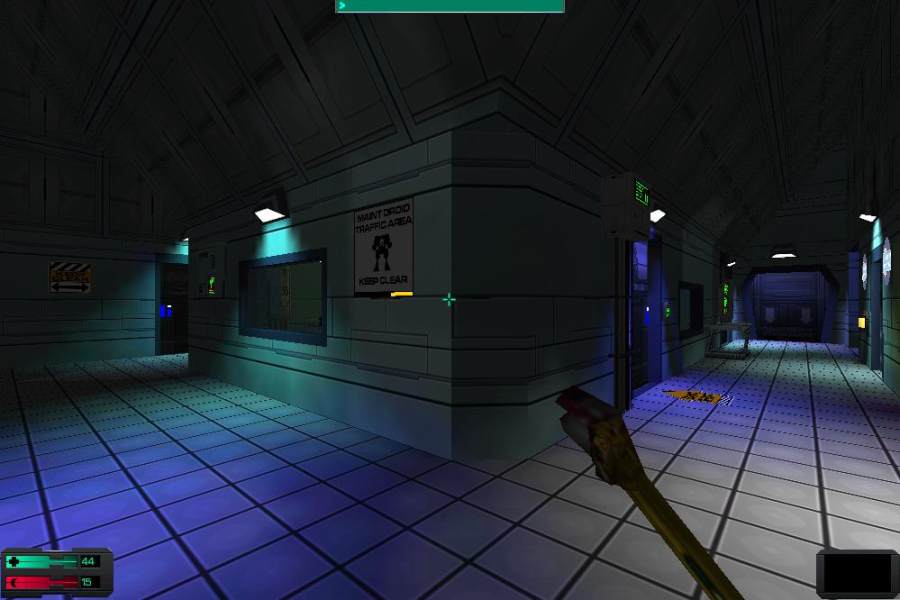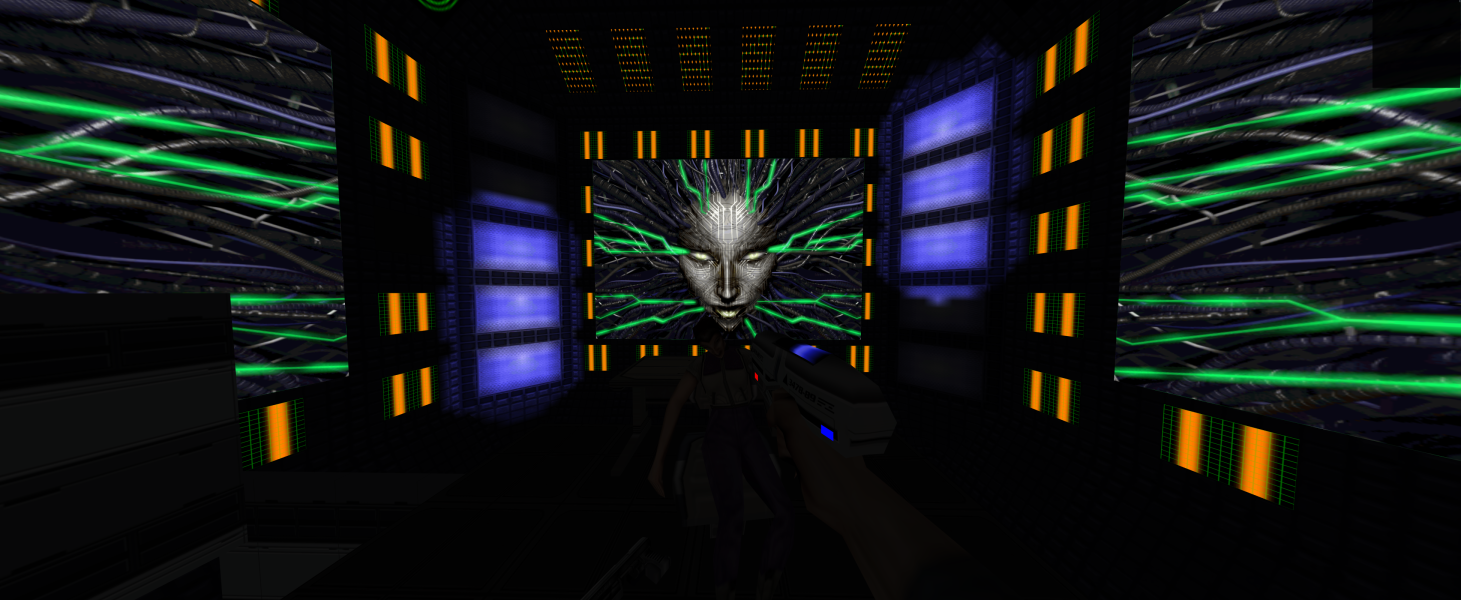




System Shock 2 is a 1999 first-person action role-playing game, designed by Ken Levine for Microsoft Windows. The title is a sequel to the 1994 PC game System Shock, and was co-developed by Irrational Games and Looking Glass Studios. The sequel was originally designed as a standalone title with no relation to System Shock; story changes were made when Electronic Arts—who owned the Shock franchise rights—signed on as publisher.
The game takes place on board a starship in a cyberpunk depiction of 2114. The player assumes the role of a lone soldier trying to stem the outbreak of a genetic infection that has devastated the ship. Like System Shock, gameplay consists of first person shooting and exploration. The game also incorporates role-playing system elements, where the player can develop unique skills and traits, such as hacking and psionic abilities.
Support Summary
Game Information
Screenshots Comparison
Solutions & Issues
The GOG.com and Steam versions are already pre-patched with NewDark via SS2Tool; for retail and other versions install SS2Tool to get the NewDark Engine upgrade.
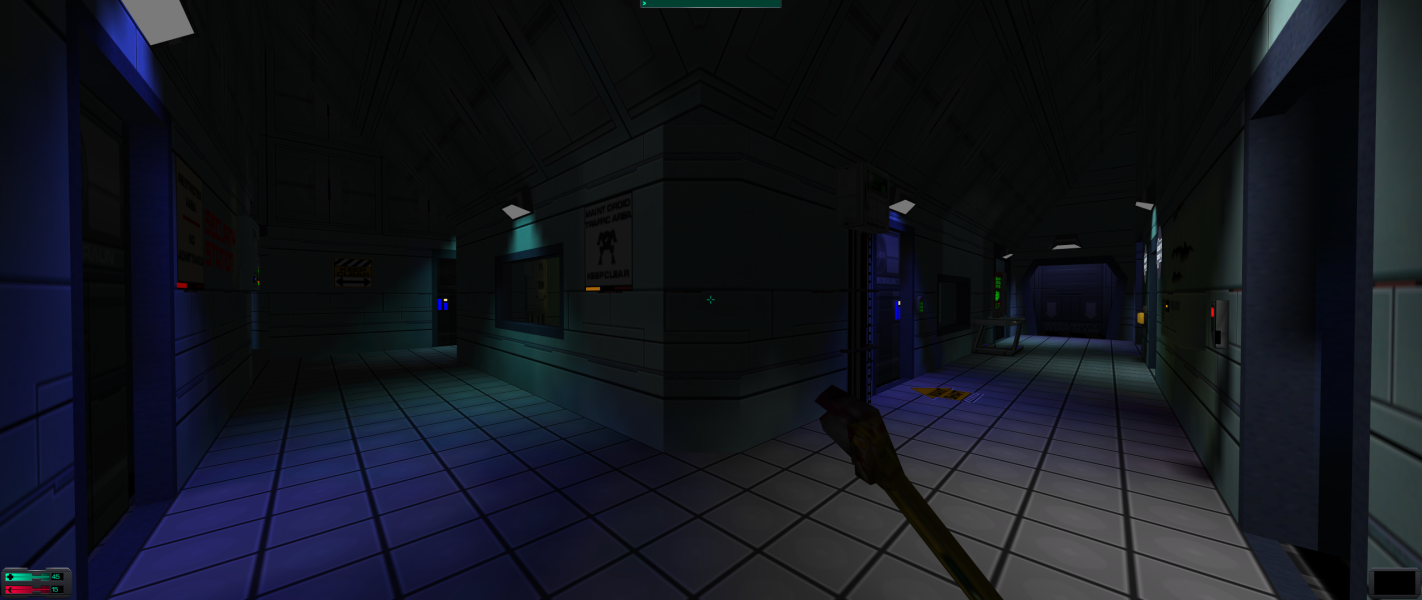
With NewDark installed widescreen/multi-monitor resolutions are natively listed in-game. Menus are letterboxed 4:3, FMV cutscenes are anamorphic. Everything has the correct aspect ratio. If your resolution still isn't listed in-game with NewDark you can try forcing it by editing cam.cfg in the main game folder.
NewDark calculates the default FOV based on the aspect ratio; you can set a custom FOV value by editing cam_ext.cfg in the main game folder (after installing SS2Tool).
HUD elements can be scaled in size by going to cam_ext.cfg in SS2's directory and look for this string on line 61:
;d3d_disp_scaled_2d_overlay XXXX XXX
Where the string of X's is a resolution. Remove the semicolon then change the resolution to adjust the size. A smaller resolution will make the HUD bigger but less sharp as it is simply an image being scaled.
Same as widescreen. Resolution might not be detected in-game if the desktop resolution differs.
Gameplay Screenshots




Menu Screenshots

Additional Screenshots