


Just place x264.exe somewhere in your PATH environment setting and then you can type x264 from any directory. If it's not in your PATH, then yes, you do have to specify the path to it on the command line.
What CPU and operating system do you have? I make regular builds of x264 for myself and I could send one your way.
Guide: YouTube HD 720P Videos
Guide: YouTube HD 720P Videos
Widescreen Fixer - https://www.widescreenfixer.org/
Widescreen Fixer Twitter - https://twitter.com/widescreenfixer
Personal Twitter - https://twitter.com/davidrudie
Widescreen Fixer Twitter - https://twitter.com/widescreenfixer
Personal Twitter - https://twitter.com/davidrudie
-
ViciousXUSMC

- Editors

- Posts: 1497
- Joined: 31 Jul 2006, 14:58
Guide: YouTube HD 720P Videos
I am using Vista Ultimate x64 with a Intel Q6600
I also found the generated script for a encode I am doing right now. I can see how it pointed to the .exe.
My only beef with StaxRip right now is that it "forces" you to use a resolution that is divisible by 16. So on my 1920x1080 content it forces me to crop it to 1920x1072, but I found a way to trick it I think by editing the .avs filter code :P I'll see when this encode is done.
Just how big a deal is it to use a XXX/16 resolution?
Also there must be one or two things in this code that is slowing things down, its taking 2 hours+ to do this 10 minute clip with all 4 cores going at 3.6ghz.... Man if I ever wanted a i7 its now because of encoding.
Again thanks, right now I am using the newest x264 build off of here: http://x264.nl/
1088, but if you have something you can send my way I will try it out.
Making your own, I cant even get a solid place to start, all I find are these gnu code pages with strange archives. Nothing like a tutorial that I know of. If you have a link or some resources to share about that I will start looking into it.
Also now that I have a good grip on x264 I may revisit MeGui and see if I can get it working. Its supposed to be the most advanced GUI. Though the problem with me last time I used it was not knowing what to do, but it did not work at all.
I also found the generated script for a encode I am doing right now. I can see how it pointed to the .exe.
Code: Select all
"C:UsersViciousXUSMCDesktopStaxRip_1.1.1.0SettingsApplicationsx264x264.exe" --crf 22 --ref 6 --mixed-refs --no-fast-pskip --bframes 16 --b-pyramid --weightb --direct auto --subme 9 --trellis 2 --psy-rd 1:0.1 --partitions p8x8,b8x8,i4x4,i8x8 --8x8dct --me umh --threads auto --progress --no-dct-decimate --no-psnr --no-ssim --output "C:FrapsMoviesCrysis 2009-01-25 05-49-25-33 temp filesCrysis Gameplay_EncoderOutput.264" "C:FrapsMoviesCrysis 2009-01-25 05-49-25-33 temp filesCrysis Gameplay.avs"My only beef with StaxRip right now is that it "forces" you to use a resolution that is divisible by 16. So on my 1920x1080 content it forces me to crop it to 1920x1072, but I found a way to trick it I think by editing the .avs filter code :P I'll see when this encode is done.
Just how big a deal is it to use a XXX/16 resolution?
Also there must be one or two things in this code that is slowing things down, its taking 2 hours+ to do this 10 minute clip with all 4 cores going at 3.6ghz.... Man if I ever wanted a i7 its now because of encoding.
Again thanks, right now I am using the newest x264 build off of here: http://x264.nl/
1088, but if you have something you can send my way I will try it out.
Making your own, I cant even get a solid place to start, all I find are these gnu code pages with strange archives. Nothing like a tutorial that I know of. If you have a link or some resources to share about that I will start looking into it.
Also now that I have a good grip on x264 I may revisit MeGui and see if I can get it working. Its supposed to be the most advanced GUI. Though the problem with me last time I used it was not knowing what to do, but it did not work at all.
Guide: YouTube HD 720P Videos
Just how big a deal is it to use a XXX/16 resolution?
If you're using 1280x720 or above, it doesn't really matter. I wouldn't think twice about using 1080 instead of 1088 or other mod16 numbers.
Again thanks, right now I am using the newest x264 build off of here: http://x264.nl/
Those are fine. They're built using a fairly old version of gcc and they're 32-bit only. I'll message you.
Making your own, I cant even get a solid place to start, all I find are these gnu code pages with strange archives. Nothing like a tutorial that I know of. If you have a link or some resources to share about that I will start looking into it.
It's not worth it if you don't already have a grip on compiling stuff. I use a VM with XP installed in it. And I use MSVC and ICC to compile. It requires some modifications and a custom Makefile for ICC support. There's just a lot involved.
Widescreen Fixer - https://www.widescreenfixer.org/
Widescreen Fixer Twitter - https://twitter.com/widescreenfixer
Personal Twitter - https://twitter.com/davidrudie
Widescreen Fixer Twitter - https://twitter.com/widescreenfixer
Personal Twitter - https://twitter.com/davidrudie
-
ViciousXUSMC
- Editors
- Posts: 1497
- Joined: 31 Jul 2006, 14:58
Guide: YouTube HD 720P Videos
Ok lol so much for making my own :P
Whats your stand on FAAC vs NeroAAC? You prefer nero obviously but up until recently I had been using FAAC.
StaxRip uses Besweet, and besweet uses the Neroaacenc as one of its encoders. Its command line driven also, so its strange to see a command line program use a command line encoder, I did get a gui for it though belite. I can use the gui to learn the commands and go from there like I have been doing with avisynth and x264.
I feel very comfortable with x264 now. I could easily make my own .bat file to encode a video.
So I just need to get more familar with avisynth and then start learning hwo to mux/demux to put it all together.
Whats your stand on FAAC vs NeroAAC? You prefer nero obviously but up until recently I had been using FAAC.
StaxRip uses Besweet, and besweet uses the Neroaacenc as one of its encoders. Its command line driven also, so its strange to see a command line program use a command line encoder, I did get a gui for it though belite. I can use the gui to learn the commands and go from there like I have been doing with avisynth and x264.
I feel very comfortable with x264 now. I could easily make my own .bat file to encode a video.
So I just need to get more familar with avisynth and then start learning hwo to mux/demux to put it all together.
Guide: YouTube HD 720P Videos
Whats your stand on FAAC vs NeroAAC? You prefer nero obviously but up until recently I had been using FAAC.
FAAC is terrible. The quality is really poor. I use neroaacenc pretty exclusively.
Here is my workflow for doing audio.
(Assuming you have an audio.wav file)
neroaacenc -q 0.35 -lc -if audio.wav -of audio.mp4
mp4box -raw 1 audio.mp4
del audio.mp4
ren audio_track1.aac audio.aac
Now, if you're using MP4:
mp4box -add audio.aac -add video.264 -fps 30 video.mp4
This will save the resulting video.mp4 that's ready for use. If you want to use mkvmerge, I suggest you check out mkvmerge GUI. Get familiar with the GUI first, and then you can actually copy the command line it will use to the clipboard so you can paste it and get familiar with the actual command line options.
Widescreen Fixer - https://www.widescreenfixer.org/
Widescreen Fixer Twitter - https://twitter.com/widescreenfixer
Personal Twitter - https://twitter.com/davidrudie
Widescreen Fixer Twitter - https://twitter.com/widescreenfixer
Personal Twitter - https://twitter.com/davidrudie
-
ViciousXUSMC
- Editors
- Posts: 1497
- Joined: 31 Jul 2006, 14:58
Guide: YouTube HD 720P Videos
unless you need to do the sort of processing where avisynth excels, it's often easier just to feed the video directly to x264, ffmpeg, mencoder... they all do an excelent job and don't require avisynth to frame serve which means they are faster!
Your take dopefish?
I think I noticed this first hand. It never takes 2 hours for a 10min clip when I used a gui that did not frame serve from avisynth.
Also my 4 cpu cores on my meter fluxed from about 60-100% pretty randomly, when I use HB or something it has all 4 stay at 100% the entire time.
Guide: YouTube HD 720P Videos
Well if you're not doing anything that requires effects, then it's always better to use the video file directly or pipe it directly. The more effects you use, the slower it will be. However, depending on your encoding settings, sometimes simple effects won't really have a drastic impact on performance as they would if you used medium-quality or low-quality settings.
You don't need to use a GUI still, you can pipe the video straight to it or use it directly as a y4m video.
Using CLI x264 will be more efficient than with a GUI. Just specify --threads auto and be done. If you have heavy encoding settings, each core should easily be at 100%.
You don't need to use a GUI still, you can pipe the video straight to it or use it directly as a y4m video.
Using CLI x264 will be more efficient than with a GUI. Just specify --threads auto and be done. If you have heavy encoding settings, each core should easily be at 100%.
Widescreen Fixer - https://www.widescreenfixer.org/
Widescreen Fixer Twitter - https://twitter.com/widescreenfixer
Personal Twitter - https://twitter.com/davidrudie
Widescreen Fixer Twitter - https://twitter.com/widescreenfixer
Personal Twitter - https://twitter.com/davidrudie
-
ViciousXUSMC
- Editors
- Posts: 1497
- Joined: 31 Jul 2006, 14:58
Guide: YouTube HD 720P Videos
Playing with NeroAACenc.exe today.
Its command driven interface is pretty easy to use, but it only accepts .wav Not a big deal I can demux probaby anything from a video with VirtualDubMod to a .wav but to play with it I wanted to convert some of my MP3 Files over.
Looked around last night at work on my downtime.
Ran across all the usual BeLight, BeHappy, BeSweet, AACMachine but I found just one that really stood out to me and it was not in the highlight it was hard to find.
Its just called "sng" for Simple NeroAACenc GUI and it used the nero exe, and just does the work for you and lets you learn the command line strings.
However it has an optional input method using bepipe.exe to use avisynth for input.
It worked right away for my test mp3.
3:30 clip 320kbs MP3
used this script
it kicked out a 128kb/s MP4 file that sounds the same to me thats cutting the file size well over in half.
I know its not recommended to go from one lossy format to another but hey I was just playing around.
Retested with a -q 0.30 setting and its still 128kb/s??
Now I guess I can use MP4Box, VirtualDubMod, and AACMachine to rip the AAC out of the .mp4 container.
Suppose I'll try that next.
Edit: Nevermind VirtualDubMod it did not work I can make it work probably so tried this:
Worked a treat! What would I add to make the .aac file have a target destination?
Also how in the world can I get it so I can run my commands like yours with just the .exe and not make them look like this.
Its command driven interface is pretty easy to use, but it only accepts .wav Not a big deal I can demux probaby anything from a video with VirtualDubMod to a .wav but to play with it I wanted to convert some of my MP3 Files over.
Looked around last night at work on my downtime.
Ran across all the usual BeLight, BeHappy, BeSweet, AACMachine but I found just one that really stood out to me and it was not in the highlight it was hard to find.
Its just called "sng" for Simple NeroAACenc GUI and it used the nero exe, and just does the work for you and lets you learn the command line strings.
However it has an optional input method using bepipe.exe to use avisynth for input.
It worked right away for my test mp3.
3:30 clip 320kbs MP3
used this script
Code: Select all
bepipe.exe --script "DirectShowSource(<input>)" | "neroAacEnc.exe" -q 0.35 -lc -if - -of <output>
it kicked out a 128kb/s MP4 file that sounds the same to me thats cutting the file size well over in half.
I know its not recommended to go from one lossy format to another but hey I was just playing around.
Retested with a -q 0.30 setting and its still 128kb/s??
Now I guess I can use MP4Box, VirtualDubMod, and AACMachine to rip the AAC out of the .mp4 container.
Suppose I'll try that next.
Edit: Nevermind VirtualDubMod it did not work I can make it work probably so tried this:
neroaacenc -q 0.35 -lc -if audio.wav -of audio.mp4
mp4box -raw 1 audio.mp4
del audio.mp4
ren audio_track1.aac audio.aac
Worked a treat! What would I add to make the .aac file have a target destination?
Also how in the world can I get it so I can run my commands like yours with just the .exe and not make them look like this.
Code: Select all
"C:UsersViciousXUSMCDesktopAudio ToolsMP4BoxMP4Box.exe" -raw 1 "C:UsersViciousXUSMCDesktopAudio ToolsMP4BoxDevour.M4a"-
ViciousXUSMC
- Editors
- Posts: 1497
- Joined: 31 Jul 2006, 14:58
Guide: YouTube HD 720P Videos
Doh! I got your 64bit.exe and want to give it a shot but I am not able to translate your code.
I just used megui to produce my x264 string for me but I made this into a bat file.
From your:
Im still in the dark on how to get things to run without including the full file directory aswell. You said something about having it in a PATH, but when you run a cmd prompt how does it know what path it started from (I guess if you run a .bat file it uses the path the .bat is located in thats the only thing I can think of)
I know this part is working:
"C:UsersViciousXUSMCDesktop64bit x246avs2yuv.exe" -raw
"C:UsersViciousXUSMCDesktop64bit x246MirrorsEdgeOpening.avs" -
Because when I ran cmd.exe isntead of a .bat file and put that in it went crazy with all the codes and stuff, if I type in only the avs2yuv.exe part it gives me the list of options.
So the problem has to be my x264 options or some kind of error in my code. That or the x264 you gave me wont work for me. I cant see as the prompt closes even when I added a /p for pause to the bat file.
Edit: Got it! Its encoding now.
I had to add double "--" for the x264 commands. I thought they were single so I took them out after it failed the first time, when the first error was due to the output command or the paths probably.
Final Bat looks like this:
I just used megui to produce my x264 string for me but I made this into a bat file.
Code: Select all
"C:UsersViciousXUSMCDesktop64bit x246avs2yuv.exe" -raw


   "C:UsersViciousXUSMCDesktop64bit x246MirrorsEdgeOpening.avs" -  |


   "C:UsersViciousXUSMCDesktop64bit x24664bitX264.exe" -crf 25.0 -ref 6 -mixed-refs


   -no-fast-pskip -bframes 16 -b-pyramid -weightb -direct auto -subme 9 -trellis 2 -psy-rd 1.0:0.1


   -partitions all -8x8dct -me umh -threads auto -thread-input -progress -no-dct-decimate -no-


   psnr -no-ssim -output 64test.264 - 1920x1080
From your:
Code: Select all
avs2yuv -raw "inputfile.avs" - | x264 <options> -o outputfile.264 - 1920x1080 Im still in the dark on how to get things to run without including the full file directory aswell. You said something about having it in a PATH, but when you run a cmd prompt how does it know what path it started from (I guess if you run a .bat file it uses the path the .bat is located in thats the only thing I can think of)
I know this part is working:
"C:UsersViciousXUSMCDesktop64bit x246avs2yuv.exe" -raw
"C:UsersViciousXUSMCDesktop64bit x246MirrorsEdgeOpening.avs" -
Because when I ran cmd.exe isntead of a .bat file and put that in it went crazy with all the codes and stuff, if I type in only the avs2yuv.exe part it gives me the list of options.
So the problem has to be my x264 options or some kind of error in my code. That or the x264 you gave me wont work for me. I cant see as the prompt closes even when I added a /p for pause to the bat file.
Edit: Got it! Its encoding now.
I had to add double "--" for the x264 commands. I thought they were single so I took them out after it failed the first time, when the first error was due to the output command or the paths probably.
Final Bat looks like this:
Code: Select all
   "C:UsersViciousXUSMCDesktop64bit x246avs2yuv.exe" -raw


   "C:UsersViciousXUSMCDesktop64bit x246MirrorsEdgeOpening.avs" -  |


   "C:UsersViciousXUSMCDesktop64bit x24664bitX264.exe" --crf 25.0 --ref 6 --mixed-


   refs --no-fast-pskip --bframes 16 --b-pyramid --weightb --direct auto --subme 9 --trellis 2 --


   psy-rd 1.0:0.1 --partitions all --8x8dct --me umh --threads auto --thread-input --progress --no


-dct-decimate --no-psnr --no-ssim --output 64test.264 - 1920x1080-
ViciousXUSMC
- Editors
- Posts: 1497
- Joined: 31 Jul 2006, 14:58
Guide: YouTube HD 720P Videos
Hehe :P Bear with me.. but big post and multiple post in a row.
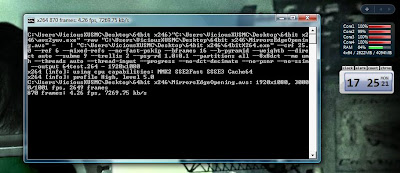
The command prompt closed before I could see how long it took to encode, but I think it was faster for sure. I guess if I add a /p command in there I can have the command prompt stay open after encode to read the stats right?
So here is what it looked like up and running when I got the encoding part working:
I confirmed my own theory of what you meant by path by placing a copy of all the programs needed in one folder with the .bat files like this. I am guessing you use a similar setup? Just I do not liking having everything in one folder I like it to be separated. I suppose once you make the .bat file once you can use the long paths and never have to worry about it just change file names.
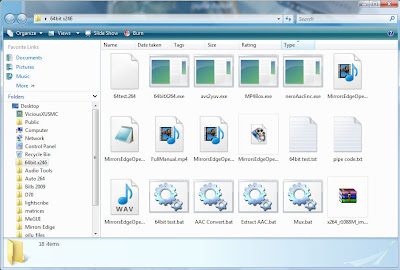
So with all the programs in that folder and my raw .H264 file.
I used VirtualDub and just used the option "Send out WAV" and it in seconds gave me the .wav file for the audio track (makes me feel dirty I used a program that has a gui instead of a command prompt lol)
With that wave I created this .bat
Had a .MP4 file in seconds
Then I made this bat
Gave me raw AAC in seconds (though I think MP4box can take it as a .mp4 file and there is no need for this step, maybe you need it for MKVMerge)
Then to mux it together I created this bat.
The result was a file that was smaller than the one I got out of the GUI and I think the encoding was faster, but I need to find a way to have x264 export a stats file or leave the command prompt open so I can read it and compare.
CPU stayed pegged at 100% the entire time so no resources were wasted.
Few quick ???'s
1.) What is the - 1920x1080 tag at the end. I know its resolution but what program does it go to? I cant find it as a valid x264 command and it doesnt have the double "--" but its all the way over on the x264 command side so I do not see how avs2yuv could be picking it up and using it as a command.
2.) Is -o and -output interchangable? I changed your -o on the x264 side to -output as thats what I read in the x264 codes wiki.
3.) Looking up avs2yuv people used code like this:
I omitted the -o on the avs2yuv side and did not notice any ill effects.
4.) The best way to see encode time with your method so I can compare it to the x86 builds.
Props to dopefish for getting me far enough to do something like this, though most of the script was his I still did a basically full manual CLI encode.
The command prompt closed before I could see how long it took to encode, but I think it was faster for sure. I guess if I add a /p command in there I can have the command prompt stay open after encode to read the stats right?
So here is what it looked like up and running when I got the encoding part working:
I confirmed my own theory of what you meant by path by placing a copy of all the programs needed in one folder with the .bat files like this. I am guessing you use a similar setup? Just I do not liking having everything in one folder I like it to be separated. I suppose once you make the .bat file once you can use the long paths and never have to worry about it just change file names.
So with all the programs in that folder and my raw .H264 file.
I used VirtualDub and just used the option "Send out WAV" and it in seconds gave me the .wav file for the audio track (makes me feel dirty I used a program that has a gui instead of a command prompt lol)
With that wave I created this .bat
Code: Select all
neroaacenc -q 0.35 -lc -if MirrorsEdgeOpening.wav -of MirrorsEdgeOpening.mp4Had a .MP4 file in seconds
Then I made this bat
Code: Select all
MP4Box.exe -raw 1 MirrorsEdgeOpening.MP4Gave me raw AAC in seconds (though I think MP4box can take it as a .mp4 file and there is no need for this step, maybe you need it for MKVMerge)
Then to mux it together I created this bat.
Code: Select all
mp4box -add MirrorsEdgeOpening.aac -add 64test.264 -fps 29.97 FullManual.mp4 The result was a file that was smaller than the one I got out of the GUI and I think the encoding was faster, but I need to find a way to have x264 export a stats file or leave the command prompt open so I can read it and compare.
CPU stayed pegged at 100% the entire time so no resources were wasted.
Few quick ???'s
1.) What is the - 1920x1080 tag at the end. I know its resolution but what program does it go to? I cant find it as a valid x264 command and it doesnt have the double "--" but its all the way over on the x264 command side so I do not see how avs2yuv could be picking it up and using it as a command.
2.) Is -o and -output interchangable? I changed your -o on the x264 side to -output as thats what I read in the x264 codes wiki.
3.) Looking up avs2yuv people used code like this:
Code: Select all
avs2yuv.exe -o - | x264....I omitted the -o on the avs2yuv side and did not notice any ill effects.
4.) The best way to see encode time with your method so I can compare it to the x86 builds.
Props to dopefish for getting me far enough to do something like this, though most of the script was his I still did a basically full manual CLI encode.
Guide: YouTube HD 720P Videos
Its command driven interface is pretty easy to use, but it only accepts .wav Not a big deal I can demux probaby anything from a video with VirtualDubMod to a .wav but to play with it I wanted to convert some of my MP3 Files over.
It's best to work with WAV anyway. If you use FRAPS to capture a game, it captures in WAV already. All you need to do is dump the audio from it.
it kicked out a 128kb/s MP4 file that sounds the same to me thats cutting the file size well over in half.
I know its not recommended to go from one lossy format to another but hey I was just playing around.
I wouldn't go and convert MP3s to AAC, though. That's converting from one lossy format (with detail already lost since it's a MP3) to another lossy format. If you're really looking to save space, then you can go for that, but otherwise I'd leave them in MP3.
Retested with a -q 0.30 setting and its still 128kb/s??
-q is just like --crf is for x264. You target a certain quality rather than a certain bitrate. It creates a variable bit-rate AAC file with -q. Whatever you're using that reports the bitrate might just be estimating, or reading only the bitrate of a single frame. If you want to target a bitrate, then use -br instead.
neroaacenc -q 0.35 -lc -if audio.wav -of audio.mp4
mp4box -raw 1 audio.mp4
del audio.mp4
ren audio_track1.aac audio.aac
Worked a treat! What would I add to make the .aac file have a target destination?
You can also use mp4box in this same manner to dump the video track, too.
As for the destination, I usually run all the commands from the directory I'm working in, so I never really have to move files around. As long as mp4box, and all the other CLI utilities, are in your PATH environment var., then you just run them from directory you want.
Also how in the world can I get it so I can run my commands like yours with just the .exe and not make them look like this.
This goes above with what I was saying about the environment variables. Make a directory somewhere and put all of your CLI utilities in that directory.
Then:
[list]
[*]Click Start[/*:m]
[*]Right click on Computer and get Properties[/*:m]
[*]In the search field type "env" without quotes and press enter[/*:m]
[*]Click the link with a shield that says "Edit the system environment variables"[/*:m]
[*]A System Properties window will open up. At the bottom of this window is a button that says Environment Variables... Click that.[/*:m]
[*]In the bottom pane, scroll until you see "Path" and double-click that[/*:m]
[*]Under Variable value, add this without quotes: ";c:pathtodirectorywithutilities"[/*:m]
[*]Press OK[/*:m]
[*]Press OK again[/*:m]
[*]Done[/*:m]
[*]Re-open the command prompt and try typing the name of the utility[/*:m][/list:u]
Make sure you don't forget the semi-colon at the front. That's the separator used for paths.
By the way, if you use --threads auto, you do not need to use --thread-input since it automatically gets enabled when you use --threads auto.
The command prompt closed before I could see how long it took to encode, but I think it was faster for sure. I guess if I add a /p command in there I can have the command prompt stay open after encode to read the stats right?
Add a "PAUSE" (without quotes) to the very end of the .cmd script and it will pause and ask you to press a key before it closes the window.
I confirmed my own theory of what you meant by path by placing a copy of all the programs needed in one folder with the .bat files like this. I am guessing you use a similar setup? Just I do not liking having everything in one folder I like it to be separated. I suppose once you make the .bat file once you can use the long paths and never have to worry about it just change file names.
Nope. See what I said above for the PATH environment variable. :)
I used VirtualDub and just used the option "Send out WAV" and it in seconds gave me the .wav file for the audio track (makes me feel dirty I used a program that has a gui instead of a command prompt lol)
I usually use mplayer to dump the WAV.
mplayer -vo null -vc null -ao pcm:fast:file=audio.wav
You could also encode directly to AC3 and other formats with mencoder (usually comes with mplayer) like so:
mencoder -of rawaudio -oac lavc -lavcopts acodec=ac3:abitrate=384 -ovc frameno -o audio.ac3
Then to mux it together I created this bat.
Code: Select all
mp4box -add MirrorsEdgeOpening.aac -add 64test.264 -fps 29.97 FullManual.mp4
29.97? Why? 29.97 is not what you want. If you record your game at 30 FPS, use 30 FPS. 29.97 comes from 30000 / 1001. This has to do with film recording and has absolutely nothing to do with the digital world. 99.9% of anything supports 30 FPS content. This way you do not have to confuse anything with fractions or how to split frames up over a long period of time, etc. Use consistent numbers like 30 or 60. :)
The result was a file that was smaller than the one I got out of the GUI and I think the encoding was faster, but I need to find a way to have x264 export a stats file or leave the command prompt open so I can read it and compare.
You can use --stats
You can also always type x264 --help or x264 --longhelp to get a full list of commands.
1.) What is the - 1920x1080 tag at the end. I know its resolution but what program does it go to? I cant find it as a valid x264 command and it doesnt have the double "--" but its all the way over on the x264 command side so I do not see how avs2yuv could be picking it up and using it as a command.
The - means read in raw content from a pipe. When you call avs2yuv, you specify the output as -. Then with x264, you're specifying - as the input. It's just piping the video data between the two programs.
2.) Is -o and -output interchangable? I changed your -o on the x264 side to -output as thats what I read in the x264 codes wiki.
Yeah. If you type x264 --help or x264 --longhelp you'll see there are shorter command names for a lot of different things. I keep most all of the names in long format because they're easier to read and understand what they are at a quick glance. -o, however, is universal for output and I always know what that means off the top of my head.
3.) Looking up avs2yuv people used code like this:
Code: Select all
avs2yuv.exe -o - | x264....
I omitted the -o on the avs2yuv side and did not notice any ill effects.
I don't use -o. You would use -o if you want to specify a specific output file rather than stdout (pipe).
4.) The best way to see encode time with your method so I can compare it to the x86 builds.
I can already tell you that it's faster than x86 builds.
If you do want to test, though, just run the same command, except omit avs2yuv entirely and feed the .avs script directly to a 32-bit x264.
(Copied from previous page):
x264
avs2yuv -raw "inputfile.avs" - | x264
It's similar in execution.
Widescreen Fixer - https://www.widescreenfixer.org/
Widescreen Fixer Twitter - https://twitter.com/widescreenfixer
Personal Twitter - https://twitter.com/davidrudie
Widescreen Fixer Twitter - https://twitter.com/widescreenfixer
Personal Twitter - https://twitter.com/davidrudie
-
ViciousXUSMC
- Editors
- Posts: 1497
- Joined: 31 Jul 2006, 14:58
Guide: YouTube HD 720P Videos
I wouldn't go and convert MP3s to AAC, though. That's converting from one lossy format (with detail already lost since it's a MP3) to another lossy format. If you're really looking to save space, then you can go for that, but otherwise I'd leave them in MP3.
Yeah I know I did not keep the files I was just testing.
Add a "PAUSE" (without quotes) to the very end of the .cmd script and it will pause and ask you to press a key before it closes the window.
Hmm strange I could have sworn it was /p as I run ipconfig and things at work often and thats what I used to use before I started running the command prompt window first.
I guess your directions above will give my cmd.exe a new base directory rather than the windows/system32 directory it defaults to. However having the .bat files in the same place as the .exe's did work the same.
Did you say you use .cfg files instead of .bat???
29.97? Why? 29.97 is not what you want. If you record your game at 30 FPS, use 30 FPS. 29.97 comes from 30000 / 1001. This has to do with film recording and has absolutely nothing to do with the digital world. 99.9% of anything supports 30 FPS content. This way you do not have to confuse anything with fractions or how to split frames up over a long period of time, etc. Use consistent numbers like 30 or 60. Smile
Yeah for some reason I had the 29.97 fps box checked on FRAPS for that recording so that was the native frame rate on that file, I did not change it.
Guide: YouTube HD 720P Videos
I guess your directions above will give my cmd.exe a new base directory rather than the windows/system32 directory it defaults to. However having the .bat files in the same place as the .exe's did work the same.
No, it will not give it a new base directory. All your doing is changing the PATH environment variable.
The PATH variable is where cmd.exe looks for executables. Anything found in any directory listed under PATH can be run just by typing its name.
For example, put x264.exe, avs2yuv.exe, mp4box.exe, etc. inside of c:videotools. Then edit your PATH environment and add ";c:videotools" to the very end.
Now close and reopen the command prompt (if it's already opened), or just open it if it's not, and change your directory to anywhere you want and type x264. It will work.
Did you say you use .cfg files instead of .bat???
.cmd, not .cfg. .bat goes way far back (DOS itself) and has less capabilities and runs differently than .cmd. From NT4 onwards, .cmd has been the way to go. And now, .ps (with PowerShell) is the way to go since 2008. :)
Yeah for some reason I had the 29.97 fps box checked on FRAPS for that recording so that was the native frame rate on that file, I did not change it.
I see. Use 30 next time. :D
Widescreen Fixer - https://www.widescreenfixer.org/
Widescreen Fixer Twitter - https://twitter.com/widescreenfixer
Personal Twitter - https://twitter.com/davidrudie
Widescreen Fixer Twitter - https://twitter.com/widescreenfixer
Personal Twitter - https://twitter.com/davidrudie
-
ViciousXUSMC
- Editors
- Posts: 1497
- Joined: 31 Jul 2006, 14:58
Guide: YouTube HD 720P Videos
Something is really bugging me.
I just waisted an hour of my life trying to create the .bat file (I guess now I need to make .cmd or .ps files lol) so I can learn the CLI for this script:
That is the final working script (also it worked if I used a .avs file instead of the mp3.
I fought with invalide parsed .wav and can not find the audio stream errors all night.
The reason was I had to use ^ ^ inside the script instead of leaving it blank or using " "
I cant for the life of me find the logical reason in that, and do not know if its general command code, bepipe specific code, or avisynth code.
I googled all over for the answer and did not find why it has to be like that, only a archived thread on doom9 saying it has to be like that.
Im gonna change my path now on my laptop for testing, sounds very useful. Any drawbacks I should know of (like windows no longer running files in the old path, like scheduled tasks or something)
I just waisted an hour of my life trying to create the .bat file (I guess now I need to make .cmd or .ps files lol) so I can learn the CLI for this script:
Code: Select all
bepipe.exe --script "DirectShowSource(^C:UsersViciousXUSMCDesktopNeroDigitalAudiojuststop.mp3^)" | "C:UsersViciousXUSMCDesktopNeroDigitalAudiowin32neroAacEnc.exe"  -q 0.35 -lc -if - -of juststop.mp4


   pause
That is the final working script (also it worked if I used a .avs file instead of the mp3.
I fought with invalide parsed .wav and can not find the audio stream errors all night.
The reason was I had to use ^ ^ inside the script instead of leaving it blank or using " "
I cant for the life of me find the logical reason in that, and do not know if its general command code, bepipe specific code, or avisynth code.
I googled all over for the answer and did not find why it has to be like that, only a archived thread on doom9 saying it has to be like that.
Im gonna change my path now on my laptop for testing, sounds very useful. Any drawbacks I should know of (like windows no longer running files in the old path, like scheduled tasks or something)
Guide: YouTube HD 720P Videos
I just waisted an hour of my life trying to create the .bat file (I guess now I need to make .cmd or .ps files lol) so I can learn the CLI for this script:
Actually, .cmd and .bat are 99% similar. Anything that works as .bat will work as .cmd, but not everything you can do with .cmd you can do with .bat.
Im gonna change my path now on my laptop for testing, sounds very useful. Any drawbacks I should know of (like windows no longer running files in the old path, like scheduled tasks or something)
No drawbacks at all. You're simply adding another path on top of what is already searched. Nothing will break.
Widescreen Fixer - https://www.widescreenfixer.org/
Widescreen Fixer Twitter - https://twitter.com/widescreenfixer
Personal Twitter - https://twitter.com/davidrudie
Widescreen Fixer Twitter - https://twitter.com/widescreenfixer
Personal Twitter - https://twitter.com/davidrudie
-
ViciousXUSMC
- Editors
- Posts: 1497
- Joined: 31 Jul 2006, 14:58
Guide: YouTube HD 720P Videos
So did you have any insight on that ^ ^ issue?
Thats the first time I have seen that needed as part of the CLI script for it to work.
Thats the first time I have seen that needed as part of the CLI script for it to work.
Guide: YouTube HD 720P Videos
Well, I don't use bepipe so I've never dealt with using the caret for anything.
Widescreen Fixer - https://www.widescreenfixer.org/
Widescreen Fixer Twitter - https://twitter.com/widescreenfixer
Personal Twitter - https://twitter.com/davidrudie
Widescreen Fixer Twitter - https://twitter.com/widescreenfixer
Personal Twitter - https://twitter.com/davidrudie
-
ViciousXUSMC
- Editors
- Posts: 1497
- Joined: 31 Jul 2006, 14:58
Guide: YouTube HD 720P Videos
Another full CLI encode done today, some Crysis Warhead gameplay. I only used one GUI and it was VirtualDubMod to demux the audio track.
I wonder what the difference is from "demux audio" and "send wav" they both produced the same file but demux audio only did not give it a file type header.
I found out the hard way what happens if you forget to change the resoltuion for the raw input from avs2yuv. I had to drop my res down to 1280x720 to have a good frame rate in Crysis while recording and while x264 knew the file was 720p it still made some kind of 1080p file and it was not pretty, not to mention took forever to encode.
I tested muxing a .M4A file for audio into the final .MP4 container instead of extracting the raw AAC track out and it seems to have worked fine.
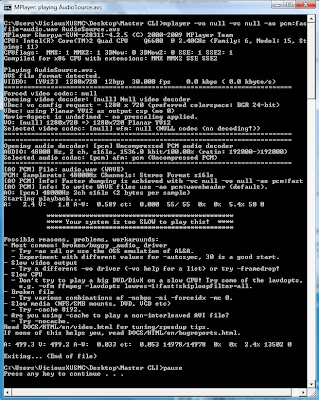
I did try your code for mplayer to demux the audio but not sure if its working right. Instead of being a two second affair it seems like its playing the file in the background and just recording the wave at its own leisure (so its going to take 8 minutes to do instead of 2 seconds) also I got an "error"
Your computer is too slow to play this file!!!
Command I used:
The .avs file is just adding the two FRAPS clips together
I'll take a picture of the command window here in a second when it is finished so you can see what its doing.
I wonder what the difference is from "demux audio" and "send wav" they both produced the same file but demux audio only did not give it a file type header.
I found out the hard way what happens if you forget to change the resoltuion for the raw input from avs2yuv. I had to drop my res down to 1280x720 to have a good frame rate in Crysis while recording and while x264 knew the file was 720p it still made some kind of 1080p file and it was not pretty, not to mention took forever to encode.
I tested muxing a .M4A file for audio into the final .MP4 container instead of extracting the raw AAC track out and it seems to have worked fine.
I did try your code for mplayer to demux the audio but not sure if its working right. Instead of being a two second affair it seems like its playing the file in the background and just recording the wave at its own leisure (so its going to take 8 minutes to do instead of 2 seconds) also I got an "error"
Your computer is too slow to play this file!!!
Command I used:
Code: Select all
mplayer -vo null -vc null -ao pcm:fast:file=audio.wav AudioSource.avs The .avs file is just adding the two FRAPS clips together
Code: Select all
AVISource("C:UsersViciousXUSMCDesktopMaster CLICrysis1.avi","C:UsersViciousXUSMCDesktopMaster CLICrysis2.avi",Audio=True)I'll take a picture of the command window here in a second when it is finished so you can see what its doing.
Guide: YouTube HD 720P Videos
Can't you dump frames with an in-game method with Crysis? I know there are a ton of Crysis videos online that are super smooth because they dump the frames in-game. I think you might have to use the editor but I'm not sure.
Widescreen Fixer - https://www.widescreenfixer.org/
Widescreen Fixer Twitter - https://twitter.com/widescreenfixer
Personal Twitter - https://twitter.com/davidrudie
Widescreen Fixer Twitter - https://twitter.com/widescreenfixer
Personal Twitter - https://twitter.com/davidrudie
-
ViciousXUSMC
- Editors
- Posts: 1497
- Joined: 31 Jul 2006, 14:58
Guide: YouTube HD 720P Videos
Can't you dump frames with an in-game method with Crysis? I know there are a ton of Crysis videos online that are super smooth because they dump the frames in-game. I think you might have to use the editor but I'm not sure.
Probably, but I just like FRAPS & Forget method :P
On a revisit of the game I may go take the time to find a way to dump frames of a time demo.
Who is online
Users browsing this forum: No registered users and 1 guest