1.Start AC:4 Black Flag , enter any sequence , just to be in game 2. ALT TAB and get back to dekstop without quitting the game 3. Click Right Mouse Button on the desktop and choose Nvidia Control Panel 4. There go to the DISPLAY section and choose "Match size and desktop position" (position 6 from the top of DISPLAY section) 5. In first Tab choose Scaling , then FULLSCREEN then set desired resolution at "preview" below to 1920x1080 6. Now switch to the second Tab named " Size" and choose "Enable dekstop size changer" (or something like that i don't have english drivers right now) 7. You will see BIG green arrows in the corner of the screen, press both slider to the max to reach 1920x1200 settings (or more if you are using higher res) , then choose OK, 8. Click Use or OK or Apply in main Nvidia Settings Window, close it and back into game.
1.Start AC:4 Black Flag , enter any sequence , just to be in game 2. ALT TAB and get back to dekstop without quitting the game 3. Click Right Mouse Button on the desktop and choose Nvidia Control Panel 4. There go to the DISPLAY section and choose "Match size and desktop position" (position 6 from the top of DISPLAY section) 5. In first Tab choose Scaling , then FULLSCREEN then set desired resolution at "preview" below to 1920x1080 6. Now switch to the second Tab named " Size" and choose "Enable dekstop size changer" (or something like that i don't have english drivers right now) 7. You will see BIG green arrows in the corner of the screen, press both slider to the max to reach 1920x1200 settings (or more if you are using higher res) , then choose OK, 8. Click Use or OK or Apply in main Nvidia Settings Window, close it and back into game.
It looks like the eyefinity/surround support is really just a hack and not true resolution independence. If the resolution is anything but a standard one, it seems to force a 16:3 (3x 1920x1080 eyefinity/surround) aspect.
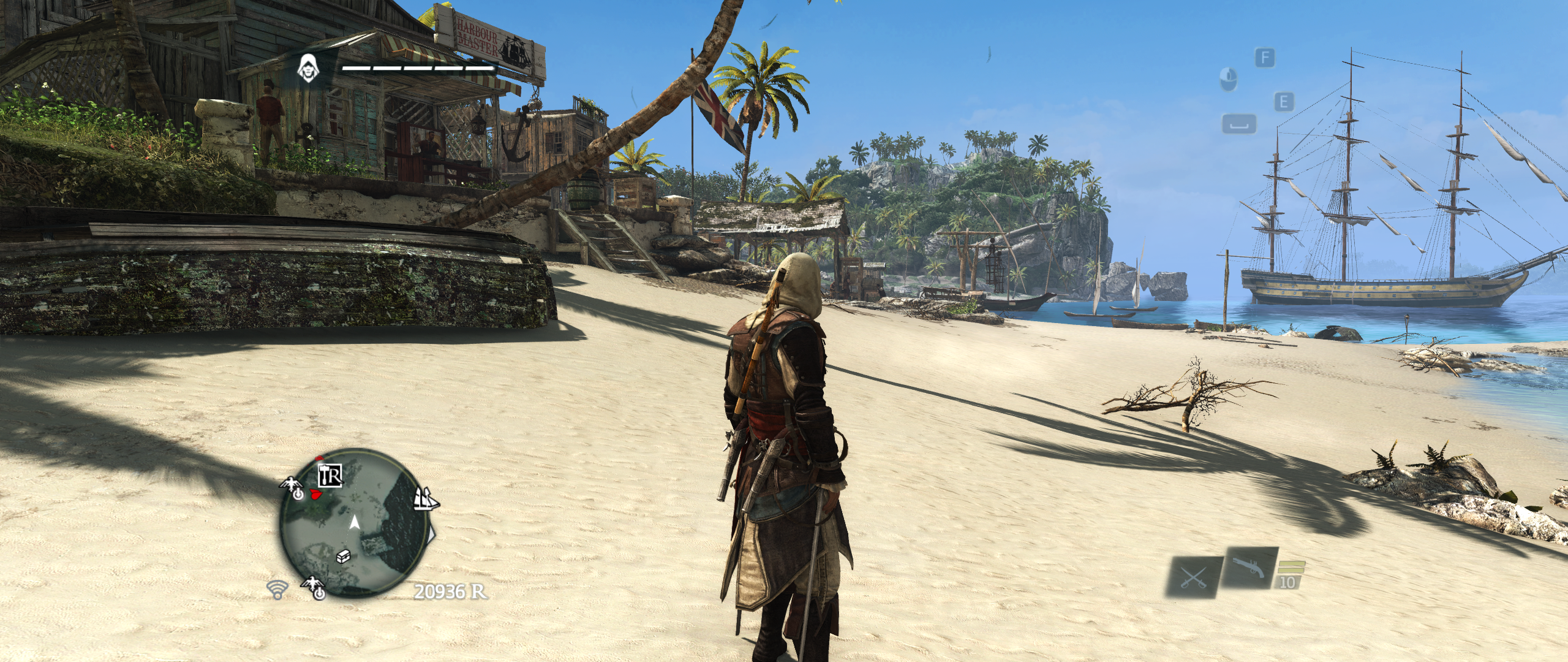
That means at 2560x1080 the game is completely unplayable since the active game area is a tiny square in the middle of the screen and half or more of the screen is blacked out. Screenshot attached.
1.Start AC:4 Black Flag , enter any sequence , just to be in game 2. ALT TAB and get back to dekstop without quitting the game 3. Click Right Mouse Button on the desktop and choose Nvidia Control Panel 4. There go to the DISPLAY section and choose "Match size and desktop position" (position 6 from the top of DISPLAY section) 5. In first Tab choose Scaling , then FULLSCREEN then set desired resolution at "preview" below to 1920x1080 6. Now switch to the second Tab named " Size" and choose "Enable dekstop size changer" (or something like that i don't have english drivers right now) 7. You will see BIG green arrows in the corner of the screen, press both slider to the max to reach 1920x1200 settings (or more if you are using higher res) , then choose OK, 8. Click Use or OK or Apply in main Nvidia Settings Window, close it and back into game.
Is this true?
That just stretches the 1080 image vertically to take the entire 1200 space. It's a silly solution and most monitors can do it using the OSD
It looks like the eyefinity/surround support is really just a hack and not true resolution independence. If the resolution is anything but a standard one, it seems to force a 16:3 (3x 1920x1080 eyefinity/surround) aspect.
That means at 2560x1080 the game is completely unplayable since the active game area is a tiny square in the middle of the screen and half or more of the screen is blacked out. Screenshot attached.
I hope they patch it, it's disgusting
Can try this one - Files available from https://community.pcgamingwiki.com/files (search there)
Last edited by jackfuste on 20 Jul 2015, 11:11, edited 2 times in total.
Amazing stuff.. I have my peripheral vision again!
What sort of tools do you use to find where they've fixed the aspect? Using a binary compare doesn't seem to say anything noteworthy in ASCII (maybe it's compressed)
First of all I would like to give my extreme thanks for the person responsible for this patched EXE, it worked wondering with my 21:9 setup. However with the recent Assassins Creed 4 patch that includes the new PhysX addition, using the patched EXE does not allow you to use PhysX. I assume its because the patch was applied on an OLDER EXE file which does not include the additions for PhysX. So would it be possible to apply the same patch of a more recent EXE?
Can you please make a fix for 5760x2160,7680x1600 and 7680x3200? I have blackbars on left and right side of screen and this 21:9 fix really helps but there are still an area of blackbars.
Thanks in advance
Last edited by zesker on 01 Jan 2014, 15:04, edited 1 time in total.
zesker wrote:Can you please make a fix for 5760x2160,7680x1600 and 7680x3200? I have blackbars on left and right side of screen and this 21:9 fix really helps but there are still an area of blackbars. Thanks in advance
5760x2160 - Files available from https://community.pcgamingwiki.com/files (search there) 7680x3200 - Files available from https://community.pcgamingwiki.com/files (search there) For 7680x1600 try 16:10 fix.
Last edited by jackfuste on 20 Jul 2015, 11:05, edited 1 time in total.