


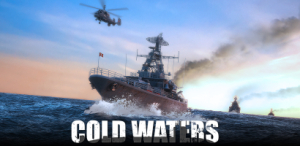


Inspired by the 1988 classic “Red Storm Rising”, command a nuclear submarine in a desperate attempt to prevent “mutually assured destruction” when the Cold War gets hot and WWIII begins.
You will be tasked with intercepting convoys, amphibious landings, insertion missions and battling it out with enemy warships, submarines and aircraft. Thankfully, an arsenal of wire-guided torpedoes, anti-ship and cruise missiles and the occasional SEAL team are on board to keep the Iron Curtain at bay.
Support Summary
Game Information
Screenshots Comparison
Solutions & Issues
Native support: Hor+
FOV: all gameplay cameras have extensive zoom range, but you may want to zoom in closer to torpedoes and missiles.
From the install folder navigate to Cold Waters\ColdWaters_Data\StreamingAssets\default\hud and open default.txt, look for the line
MainCameraFieldOfView=30
Change value to 20 or lower for extreme close-ups.
Tech: Unity
Display settings are stored in %USERPROFILE%\AppData\LocalLow\Killerfish Games\Cold Waters\options.txt
Native support: Hor+
Native support: Hor+
Configurable HUD: Cold Waters\ColdWaters_Data\StreamingAssets\default\hud\default.txt
Under [HUD LAYOUT] there are basically 7 lines to modify:
BottomLeftPanelPos=
BottomRightPanelPos=
UpperRightStatusIcons=
UpperRightTacMapZoomReadoutPos=
UpperRightPeriscopeZoomReadoutPos=
UpperRightRecognitionManual=
UpperLeftPeriscopeESMPos=
The first 0 on each line is the horizontal position of the panel in pixels. To center the HUD on a 7680x1440 display, each Left panel must be positioned at 2560 and each Right panel at -2560. Don't forget to account for bezel compensation or custom UI Scale (divide screen size by UI scale to get the correct positions).
Status Report and tutorial panel scale to the right and cannot be centered.
Underwater Particles are very large, can be disabled from the Video options menu.
Native support.
UI Scale: 1x-1.7x in-game, no upper limit in options.txt
hud size=0 in the file is UI Scale 1x in-game
hud size=14 is UI Scale 1.7x
hud size=20 is 2x etc.
Gameplay Screenshots


FMV Cutscenes


Menu Screenshots


4K UHD Screenshots


Additional Screenshots


