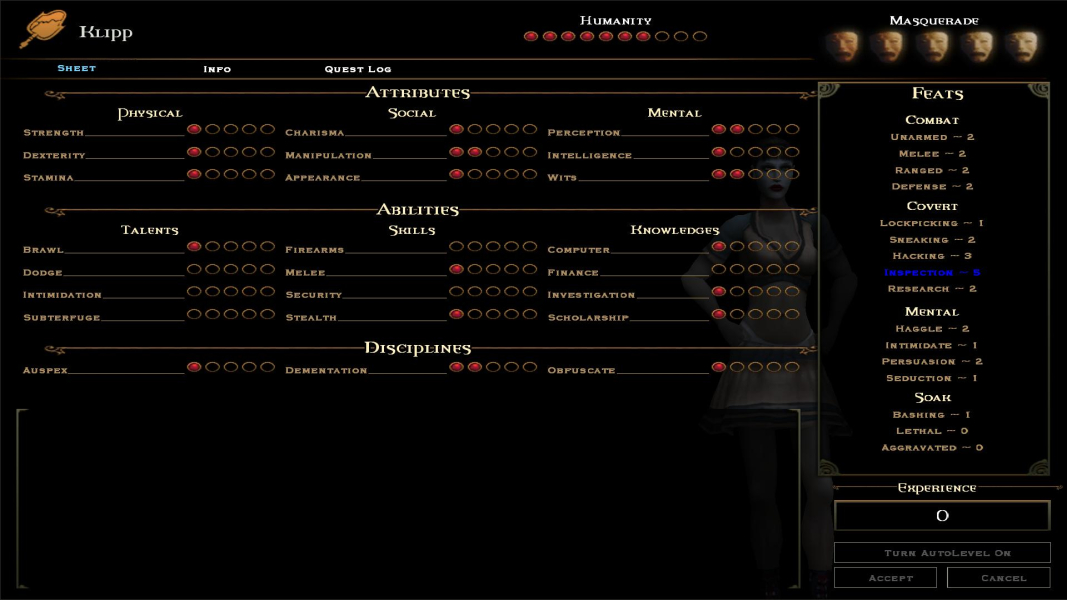
Starting out as a recently sired vamp-baby, you get to make your way around the LA area looking for some meaning to your now pointless existence. While you are dragging your undead behind throughout the city you may also get lucky and avert the vampire Apocalypse. Or not. It's your call bloodsucker. Lead your character in first or third-person perspectives as you stalk the streets, feed on some hookers, and chat up the normals. You have several vampire clans to choose from which will determine your characters abilities and tendencies. Skill points can be assigned for character development allowing you to become such wonderful things as a gun-toting psychopath or a perky chatterbox. Or both. Just remember that you have to retain some shred of your tattered beliefs in humanity or you won't amount to undead crap. Will you be the nice hero that can sleep at day? Or give in to the voracious beast that festers within your dead flesh? Remember to floss.
Support Summary
Game Information
Screenshots Comparison
Solutions & Issues
No native support. There is a resolution patcher located below that will allow you to use custom widescreen resolutions for Bloodlines. If the patcher works skip down to Method Section #2 for the rest of the solution. If you cannot find or cannot get the patcher to work the manual solution is listed below.
----------
Resolution tweak posted by pirapira at the Planet Vampire Forums.
We need to open up the "engine.dll" file with a HEX editor. The file is located in the "Bin" folder that is in the root game directory. We are going to search for the following HEX values. Take a chunk and search for it. You do not have to select everything just make sure there is only one found instance in the HEX value search.
80 02 00 00 E0 01 00 00 20 03 00 00 58 02 00 00 00 04 00 00 00 03 00 00 00 05 00 00 00 04 00 00 40 06 00 00 B0 04 00 00
Now look at this..
80 02 00 00 E0 01 00 00 20 03 00 00 58 02 00 00 00 04 00 00 00 03 00 00 00 05 00 00 00 04 00 00 40 06 00 00 B0 04 00 00
The bolded values are the selectable in game resolutions that appear in the dropdown options menu. They are read in pairs of two. The first value is horizontal and the second is vertical. We are going to change one of these values to our desired widescreen resolution. Do not use the first pair they do not appear in game.
BACK UP THE FILE FIRST!
As always we need to flip flop the four hexadecimal digits before we enter them into the file. For example..
1200 in hexadecimal is 04B0...
We flip flop and get B004...
We enter B0 04 as our HEX value.
Look at the last bolded pair in the file...
40 06
B0 04
1600x1200 HEX Values
From the example above we know that B0 04 is actually 04B0 which is 1200, our horizontal value. 40 06 is actually 0640 which is 1600 in hexadecimal. This last bolded pair is the 1600x1200 resolution. You can change these values or use another bolded pair. I recommend using the last pair as it is easiest to find and troubleshoot.
I want to use the widescreen resolution 1920x1200. Looking at the last bolded pair I only need to change the horizontal resolution. The hexadecimal value of 1920 is 0780. I need to flip flop this value and get 80 07. This is what I will enter in place of the original 40 06.
--------------------
Section #2
The resolution has been changed. Now go in game and the resolution will be listed in the dropdown menu. Select the resolution and then exit and the game. Now right-click on the shortcut that launches the Vampire game executable and select properties. Look in the "Documents and Settings" folder if you cannot locate the shortcut.
In the target box we are going to add the "-console" option to the end of the target location. We will need the in game console later. Load up the game.
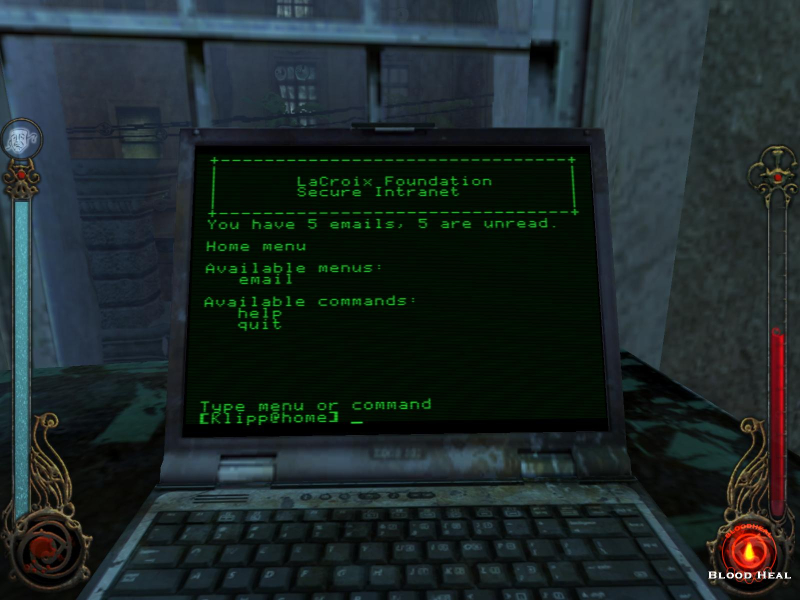
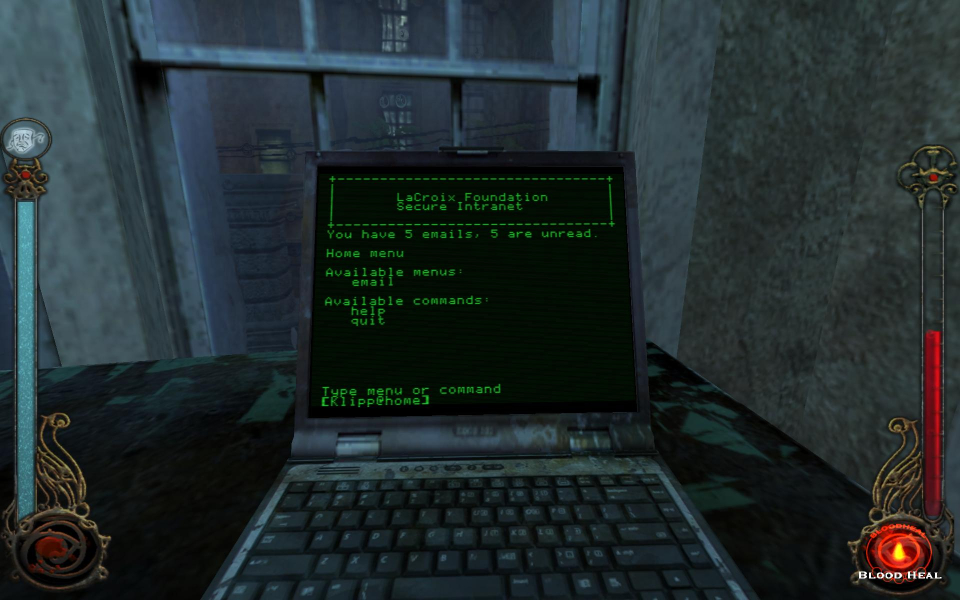
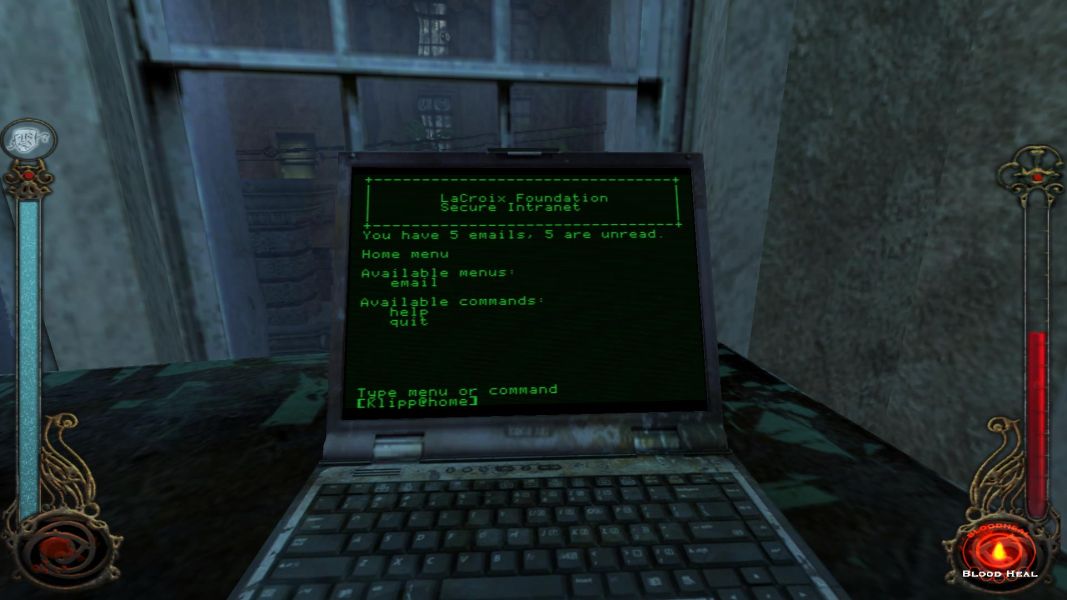
You should now have a working widescreen resolution in game. But you may have noticed some problems. Everything is stretched. Things are transparent on the edges of the screen. We can fix these problems. Do this when you have control of your character so you can see what is happening. Press the tilde key to bring up the console. We are going to type "r_anamorphic 1" to enable anamorphic display mode. Now type "FOV 69" to offset the anamorphic zoom.
The anamorphic switch is global and needs to be changed only once. The FOV switch needs to be changed with every new game. Once you have saved a game with the FOV switch you can load it up and the FOV will remained changed. Congrats.
For 21:9 you have to change the Aspect Ratio via Hex Edit:
Open the file engine.dll in the BIN Folder with a Hex Editor and search for this Value: 39 8E E3 3F and change it to: B8 1E 15 40
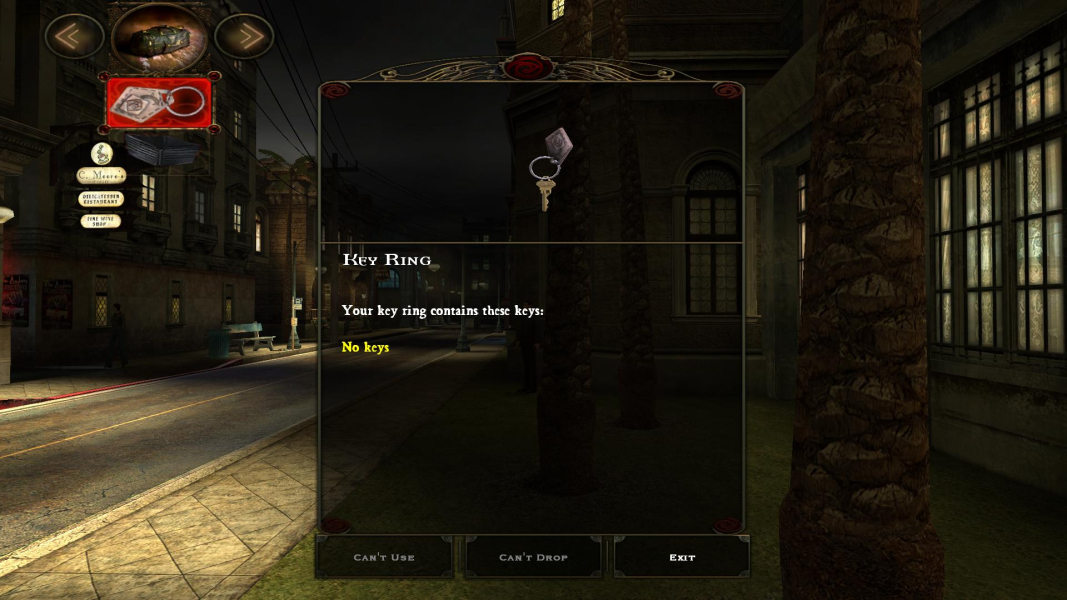
Gameplay Screenshots



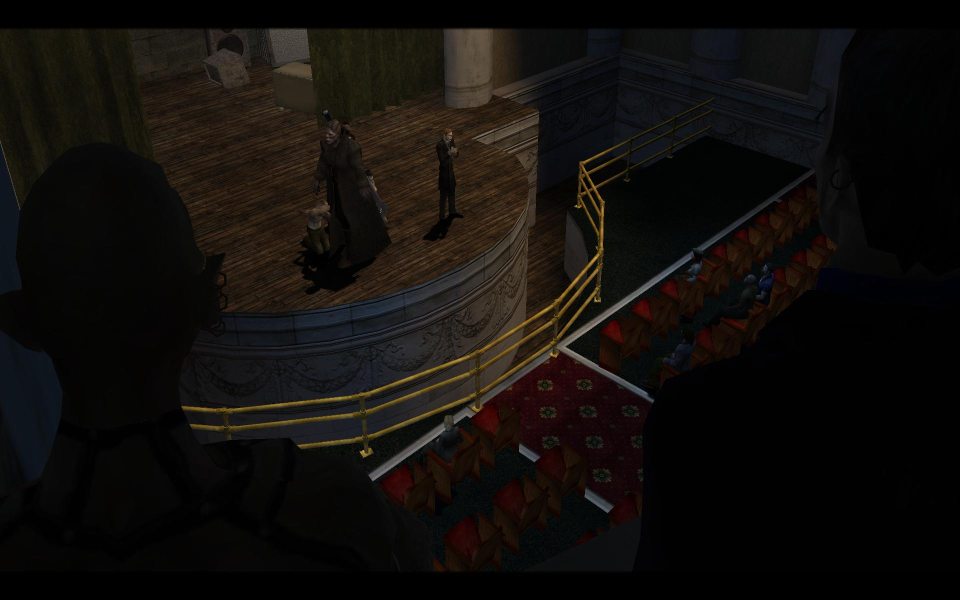
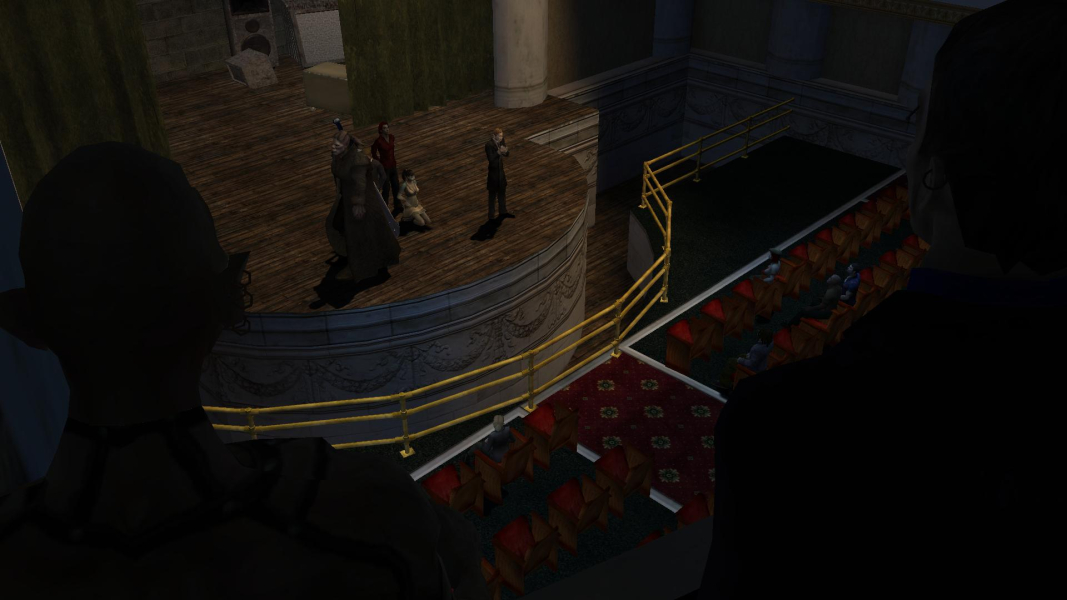
FMV Cutscenes

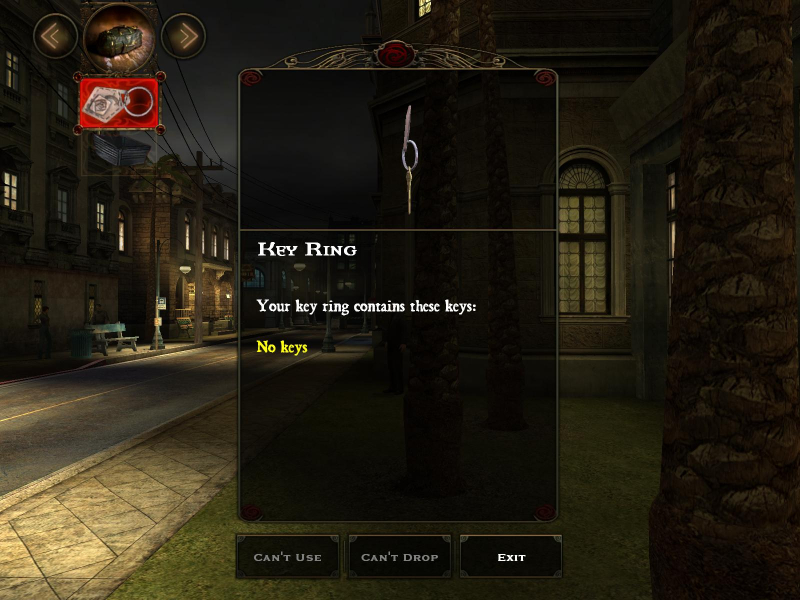
Menu Screenshots

Additional Screenshots