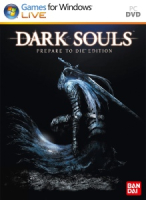


The unexpected surprise hit and GameSpot's Best of 2009 - Game of the Year Winner Demon’s Souls now has its spiritual successor in Dark Souls. This once-in-a-generation game will take you through an experience so challenging, so punishing and yet so intensely gratifying that it will leave you anguished for wanting more. Set in a rich, dark fantasy world, experience tense dungeon crawling, fearsome enemy encounters and groundbreaking online features for a truly unforgettable gaming experience.
Support Summary
Widescreen | Ultra/Super‑Wide | Multi-Monitor | 4K Ultra HD | |
Support | ||||
Method | ||||
HUD | ||||
Cutscenes | ||||
FMVs |
Game Information
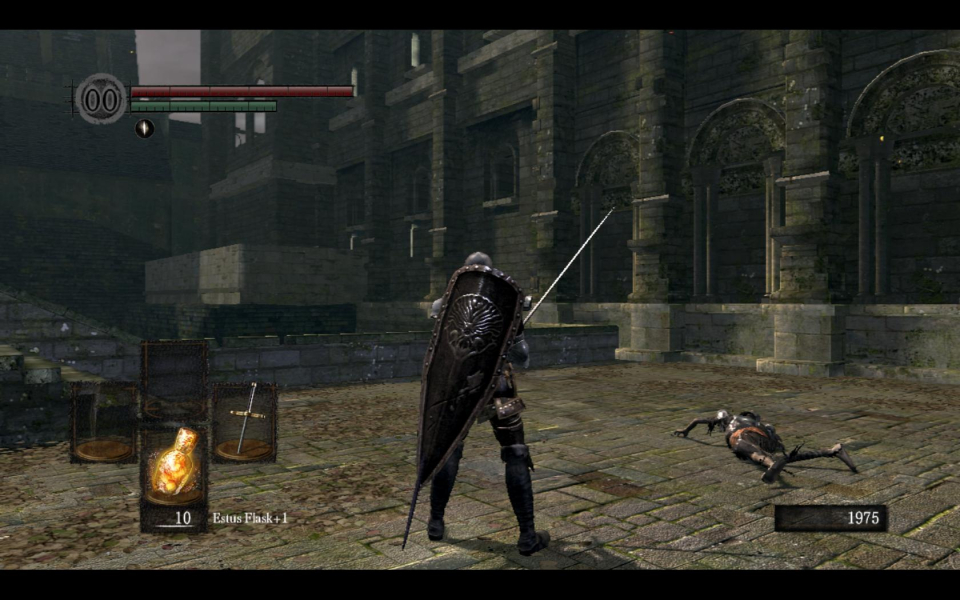
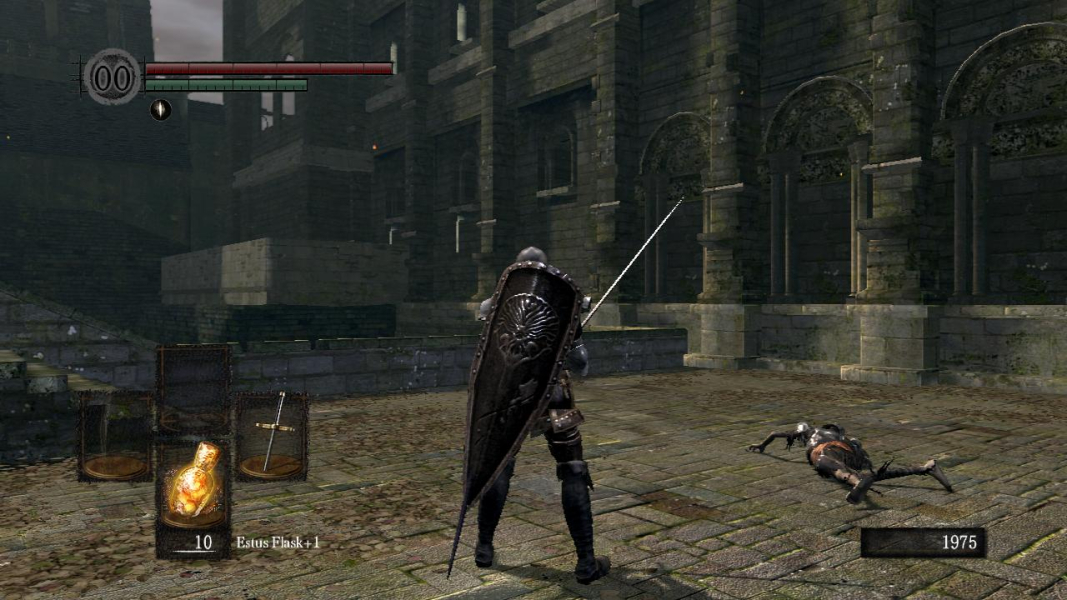
Screenshots Comparison
Solutions & Issues
The game does support all widescreen resolutions. But the renderer is locked at 1280 x 720 ( not 1024 as you can find all around internet). This means that even for a 1920x1080 resolution the actual rendered resolution is still 1280x720 but scaled up to fit in 1920x1080. This result in very bad details and a software zoom in effect.
However, Durante managed to fix this with a DirectX wrapper, DSfix. THIS IS A MUST for all players to actually select and use the resolution you chose ingame.
All the information can be found here:Durante's Widescreen mod
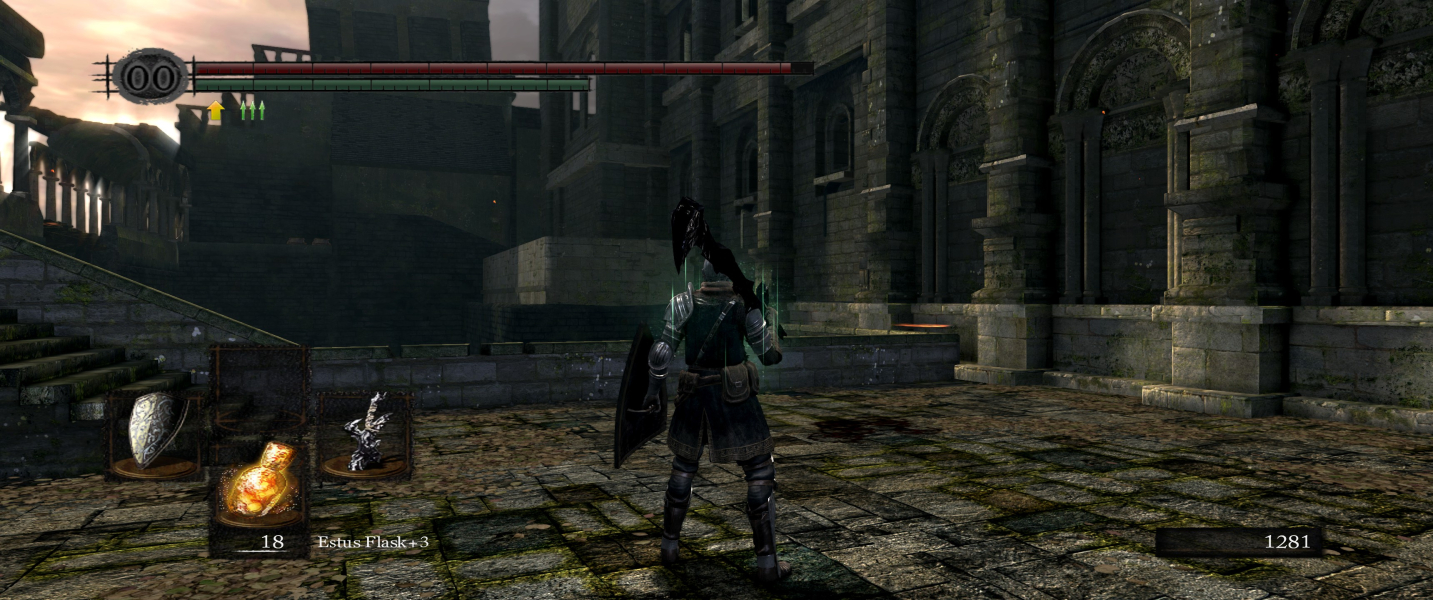
21:9 support can be obtained by using Widescreen Fixer. DSFix is required also. In DSFix, set your game resolution to the resolution of your monitor and make sure that Dark Souls is set to fullscreen in the game options and that "borderlessFullscreen 0" is set.
Once you have those settings properly set, make sure you have the beta update enabled on Steam. You can do this by right clicking Dark Souls, then going to properties. In the properties window click on the betas window and select Steam Build 2.0.
In Widescreen Fixer, make sure you have placed the Dark Souls plugin in the Plugins folder before beginning. Open Widescreen Fixer, then select Dark Souls and click on the settings cog. Select the latest game version. Then disable "Automatically Detect Resolution" and set the proper display count and resolution. Both the uncorrected resolution and the bezel-corrected resolution should be the same.
Launch the game and it should be in 21:9. HUD will be stretched. If there is a way to fix the hud, this page will be updated to show how to do the fix.
Widescreen Fixer
Dark Souls Plugin - Scroll down to Dark Souls and download the plugin. You will most likely have to overwrite the plugin when you place it in the folder.
The game by default if a Surround/Eyefinity resolution is selected will display a black screen.
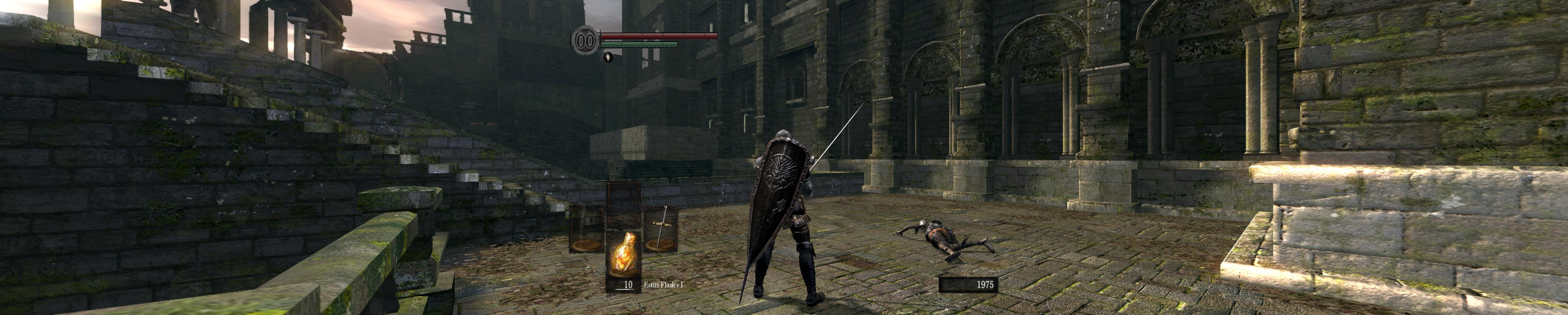
However, thanks to HaYDeN this is not the case anymore. He found out and enabled support for the game to display on any Eyefinity/Surround resolution.
Thanks to Helifax, the HUD and menus are now correctly centered on middle screen.
For these fixes please use:
Flawless Widescreen (Surround/Eyefinity resolutions are enabled, but hud is still stretched).
WideScreen Fixer(Surround/Eyefinity resolutions are enabled, and hud is correctly scaled).
Information on how to make Widescreen fixer + the plugin work can be found here: Information on requirements.
Gameplay Screenshots