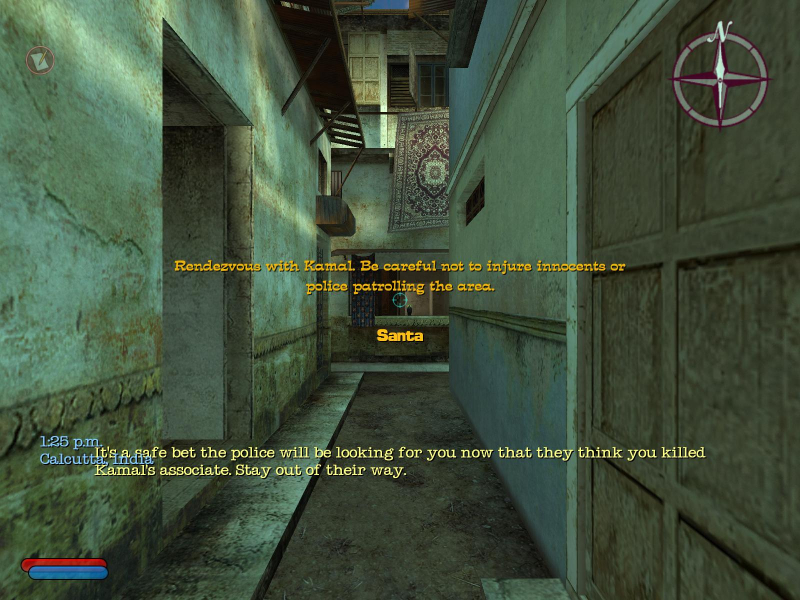
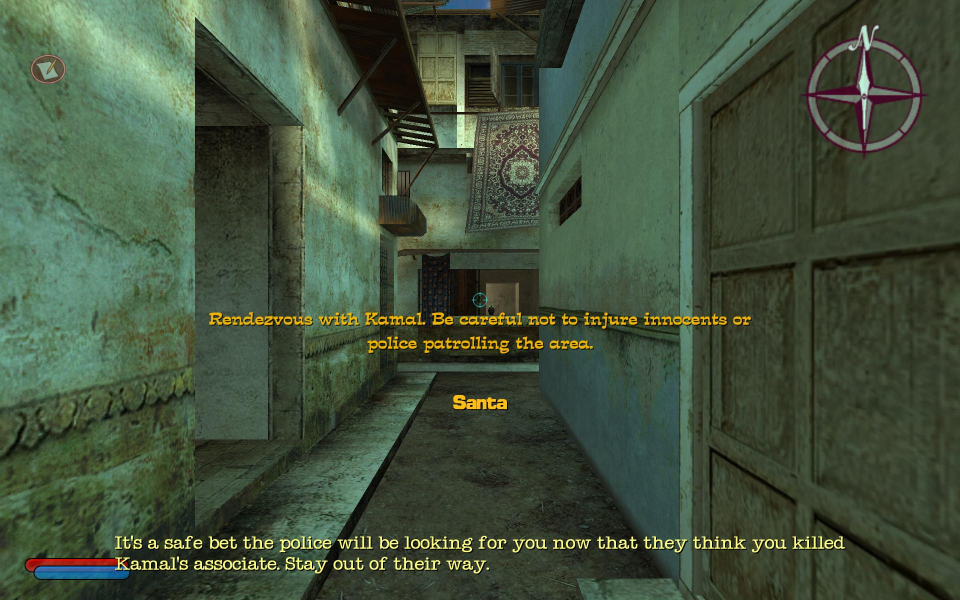
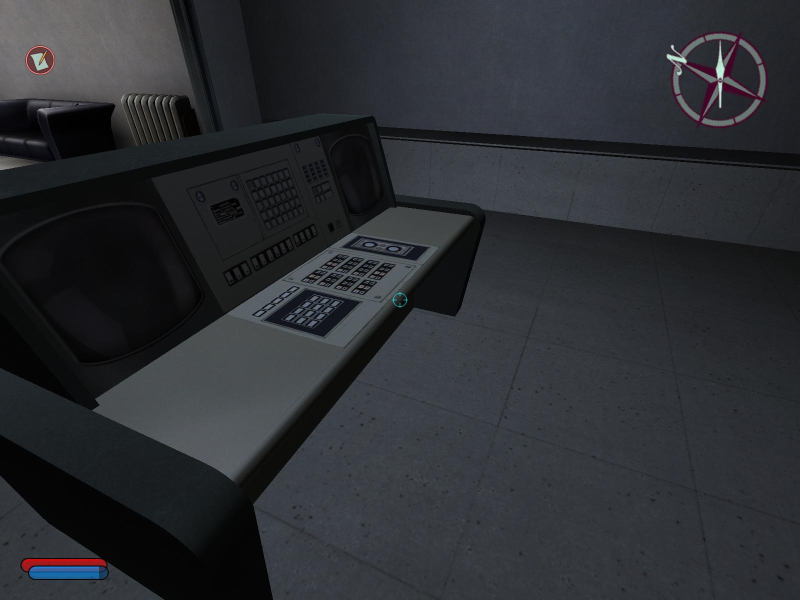
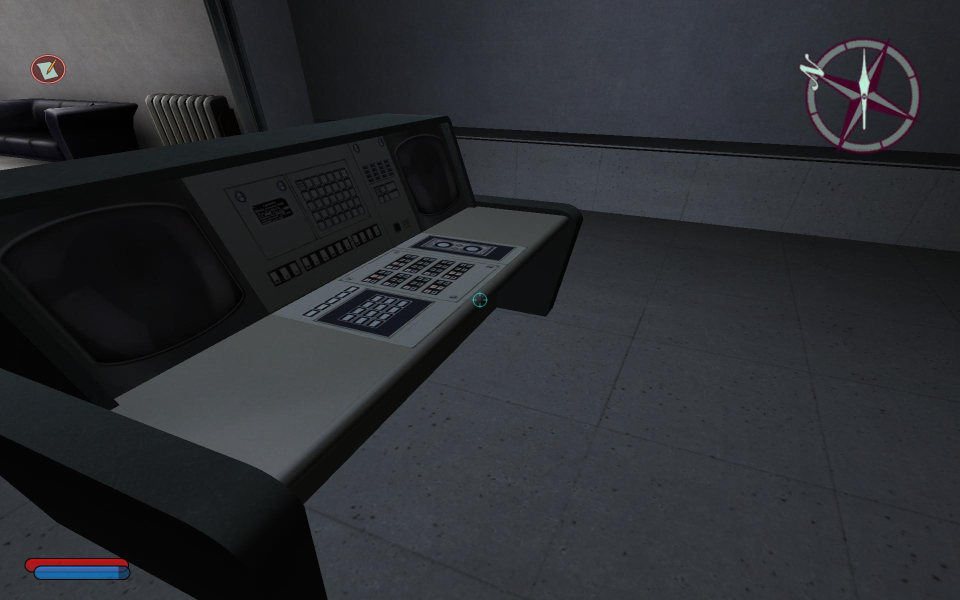
No One Lives Forever 2: A Spy in H.A.R.M.'s Way. NOLF2 was developed by Monolith Productions. You are Cate Archer, super-spy. Use stealth, wits, gadgets, and guns to meet your objectives. Don't muss the hair.
Support Summary
Game Information
Screenshots Comparison
Solutions & Issues
Instructions
1. Start the launcher and click on "Options"
2. Make sure that "Always pass command-line arguments to the game" is activated.
3. In the field under "Command-Line" add the following text:++screenwidth "Width" ++screenheight "Height" ++fovx "hFOV" ++fovy "vFOV" ++pvmodelaspect "Ratio" ++fovxinterface "IhFOV" ++fovyinterface "IvFOV"
4. click on "OK" and start the game.
Values
Width - the horizontal resolution of the screen
Height - the vertical resolution of the screen
hFOV - the horizontal FOV (default 90)
vFOV - the vertical FOV (default 78)
Ratio - the aspect ratio of the screen (default 1.333)
IhFOV - the vertical FOV in the menus, affecting the background and Kate in the main menu (default 75)
IvFOV - the vertical FOV in the menus, affecting the background and Kate in the main menu (default 90)
The FOV values can be calculated with the FOV Calculator, they are displayed as "new hFOV & vFOV" below the "Optional fields" box. The ratio is display as "Surround aspect ratio" below the "Required fields" box.
The vertical menu FOV should be around 75 or some texts won't line up with the background.
The horizontal menu FOV should not be set above 102 or the briefing text will be partially cut off on the left.
The aspect ratio will be reset whenever the display options are opened, but set again when the game is started.
Problems
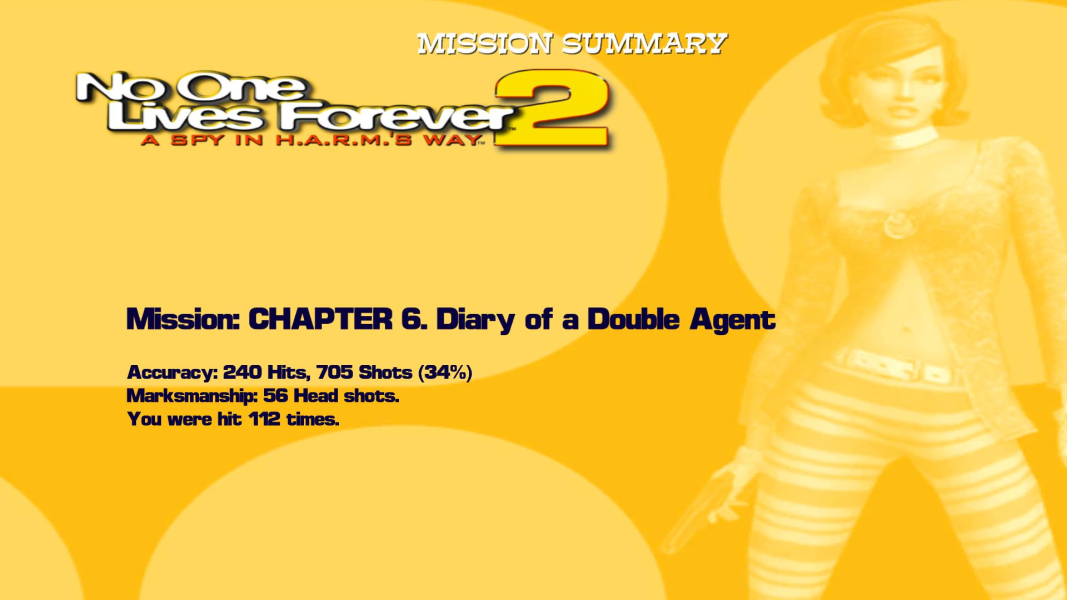
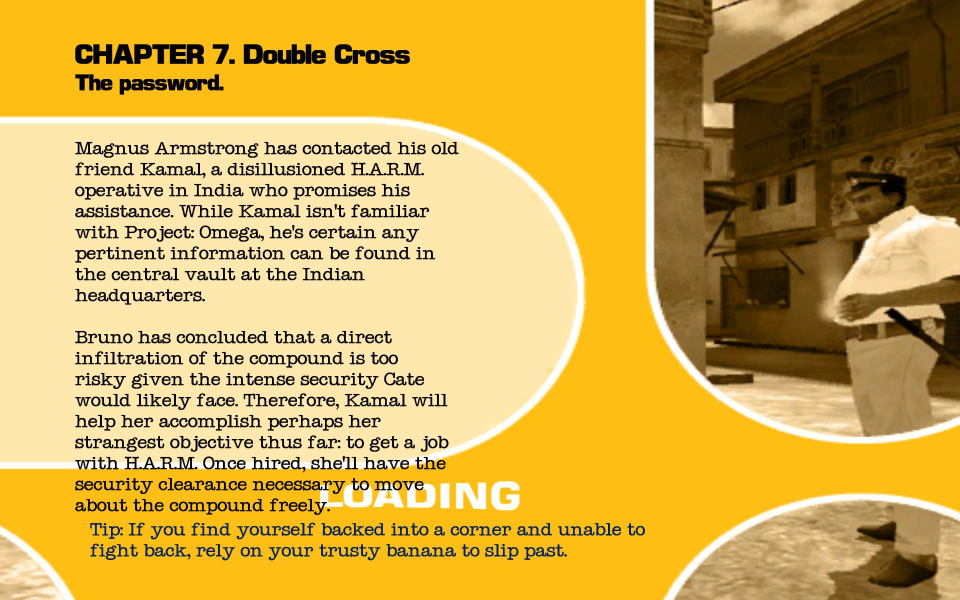
Some two-dimensional elements stretch in widescreen resolutions. Certain two-dimensional elements scale to a 4:3 aspect ratio and crop at the bottom of the screen.
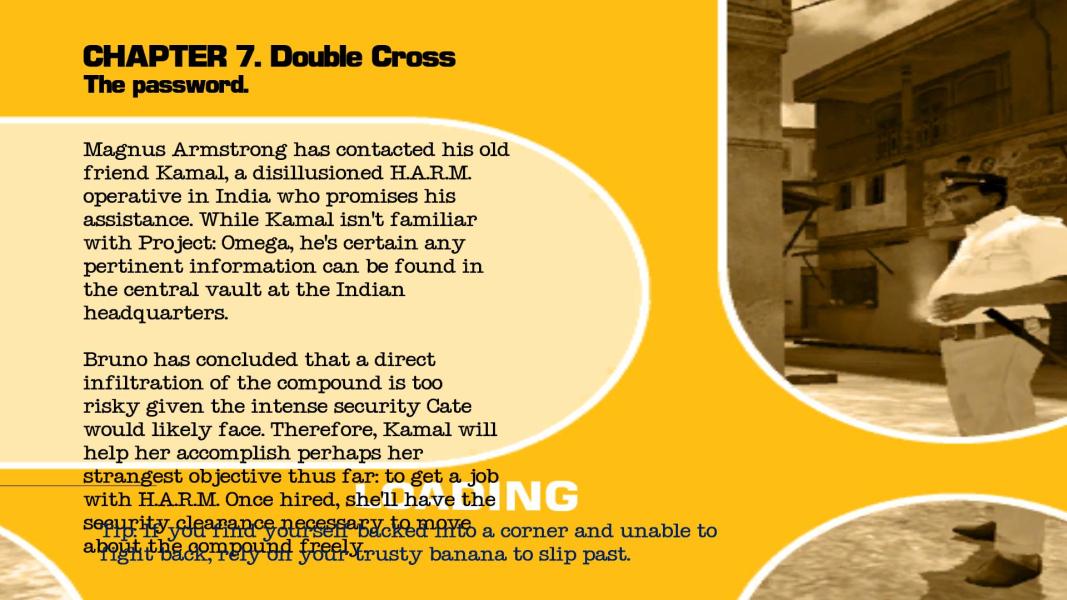
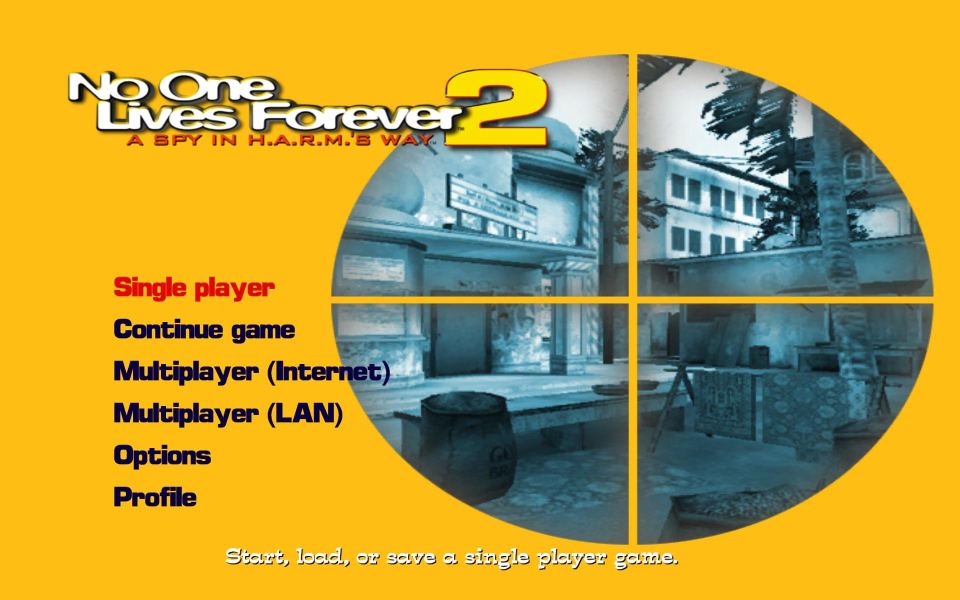
The main menu does not display the quit option in widescreen resolutions. The game can be exited by pressing "Alt-F4" or by quitting from the in-game menu. Certain text will overlap in widescreen resolutions.
The in-game menus do not stretch and have some cropping at the bottom of the screen in widescreen resolutions. There are slight text-alignment problems with the in-game menus in certain aspect ratios. In-game subtitles will crop in widescreen resolutions. The subtitles are unreadable in 16:9 aspect ratios.
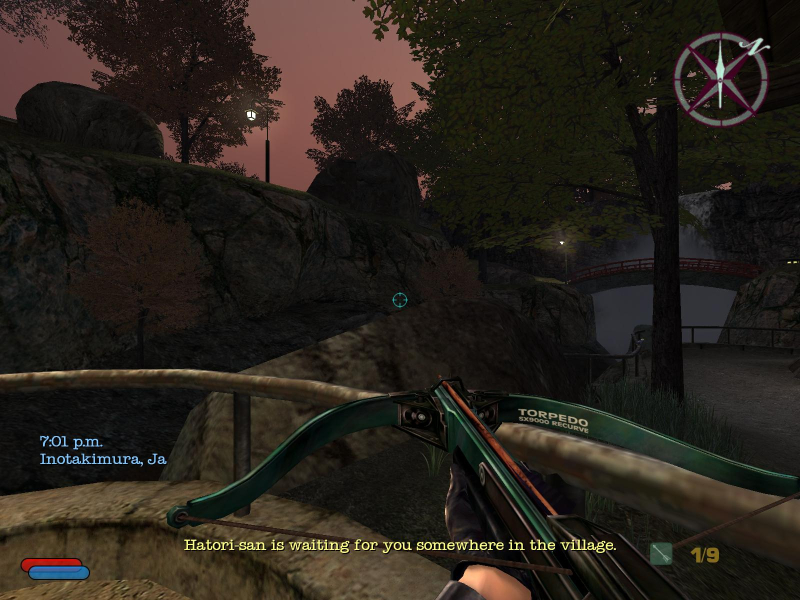
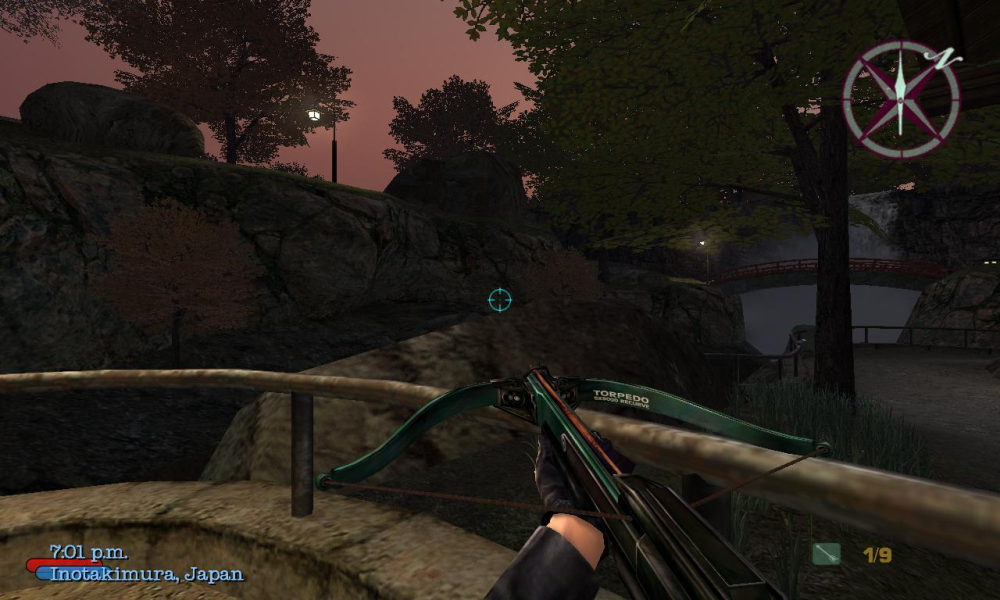
Gameplay Screenshots


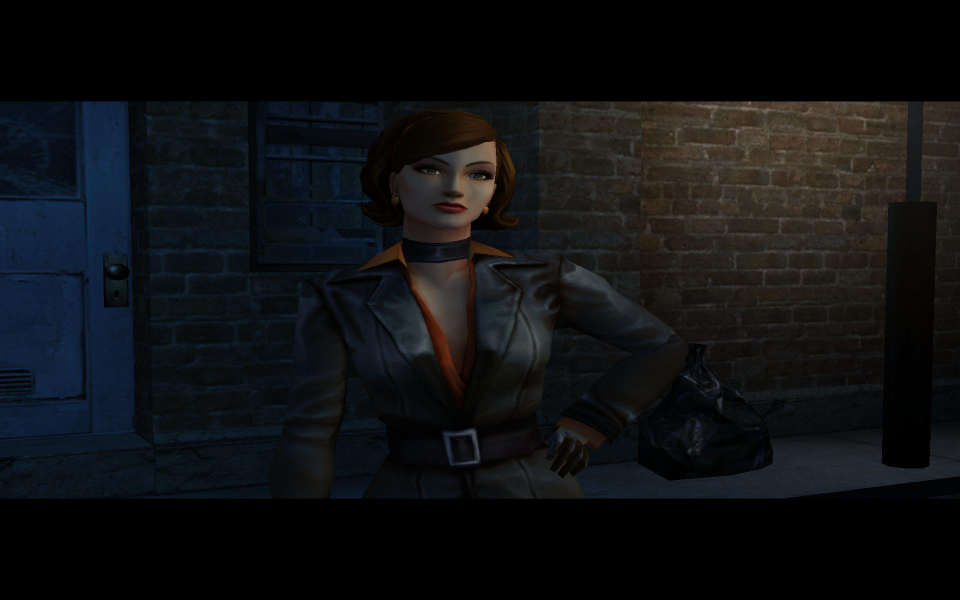
In-Game (Rendered) Cutscenes


Menu Screenshots

Additional Screenshots